
Customer tracking page
A private page per delivery: the expected window, the driver on a map when they're close, progress and proof of delivery — opened from the link in your messages.
A customer notification answers one question — is it on the way? The tracking page answers the next ones: when, where is the driver now, and was it delivered. Each stop gets its own private link, and the page keeps itself up to date while the customer has it open.
Turn it on
The page comes on with customer notifications: switching on Send delivery updates to customers under Settings → Customers → Customer notifications turns it on too (Customer notifications). It also has its own switch, at the top of Settings → Customers → Tracking page.
While the page is on, the link travels in every customer message by itself — you don't add anything to your messages:
- Email — a Track your delivery button.
- SMS — the link at the end of the text, after Track it: or Details:.
To put the link somewhere else in a message, use Insert Placeholder → Tracking link (Where the tracking link goes).
Each link is created when the first message goes out to that customer, is private to that stop, and can't be guessed. Stops without a contact get no message and therefore no link — see Customer notifications.
What the customer sees
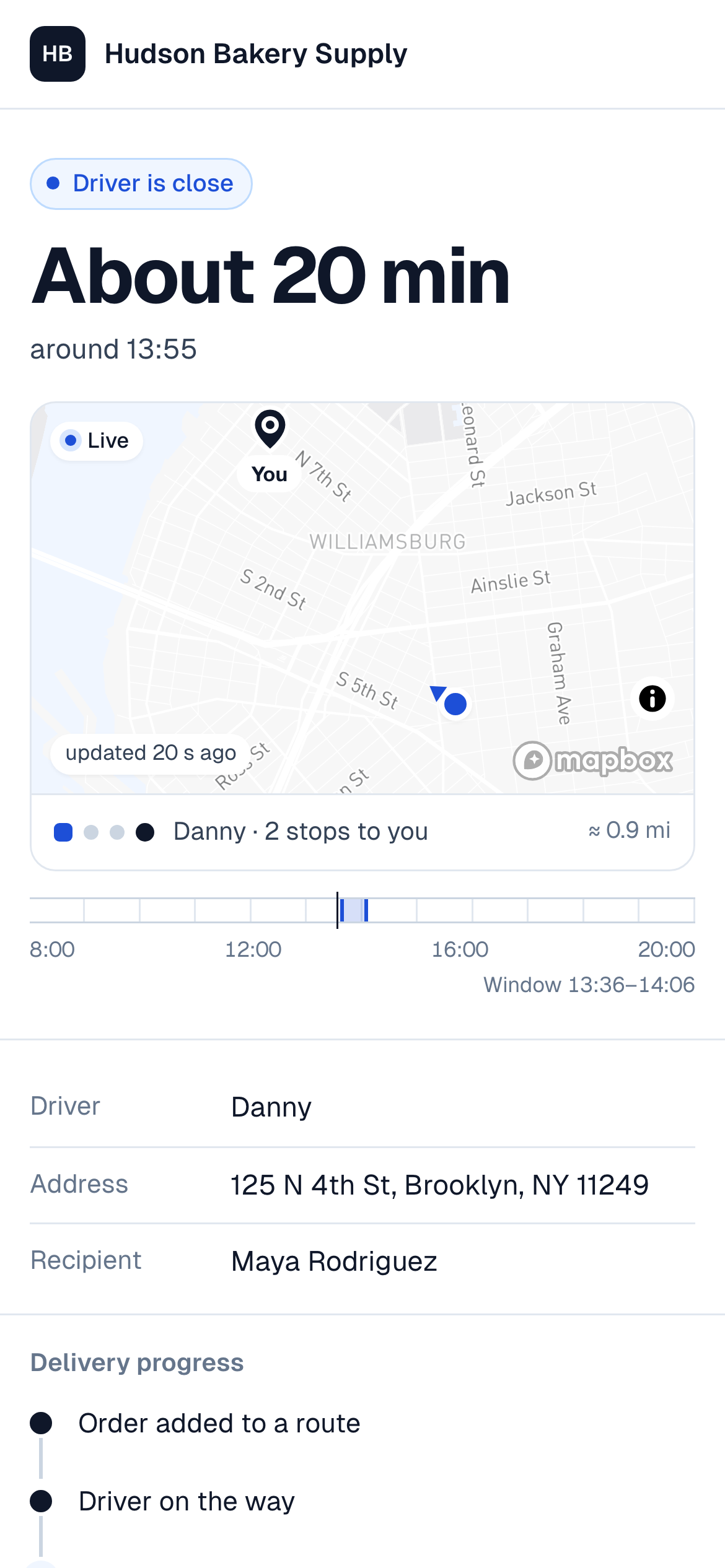
The page carries your team name, the order name, the delivery address and the recipient, the driver's first name, a Delivery progress timeline, and your support contact. What changes is the headline:
| Stage | Headline | What's behind it |
|---|---|---|
| Delivery scheduled | The delivery window | The planned arrival from the route plan, widened by the minutes you set under Timing. A time window saved on the stop is shown as-is. |
| Driver on the way | A narrower window, with a now marker on the day rule | The route has started; the estimate follows the plan, about half an hour wide. The page also says how many stops are before this one. |
| Driver is close | About 20 min, and a map | The driver is within your Counts as close threshold: their position and the customer's address on a map, the distance, and Danny · 2 stops to you. The estimate comes from the driver's live position and refreshes every 20 seconds. |
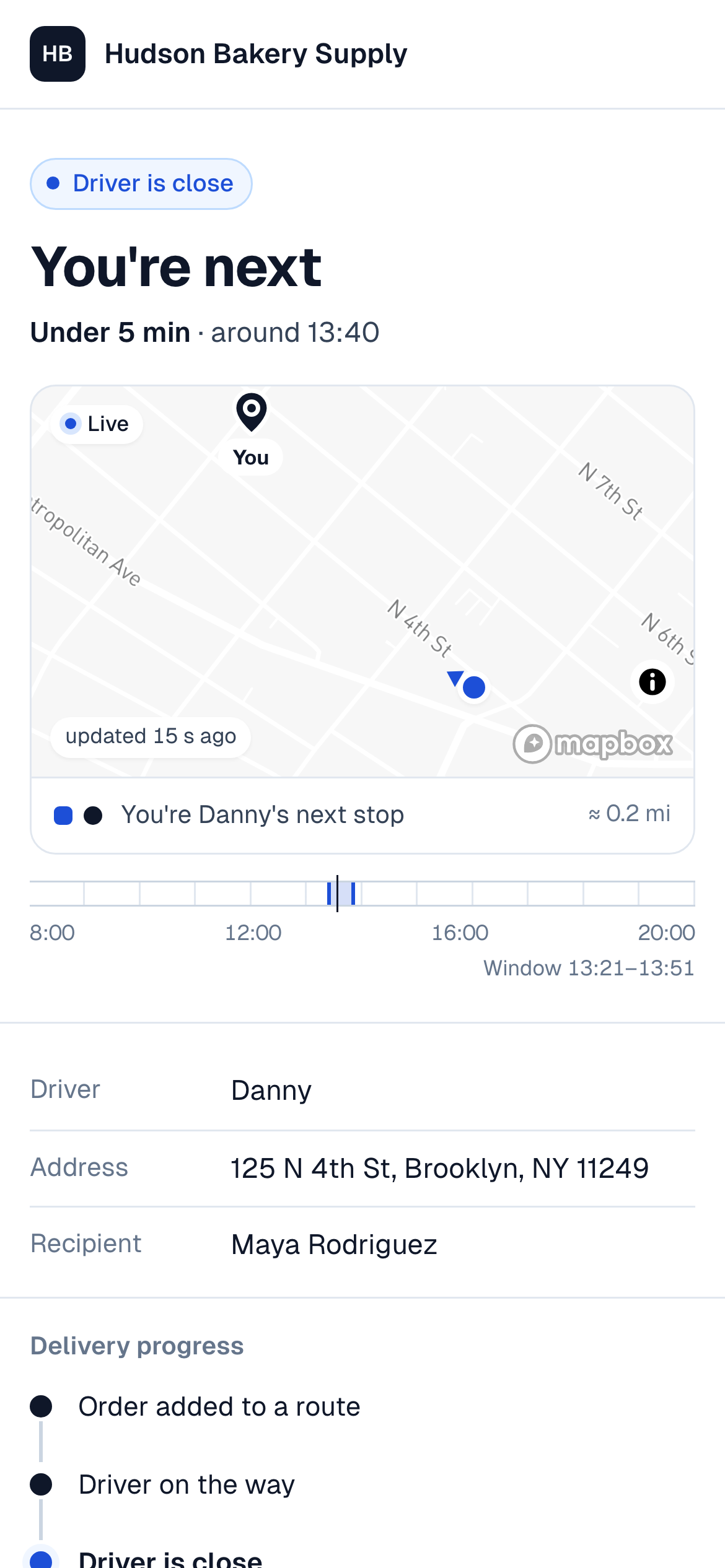
| You're next | You're next · Under 5 min | No stops left before this one. |
| Running behind | Running behind | The window has passed and the stop is still pending. The page says the driver is still on the way and keeps updating. |
| Delivered | The delivery time | Plus the photos the driver took and Signature received when there is one, if you allow photos on the page. |
| Not delivered | The reason, in customer words | We couldn't deliver — nobody was available, the address was closed, and so on — with The order went back to your team name and your contact to arrange a new delivery. |
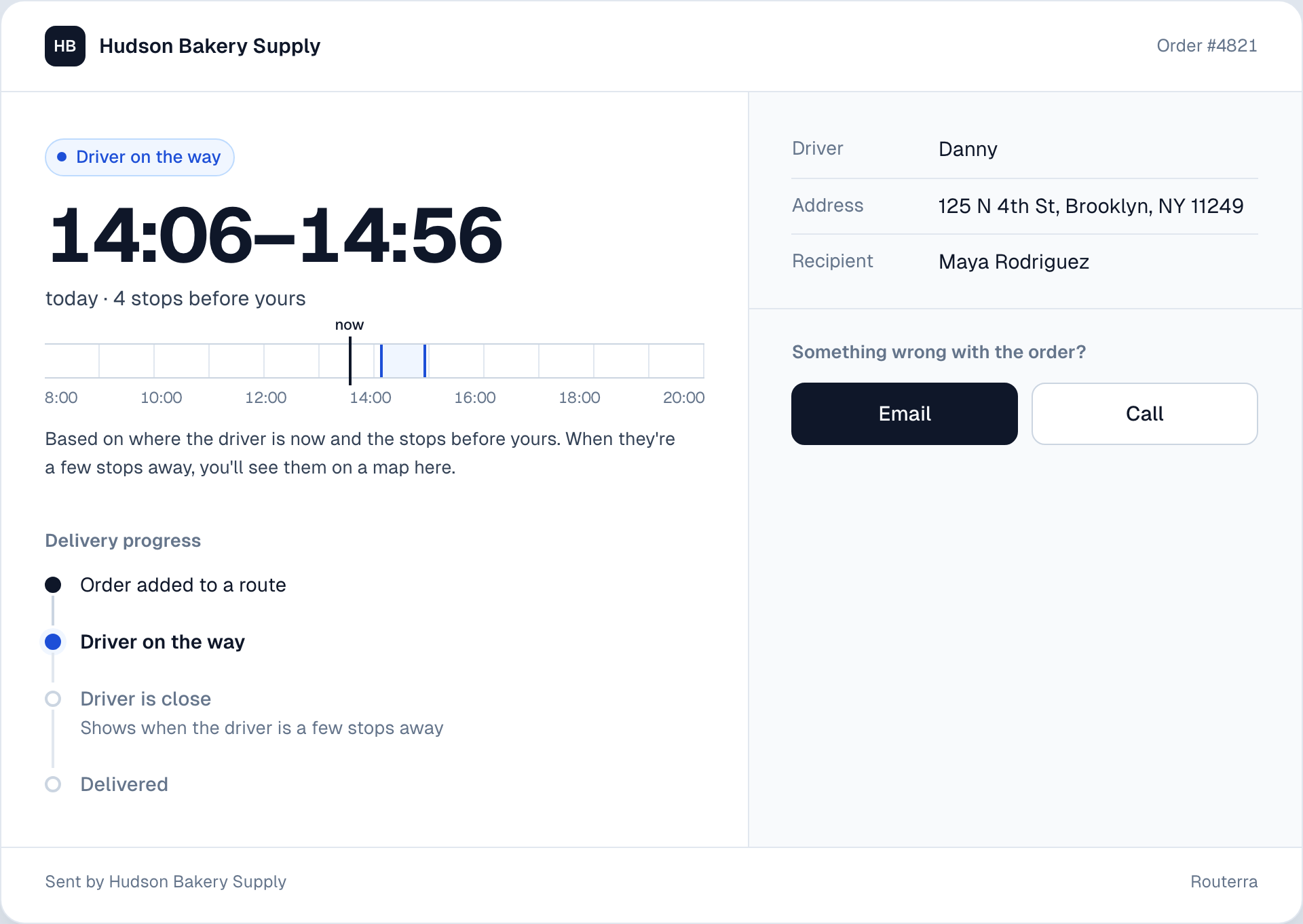
The day rule under the headline is the honesty device: a fixed 8:00–20:00 scale with the window as a band and now moving towards it, so the customer can see at a glance whether the driver is early, on time or late — in the route's own time zone, wherever the customer happens to be.
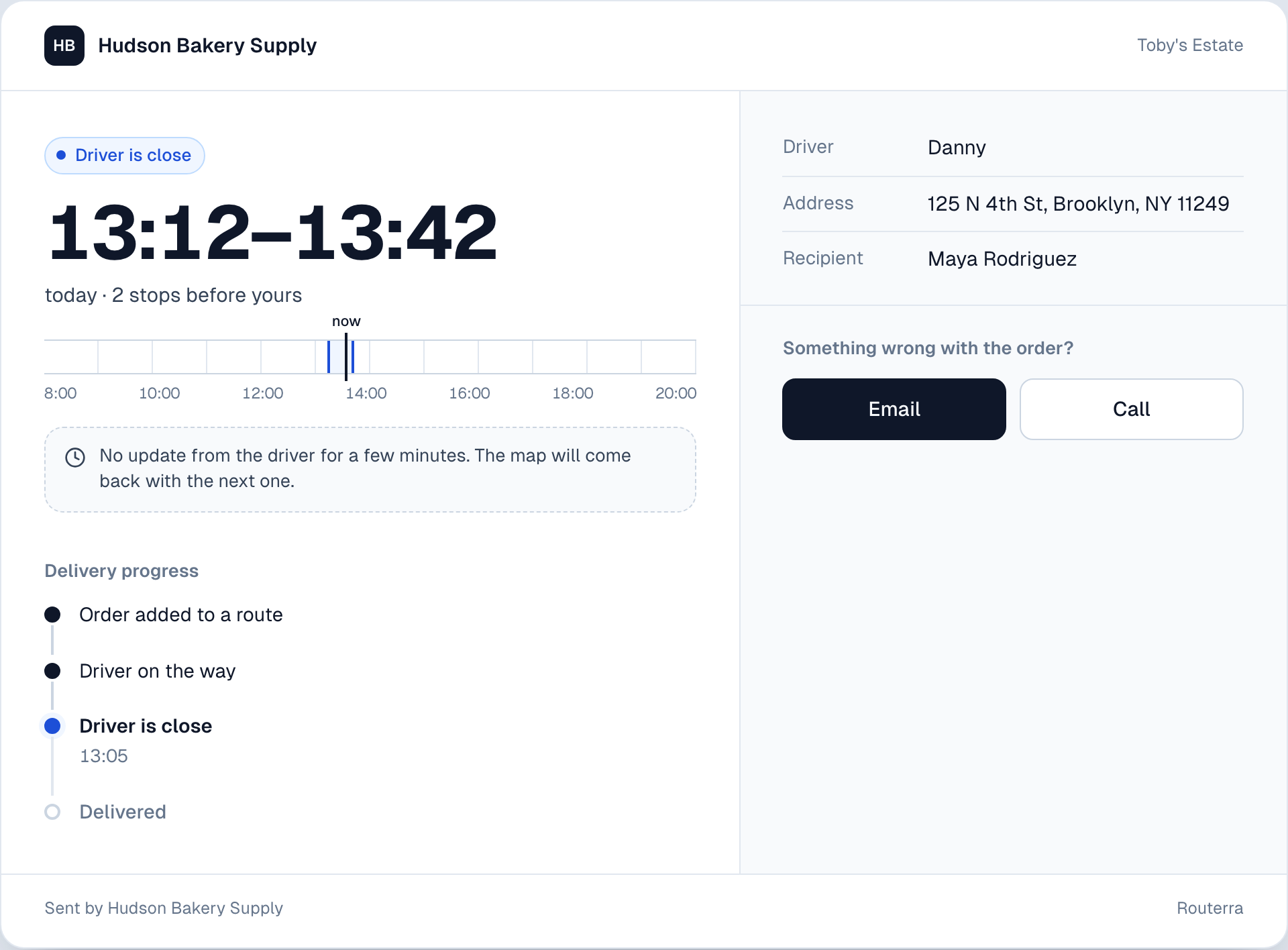
If the driver's phone stops reporting for a few minutes, the map gives way to a quiet note — No update from the driver for a few minutes. The map will come back with the next one. — and the window returns. Nothing on the page ever says "GPS", "signal" or "offline".
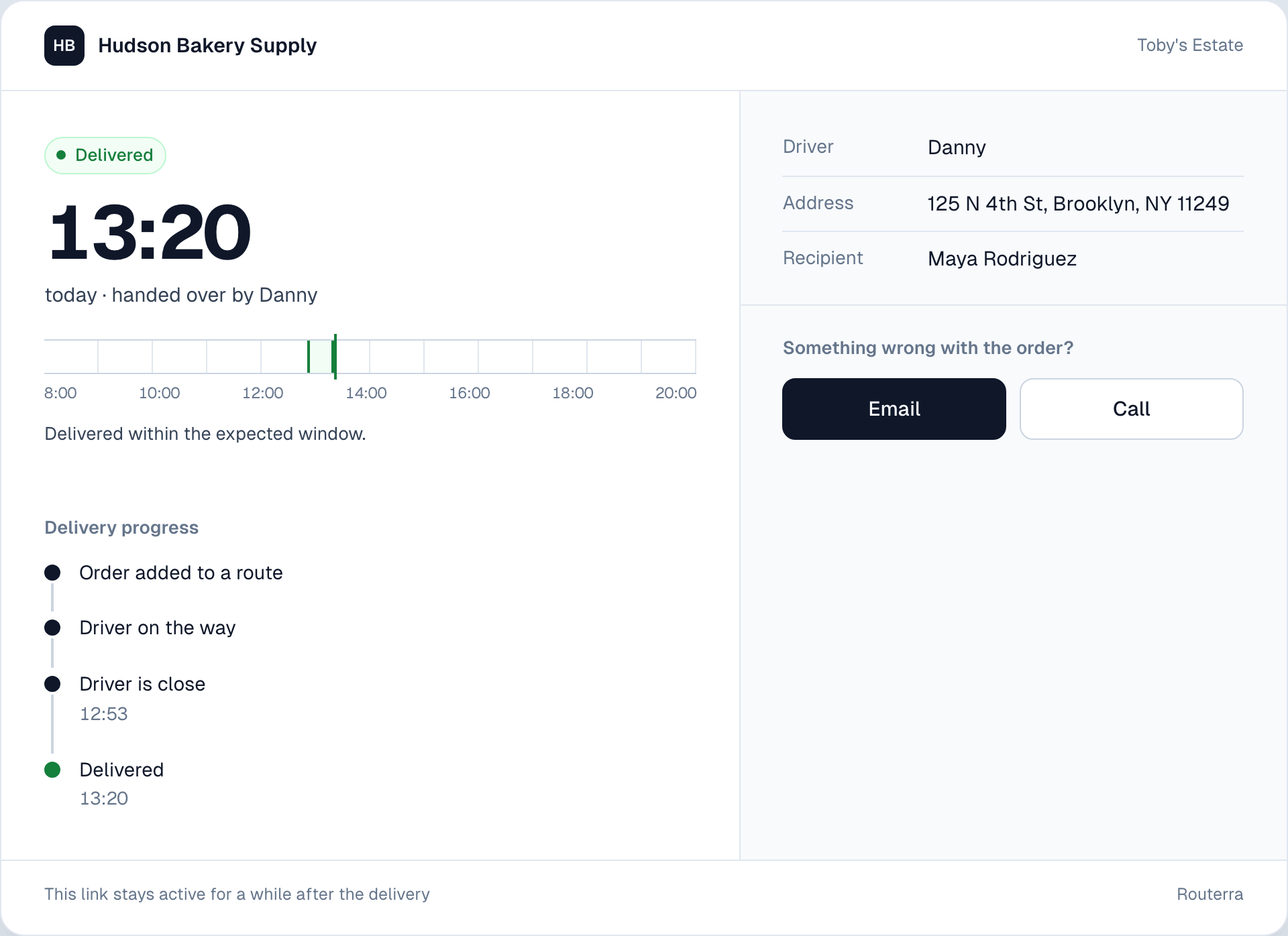
The page opens in the customer's browser language when it's English, Spanish, Portuguese or Ukrainian, and in English otherwise.
Settings
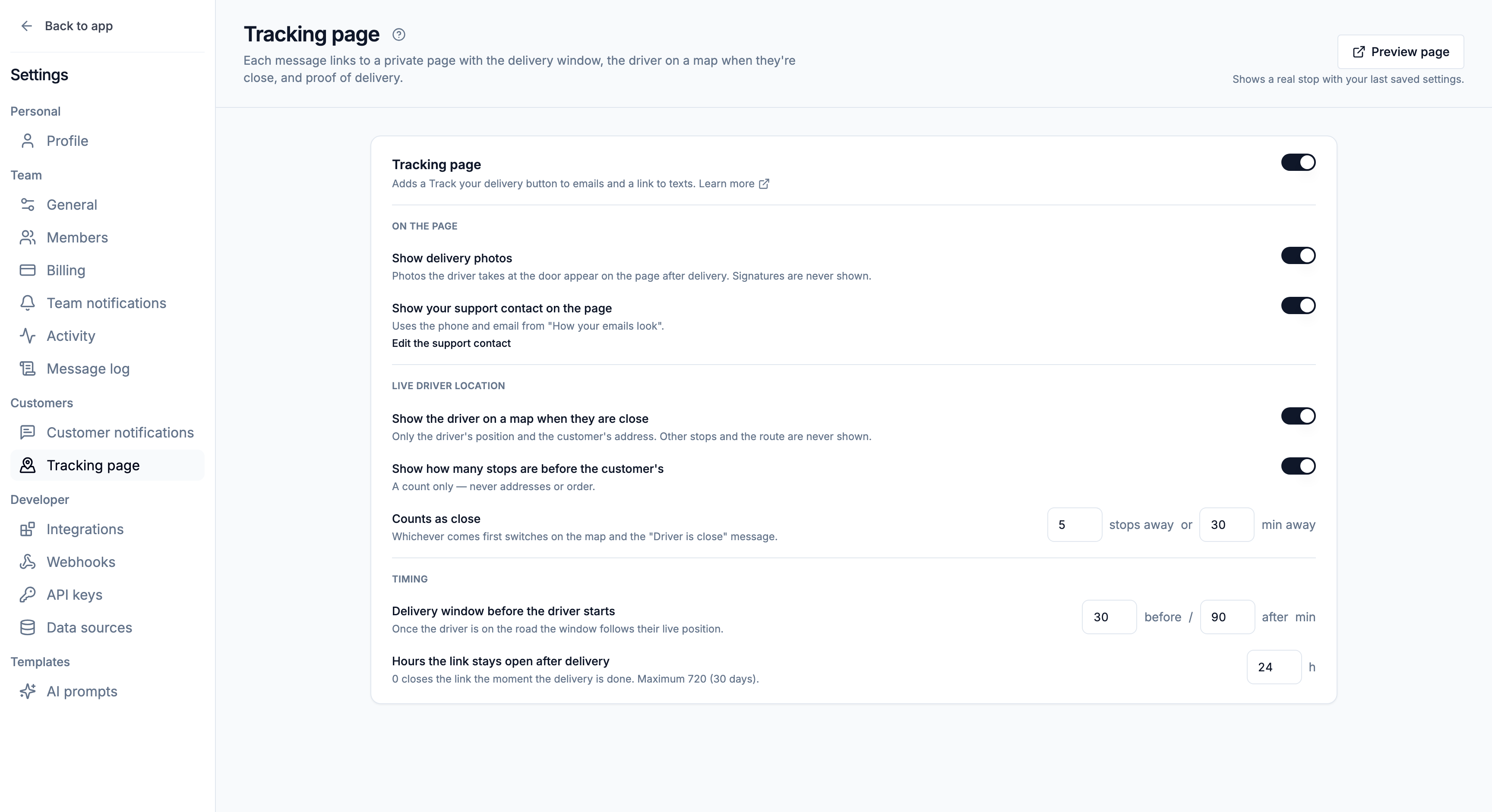
Everything about the page lives under Settings → Customers → Tracking page, one click below Customer notifications. The settings unfold while the Tracking page switch is on; changes are saved with Save changes in the bar at the bottom.
On the page
- Show delivery photos — the photos the driver takes at the door appear after delivery. Signatures are never shown, only Signature received.
- Show your support contact on the page — the Email and Call buttons, using the phone and email from How your emails look under Customer notifications (Edit the support contact takes you there). Keep it on: on a failed delivery the page is otherwise a dead end, and a warning appears when it is off.
Live driver location — needs Live driver tracking on for the team (Live driver tracking on the plan map); without it this section shows a link to Team settings instead.
- Show the driver on a map when they are close — only the driver's position and this customer's address. Other stops and the route are never shown.
- Show how many stops are before the customer's — a count only, never addresses or order.
- Counts as close — [5] stops away or [30] min away. Whichever comes first switches on the map and sends the Driver is close message.
Timing
- Delivery window before the driver starts — [30] before / [90] after min around the planned arrival. Once the driver is on the road the window follows their live position.
- Hours the link stays open after delivery — 24 by default; 0 closes the link the moment the delivery is done, 720 (30 days) is the maximum. An opened link that has expired says This link is no longer available.
The Driver is close message
With the tracking page on, customer notifications have a fourth update: Driver is close, sent once per stop by SMS when the driver reaches the Counts as close threshold — an email would usually be read too late. It needs a connected Twilio account (Text messages). The message can use Driver's first name and Minutes away — the default reads {{driverFirstName}} from {{companyName}} is a few stops away with your delivery.
The message needs the page: if you switch the tracking page off, nothing is sent for Driver is close, and both the Tracking page settings and its row in the Messages table say so — Driver is close needs the tracking page.
Find a stop's link
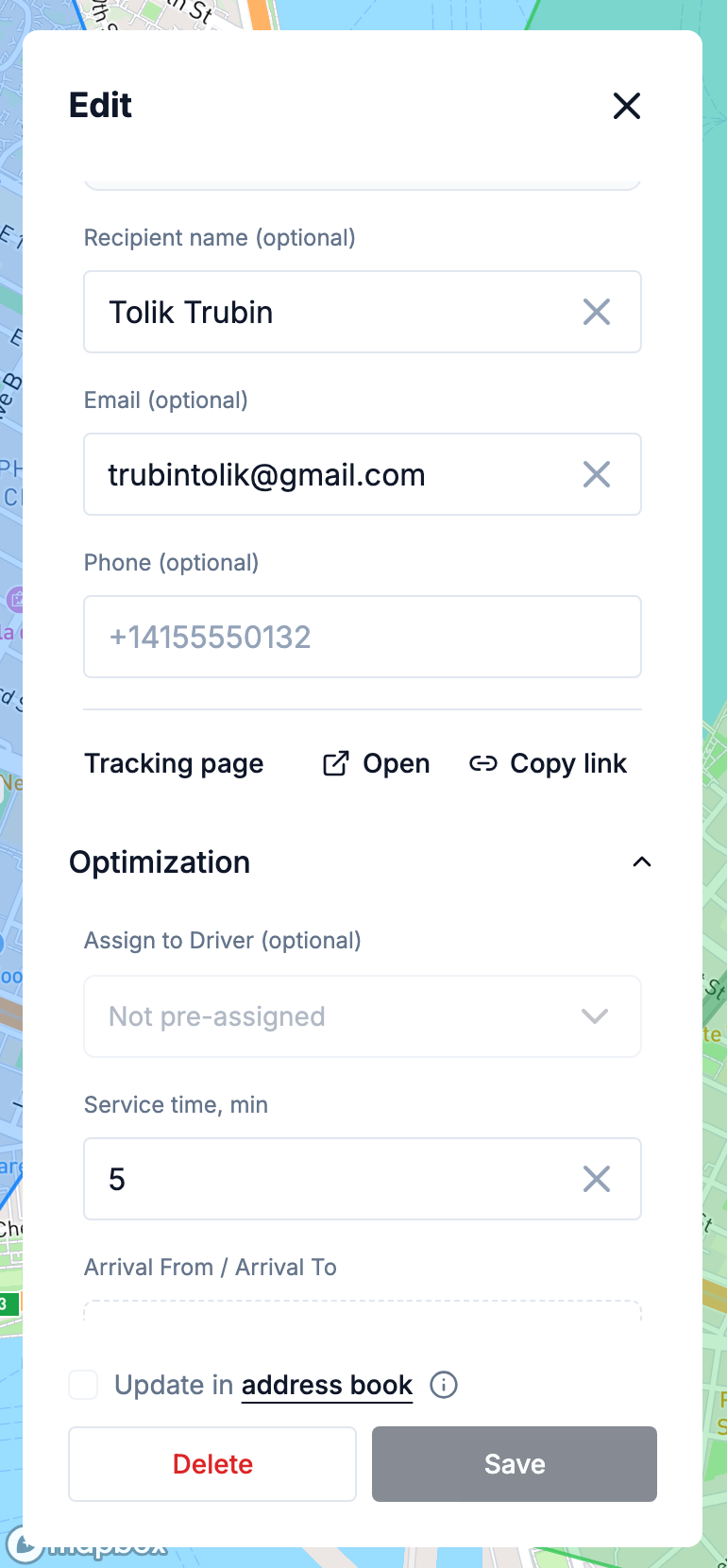
Open a stop and scroll to the end of its Customer contact section. The Tracking page row has Open and Copy link — handy when a customer calls and you want to send the link by hand. Before the first message has gone out, the row says The link is created with the first message to the customer.
What the page never shows
- The driver's full name, phone, photo or vehicle — only a first name.
- Other stops on the route, their addresses or order; the route itself.
- The driver's position unless they are close, and never after the route is finished.
- Internal notes on the stop.
Links stop working the number of hours you set after delivery, and the customer is told the latest information is in your most recent message.
What's next
- Customer notifications by email and SMS — the messages the link travels in
- Live driver tracking on the plan map — the office-side view of the same positions
- Proof of delivery — the photos and signatures behind Delivered