
Roles: Owner, Manager, and Driver
Who can do what in Routerra Teams — the Owner runs billing and the team itself, Managers dispatch, and drivers only ever touch the app.
Routerra Teams has three roles, and the split is simple: Owners run the business side, Managers run the day, and drivers never open the web app at all.
The three roles
Owners and Managers share the whole dispatch day; the differences are all at the team and billing level, and drivers sit outside the web app entirely.
| Owner | Manager | Driver | |
|---|---|---|---|
| Create & optimize plans | Yes | Yes | No |
| Send routes to drivers | Yes | Yes | No |
| Edit fleet (drivers/depots/zones) | Yes | Yes | No |
| Team address book | Yes | Yes | No |
| Customer notifications | Yes | Yes | No |
| Activity log | Yes | Yes | No |
| Team defaults (driver workflow, live tracking, proof of delivery) | Yes | Yes | No |
| Invite Managers | Yes | No | No |
| Billing & seats | Yes | No | No |
| Rename team | Yes | No | No |
| Delete team | Yes | No | No |
| Consumes a seat | No | No | Yes |
| Signs into web app | Yes | Yes | No |
What only the Owner can do
A Manager can dispatch all day without ever hitting a wall. Three areas are the Owner's alone, and each has a page of its own:
- Billing — the trial, driver seats, invoices, and plan changes. Details in Trial, seats, and billing.
- Team administration — renaming the team, and the Danger zone that deletes the team and all its data.
- Members — inviting and removing Managers.
Inviting a Manager
Bring on a co-dispatcher from Settings → Members.
Open Settings → Members
Press Add member.
Enter their email
They'll get an invite link. Use the address they actually check — the invite is tied to it.
They accept and sign in
The invite lands them on a "You've been invited" page; they sign up (or sign in) with that same email and they're in, with full Manager access.
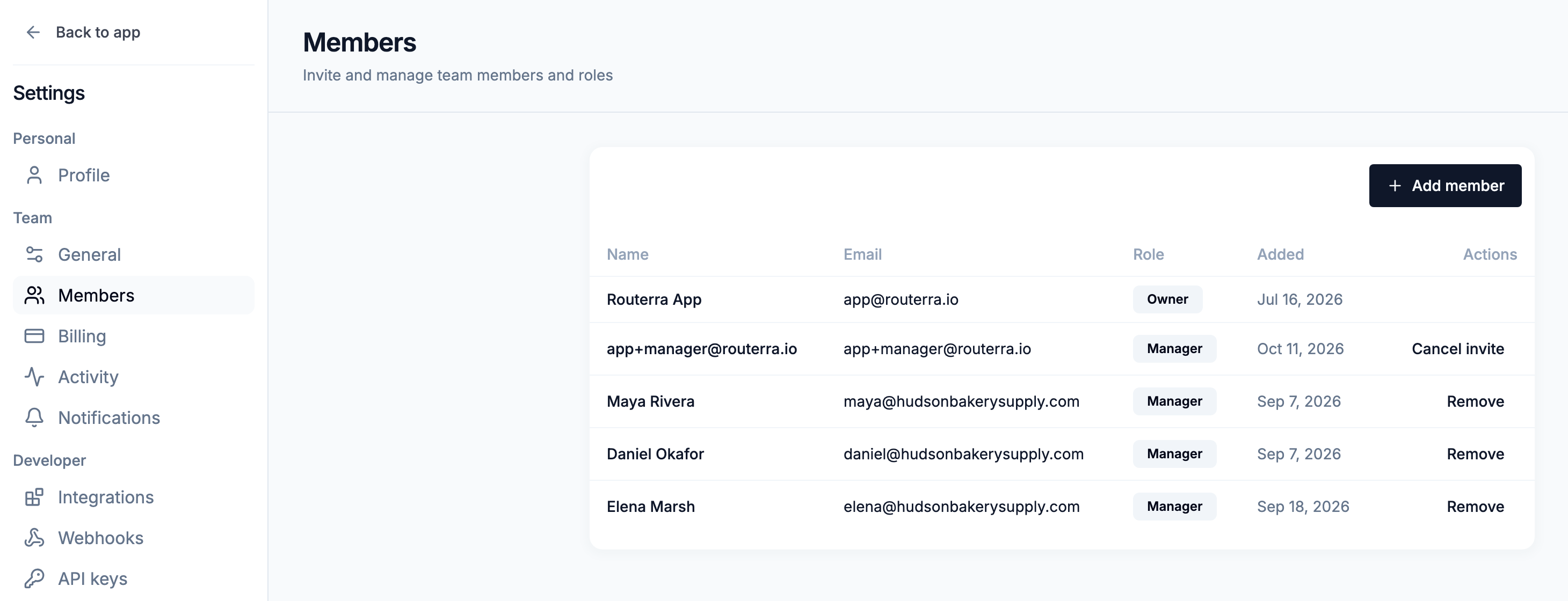
To remove someone, use Remove on their row. If they haven't accepted yet, the row shows Cancel invite instead. Removing a Manager doesn't touch any plans or data they created — it only revokes their access.
Want to know who changed what? Owners and Managers can open Settings → Activity — see The Activity log.
Where drivers fit
Drivers are added under Fleet → Drivers, not Members. Adding a driver (name + email) reserves their seat straight away and sends an invite to the Routerra Teams driver app; from then on they only ever see the routes you send them, work the stops, and capture proof of delivery. See Get started with the driver app for their side of it.
What's next
- Trial, seats, and billing — the Owner-only numbers
- Set up your team — if you're still getting off the ground
- Danger zone: delete a team