
API keys and the External API
Create an API key to let your own systems optimize routes through the Routerra Teams API — how keys work, when they're shown, and how to revoke them.
If your orders live in your own dispatcher, WMS, or back office, you don't have to touch the web app at all — the Routerra Teams API lets your systems optimize routes programmatically. Access is controlled by API keys you create under Settings → Developer → API keys.
Creating a key
Open Settings → Developer → API keys
Press Create API Key.
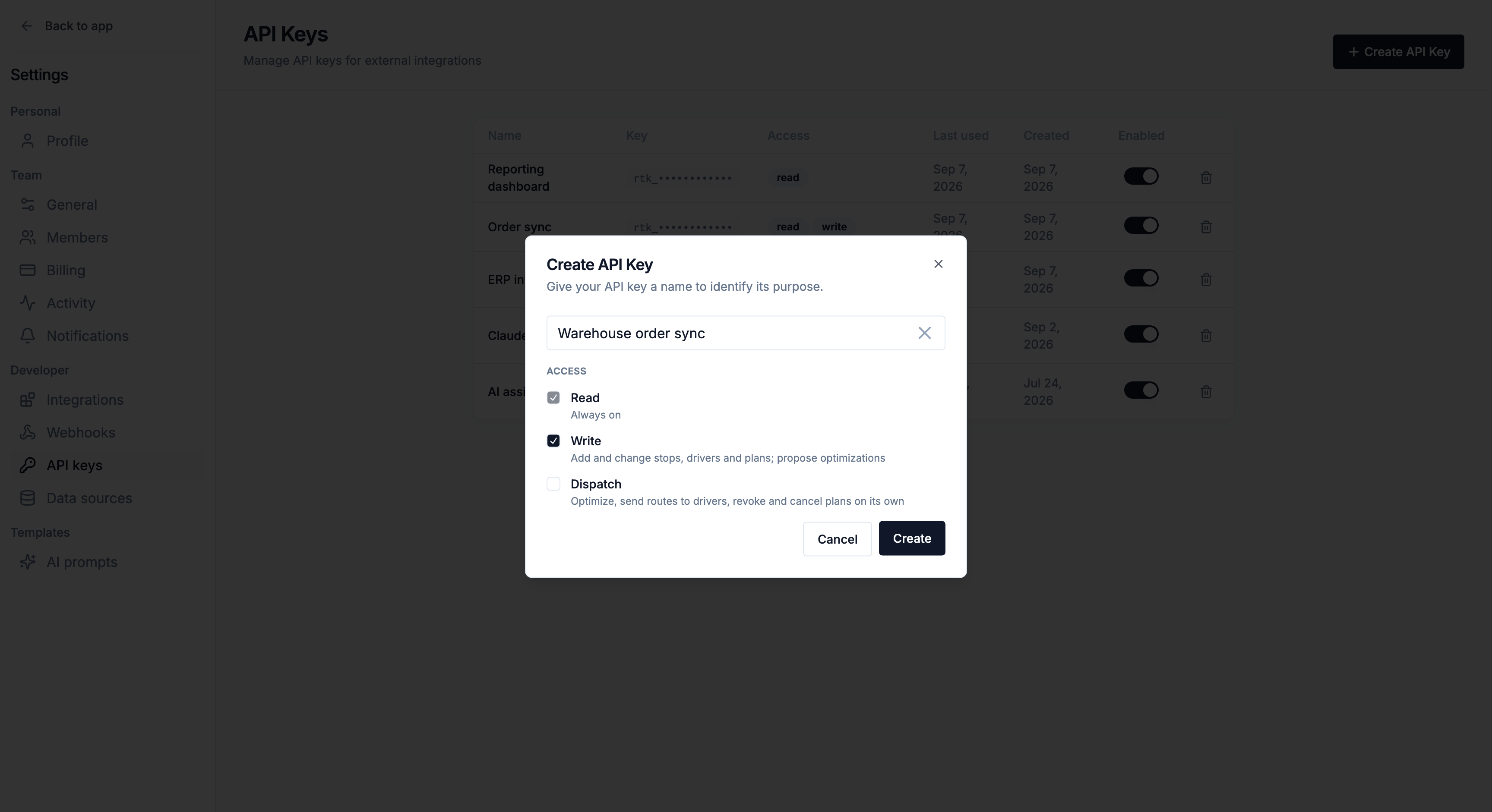
Name it
Give the key a name that says where it's used — e.g. "Production", "Staging", "Partner sync." The name is just for you; it shows in the key list.
Choose its access
Under Access, tick what the key may do. Read is always on. Write (on by default) lets it add and change stops, drivers and plans and propose optimizations. Dispatch (off by default) lets it optimize, send routes to drivers, revoke and cancel plans on its own. Access is set when you create the key — to change it, create a new key and revoke the old one.
Copy it immediately
The full key is shown once. Routerra warns you plainly: "Copy this key now — you won't be able to see it again. Store it securely." Paste it straight into your system's secret store.
Managing keys
The keys table lists each key's name, a masked key, its Access (the read / write / dispatch scopes it holds), last used, and created date, plus an Enabled toggle:
- Disable a key to pause it without deleting it — flip Enabled off and integrations using it stop working until you switch it back on.
- Revoke a key to kill it permanently: "Any integrations using this key will stop working immediately." Use this if a key leaks or a system is retired.
What the API does
The External API drives the same engine the web app uses, from your code instead of the UI: it builds plans from your stops, optimizes them, sends routes to drivers, and reports delivery progress back. Start at the External API overview, which indexes the full reference.
What a key may do depends on its scopes — a key created with the default access can read and edit, but cannot send routes to drivers unless Dispatch was ticked when the key was created. Any Owner or Manager can create keys, including keys with Dispatch. See API authentication & scopes.
API keys vs data sources vs webhooks
Three developer tools, three jobs:
- API keys (this page) — your code calls Routerra to plan, optimize and dispatch.
- Data sources — Routerra calls your endpoint to pull stops when you press "Pull from data source" in the import menu (set up under Settings → Developer → Data sources; see Data sources).
- Webhooks — Routerra notifies your code when plans, routes, and stops change.
Many integrations use all three together. Start with whichever direction you need first.
What's next
- External API overview — base URL, quickstart, and an index of the full reference
- API authentication & scopes — what each scope unlocks
- Webhooks — get notified when things happen
- Data sources — let Routerra pull stops from your own system
- Import stops — where a connected data source shows up in the UI