
The Team Address Book
Save the places you deliver to with their pins, service times, contacts, and files, reuse them in any plan, and save a fix back to the book when you correct a stop.
If you deliver to the same customers regularly, the Team Address Book is the single biggest time-saver in Routerra Teams. Save an address once — with its corrected pin, service time, notes, and files — and every future plan can pull it in already set up, skipping the geocoding step entirely.
Open it from Address book in the sidebar.
What an entry stores
An address-book entry isn't just an address. Each one keeps:
- Name and address, plus fixable coordinates (the exact pin)
- Customer contact — Recipient name, Email, and Phone, used for delivery updates to the customer
- Service time, arrival windows, arrival priority
- Curbside side and color
- Labels for grouping and filtering your addresses
- Notes and attachments
So when you add that address to a plan, all of it comes along — the stop arrives configured, not blank.
Reusing saved addresses in a plan
From a plan, open Import Stops and choose Team Address Book to pick saved addresses to add — with their settings already applied. It's one of the import methods, and you can mix it freely with pasting or file upload in the same plan.
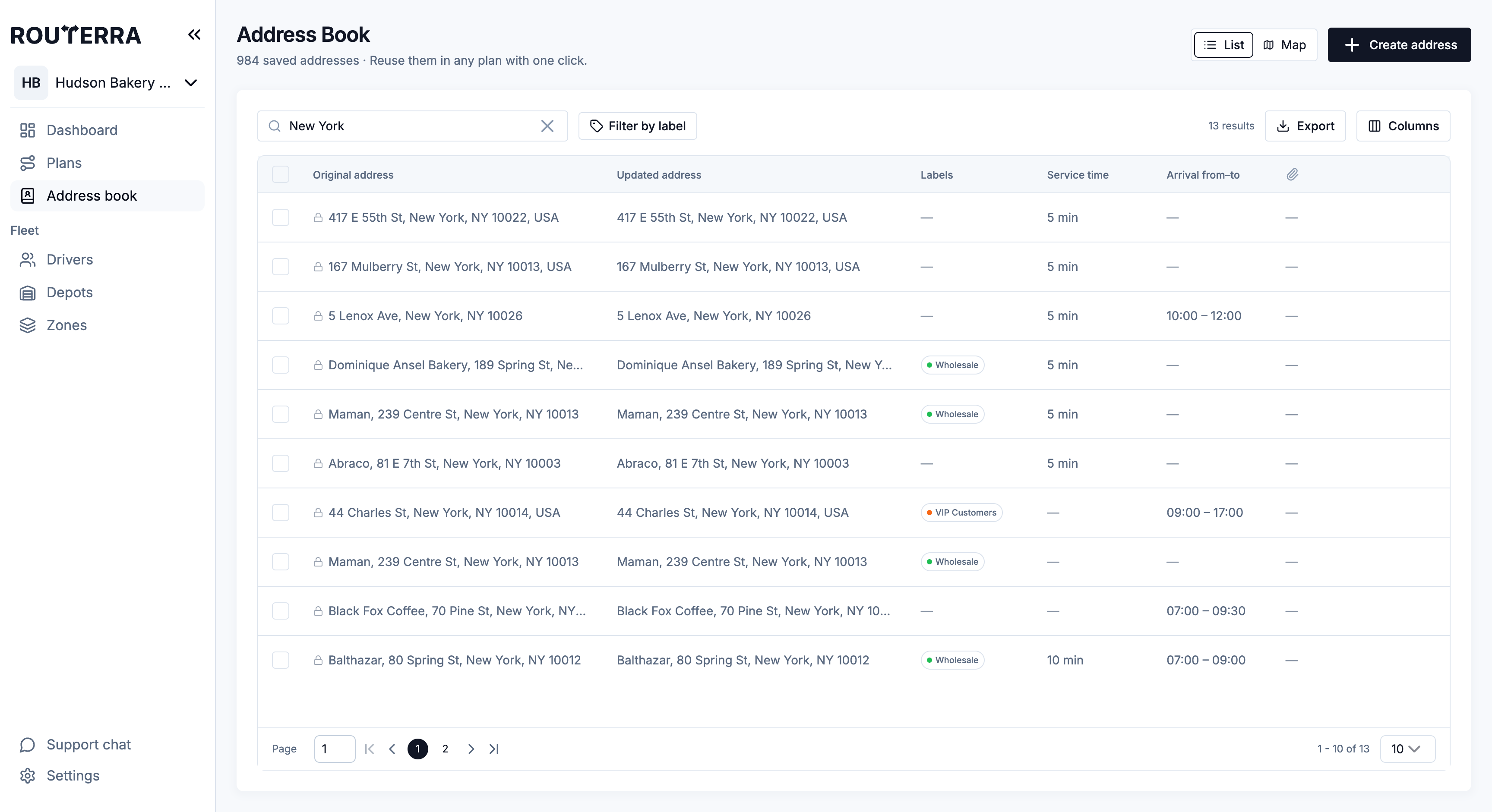
Labels, map view, bulk edit, and export
The address book page has more than a list:
- Labels — tag addresses (a route area, a customer type, "gate code needed") and narrow the list with Filter by label.
- List / Map — switch to the map to see every saved pin and select addresses by clicking pins, drawing a box or a lasso, or picking a zone.
- Edit — change service time, arrival windows, priority, curbside, color, or labels on many addresses at once.
- Export — download the book, a filtered part of it, or your selection as XLSX or CSV.
Each of these is covered step by step in Address book: labels, map, bulk edit.
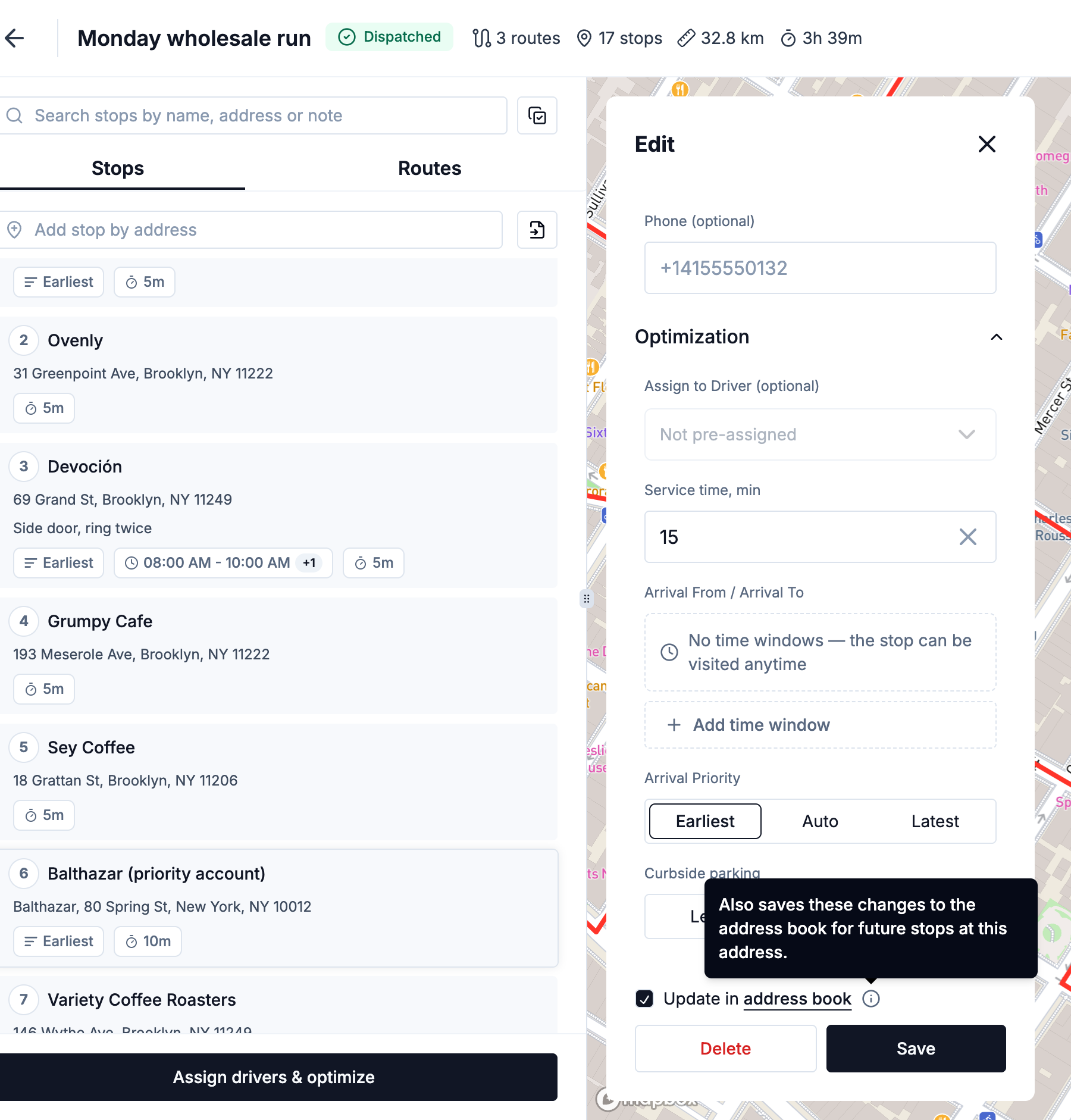
Update in address book: save a fix for next time
When you open a stop in a plan that came from the address book, the stop's edit sheet shows an Update in address book checkbox above Save. It's off by default and applies to that one save only:
- Leave it off and your edit changes just this stop in this plan.
- Tick it and the same change is also saved to the address-book entry, so future stops at that address start from the corrected version.
The checkbox becomes active once the stop has unsaved changes. The words "address book" in its label are a link that opens the entry in a new tab, so you can check what's saved without losing your edit.
The same checkbox appears when you edit many stops at once in a plan — see Bulk actions on stops. It's only offered when at least one selected stop is linked to an entry.
Fixing a wrong pin
To correct an address directly, open its entry and drag the pin on the map (or search the corrected address) — the entry keeps the locked Original address for matching, and the note at the top reminds you: "Changes apply to new stops only. Existing stops in plans keep their current coordinates." This is the same fix described in Import and address problems; doing it here makes it stick for every future import.
Address-book attachments
Files attached to an address-book entry appear on every stop created at that location, under the From address book group in the stop's Attachments panel. Perfect for a building's gate code, loading-dock photo, or standing delivery instructions — attach it once and every driver who ever visits sees it.
Housekeeping
The address book supports bulk delete for clearing out addresses you no longer serve — select the entries and remove them in one go (see Bulk actions on stops for the pattern). Old entries don't cost anything, but a tidy book is a faster book to search.
What's next
- Address book: labels, map, bulk edit — the page's power tools
- Import stops — the Team Address Book as an import method
- Stop settings — the settings every entry can carry
- Import and address problems — fixing pins that land wrong