
Set up your team: sign-up to dispatch
Create your team, add depots and drivers, start your trial, and dispatch your first plan — the whole setup takes about ten minutes.
When you sign up for Routerra Teams, a short setup wizard walks you through everything the optimizer needs before it can build routes. Here's the whole path, and what each choice means.
The setup wizard
Give your team a name
Usually your company name. Your drivers will see it in the driver app when they're invited.
Add your depots
A depot is where routes start and finish — your warehouse, store, or kitchen. Give it a name, type the address, and pick it from the suggestions. You can add several and choose per driver later.
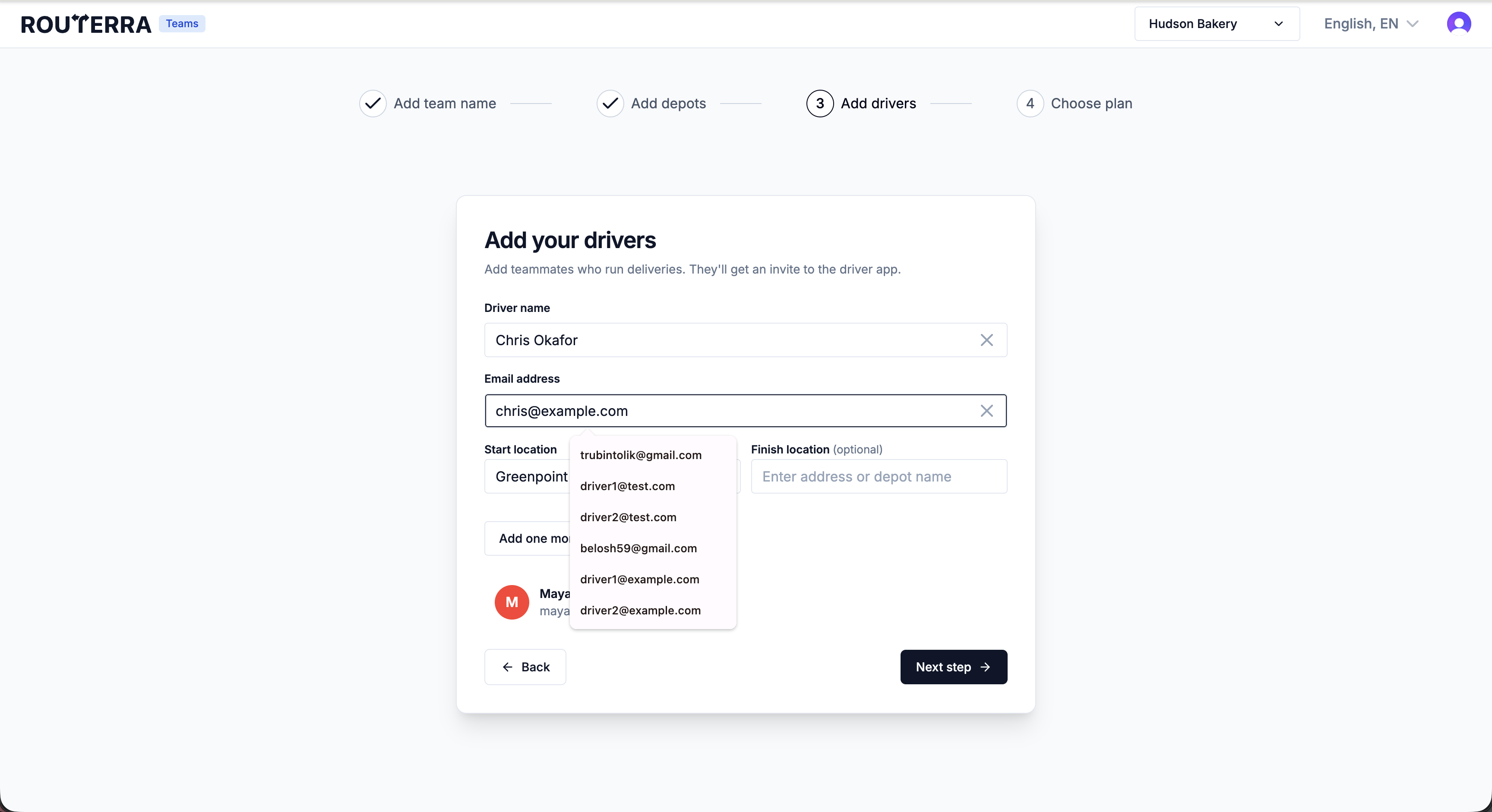
Add your drivers
Name and email for each driver. Every driver takes one seat, and each gets an invite to the free driver app — they sign in with the email you enter here, so use the address they actually check.
Choose your plan
Pick monthly or annual pricing per driver slot, then press Start 7-Day Free Trial — you'll add a card, and you won't be charged if you cancel before the trial ends.
Your first plan
After the wizard you land on the dashboard, and the setup checklist points you at the remaining steps. The fastest path to a dispatched route:
- Press New plan and give it today's date. Create, find, and manage plans covers the plan form and the plans list.
- Import your stops — paste a list to start.
- Press Assign drivers & optimize and keep the recommended Fastest Overall strategy.
- Review the routes on the map, then press Send routes to drivers.
The moment you send, every driver sees their route in the driver app — stops in order, with navigation one tap away.
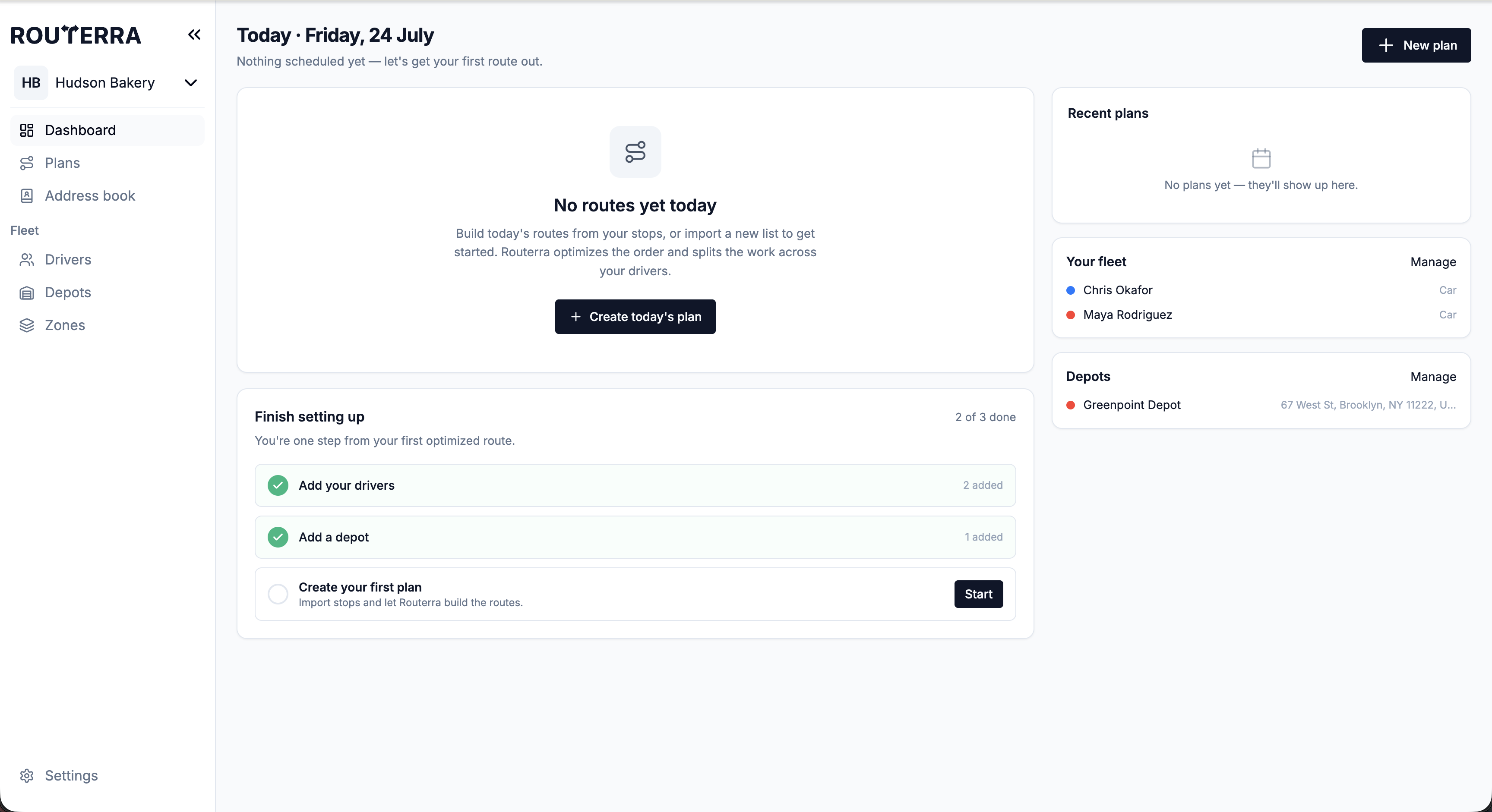
Set up your drivers properly (recommended)
Routes get noticeably better when the optimizer knows your fleet. For each driver, open Fleet → Drivers and set:
- Type of vehicle and Vehicle Capacity — so loads are split realistically.
- Shift Start and End Time — so routes fit working hours (overnight shifts are supported).
- Start and Finish Depot — where their day begins and ends.
- Max Stops — a hard cap per route, if you use one.
New teams start with Live driver tracking turned on. Each driver's phone asks for location permission the first time they start a route, so tell your drivers to allow it. You can change this under Settings → General → Team defaults — see Live driver tracking.
What's next
- A typical morning: import to dispatch — the whole daily loop
- Import stops: paste, file, or photo
- Send your drivers to the driver app quickstart