
Data sources: pull stops from your API
Let Routerra pull a plan's stops from your own endpoint with one click — the signed request it sends, the JSON it expects back, and how to rotate the secret.
If your orders already live in your own dispatcher, ERP, or back office, a data source saves you the copy-paste. You give Routerra one URL. When someone presses Pull from data source on a plan, Routerra calls that URL, and your system answers with the plan's stops.
What a data source does
A data source is the opposite direction of the External API: instead of your code calling Routerra, Routerra calls your endpoint — and only when a person asks for it.
- A team has one data source.
- Nothing is pulled on a schedule. A pull happens only when someone with permission to edit plans picks Pull from data source in a plan's import menu.
- Pulled stops are added to the plan, the same as any other import. They don't replace stops already there.
Connect an endpoint
Open Settings → Developer → Data sources
With nothing connected you see "No data source connected". Press Connect.
Enter the Endpoint URL
Paste the URL Routerra should call, for example
https://dispatch.example.com/routerra/pull-stops, and press Connect.Copy the signing secret
The connected card shows the URL, a Connected badge, and the Signing secret. Reveal it, copy it, and store it on your side — you'll use it to check that requests really come from Routerra.
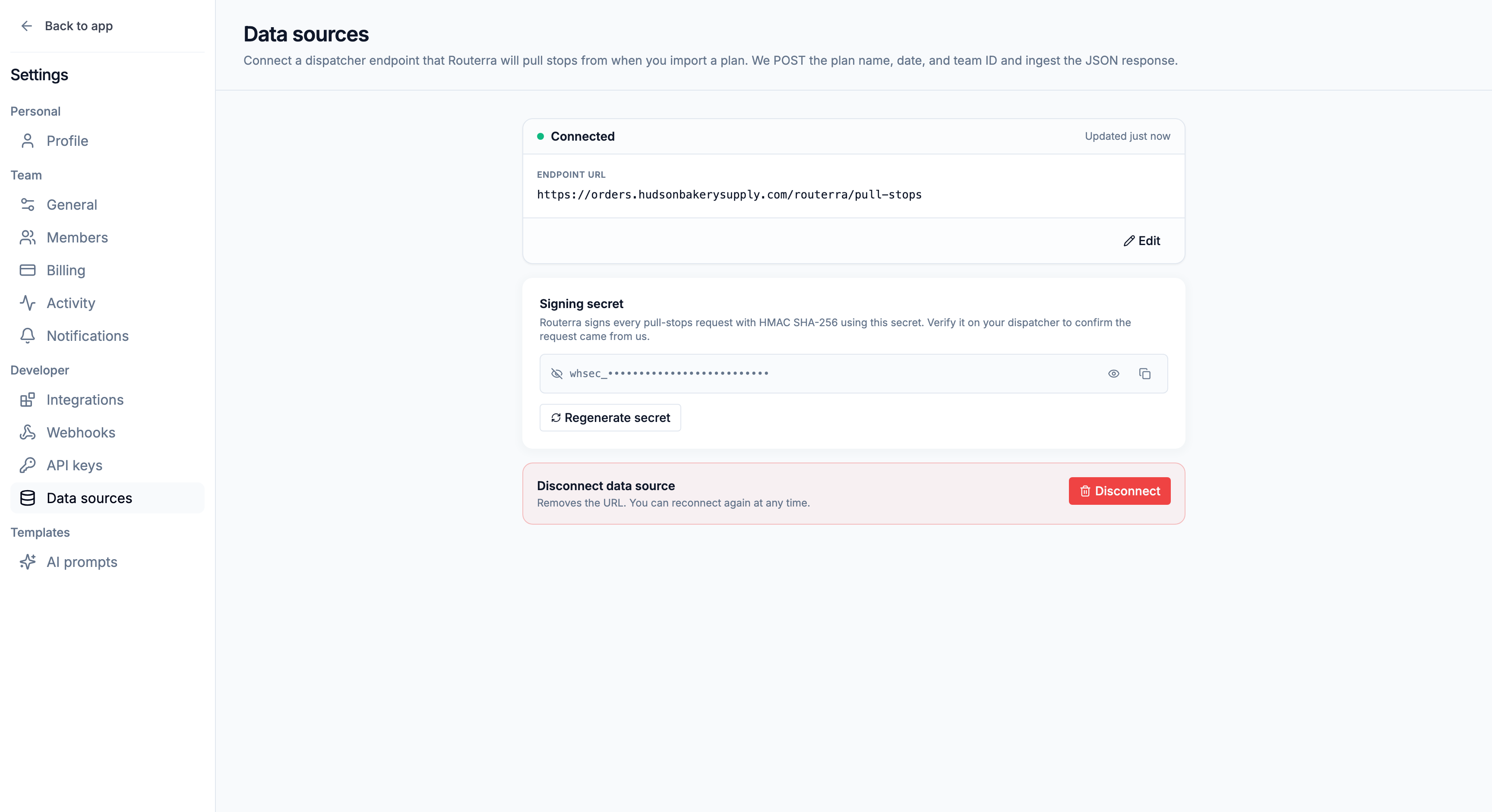
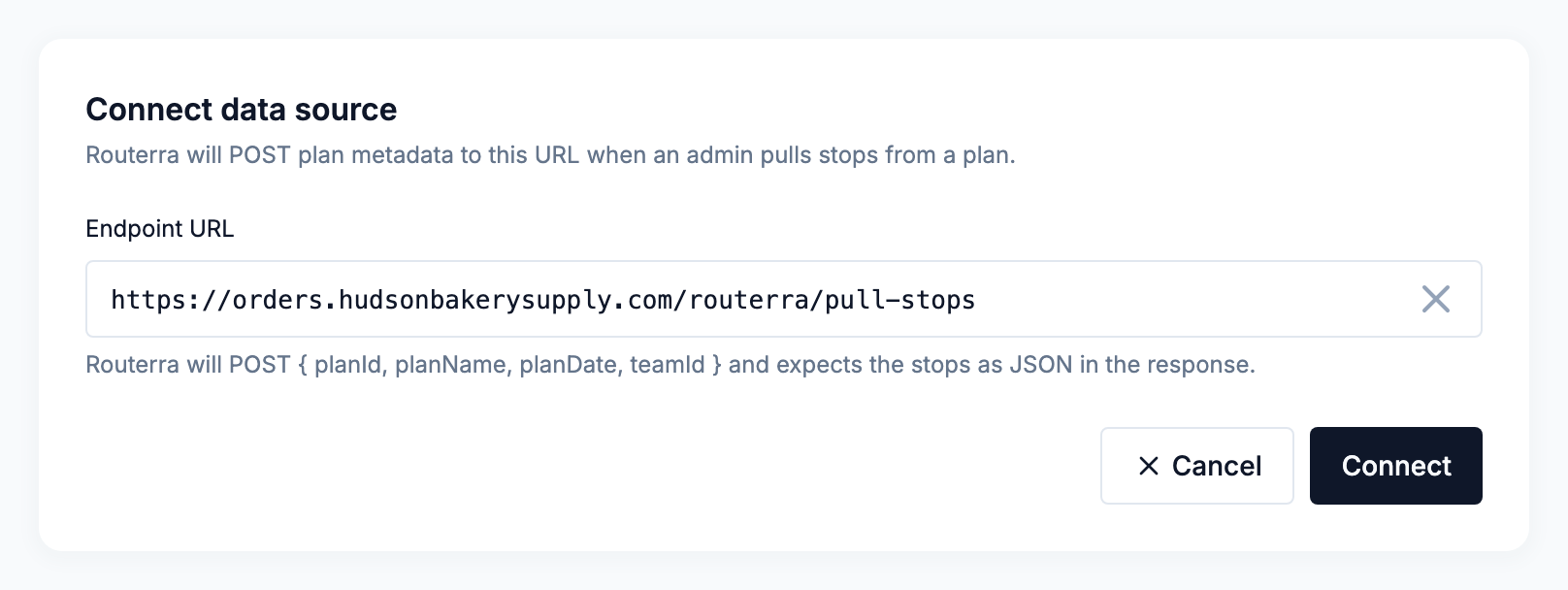
To point Routerra at a different URL, edit the data source; the signing secret stays the same. Only an Owner or a Manager can connect, edit, or disconnect a data source.
The request Routerra sends
When someone pulls stops, Routerra sends a POST to your URL with a JSON body:
{
  "planId": 1234,
  "planName": "Tuesday north",
  "planDate": "2026-10-13",
  "teamId": 87
}
Two headers come with it:
X-Routerra-Signature— the signature, in the formt=<unix seconds>,v1=<hex>.X-Routerra-Delivery— a unique ID for this request.
Routerra waits up to 5 seconds to connect and up to 30 seconds for your answer. Use planDate (and planName, if your system uses it) to decide which orders belong to this plan.
The JSON Routerra expects back
Answer with a 2xx status and a JSON object holding a stops array:
{
  "stops": [
    {
      "name": "Cafe Grumpy",
      "address": "193 Meserole Ave, Brooklyn, NY 11222",
      "note": "Back door, ring twice",
      "serviceTime": 300,
      "priority": "AUTO",
      "phone": "+12125550123",
      "email": "orders@example.com"
    }
  ]
}
| Field | What it does |
|---|---|
name | The stop name. Optional. |
address | The street address. Routerra finds it on the map unless you send coordinates. |
latitude, longitude | Coordinates. Send both to skip address lookup. |
note | A note for the driver. |
serviceTime | Time at the stop, in seconds. Leave it out to use your team's default. |
priority | EARLIEST, AUTO, or LATEST. Leave it out for AUTO. Any other value fails the whole pull. |
load | The stop's load, as a whole number. |
drivers | A list of Routerra driver IDs. The stop is pre-assigned to the first driver in the list; the rest are ignored. |
metadata | Any JSON you want to keep with the stop. |
phone, email | The recipient's contact for customer notifications. A malformed value is dropped; the stop is still imported. |
Driver IDs are the ones the External API returns — see Team endpoints. The usual plan limit on the number of stops applies: if the pull would take the plan over it, nothing is added.
Verify the signature, rotate the secret
Every request is signed with HMAC SHA-256 using your signing secret: "Verify it on your dispatcher to confirm the request came from us." The scheme is the same one webhooks use — v1 is the lowercase hex HMAC of "<t>.<raw request body>". Check it against the raw body, before parsing the JSON. The full recipe, with code, is in Webhooks → Verifying the signature.
To rotate the secret, press Regenerate secret. "Regenerating invalidates the current secret. Update your dispatcher with the new value or pulls will fail." Update your side in the same window.
To stop using the data source, press Disconnect under Disconnect data source. You can connect again later, but you get a fresh signing secret.
Pull stops into a plan
Open the plan
Create the plan first — its name and date are what your endpoint receives.
Choose Pull from data source
Press Import Stops and pick Pull from data source ("Fetch stops from your dispatcher"). It only shows once a data source is connected.
Wait for the stops
You see "Pulling stops from data source…". The pull runs in the background; stops appear in the plan when it finishes, and the plan is ready to optimize.
If your endpoint is unreachable, times out, answers with an error, or sends JSON Routerra can't read, no stops are added and the plan's status reads Import failed. Fix the cause on your side and pull again. Stops whose address can't be found are handled like any other import — see Import problems.
What's next
- Import stops — every other way to get stops into a plan
- Webhooks — get told when plans, routes, and stops change
- API keys and the External API — call Routerra from your own code