
Reassign routes and refine their path
Optimization gives you a strong first draft. Reassign a route to another driver, move or reorder stops, and reshape the driven path on the map in Refine mode.
The optimizer builds a strong first draft — but you know things it doesn't: which customer prefers a morning drop, which driver knows a neighborhood, which street is closed this week. Four tools let you shape the result, from the biggest change to the smallest:
| You want to… | Use |
|---|---|
| Give a driver's whole route to someone else | Reassign route |
| Put some stops on a different driver's route | Move to driver |
| Change where a stop sits in its route | Select position on the stop |
| Change the roads a route takes | Refine on the map |
Reassign a route to another driver
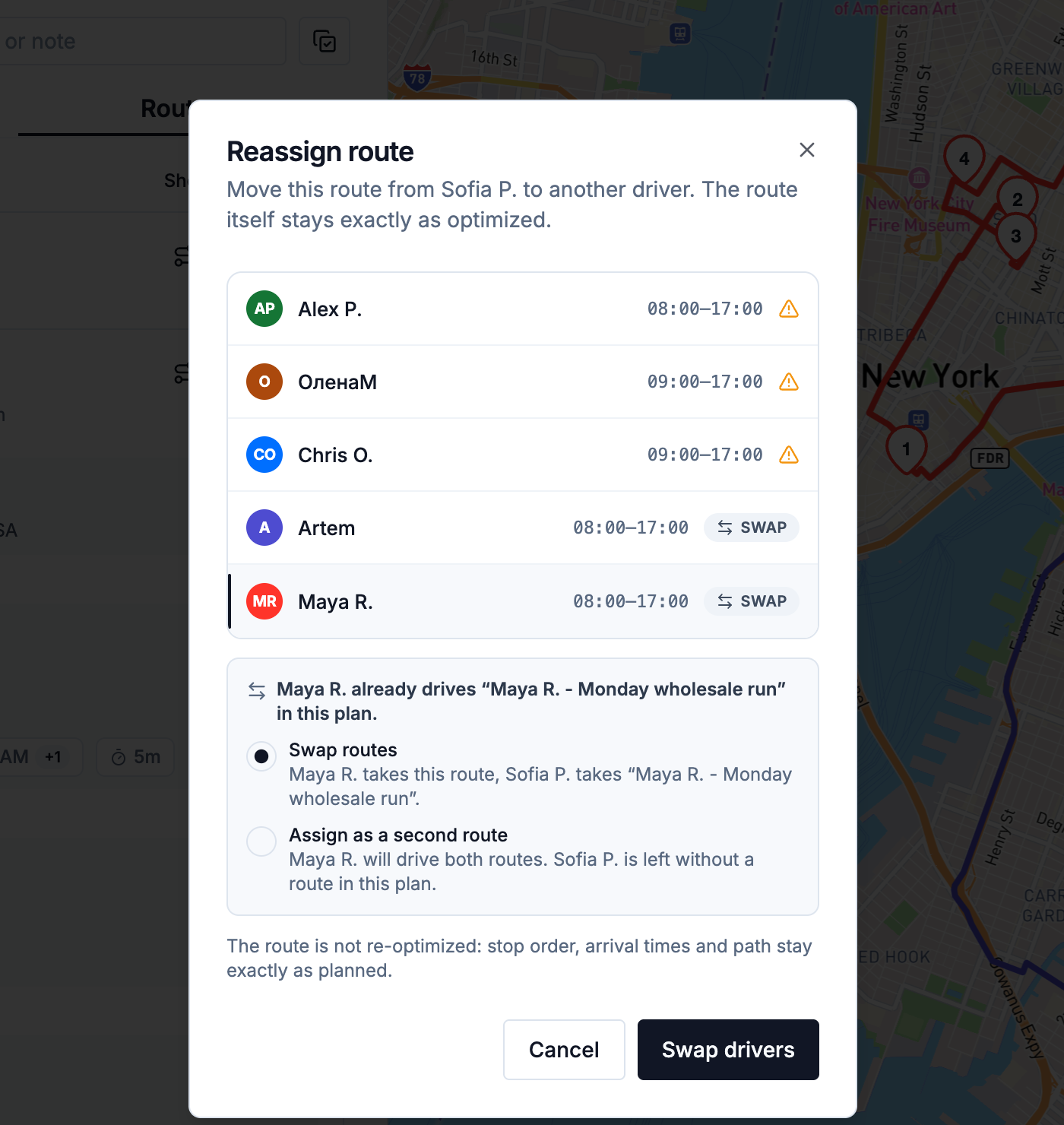
Use it when a driver calls in sick, or two drivers should trade areas. On the Routes tab, open the route row's More actions (⋮) menu and choose Reassign route to another driver. Pick the new driver and confirm.
- The route is not re-optimized — stop order, arrival times, and path stay exactly as planned. Only the driver changes.
- If the new driver already drives a route in this plan, you choose: Swap routes (they trade), or Assign as a second route (the new driver takes both and the original driver is left without a route in this plan).
- Check before confirming — the dialog warns if the route has more stops than the new driver's limit, may not fit their shift, or if they start from a different location (the planned start point stays as it is). The warnings don't block the change.
- A route that's already started can be reassigned too; its progress carries over to the new driver.
- On an approved plan, the change appears in the driver apps immediately — no re-send needed.
You can't reassign a completed route, or reassign while Refine is on.
Move stops to another driver
To move some stops rather than a whole route, select them — tick them in the list or draw a lasso on the map — and press Move to driver. You choose whether to re-optimize the target driver's route or add the stops to its end. The full walkthrough is in Bulk actions on stops. This is also the everyday fix for stops that landed in Unassigned Stops (why that happens).
For a single stop, open it and pick a different driver in its Optimization section — the same Move dialog opens.
Change a stop's position in its route
Open the stop on the Routes tab and set Select position to the place it should take in the driving order, then save. That's how to hand-tune a sequence the optimizer got technically right but you'd run differently. (Dragging stops in the list doesn't reorder them.)
Refine: adjust the path on the map
Refine changes how a route drives between its stops — which roads it takes — not the order of the stops. Use it when the route's line goes through a street you know is closed, or you want the driver to take a specific road.
Turn on Refine
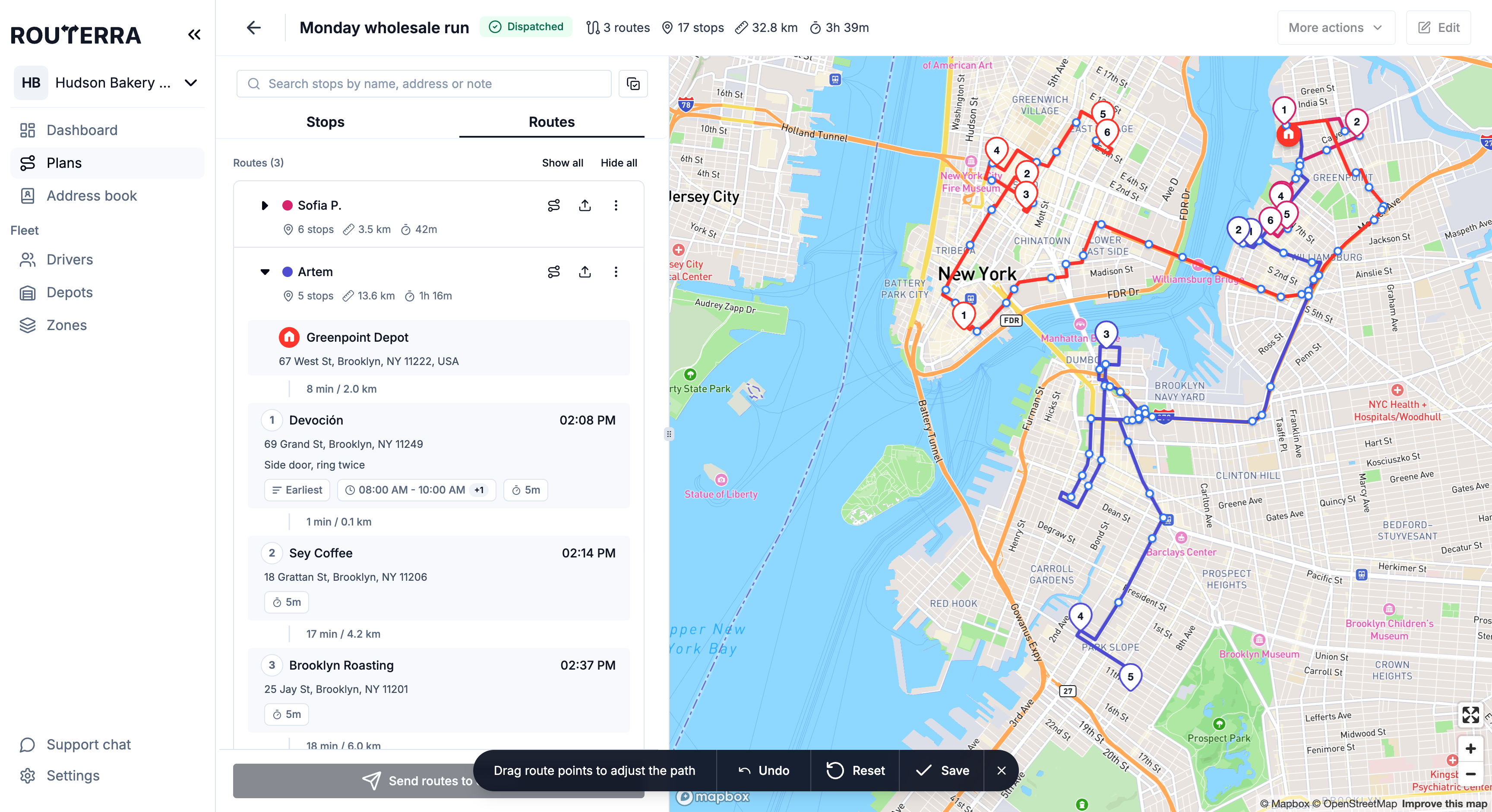
Press the pencil (Refine) in the map toolbar, next to the layers and lasso buttons. Every route on the plan becomes editable at once.
Drag route points
"Drag route points to adjust the path" — drag a point on a route's line to pull the path through a different road. Use Undo to step back or Reset to start over.
Save or cancel
Save stores the new directions for every route you changed. Cancel (or Exit refine mode) leaves without saving — if you have unsaved edits, Routerra asks "Discard route changes?" so you don't lose them by accident.
The pencil only shows once the plan has routes with directions. While Refine is on, the plan's other actions (header actions, sending, adding stops) are locked.
A refined path doesn't carry into turn-by-turn navigation: when a driver starts navigating, the driver app hands off to Google Maps, Waze or Apple Maps, and those pick their own roads.
Bulk edits while you're in there
Changing settings on a lot of stops at once — service time, arrival windows, priority — or deleting a batch is faster with multiselect. See Bulk actions on stops.
What's next
- Assign drivers and optimize — building the draft you're refining
- Send routes to drivers — dispatching the final version
- Mid-day changes — adjusting after the day has already started