
The Activity log
See who changed what in your team and when — people, drivers, API keys, and Routerra itself — filter it by person, category, and date, and open any plan's History.
The Activity log is your team's audit trail. Every change to plans, routes, stops, your fleet, and your settings is recorded with who made it and when. Open it under Settings → Activity — "Everything that happened in your team."
Only Owners and Managers see Activity in Settings. See Roles: Owner, Manager, and Driver.
What gets recorded
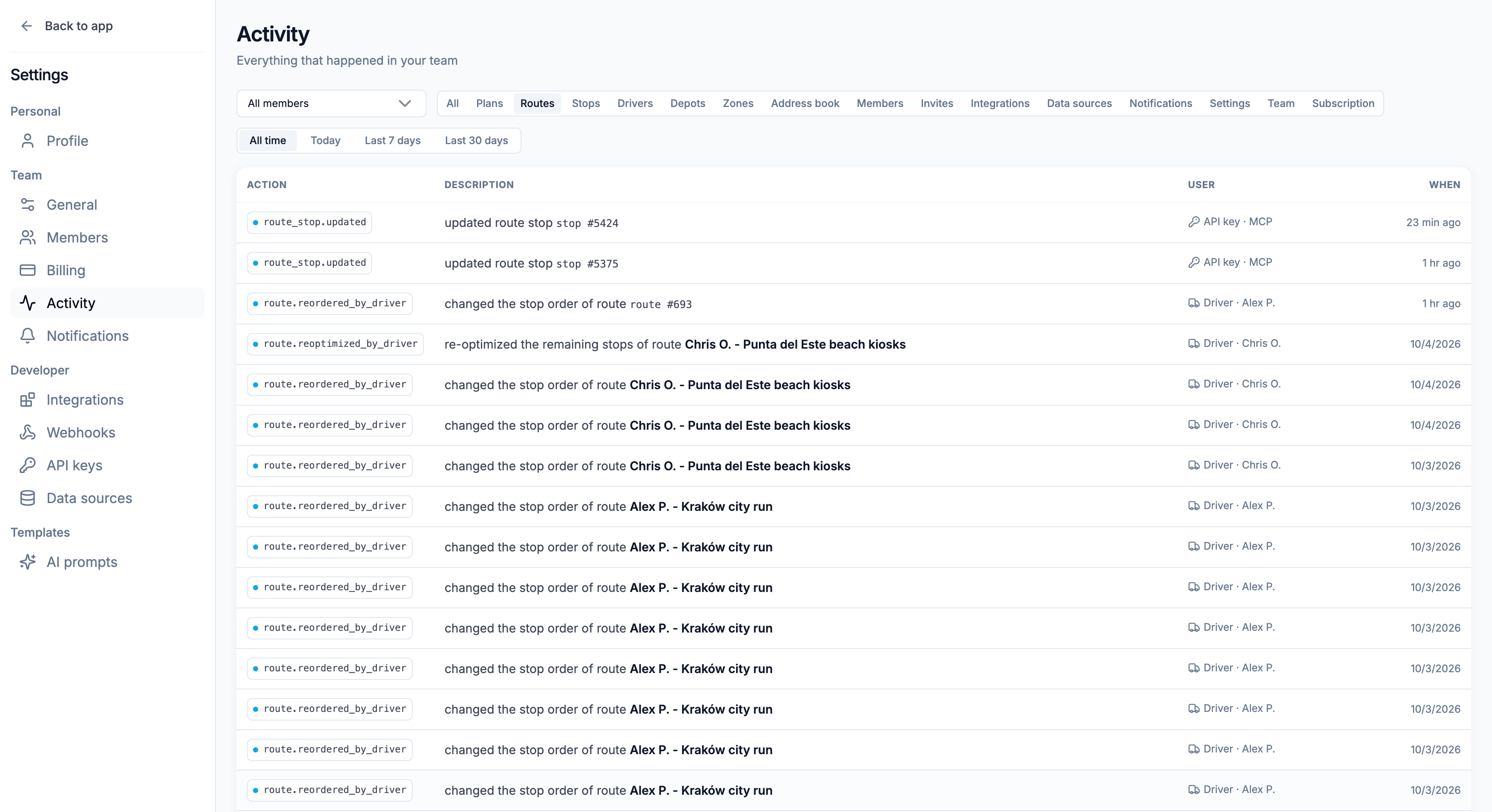
Each row shows four things: the Action, a Description of what changed, the User who did it, and When. The newest changes come first; scroll down to load older ones.
The User column tells you who acted:
| You see | Who made the change |
|---|---|
| A person's name | An Owner or Manager working in the web app. If they've since left the team, the row says Removed member. |
| Driver · Alex | A driver, from the driver app — for example when they change the stop order of their route. |
| API key · Warehouse sync | Your own system or an AI assistant, using that API key. |
| System | Routerra itself. |
What's covered, by category:
- Plans — created, edited, duplicated, dispatched, sent to drivers, revoked, cancelled, restored, and every stop import, plus AI-assistant changes proposed, applied, or rejected.
- Routes — reassigned, reordered, closed from the office, reopened, deleted, and drivers' own stop-order changes and restores of the planned order.
- Stops — created, edited, deleted, and moved to another driver.
- Drivers, Depots, Zones, and Address book — created, edited, deleted, and drivers' zone access.
- Members and Invites — people added or removed, invites sent, cancelled, or accepted.
- Integrations, Data sources, Notifications, Settings, Team, and Subscription — connections, team settings, renames, and billing changes.
Filter by person, category, and date
Three filters sit above the list:
- Person — the All members menu. Pick one person to see only their changes.
- Category — All, or one of the categories above, such as Plans, Routes, or Drivers.
- Date — All time, Today, Last 7 days, or Last 30 days.
The filters combine. For example, Routes + Today shows every route change made today.
A plan's History
To see the activity of one plan only, open its menu and choose History. You'll find it in the plan's More actions menu, and in the ⋮ menu on its row in the plans list.
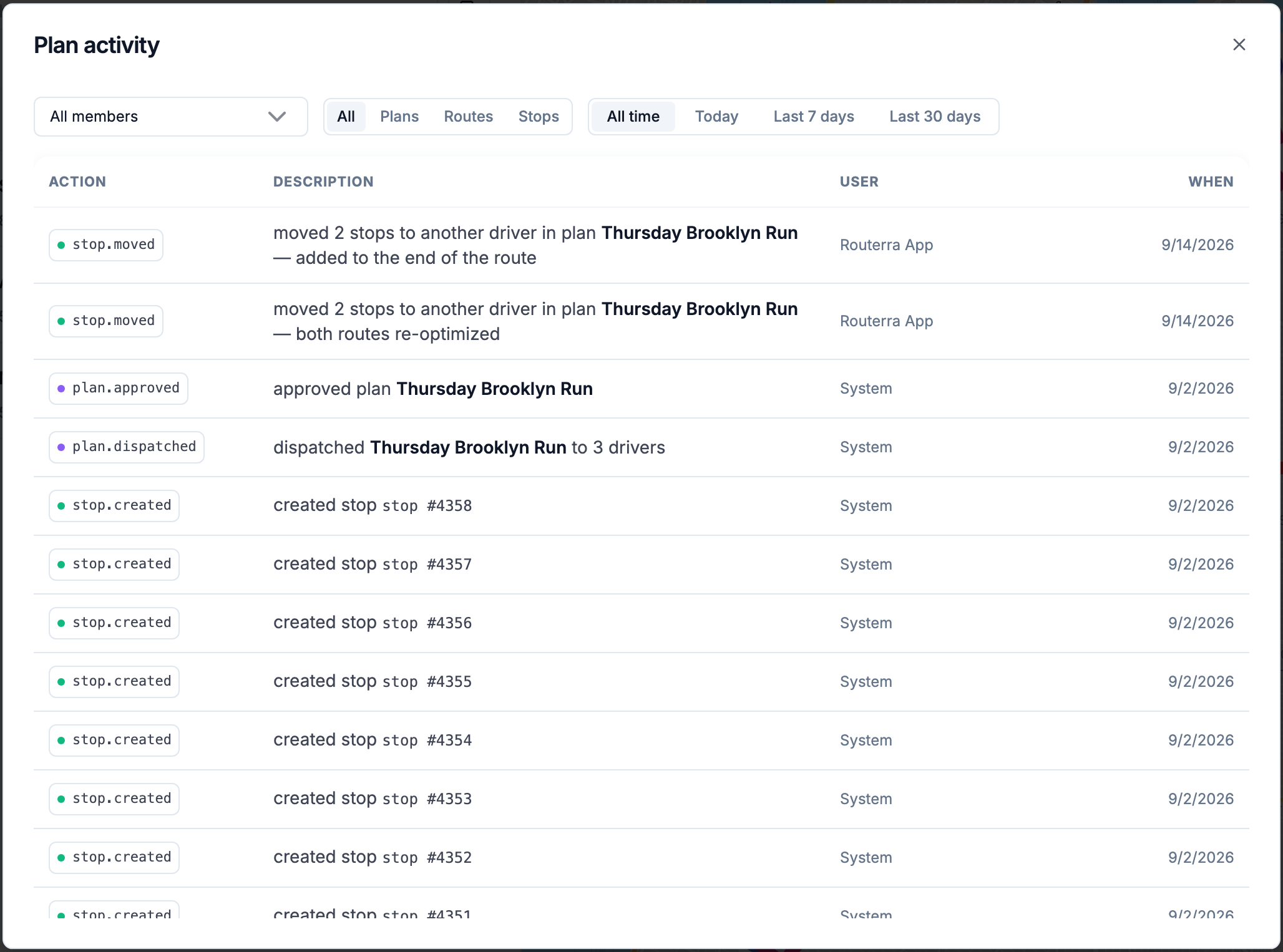
The Plan activity window shows the same rows as Settings → Activity, limited to that plan. Its category filter offers only Plans, Routes, and Stops.
Answering "who changed this?"
A few common questions, and where the answer shows up:
- "Why did this route's stop order change?" — open the plan's History and filter by Routes. A row by Driver · name that says the driver changed the stop order means the driver reordered it in the app; a row by a person means someone in the office did. See When drivers change their stop order.
- "Who sent these routes to the drivers?" — open the plan's History and filter by Plans; look for approved plan.
- "What did our integration do overnight?" — in Settings → Activity, pick Today and look for rows by API key · name. Changes an AI assistant proposed, and who applied them, are covered in Proposals.
- "Who removed this driver?" — filter by Drivers.
What's next
- Roles: Owner, Manager, and Driver — who can see the log
- When drivers change their stop order — the driver changes you'll see here
- Follow delivery progress live — the day as it happens