
Send routes to drivers
Review the optimized routes, dispatch them to the driver app in one click, and know how to change course after they're out.
Optimized routes are still private to the office — drivers see nothing until you send. That's deliberate: review first, dispatch when it's right.
Review before sending
On the plan's Routes tab, walk each driver's route: stop order, ETAs, total duration, and anything the optimizer flagged. This is the moment to catch the odd stop order or an overloaded driver — changes are frictionless while nothing is dispatched.
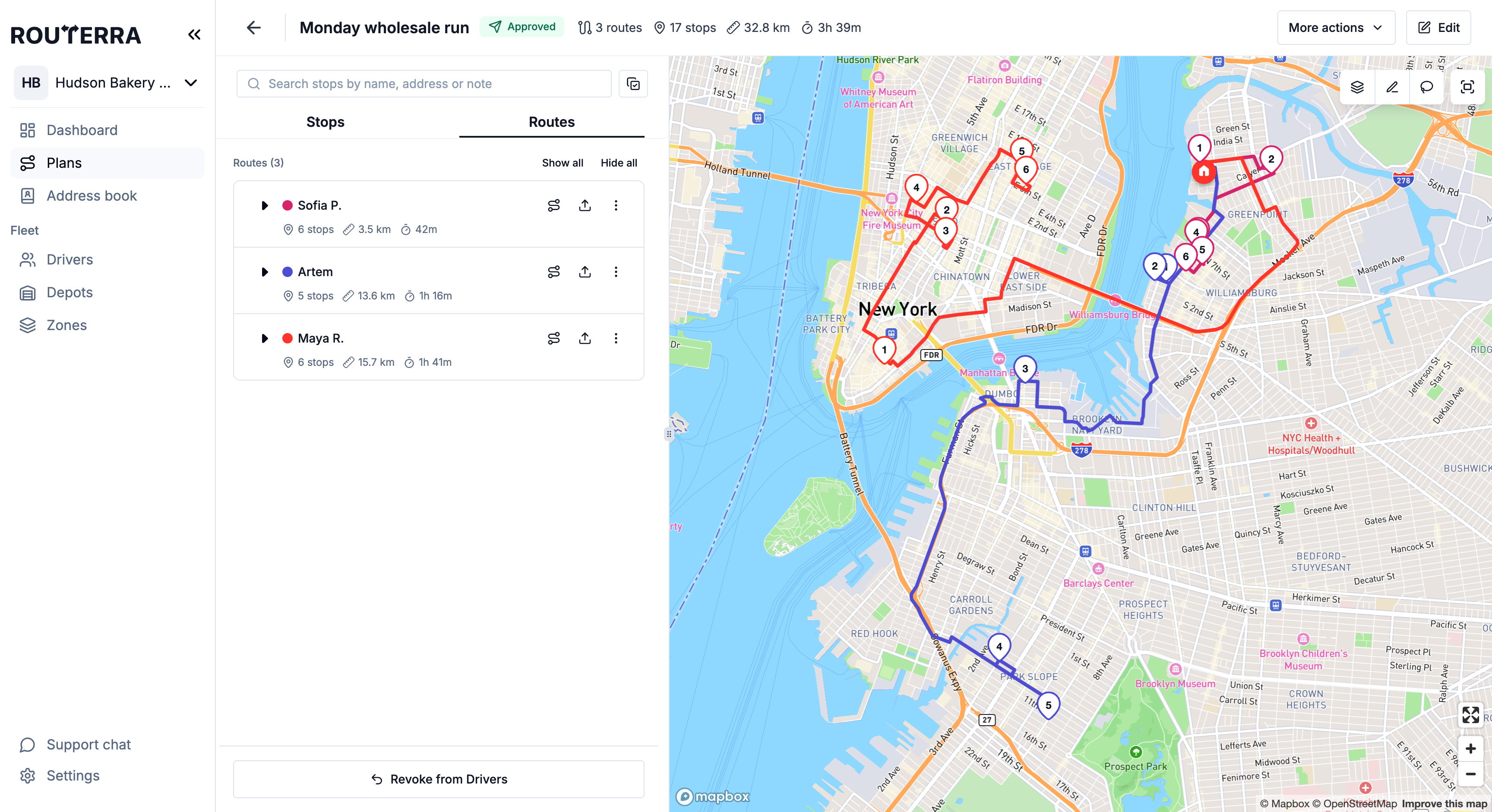
Each route row has two lines — the driver, the route's status, and its figures — and three icons on the right:
- Focus — frames the route on the map and dims the others. With Live driver tracking on, this icon reads "Focus this route — dim the others" and also lets you inspect the route's live position and track (Live driver tracking); without it, it reads Focus on route.
- Export — downloads the route (see below).
- More actions (⋮) — Reassign route to another driver and Edit driver.
Dispatch
Press Send routes to drivers
A confirmation asks once ("Routes will become visible to all assigned drivers"), then every included route appears in each driver's app — immediately.
Confirm the plan status
The plan flips from Dispatched (routes built) to Approved — routes are now visible to drivers, with all notes and instructions attached. The button at the bottom of the Routes tab becomes Revoke from Drivers.
Changing things after dispatch
Real days change. On an approved plan, some changes reach the drivers right away and some need the routes pulled back first:
- Move work between drivers — applies immediately. Move to driver for selected stops (Bulk actions on stops) and Reassign route for a driver's whole route (Adjust routes) both work on an approved plan. The drivers see the change in their app without a re-send.
- Rebuild the routes — revoke first. Once the plan is approved, the Stops tab no longer offers Assign drivers & optimize; it shows "Routes are with drivers — Pull them back to change stops or re-optimize." Press Revoke from Drivers, make your changes, optimize again (statuses drivers already set are kept), and send again.
- Revoke from Drivers on its own pulls the routes out of the driver app entirely — use it when you don't want anyone driving the old version while you rebuild.
If you add, delete or edit stops on a sent plan — or reorder a route yourself — its status moves to Has Changes to remind you the drivers' copy is stale. Drivers keep their current routes, and the Stops tab offers Assign drivers & optimize again with no revoke needed: optimize, then send. See Mid-day changes.
Giving routes to people outside the app
Each route can also leave Routerra: the Export icon (the upload arrow) on a route row downloads it as PDF, XLSX, or CSV. Useful for a temp driver without a seat, a customer who wants the manifest, or paper backup for a clipboard person.
What's next
- Adjust routes — reassign a route or reshape its path
- When drivers change their stop order — what you see when a driver reorders, and how to restore your plan
- Follow delivery progress live — follow the routes once they're out