
When drivers change their stop order
Choose how much drivers may reorder their own routes, see when they did, restore your planned order, and know what optimizing again does to a driver's changes.
Drivers know their streets. Routerra Teams lets them change the order of their remaining stops in the driver app — within limits you set — and shows you every change, so you can keep it or put your plan back.
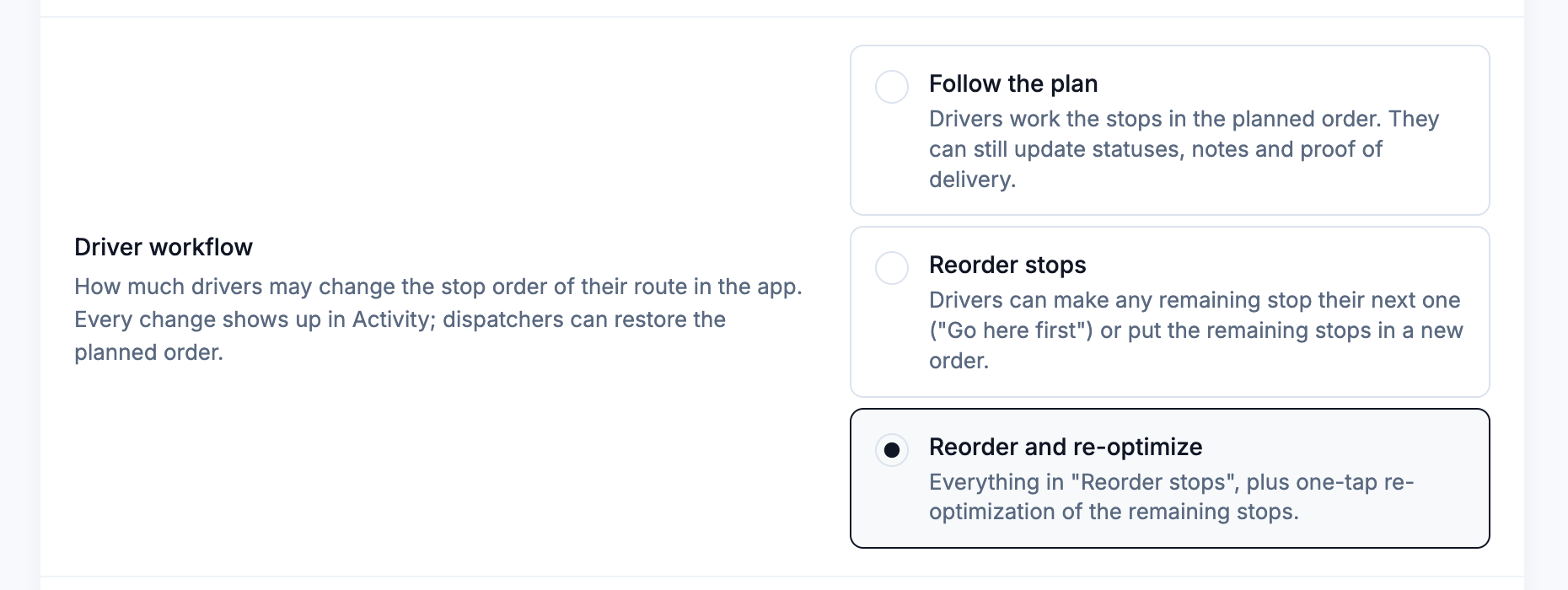
Driver workflow levels
Choose the level in Settings → General → Team defaults → Driver workflow. Only team owners and managers can change it.
| Level | What drivers can do |
|---|---|
| Follow the plan | Drivers work the stops in the planned order. They can still update statuses, notes and proof of delivery. |
| Reorder stops | Drivers can make any remaining stop their next one ("Go here first") or put the remaining stops in a new order. This is the default. |
| Reorder and re-optimize | Everything in "Reorder stops", plus one-tap re-optimization of the remaining stops. |
In the driver app, the same levels read Follow the plan, Change stop order, and Change and re-optimize — drivers see theirs under Profile › Stop order. Drivers can't add or delete stops at any level.
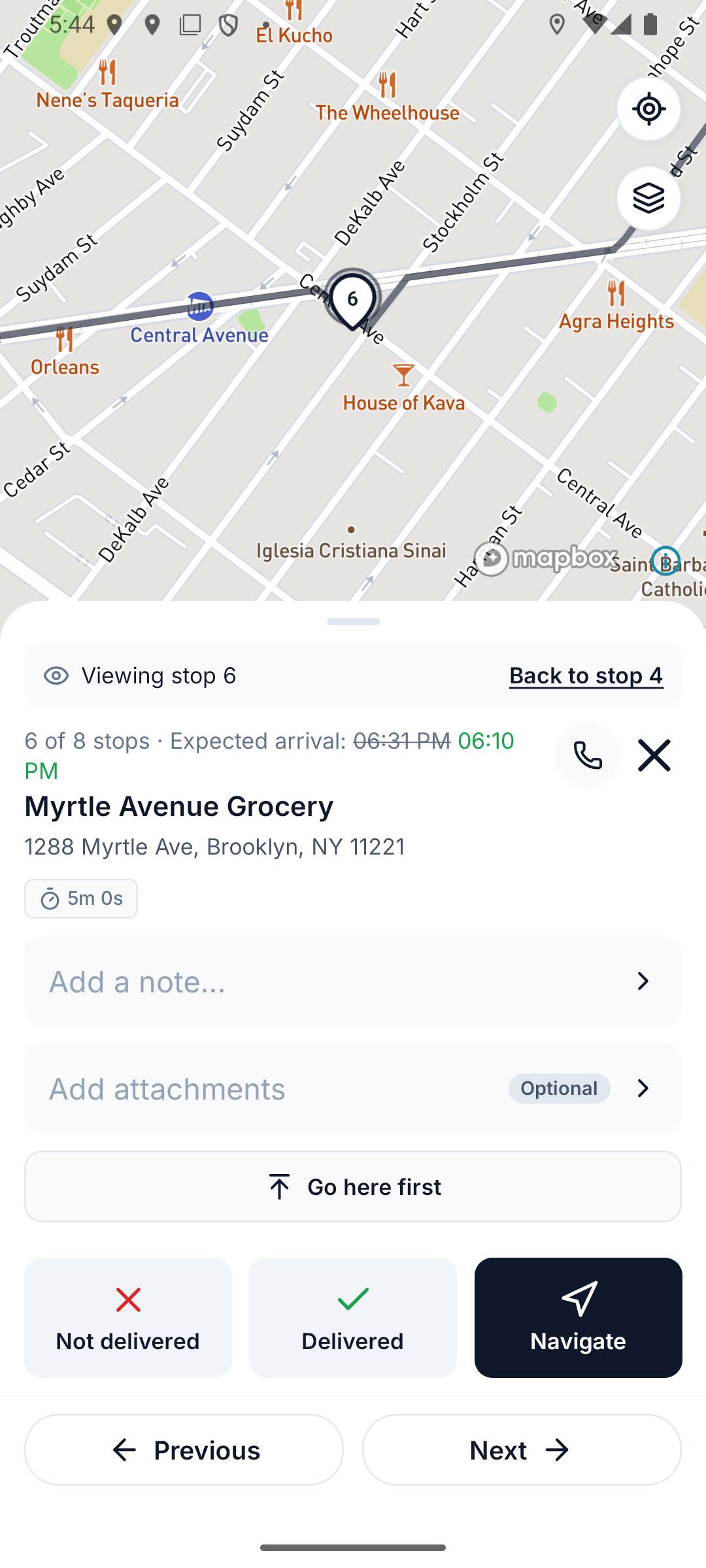
Reordering and one-tap re-optimize need driver app 1.11.0 or later. If a driver doesn't see them, ask them to update the app.
What you see when a driver reorders
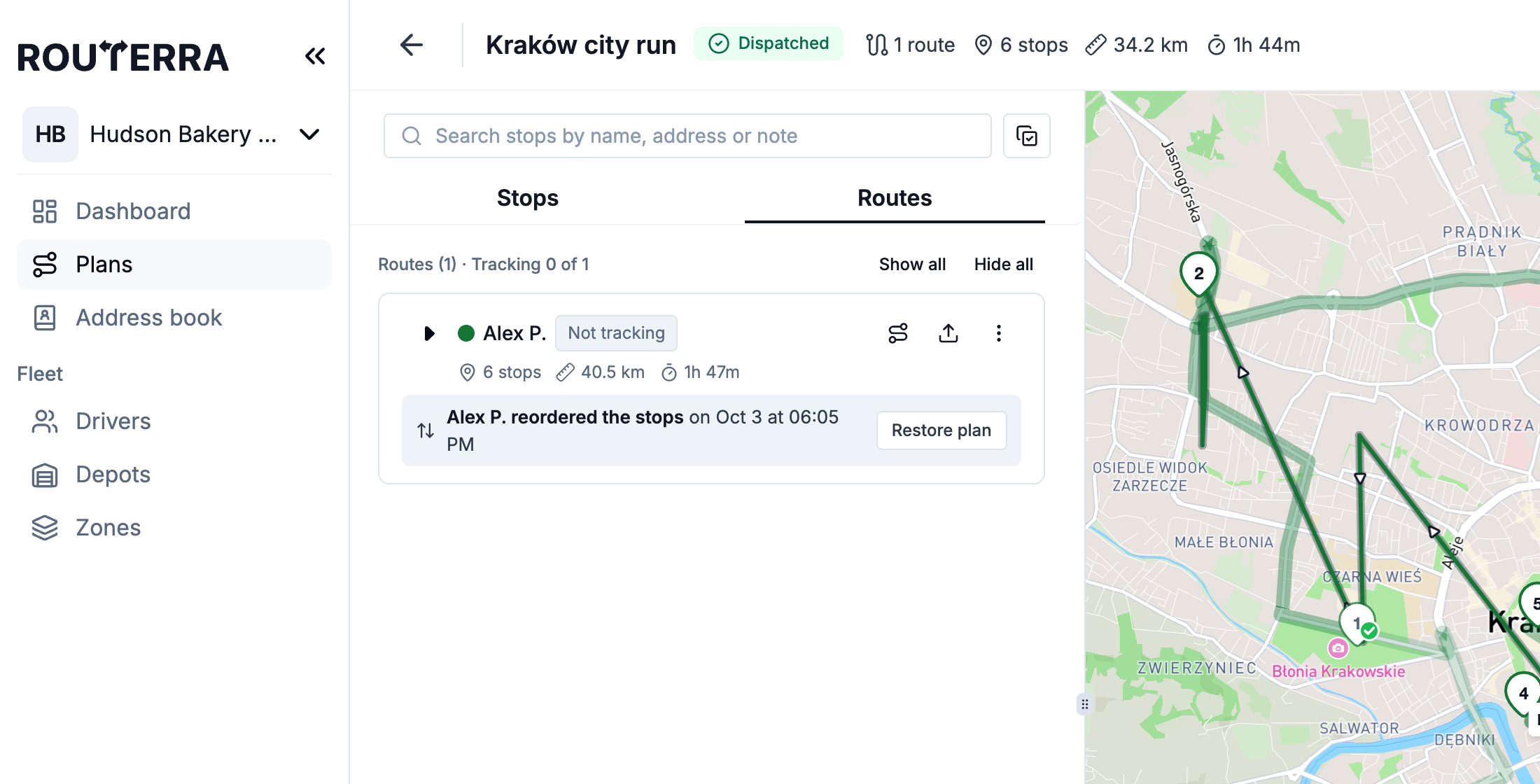
When a driver changes the stop order of their route, the route's row on the plan's Routes tab gets a strip under it:
"Marta reordered the stops at 10:42"
(If the change was made on another day, the strip shows the date too.) The route's stops are listed in the driver's new order, with ETAs to match. If the new order means a stop will arrive outside its arrival window, that stop's row says "Outside its time window".
Restore the planned order
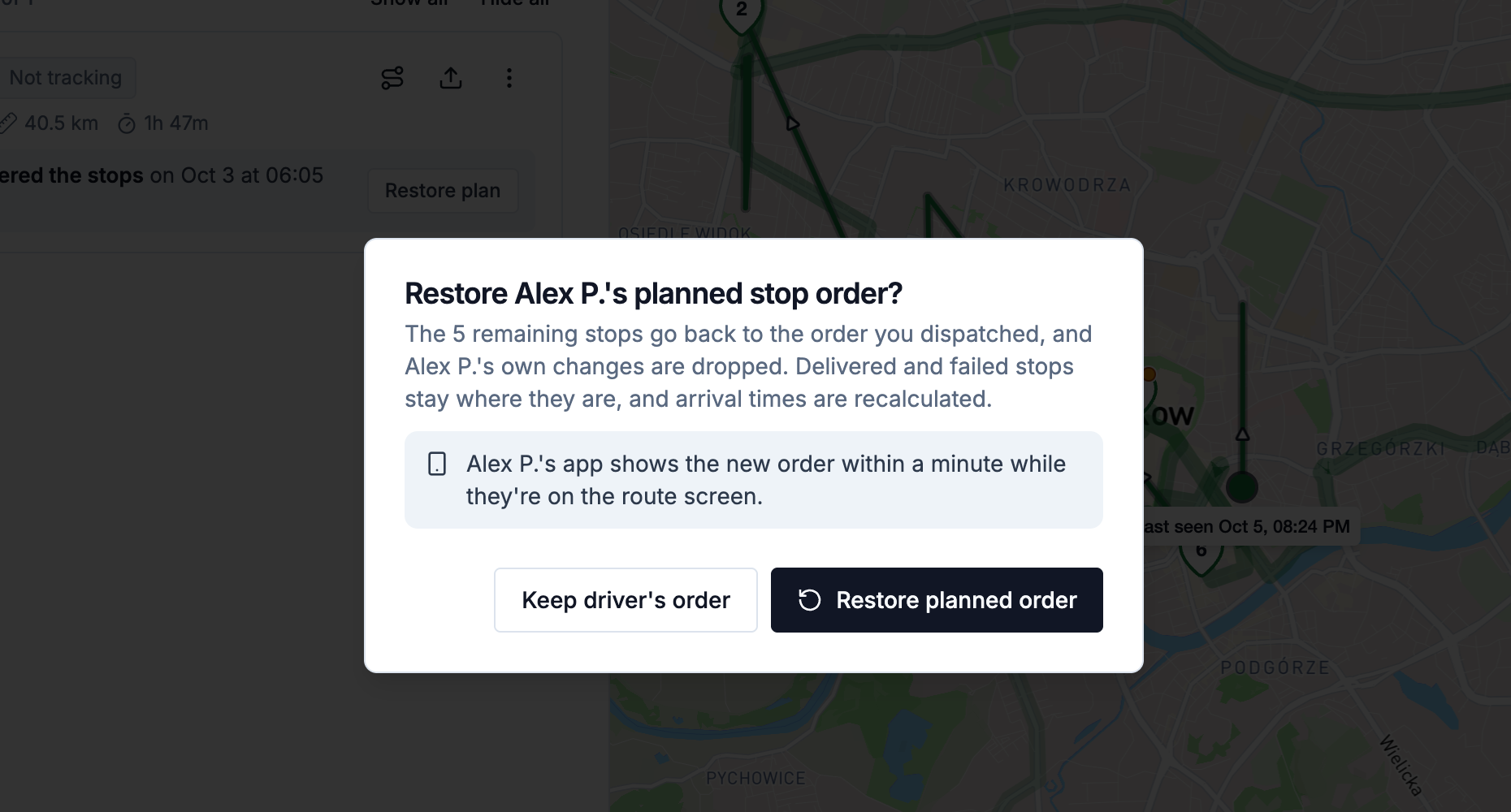
To put your order back, press Restore plan on the strip. A dialog asks "Restore Marta's planned stop order?" and spells out what happens:
- The remaining stops go back to the order you dispatched, and the driver's own changes are dropped.
- Delivered and failed stops stay where they are.
- Arrival times are recalculated.
- The driver's app shows the new order within a minute while they're on the route screen.
Press Restore planned order to confirm, or Keep driver's order to leave it as the driver set it.
Restore plan is only offered to team owners and managers, not on a completed route, and not while Refine is on.
Optimizing over a driver's order
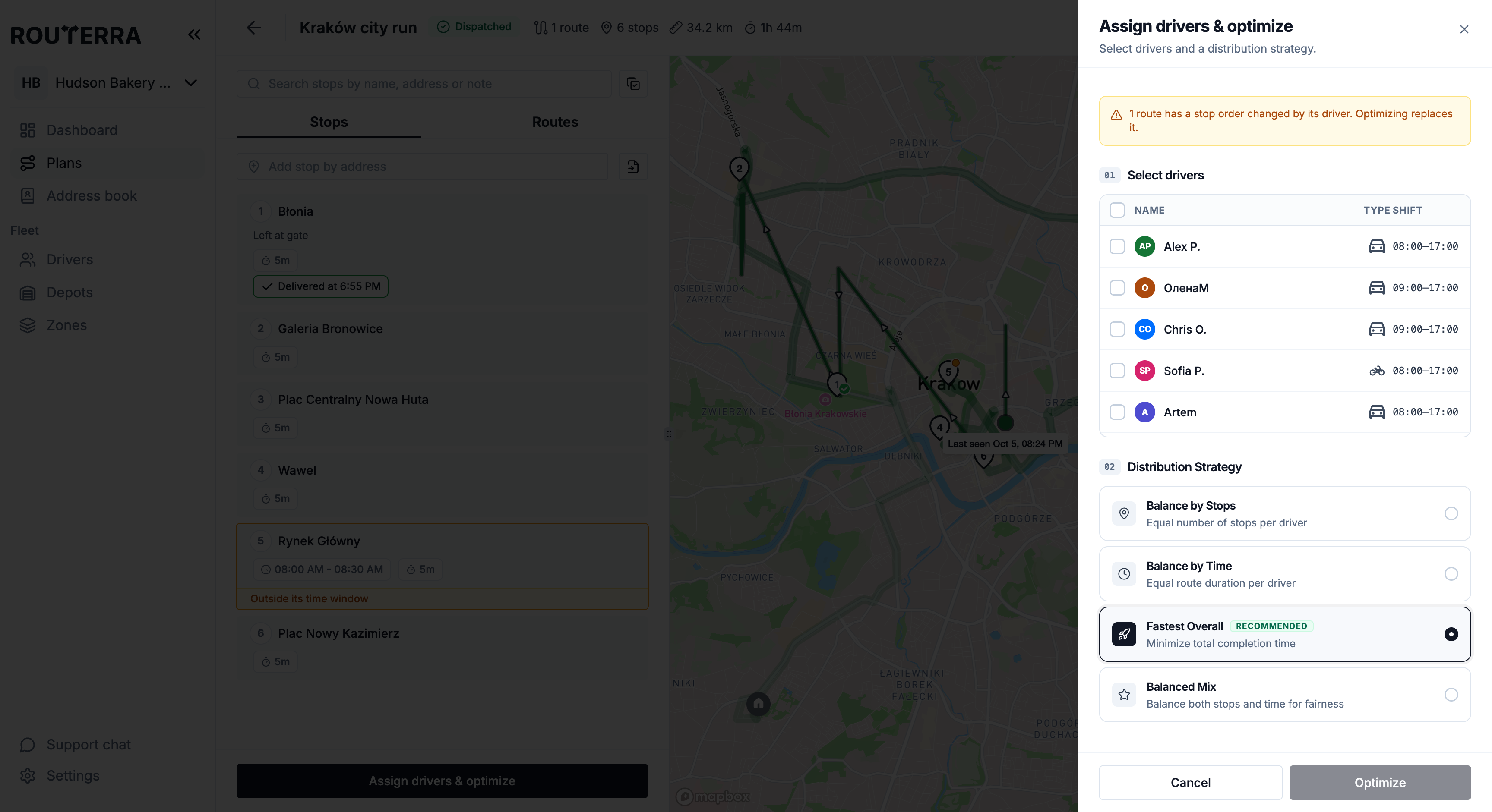
Optimizing the plan again builds fresh routes, so it replaces any order a driver set. When that's about to happen, the Optimize Delivery Plan sheet warns you above the driver list:
"1 route has a stop order changed by its driver. Optimizing replaces it."
Delivered and failed stops keep their status. If you want to keep a driver's order for one route, don't re-optimize the whole plan — move individual stops with Move to driver instead (Bulk actions on stops).
Where it shows in Activity
Every change lands in the activity log, with the driver named as Driver · Marta:
- changed the stop order of route … — the driver reordered stops.
- re-optimized the remaining stops of route … — the driver used one-tap re-optimize.
- restored the planned stop order of route … — someone in the office pressed Restore plan.
See them for one plan under More actions → History on the plan page, or for the whole team in Settings → Team → Activity (The Activity log).
What's next
- Route preferences and defaults — the other team defaults
- Send routes to drivers — what changes after dispatch
- Get started with the driver app — what drivers see