
Address book: labels, map, bulk edit
Tag saved addresses with labels, select them on a map by pin, box, lasso, or zone, edit many at once, and export the address book to XLSX or CSV.
Once your Team Address Book holds more than a few dozen addresses, you'll want to group them, find them on a map, and change them in batches. This guide covers the tools on the Address book page for that.
Labels: create, assign, filter
Labels are coloured tags you put on addresses — a delivery area, a customer type, "loading dock", "call ahead". An address can carry several.
- Assign — open an address and use the Labels field. Type to search your labels; if none matches, choose Create "…" to make a new one on the spot.
- Edit or delete a label — from the same menu, open Edit label to rename it or change its colour. Deleting a label that's in use asks first: "Applied to 12 addresses — remove from all and delete?"
- Filter — press Filter by label above the list and pick one or more labels to show only those addresses. Combine it with the search box to narrow further.
Labels show in their own column in the list, and you can add or remove them on many addresses at once with bulk edit.
Map view: select by pin, box, lasso, or zone
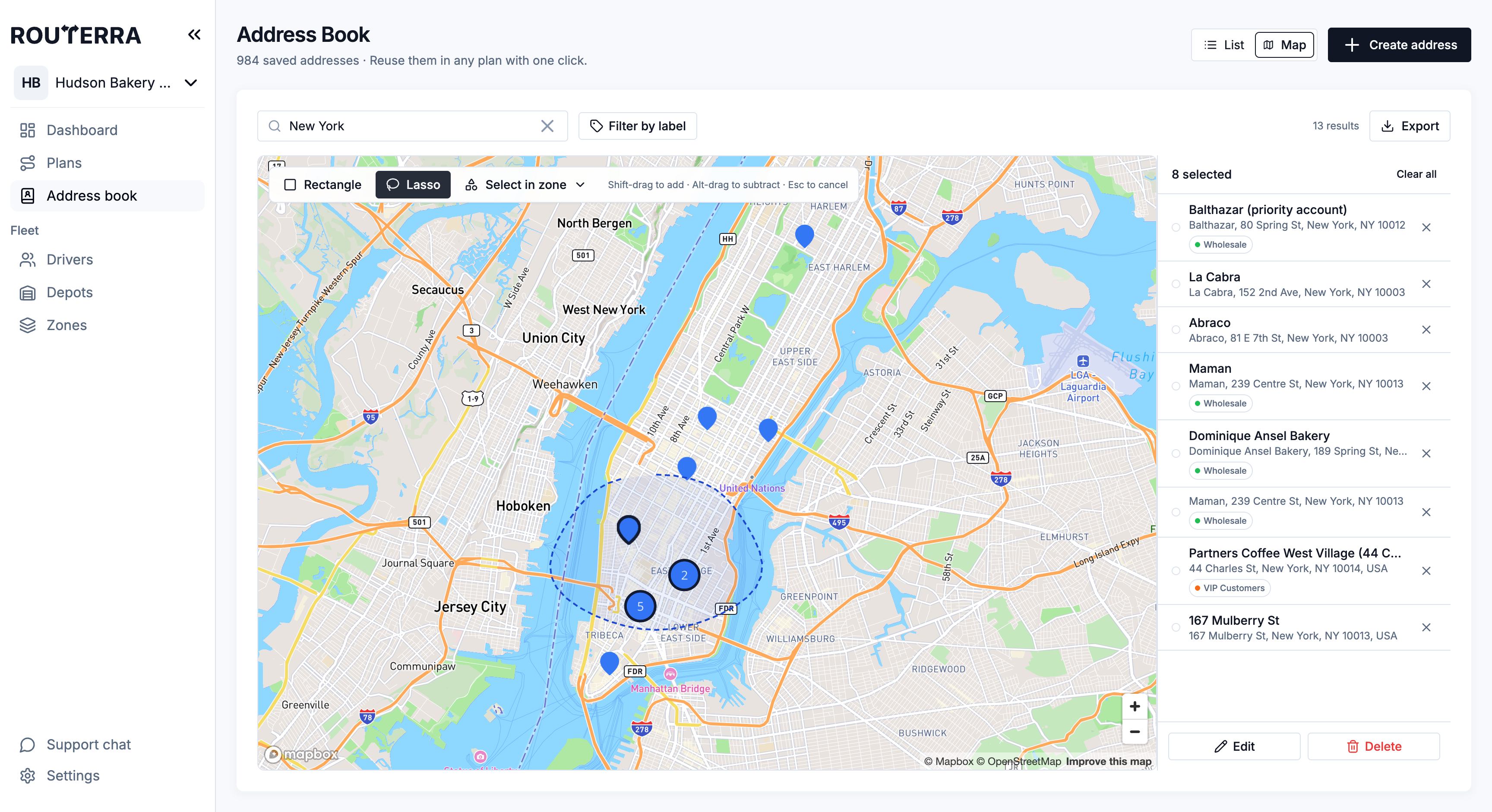
Switch View from List to Map to see your saved addresses as pins. The map shows the same addresses as the list, with your search and label filters applied.
To select addresses on the map:
- Click a pin and choose Select (or Deselect). The pin's popup also has Edit.
- Rectangle — drag a box around a group of pins.
- Lasso — draw a free shape around them.
- Select in zone — pick one of your team's zones to select every address inside it.
While drawing, Shift-drag adds to the selection, Alt-drag removes from it, and Esc cancels.
The selected addresses are listed in a panel beside the map, with Clear all, Edit, and Delete.
Edit many addresses at once
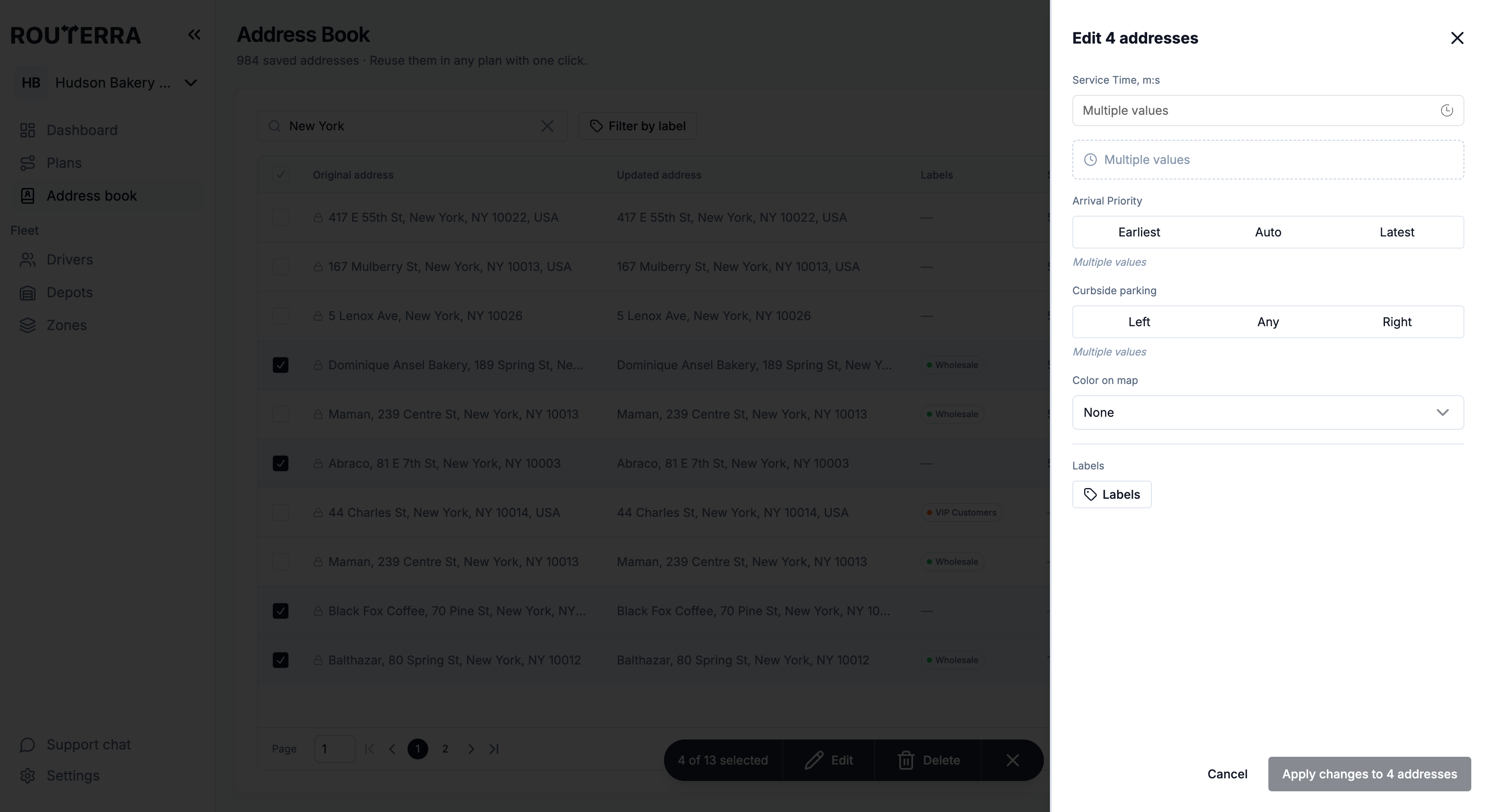
Select addresses in the list (tick the rows) or on the map, then press Edit. In the list, ticking every row on a page offers Select all N matching, so you can act on every address that matches your search and filters, not just one page.
The Edit N addresses sheet holds the fields you'd usually change in bulk:
- Service time
- Arrival time windows
- Arrival priority
- Curbside parking
- Color
- Labels — add or remove labels across the selection
"Only the fields you change are applied to every selected address." A field where the addresses disagree shows Multiple values. Press Apply changes to N addresses and confirm — this overwrites the changed fields on every selected address and can't be undone.
Export to XLSX or CSV
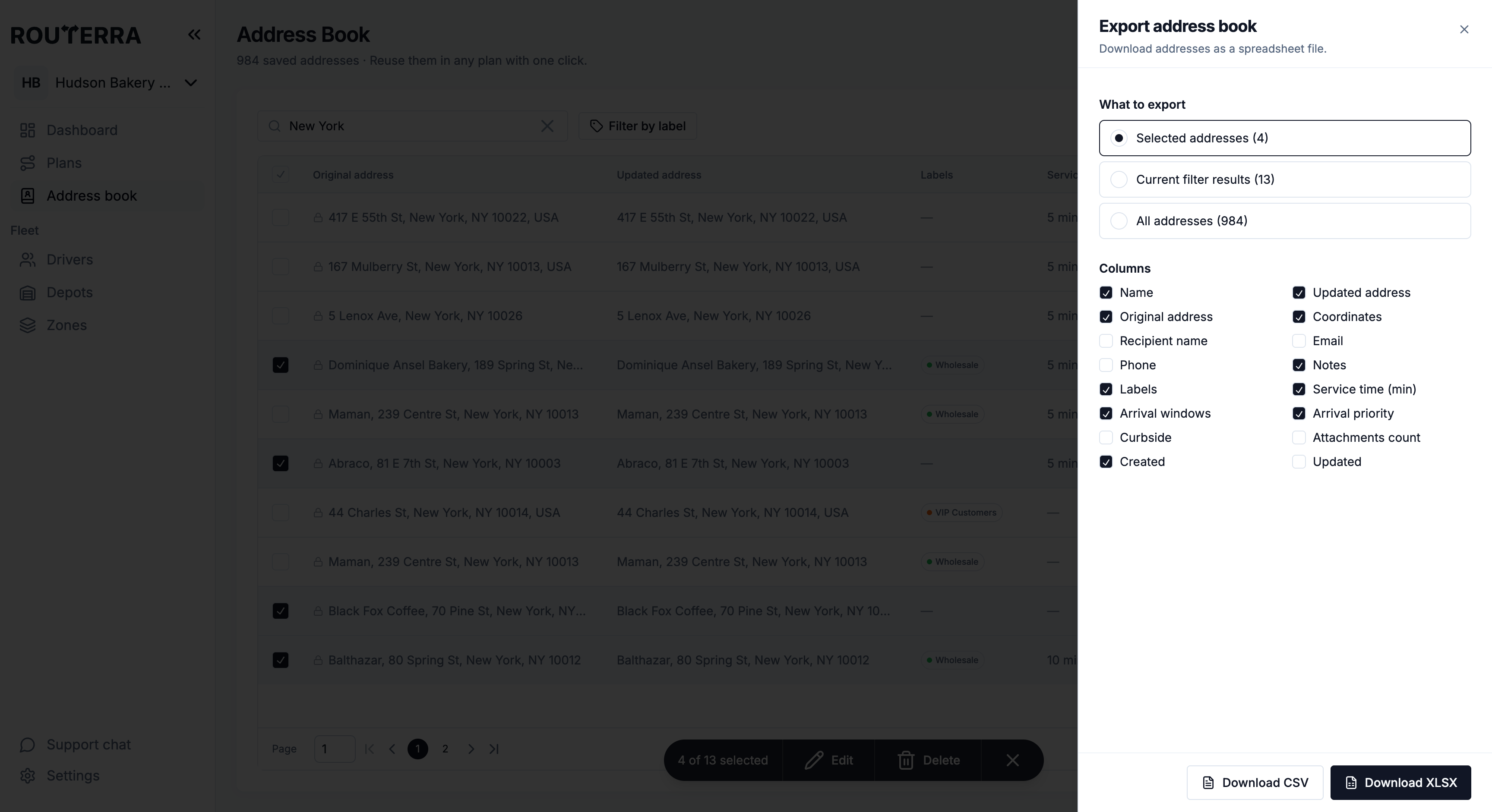
Press Export above the list. The Export address book sheet asks:
- What to export — Selected addresses, Current filter results, or All addresses, each with its count. To export only some, select rows in the list first.
- Columns — tick the columns you want: name, updated and original address, coordinates, recipient name, email, phone, notes, labels, service time, arrival windows, arrival priority, curbside, attachments count, created and updated dates. Your column choice is remembered for next time.
Then press Download XLSX or Download CSV.
What's next
- The Team Address Book — what an entry stores and how plans use it
- Bulk actions on stops — the same ideas inside a plan
- Import stops — pull saved addresses into a plan