
Stop settings that shape your routes
Service time, up to three arrival windows, priority, load, curbside, driver and position, customer contact, and attachments: the per-stop details that matter.
A stop is more than an address. Open any stop in a plan and you'll find the settings the optimizer uses to place it in the right route, in the right order, at the right time — plus the customer's contact details and the files your driver needs. Most stops need none of this — but when a delivery has real constraints, this is where you tell Routerra about them.
The stop's edit sheet has three sections: General, Customer contact, and Optimization.
General
| Setting | What it does |
|---|---|
| Name and address | What the driver sees, and where the pin goes. Drag the pin to fix a location that landed wrong. |
| Color on map | A visual tag for your own eyes — group related stops at a glance. |
| Load | Capacity units this stop consumes — weighed against each driver's Vehicle Capacity. |
| Notes | Instructions the driver reads at the stop. |
| Attachments | Files for the driver, and the driver's proof of delivery (see below). |
If Routerra couldn't find the address, the sheet may list Did you mean: suggestions under it — see Import and address problems.
Customer contact
Recipient name, Email, and Phone are used for delivery updates to the customer. Enter the phone in international format, for example +14155550132.
Above the fields, a line tells you what this customer will get — for example "This customer gets delivery updates by email and SMS." — or which contact is missing. If the customer has opted out, it says so: "Opted out — this customer replied STOP." Customer updates themselves are set up for the whole team in Settings → Notifications (Customer notifications).
The optimization settings
Under a stop's Optimization section:
| Setting | What it does |
|---|---|
| Assign to Driver | Before optimizing: pre-assign this stop to a specific driver. After: move the stop to another driver's route (see below). |
| Select position | Routed stops only: the stop's place in its route's order. |
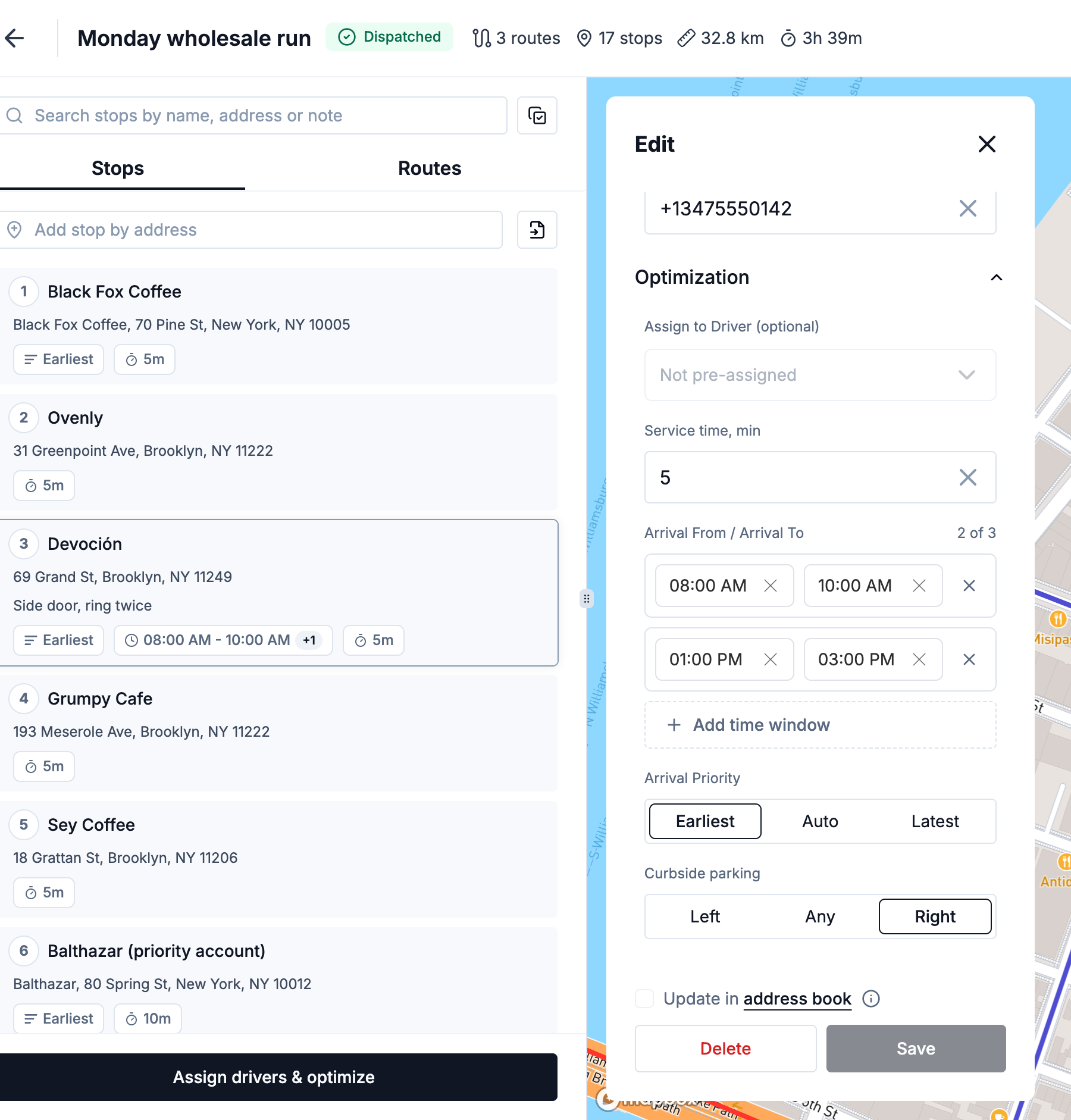
| Service time, min | How long the driver spends at this stop. Rolls into each route's total time and ETAs. |
| Arrival From / Arrival To | Up to three arrival time windows — the times the driver may arrive. |
| Arrival Priority | Within the window, aim for Earliest, Latest, or Auto (let the optimizer decide). |
| Curbside parking | Which side the driver should stop on: Left, Right, or Any. |
Arrival windows and priority
Arrival windows are the setting that most shapes a route. A tight window pins a stop to a moment in the day and forces everything around it to accommodate. That's powerful — and it's also the most common reason a stop ends up in Unassigned Stops: if no driver can reach it inside the window without breaking another constraint, the optimizer leaves it out rather than lie about the ETA.
A stop can have up to three windows — say 9:00–11:00 or 14:00–16:00 for a shop closed over lunch. Press Add time window for another one. A few rules apply:
- Windows can't overlap.
- Each window needs both a start and an end, and they must differ.
- An overnight window (one that crosses midnight) must be the only window on the stop.
- With no window at all, the stop can be visited any time.
On a routed stop, the window the driver is expected to arrive in is marked Planned. If the route's ETA falls outside every window, the stop row in the plan shows "Outside its time window".
Use Arrival Priority to bias when inside a window a stop gets served — Earliest for "get this done first thing," Latest for "any time before we close," Auto to let the optimizer choose the most efficient slot.
Load and capacity
If you deliver physical volume, set Load per stop and Vehicle Capacity per driver (driver settings). The optimizer won't overfill a vehicle — it splits stops so no route exceeds its capacity, and flags anything that can't fit.
Choosing the driver and the position
Sometimes you already know who should take a delivery — a VIP customer their regular driver knows, or a stop only one van is equipped for.
- Before the plan has routes, set Assign to Driver on the stop and the optimizer keeps it on that driver's route while still ordering everything efficiently. Leave it unset and the optimizer is free to place it wherever it fits best. To pin many stops at once, use Assign driver in the selection bar.
- Once the plan has routes, the same field moves the stop instead: pick another driver and the Move dialog opens, where you choose to re-optimize that driver's route or add the stop to its end.
On the Routes tab, Select position changes where the stop sits in its route — type the new position number and save. This is the way to reorder a route by hand; Refine on the map reshapes the driven path, not the stop order.
Saving: Update in address book
If the stop came from the Team Address Book, an Update in address book checkbox sits above Save. Tick it to also save your changes to the address-book entry for future stops at this address. It's off by default and applies to this save only.
Attachments: office instructions vs proof of delivery
Each stop has an Attachments panel with files grouped by who added them:
- Added by office — instructions you attach for the driver (gate codes, entrance photos). Drivers see these read-only.
- Proof of delivery — From driver — photos and files the driver captures on delivery. Covered in Proof of delivery.
- From address book — files saved on the address itself, so they appear on every stop at that location (Team Address Book).
What's next
- Assign drivers and optimize — where these settings get used
- Bulk actions on stops — change these settings on many stops at once
- The Team Address Book — save a stop's settings once and reuse them