
Live driver tracking on the plan map
See where each driver is while a route is in progress: live position, recorded track, tracking status, and how the day compares with the plan.
The dashboard tells you what happened — delivered, not delivered, with proof. Live driver tracking adds where: while a route is in progress, the plan map shows each driver's position, the path they've driven, and whether their phone is still reporting.
Turn it on
Open Settings → General → Team defaults and switch on Live driver tracking, then save. The setting's own description sums it up: drivers share their GPS location with dispatchers while a route is in progress, grant background location once, and tracking stops when the route is finished.

- Who can change it: team owners and managers.
- New teams start with it on. Teams created earlier keep whatever they had; if it's off, owners and managers see a banner on the plan page — Live driver tracking is available. — with Turn on in settings. Dismiss it and it stays gone.
- Drivers need driver app 1.11.0 or later.
What drivers approve
The first time a driver starts a tracked route, the app explains what's shared — Share your live location with your dispatcher — before any system prompt. The driver taps Continue and then allows location all the time (Android: Allow all the time; iPhone: Always). The app only uses it while a route is in progress.
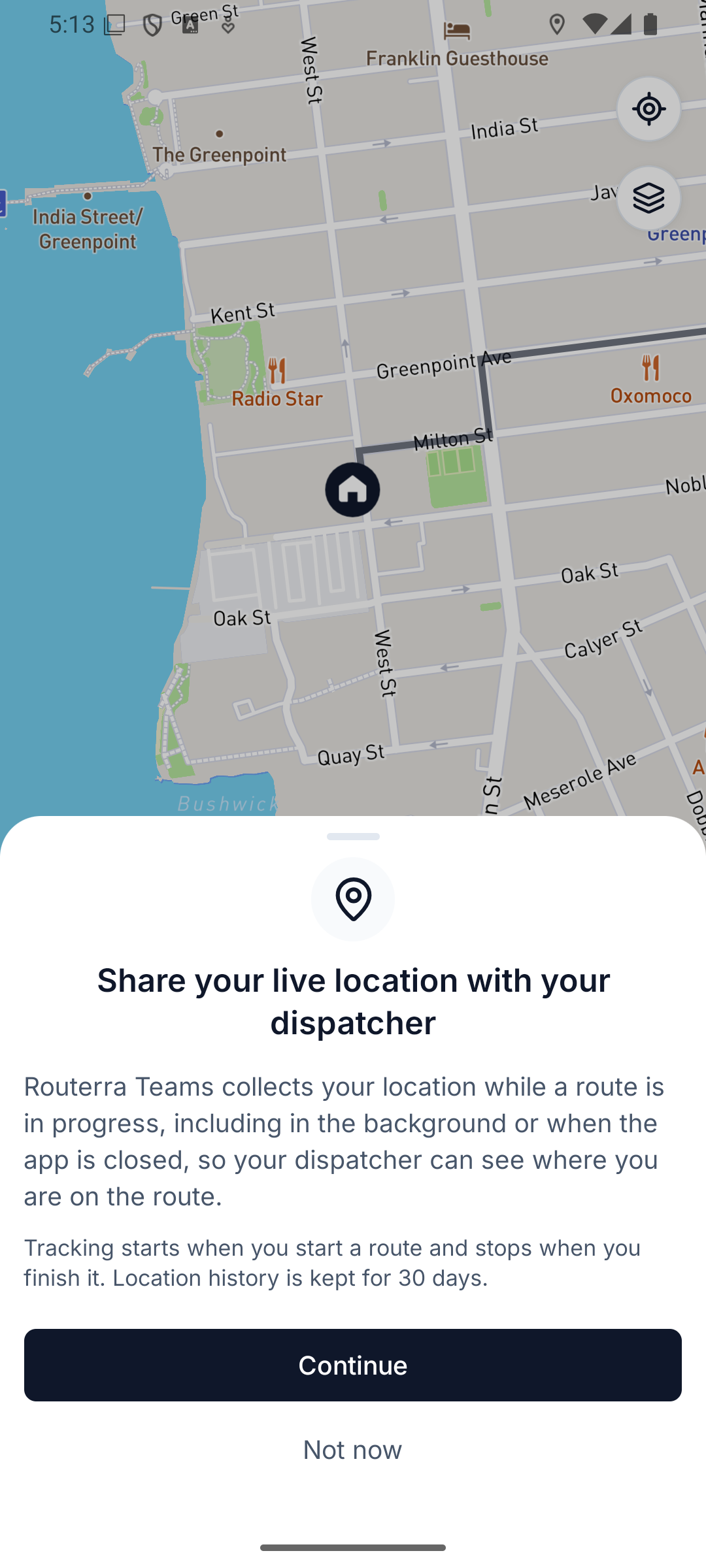
If the driver taps Not now, that route runs untracked and the app asks again on their next route. Drivers can't switch tracking off themselves — the app shows it as Set by your team.
What you see on the map
Open a plan while routes are on the road:
- Pucks — one per driver, in the route's colour, with an arrow showing the heading while the driver is moving. Positions refresh about every 15 seconds, and the puck keeps gliding along the road in between. Click a puck for its status, how long ago the last position arrived, and battery and speed when the phone reports them.
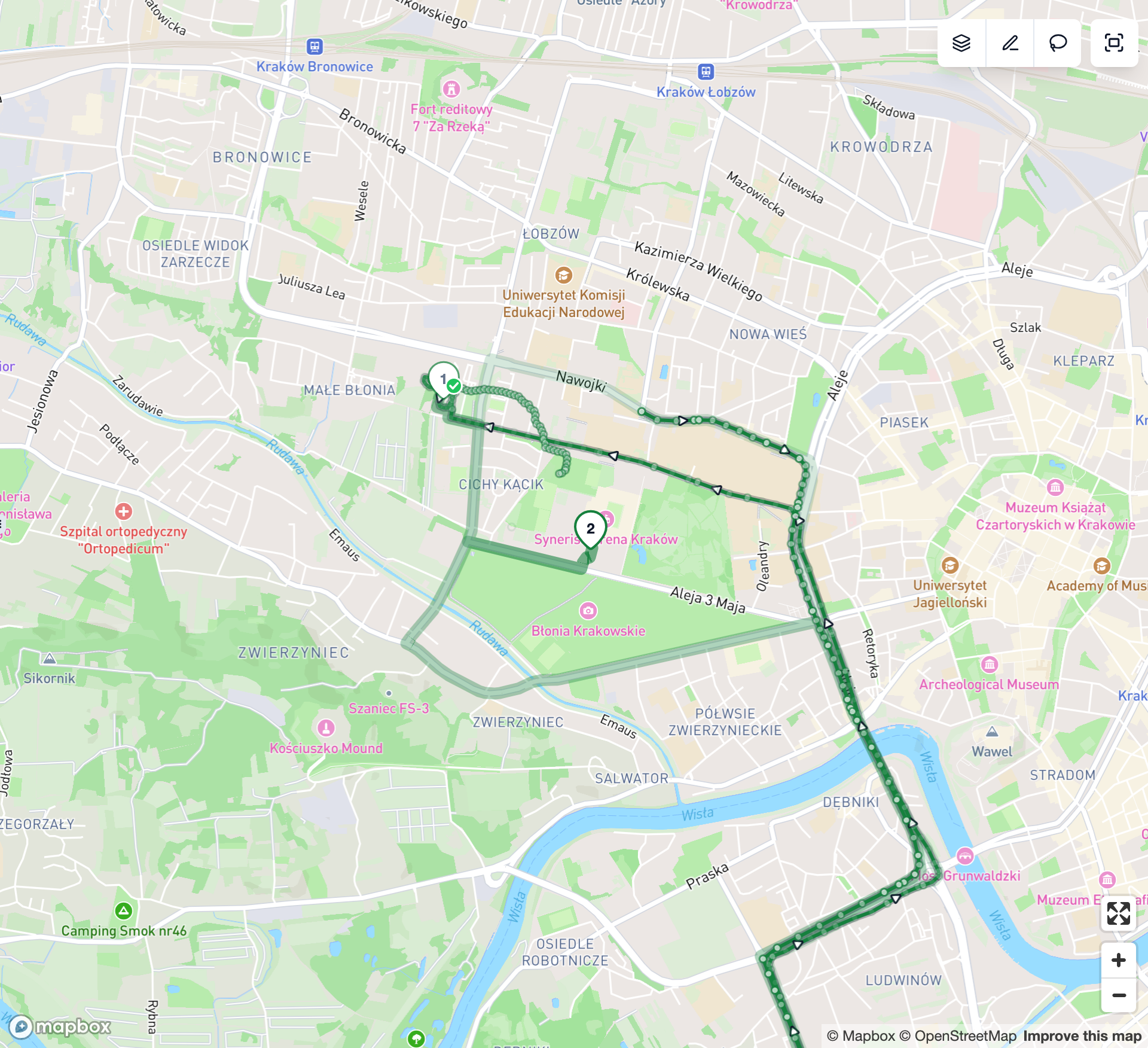
- Tracks — the path actually driven, drawn behind the driver with arrows for direction. A pause of more than 5 minutes breaks the line rather than drawing a straight jump.
- Route colours — every route on a plan gets its own colour, even when two drivers picked the same one, so a line, its pins and its puck always match.
- Stop pins — delivered stops fade, failed stops get a ring, and each driver's next stop is highlighted.
In the route list, the header counts how many routes are reporting right now — Tracking 2 of 3 — and each in-progress route shows its tracking status next to the driver's name.
Tracking statuses and what to do
| Status | What it means | What to do |
|---|---|---|
| Moving | The phone is sending fresh locations. | Nothing. |
| Parked | The driver is stopped. A parked phone sends nothing until it moves again, so the position stays trustworthy for up to 30 minutes. | Nothing — usually a delivery or a break. |
| Signal delayed | No new location for more than 2 minutes while the driver was moving. The puck may be behind. | Usually a dead zone. Give it a few minutes. |
| Connection lost | No new location for more than 5 minutes while moving, or 30 minutes while parked. The phone may have lost signal, or the app was closed. | If it doesn't clear, call the driver. Their GPS keeps recording offline and fills in once they reconnect (Offline: what syncs and when). |
| Not tracking | The phone isn't sharing its location for this route. Permission and location-services problems show as Not tracking: permission and Not tracking: location off. Hover the status for the reason. | See below. |
Common reasons behind Not tracking:
- Location permission denied on the driver's phone or Location services are off on the driver's phone — ask the driver to allow location (all the time) for the Routerra Teams app, or turn location services back on.
- Tracking not started yet — the route was just started and no position has arrived yet. If none arrives within 5 minutes, the status turns to Connection lost.
- The driver's phone stopped reporting its location — the app may have been closed or the phone switched off.
- Tracking disabled for the team — someone switched Live driver tracking off.
A finished route doesn't show a tracking status at all — finishing ends tracking, and that's not a problem. If a route has no recorded positions, the map says No tracking data recorded for this route.
Live vs Compare and the Layers menu
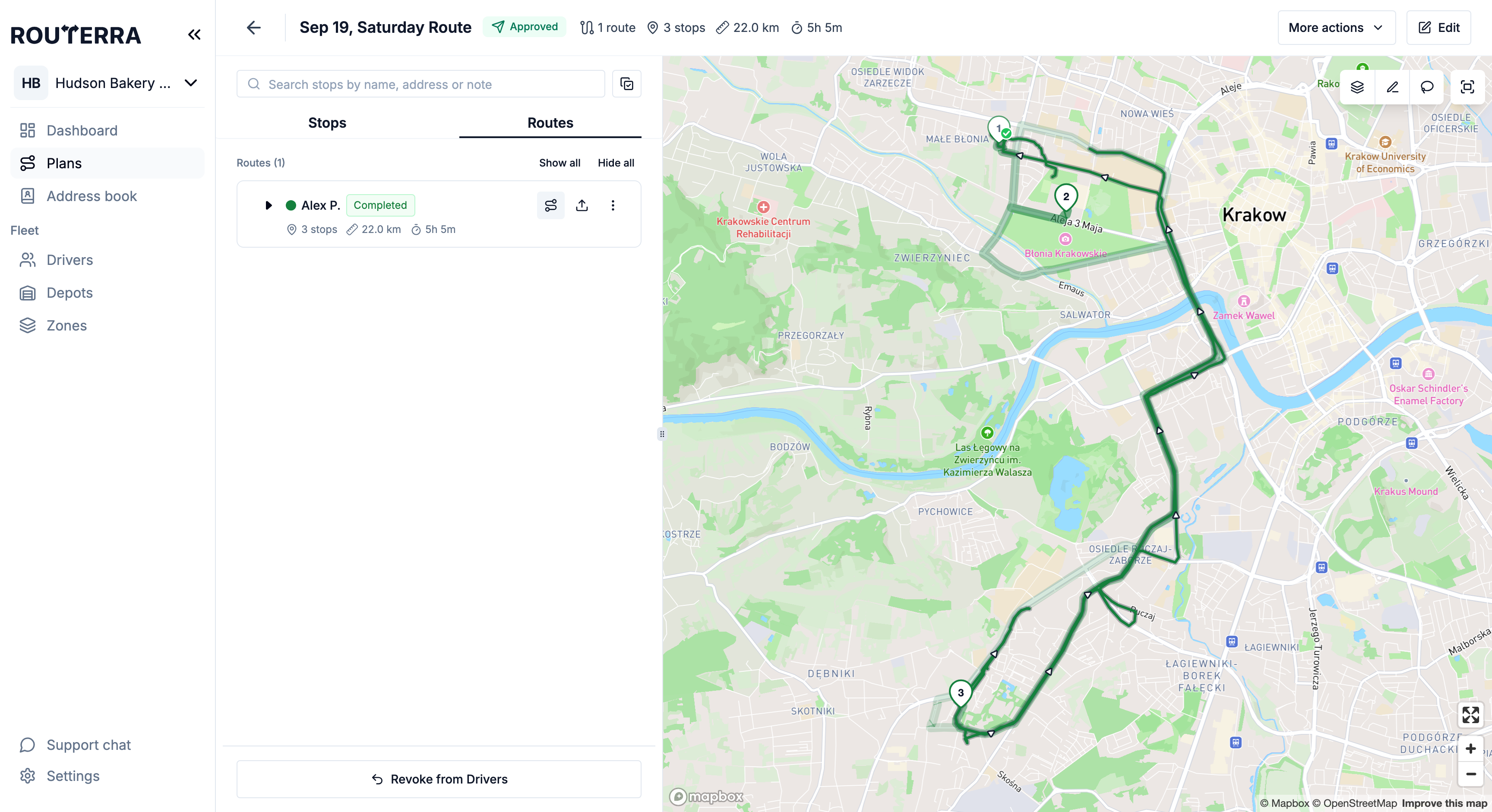
Click the focus button on a route (Focus this route — dim the others) to inspect it. The map frames that route and dims the rest. The Layers button on the map toolbar then offers two views of the inspected route:
- Live — track behind the driver, plan ahead. The default while the route is in progress: what's been driven, and what's still planned.
- Compare — plan and track together. The default once the route is finished: the whole planned route as a band, with the recorded track over it, and a marker at the last recorded position.
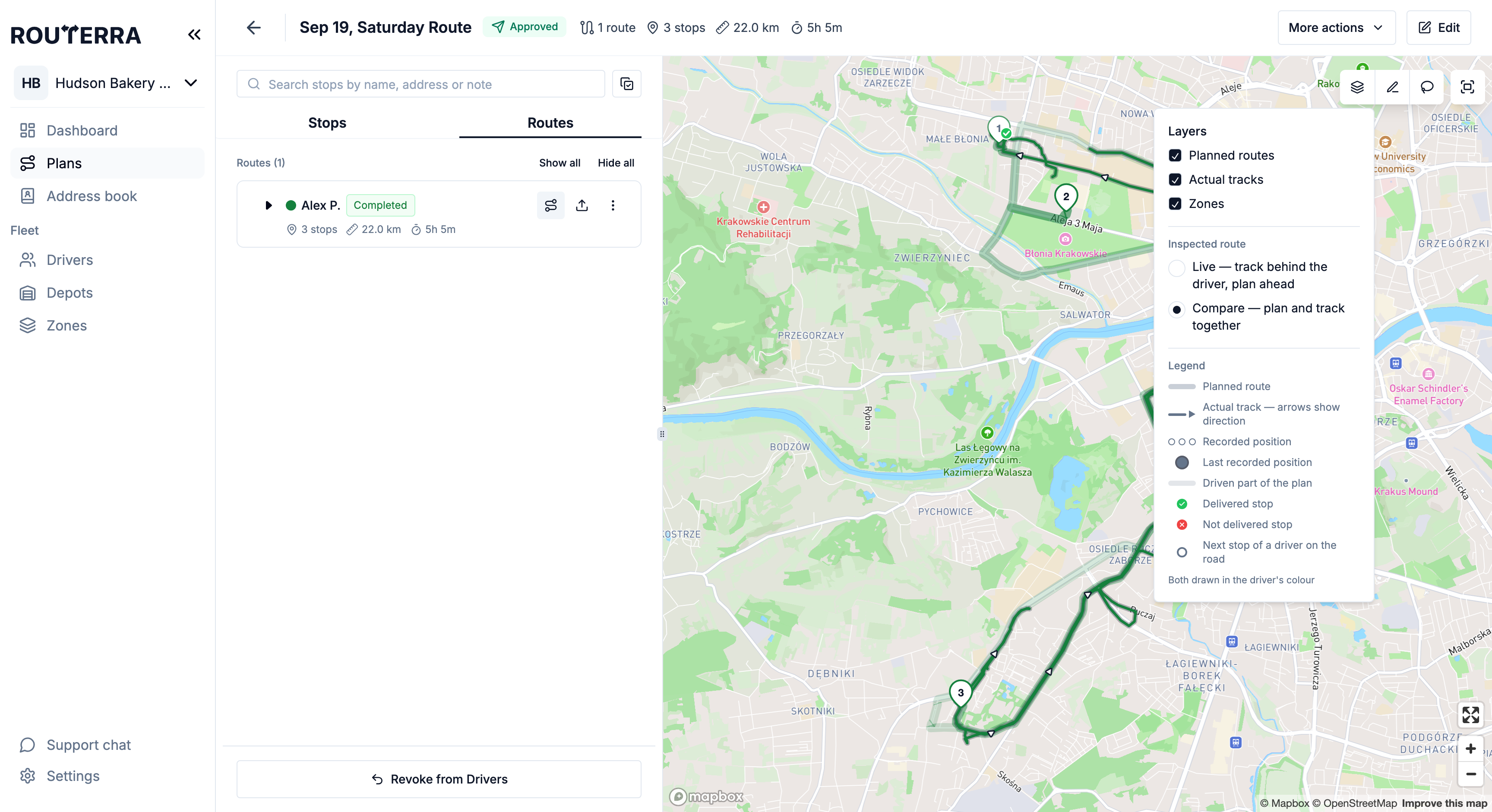
The same Layers menu switches whole layers on and off — Planned routes, Actual tracks, Zones — and holds a legend for every line and marker on the map.
Privacy: when tracking stops
Tracking is tied to the route, not the driver's whole day:
- It starts when the driver presses Start Route and stops when they finish the route.
- It also stops when the driver signs out, or when you switch Live driver tracking off for the team.
- Outside an in-progress route, nothing is collected.
- Recorded locations are deleted after 30 days. The track you see on the plan map comes from the same data, so after 30 days it's gone from the office view too.
What's next
- Follow delivery progress live — statuses and Needs attention on the dashboard
- Offline: what syncs and when — what a quiet phone means
- Get started with the driver app — what drivers see when they start a route