
Get started with the driver app
Accept your invite, install the free driver app, and run your first route end to end — including what still works when the phone has no signal.
Your dispatcher plans the routes — you drive them. Everything you need is in the Routerra Teams app, free on iOS and Android. Here's your first day, start to finish.
Get in
Check your email
Your dispatcher added you to the team, so you have an invite email. It tells you which team you've joined.
Install Routerra Teams
Get Routerra Teams from the App Store or Google Play and install it. The app is free — your team's subscription covers you.
Sign in with the invited email
Use the same email address the invite came to. That's how the app knows which team and routes are yours.
Your route arrives
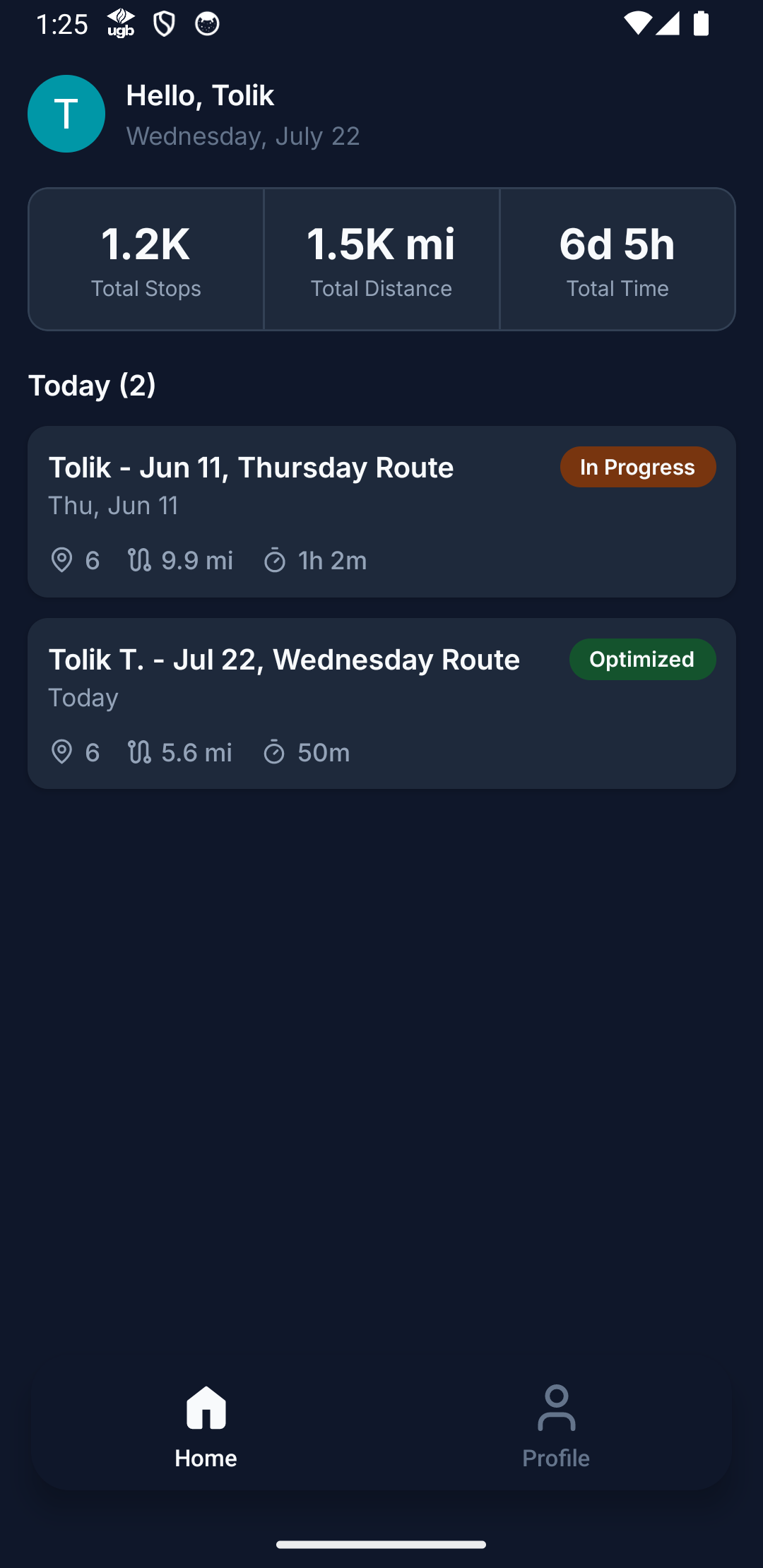
The Home tab greets you with your day: totals for your stops, distance, and time, and a Today list of your routes. A new route appears the moment your dispatcher sends it — with a status badge (Optimized when it's fresh, In Progress once you start driving). Until then, the app shows an empty day; no route means nothing has been sent yet, so check with your dispatcher, not the app.
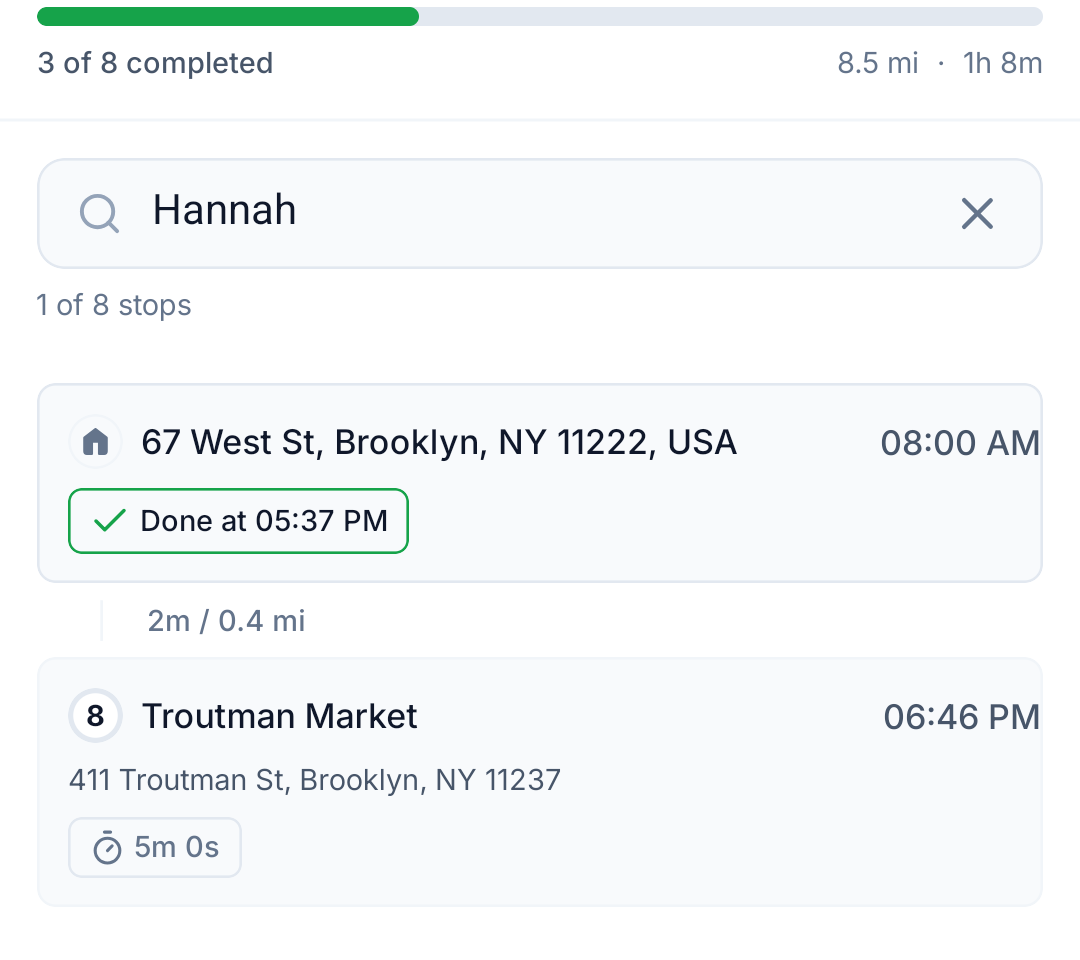
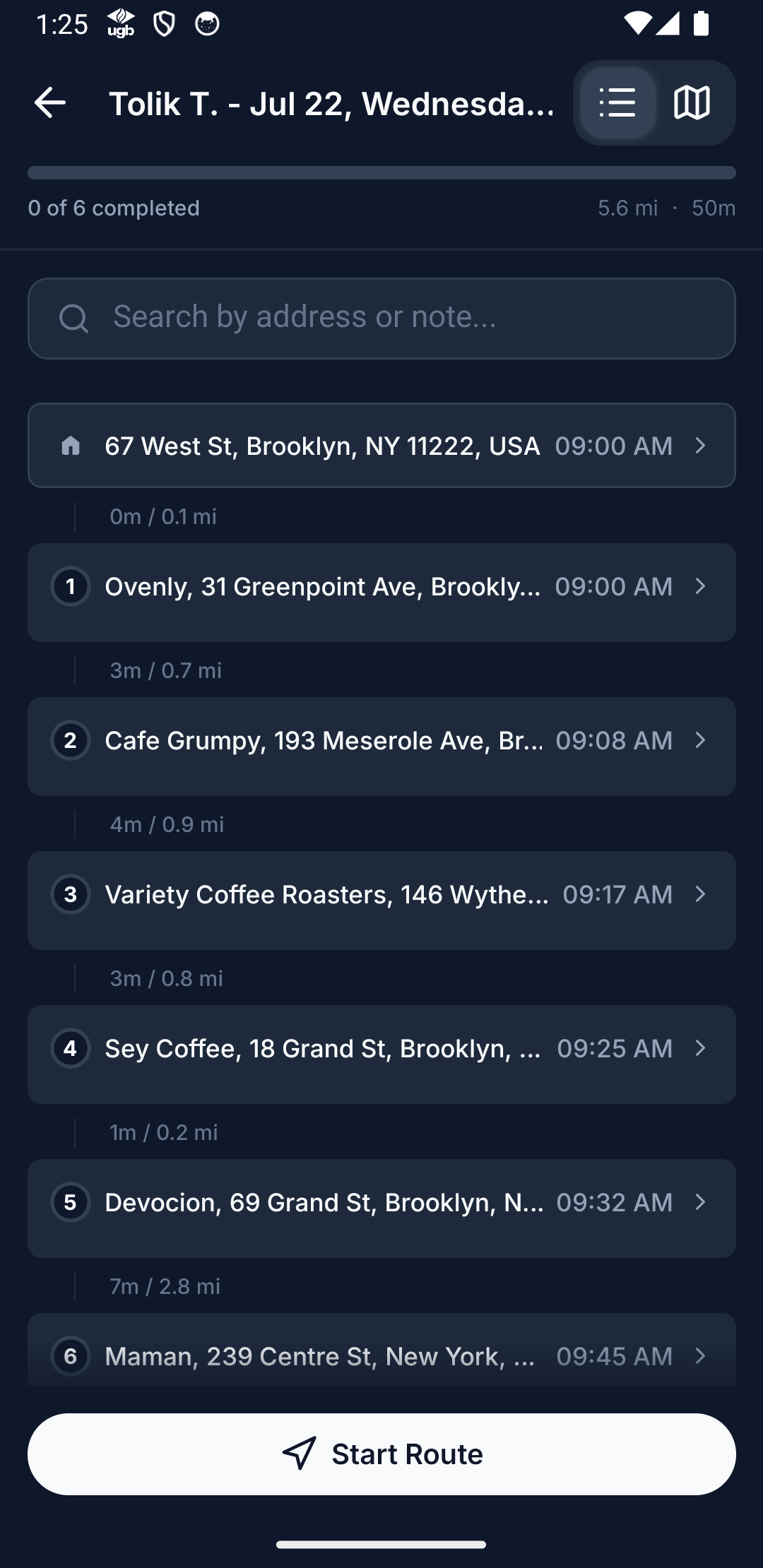
Tap the route to see it end to end: every stop in driving order with its expected arrival time, the depot you start from, and a progress bar ("0 of 6 completed"). You can flip between the list and a map view. On longer routes a search box sits above the list — Search by name, address or note finds a stop by the recipient's name, the address, or a word in its note.
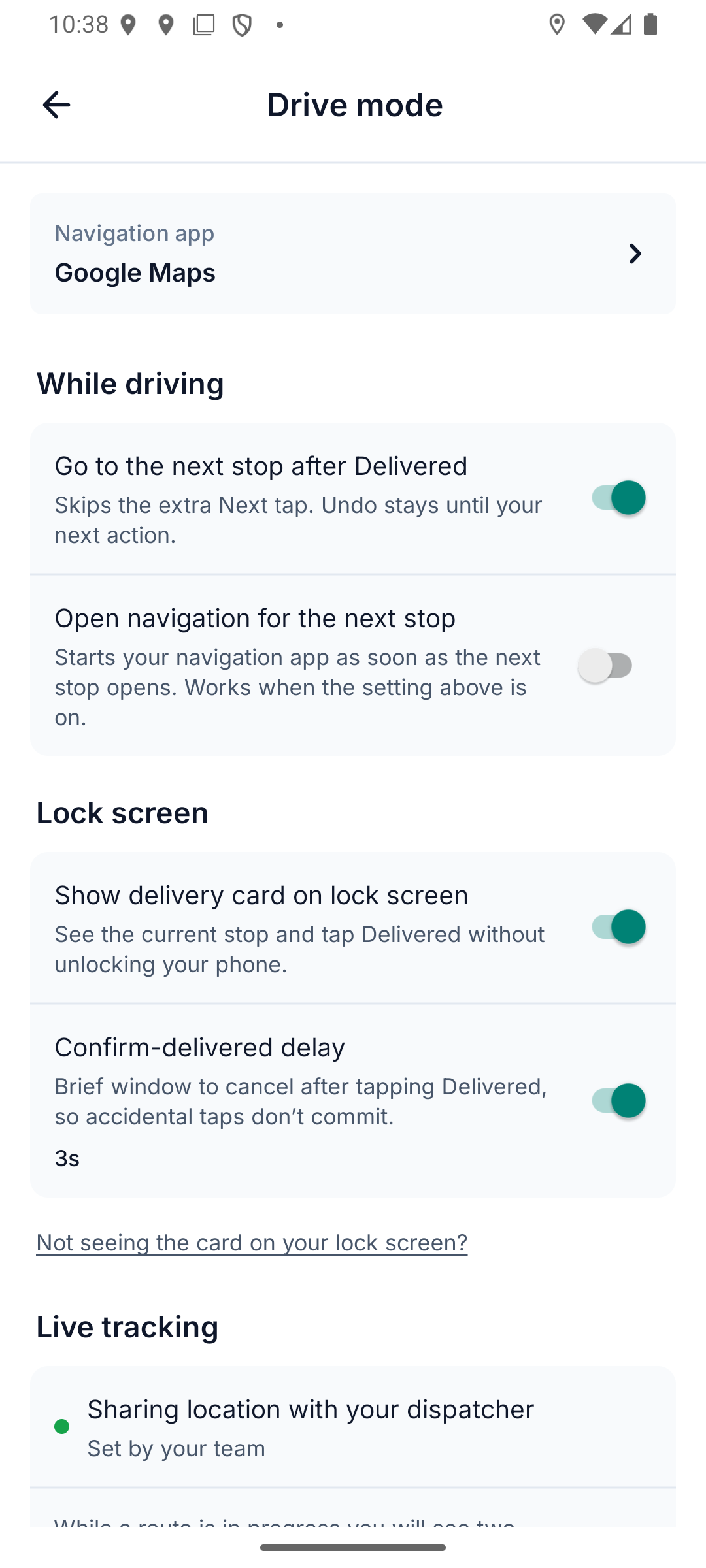
Two small buttons sit next to the List/Map switch: ⇅ Change stop order (only if your team lets you reorder — see Change the stop order) and ⚙ Drive mode settings. When you're ready, press Start Route.
Share your location (if your team uses live tracking)
If your team has live tracking turned on, the first time you press Start Route the app explains it before your phone asks anything: Share your live location with your dispatcher. Your location is shared only while a route is in progress — tracking starts when you start a route and stops when you finish it, and location history is kept for 30 days.
- Tap Continue.
- Allow location all the time. On Android, pick "While using the app" first; the app then asks you to Change to "Allow all the time" in your phone's settings. On iPhone, allow while using the app, then Always Allow when iOS asks.
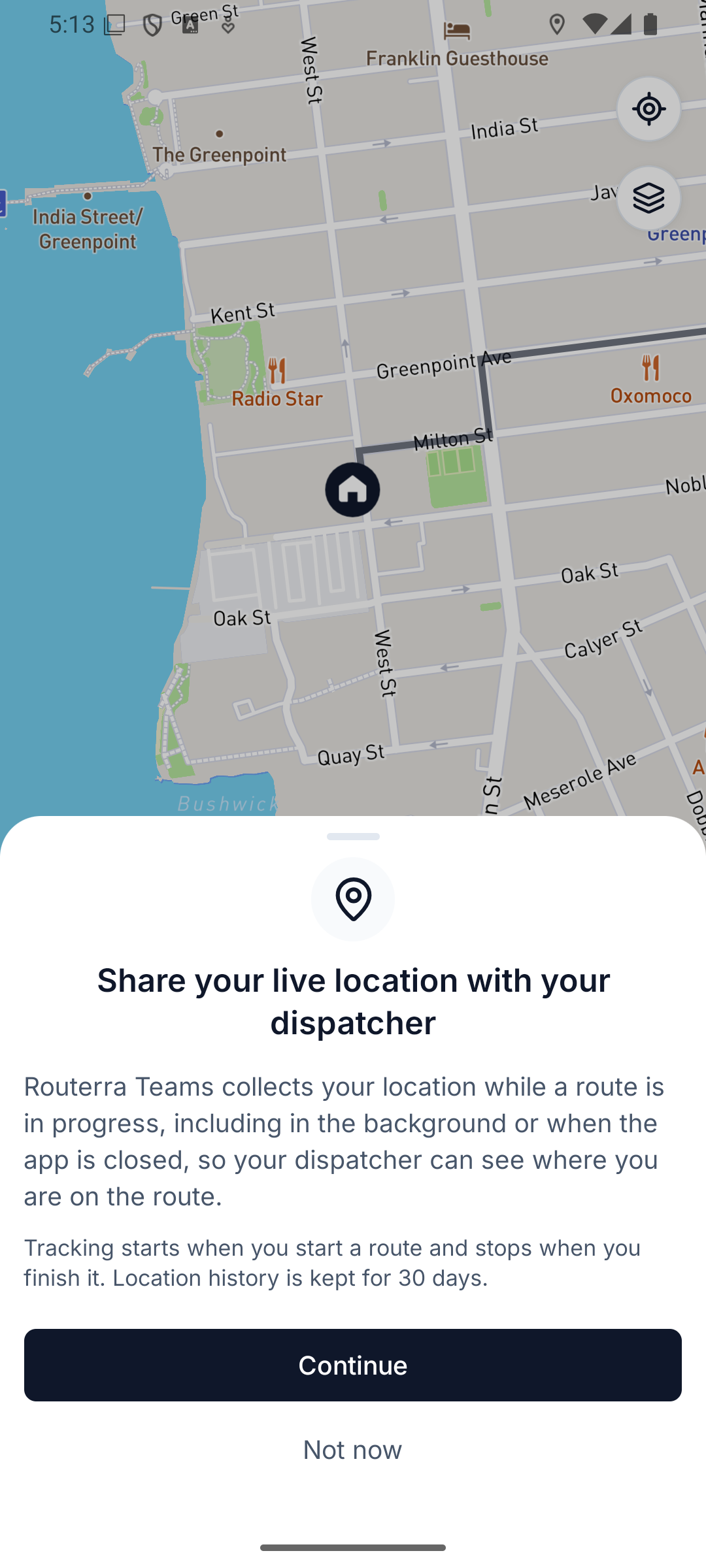
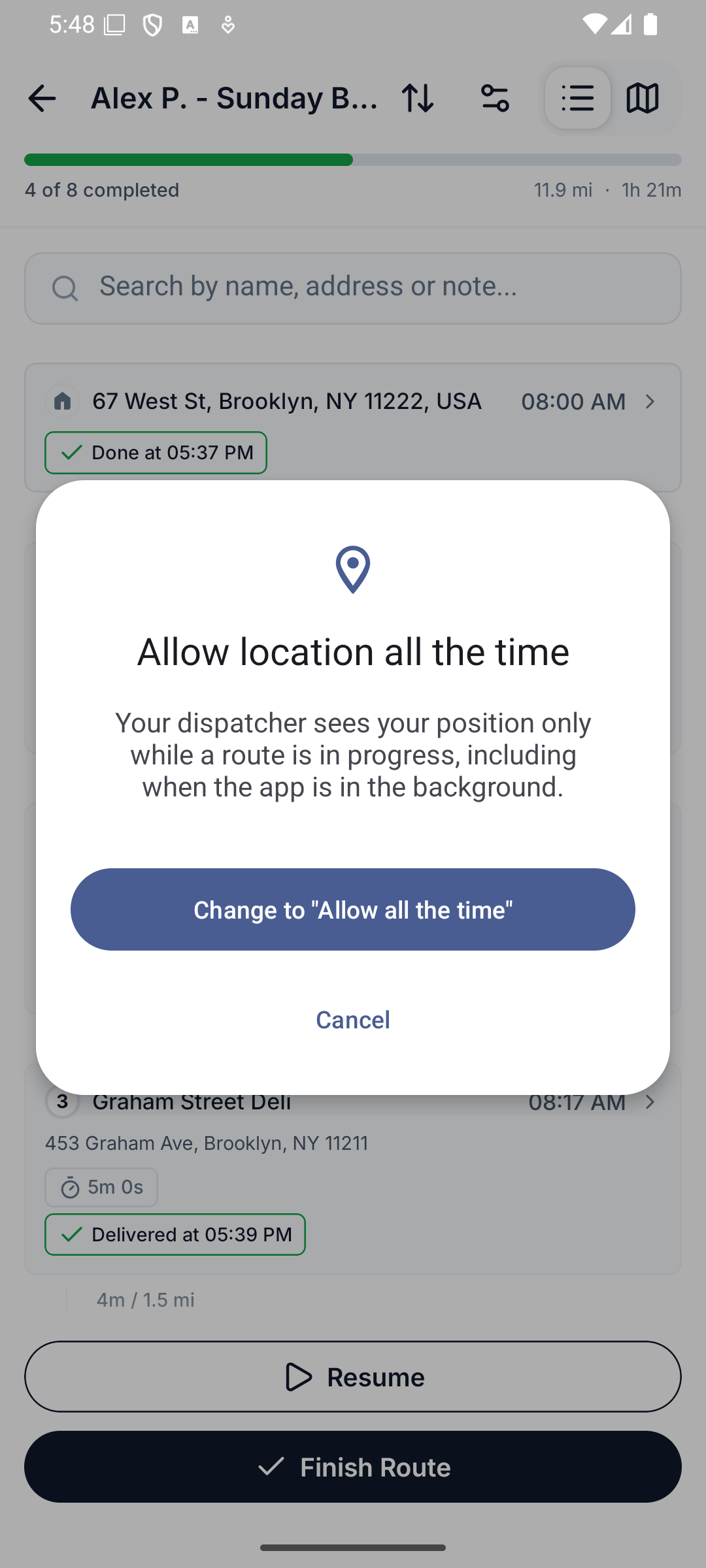
Tap Not now and that route runs without tracking; the app asks again on your next route. You can't switch tracking off yourself — your team sets it. To check it, open Settings › Drive mode › Live tracking: it reads Sharing location with your dispatcher while it works, or tells you what's missing (for example Off — location permission needed, with an Open settings button).
What your dispatcher sees on their side is covered in Live driver tracking.
Work a stop
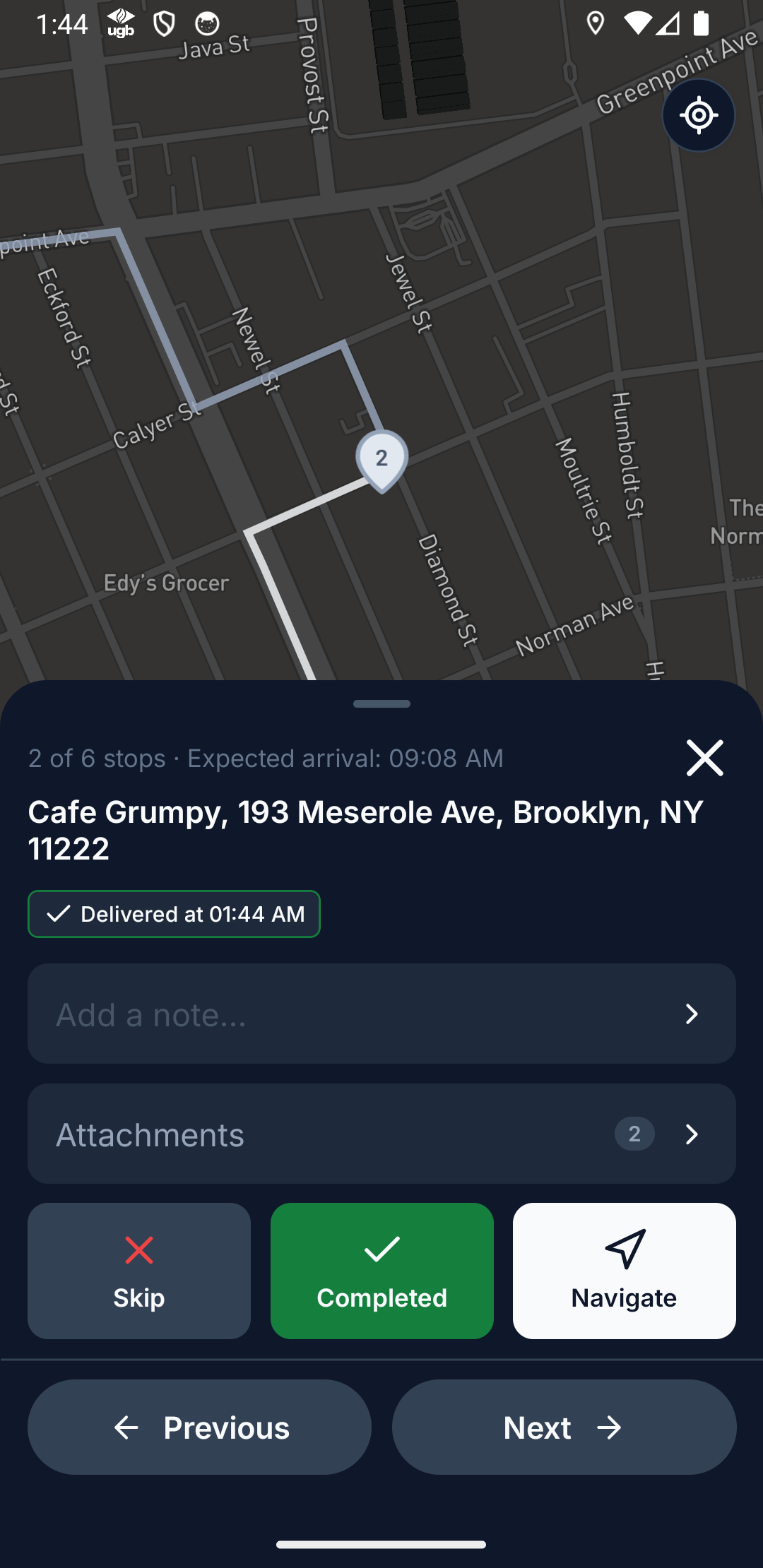
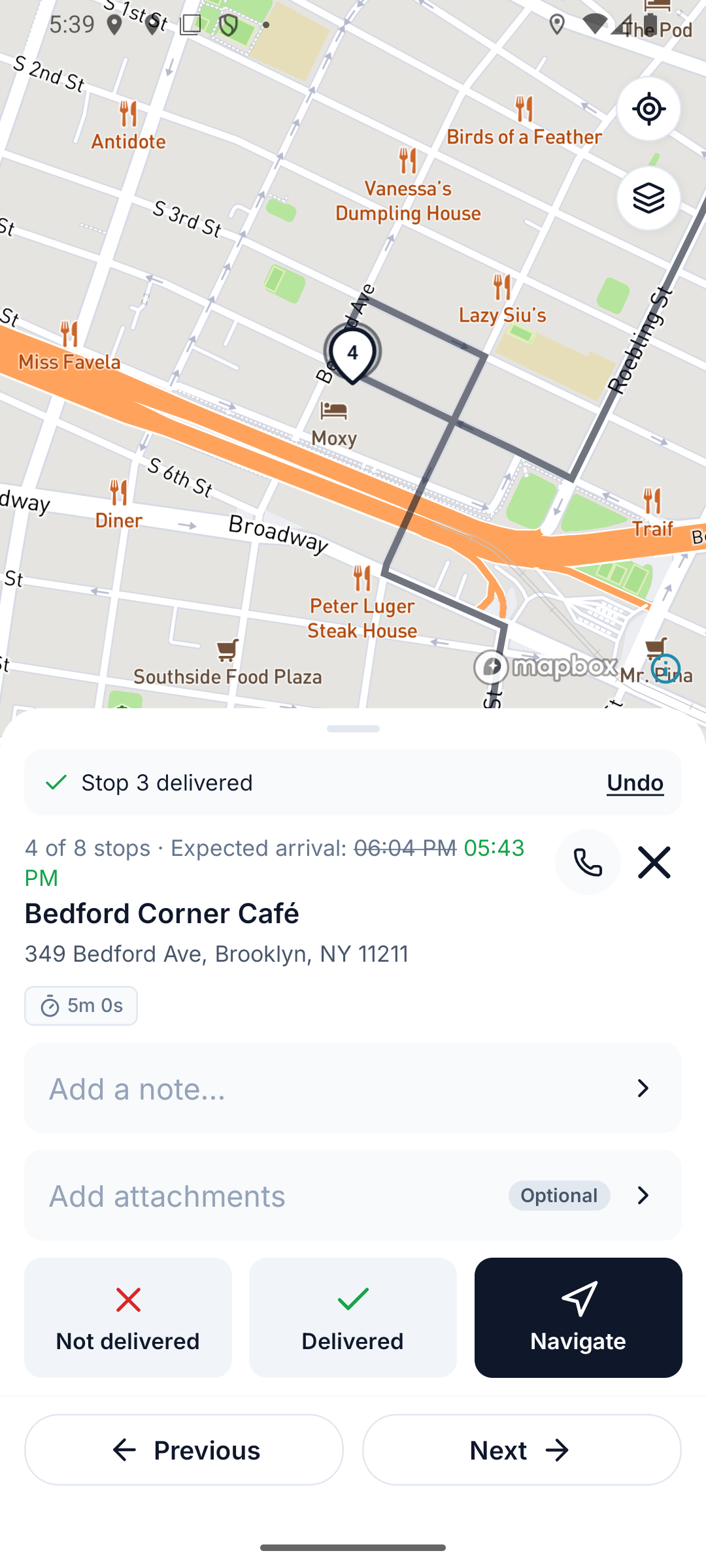
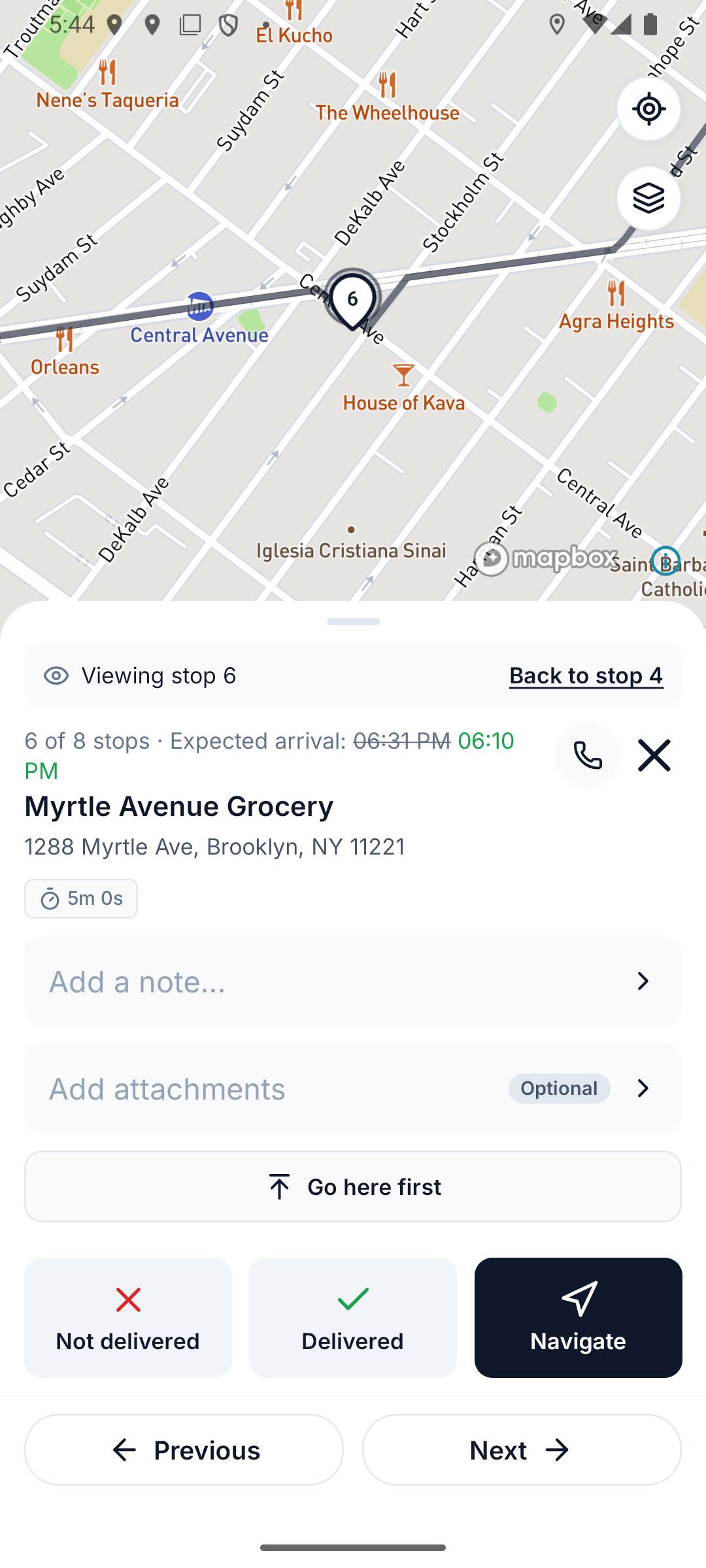
The app walks you through the route stop by stop — a card at the bottom shows the current stop: the recipient's name and address, the expected arrival (the planned time struck through, next to the current prediction in green or red), and everything attached to it. A Call button sits next to ✕ when the stop has a phone number. Use Previous / Next to look around; the three buttons on the card do the work:
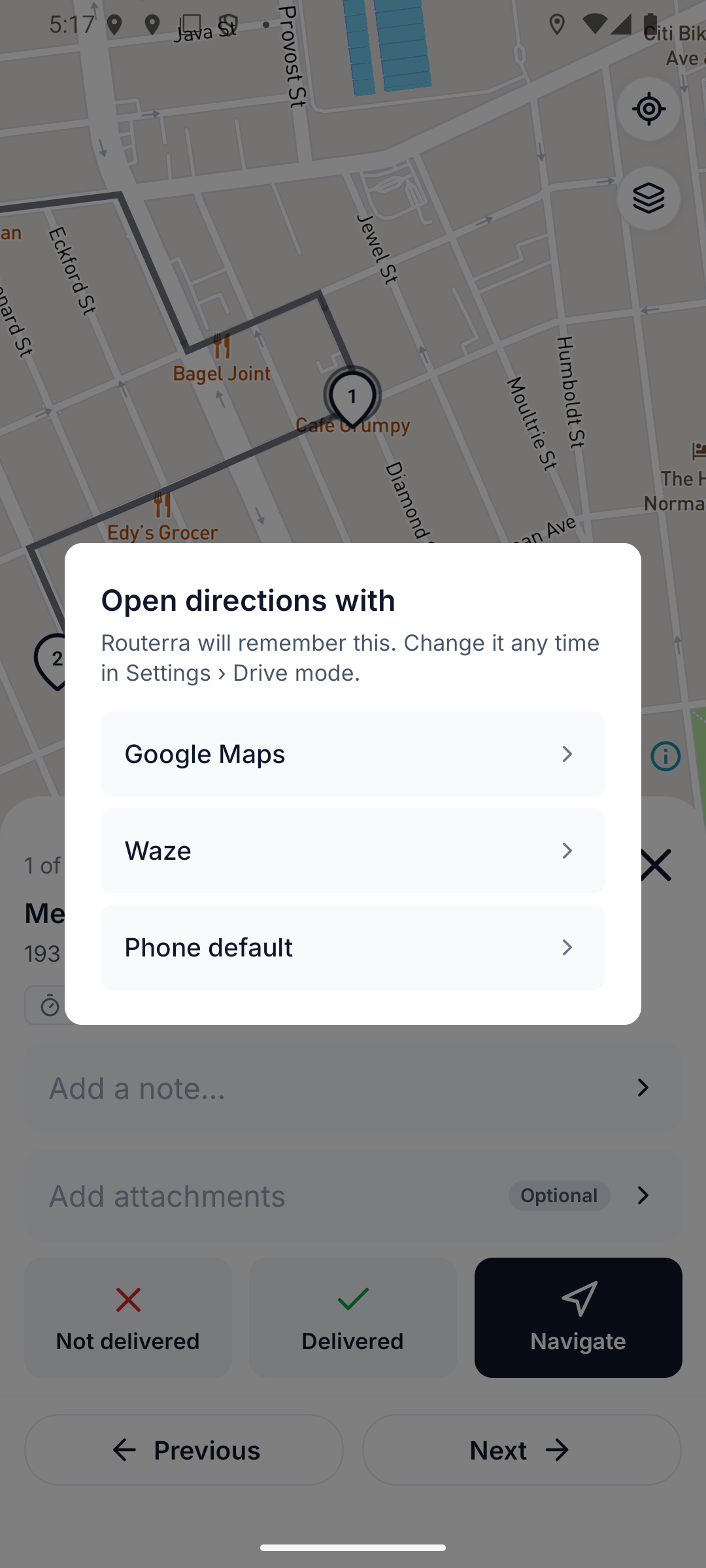
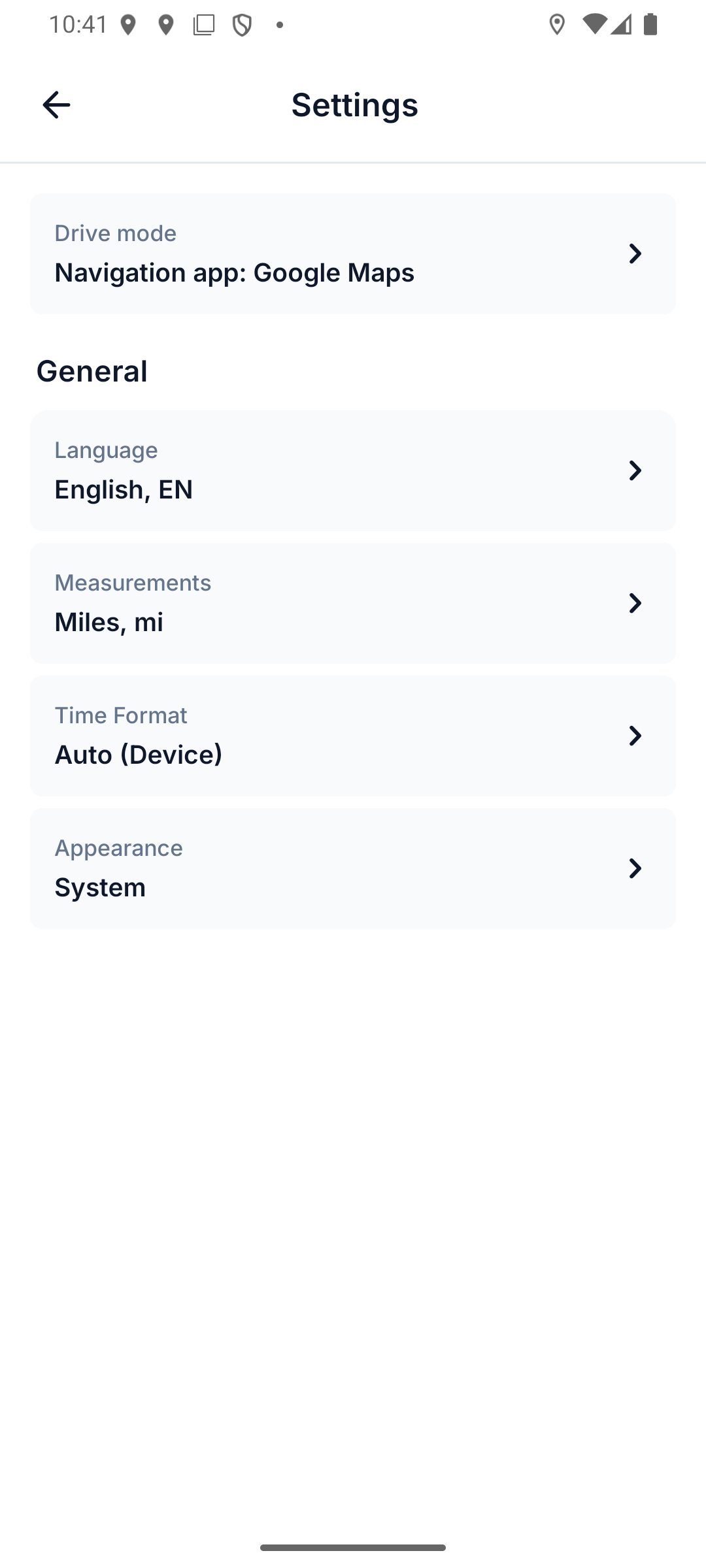
- Navigate opens the address in your navigation app. The first time you tap it, pick Google Maps, Waze, Apple Maps (iPhone) or your phone's default. The app remembers your choice; change it any time under Settings › Drive mode › Navigation app.
- Delivered? Add proof if your team uses it — open Attachments, take a photo of where the package went — then press Delivered. The app moves to the next stop right away, and your dispatcher sees it instantly. Tapped by mistake? Undo stays on the card until your next action. If you're more than about 300 m from the stop, the app asks you to confirm first.
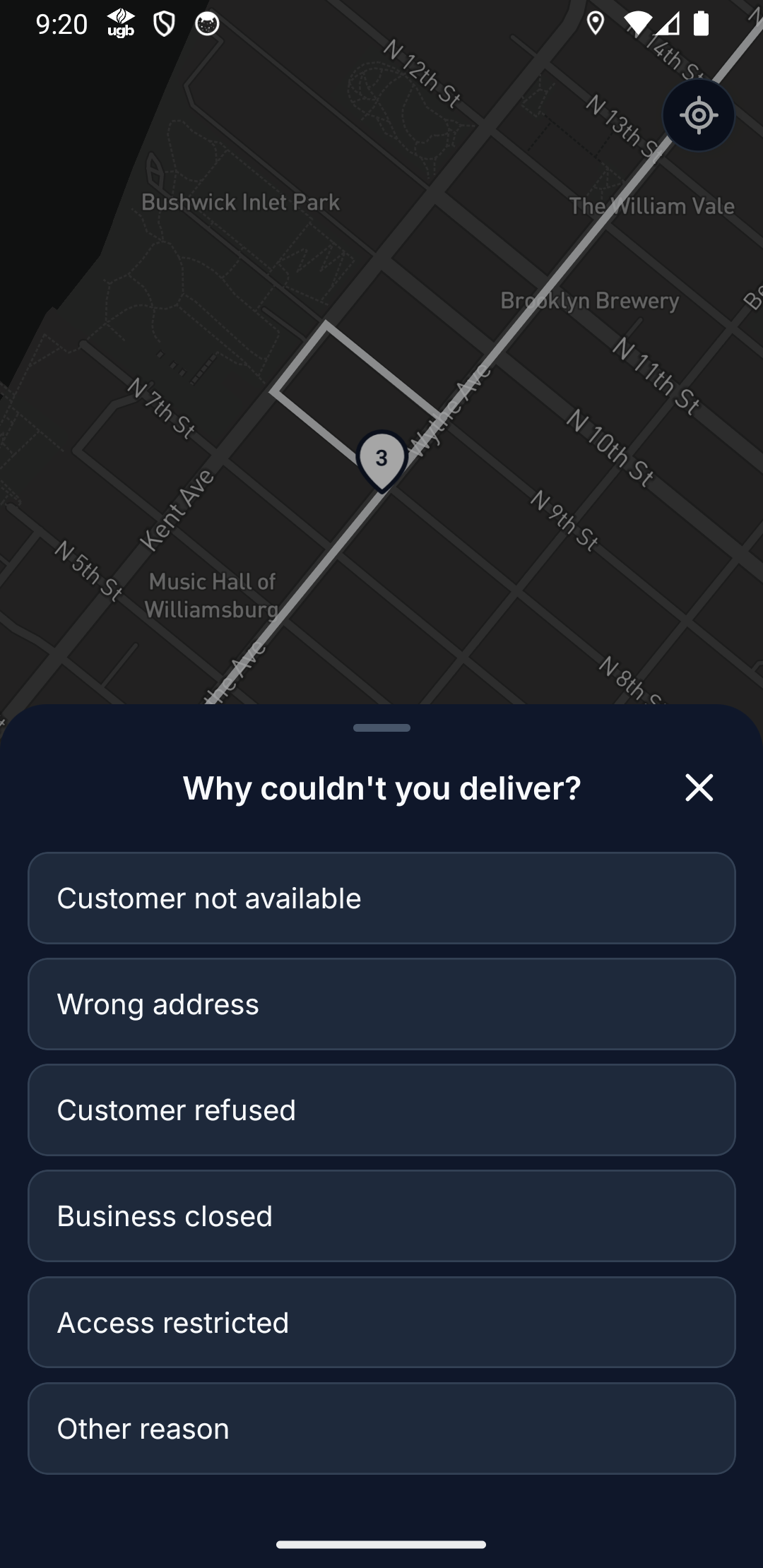
- Couldn't deliver? Press Not delivered and pick the reason: Customer not available, Wrong address, Customer refused, Business closed, Access restricted, or Other reason (which needs a short note). The office knows right away.
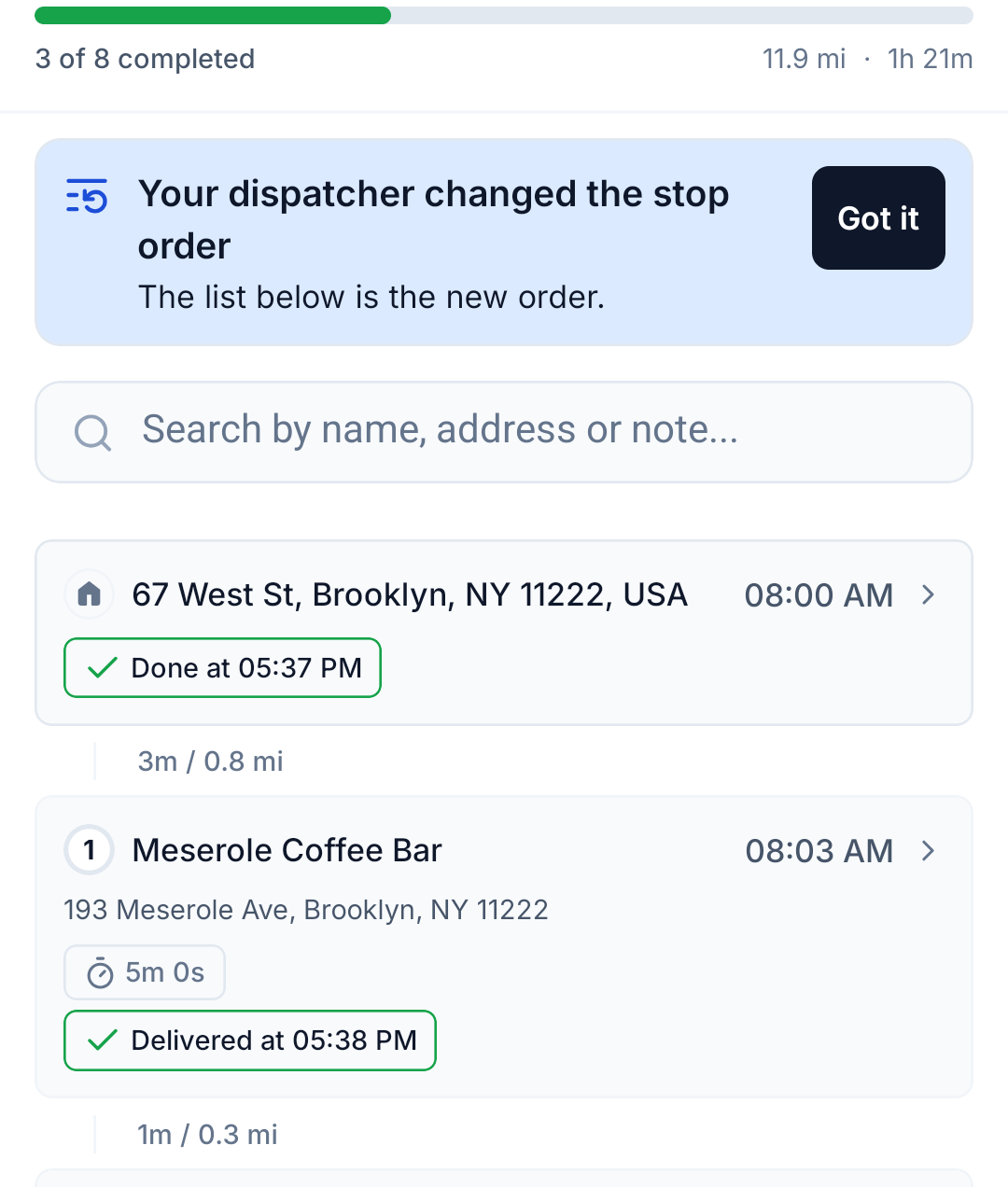
In your stop list, a closed stop shows how it ended: green Delivered at 1:44 PM, or red Skipped with the reason and time.
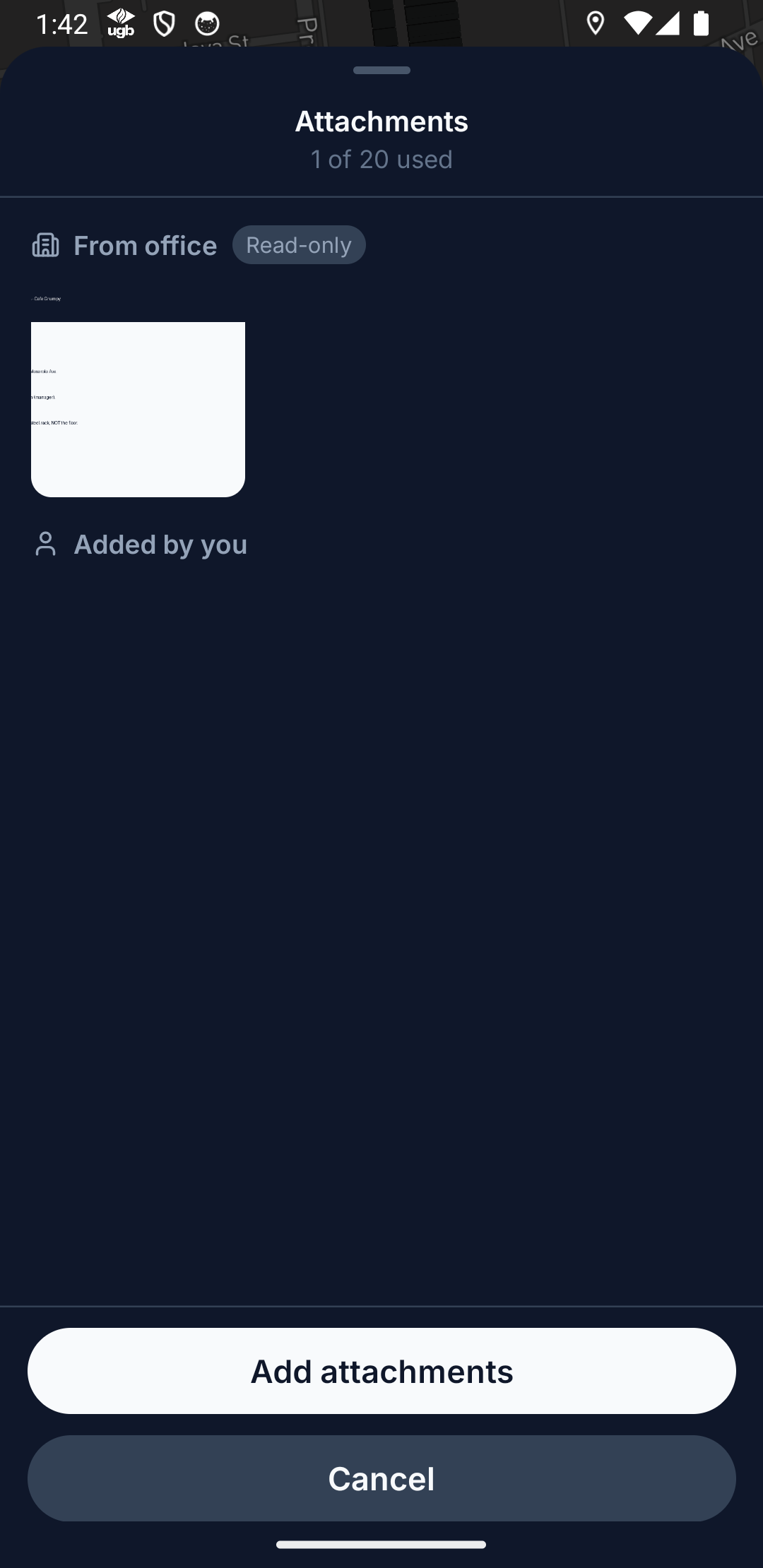
Notes and files travel with the stop, in two directions:
- From office — instructions the dispatcher attached (gate codes, entrance photos). You see them read-only.
- Added by you — your proof-of-delivery photos and documents. Add attachments takes a new photo, picks one from the library, or attaches a PDF — up to 20 files per stop, 15 MB each.
If you add a note or a file and then move on without closing the stop, the app asks Mark stop N as delivered? — choose Mark as delivered, or Keep pending to leave it open.
When the last stop is done, press Finish Route — and if the day changes, a finished route can be reopened. Finishing the route also stops location sharing.
Change the stop order
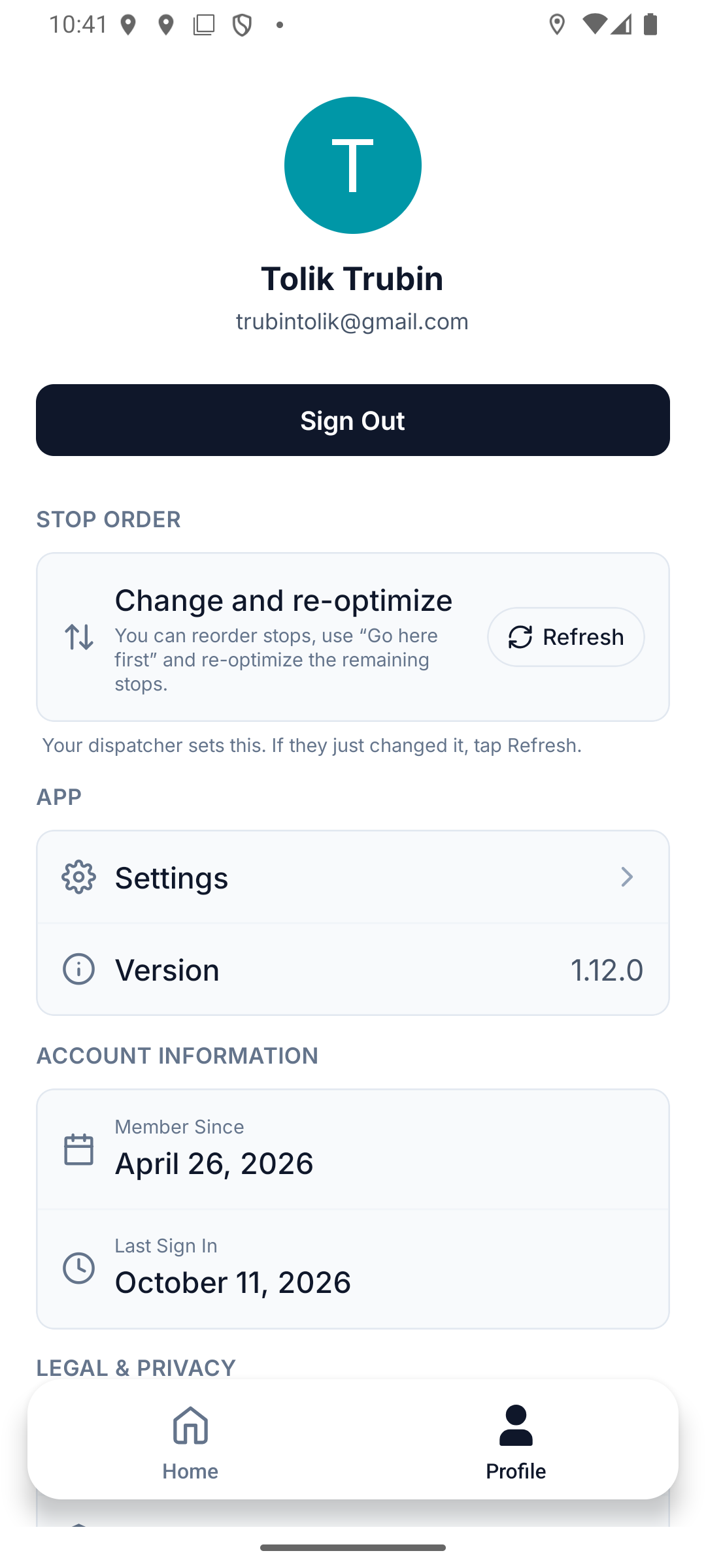
Your dispatcher decides whether you can change the order of your stops. Check Profile › Stop order — it shows one of three levels, and Refresh picks up a change your dispatcher just made:
| What you see | What you can do |
|---|---|
| Follow the plan | Stops stay in the order your dispatcher set. |
| Change stop order | Reorder stops and use Go here first. |
| Change and re-optimize | Everything above, plus re-optimize the remaining stops. |
If reordering is allowed, you can change any route that isn't finished and still has at least two stops to go:
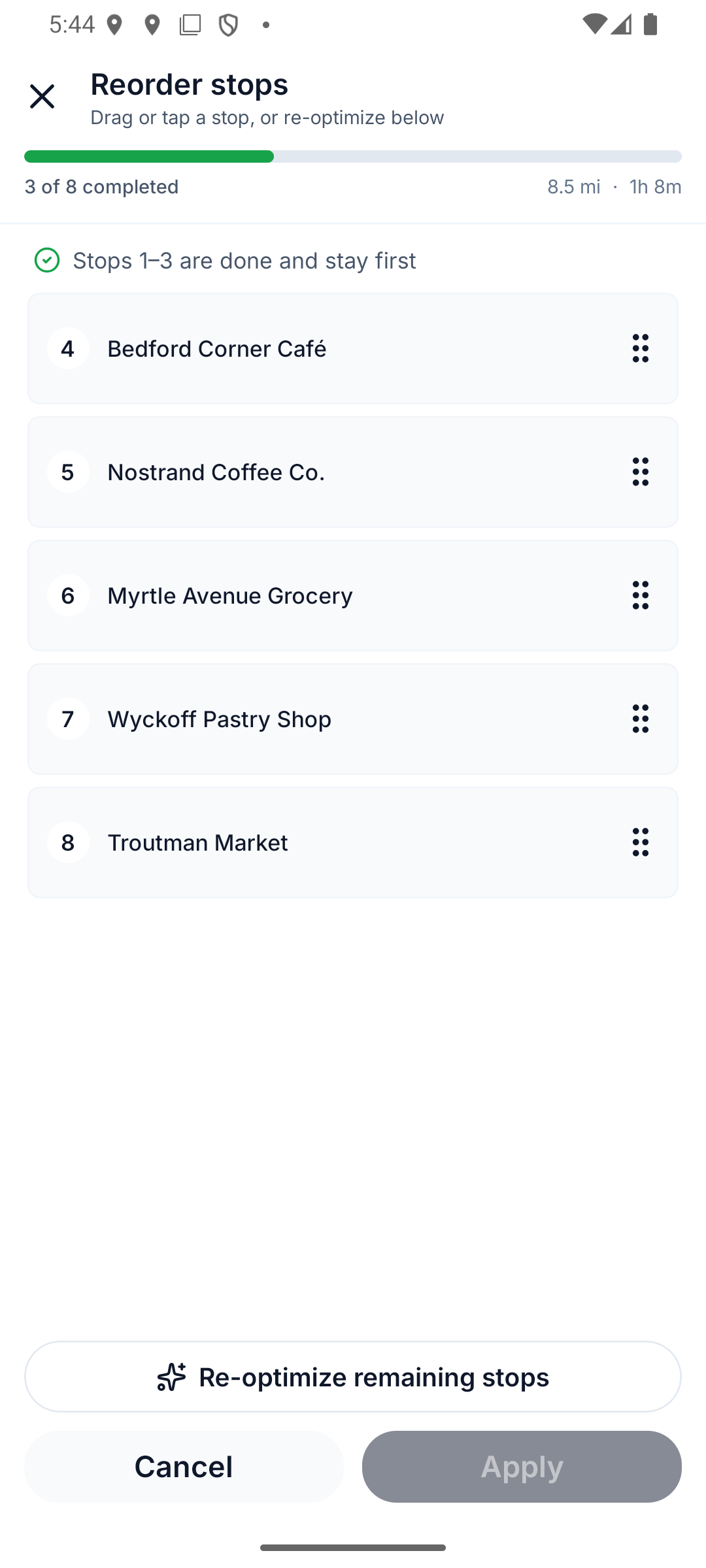
- Reorder. On the route screen tap ⇅ Change stop order. Drag a stop by its handle, or tap it and choose Make it the next stop, Move up one, Move down one or Make it the last stop. Stops you've already done stay at the top. Press Apply to save.
- Go here first. Open a stop that's still pending and tap Go here first — it becomes your next stop.
- Re-optimize remaining stops (only at Change and re-optimize). Inside reorder mode, the button at the bottom gives your remaining stops the fastest order — from your last stop, or from where you are while tracking is on. Completed stops stay where they are. It takes up to a minute and needs a connection.
If your new order makes a stop miss its time window, the app warns you and tags the stop Outside its time window. The order is still saved.
Your dispatcher sees every change you make and can put the planned order back. If they do, a banner on your route screen says Your dispatcher changed the stop order and the list shows the new order. More on the office side: When drivers change their stop order.
No signal? Keep working
The app is built offline-first. In a basement, a dead zone, or airplane mode:
- Your route, addresses, and notes are already on the phone.
- Statuses, notes, and proof-of-delivery photos you add are saved locally.
- A new stop order is saved too; arrival times read ETA after sync until you're back online. Re-optimizing needs a connection.
- The moment signal returns, everything syncs automatically — you never have to redo anything or wait for a spinner.
An offline banner shows when you're disconnected. It's informational — don't stop working.
A route has to be opened online once so its stops download to your phone. Until then the app says This route is not on your phone yet.
If something looks wrong
- No route showing — your dispatcher may not have sent routes yet, or sent them to a different email. Confirm the email you signed in with (it's shown in Profile).
- Route changed mid-day — dispatchers can update and re-send. While you're on the route screen the app checks for changes every minute; if your dispatcher changes the stop order, a banner says so and the list shows the new order. Pull down on Home to refresh your routes.
- App issues — contact your dispatcher first; they can see your route state on their side.