
Drivers: profiles, shifts, and vehicles
Add drivers, set their vehicle, capacity, shift hours, and depots, restrict them to zones, and understand how driver seats work.
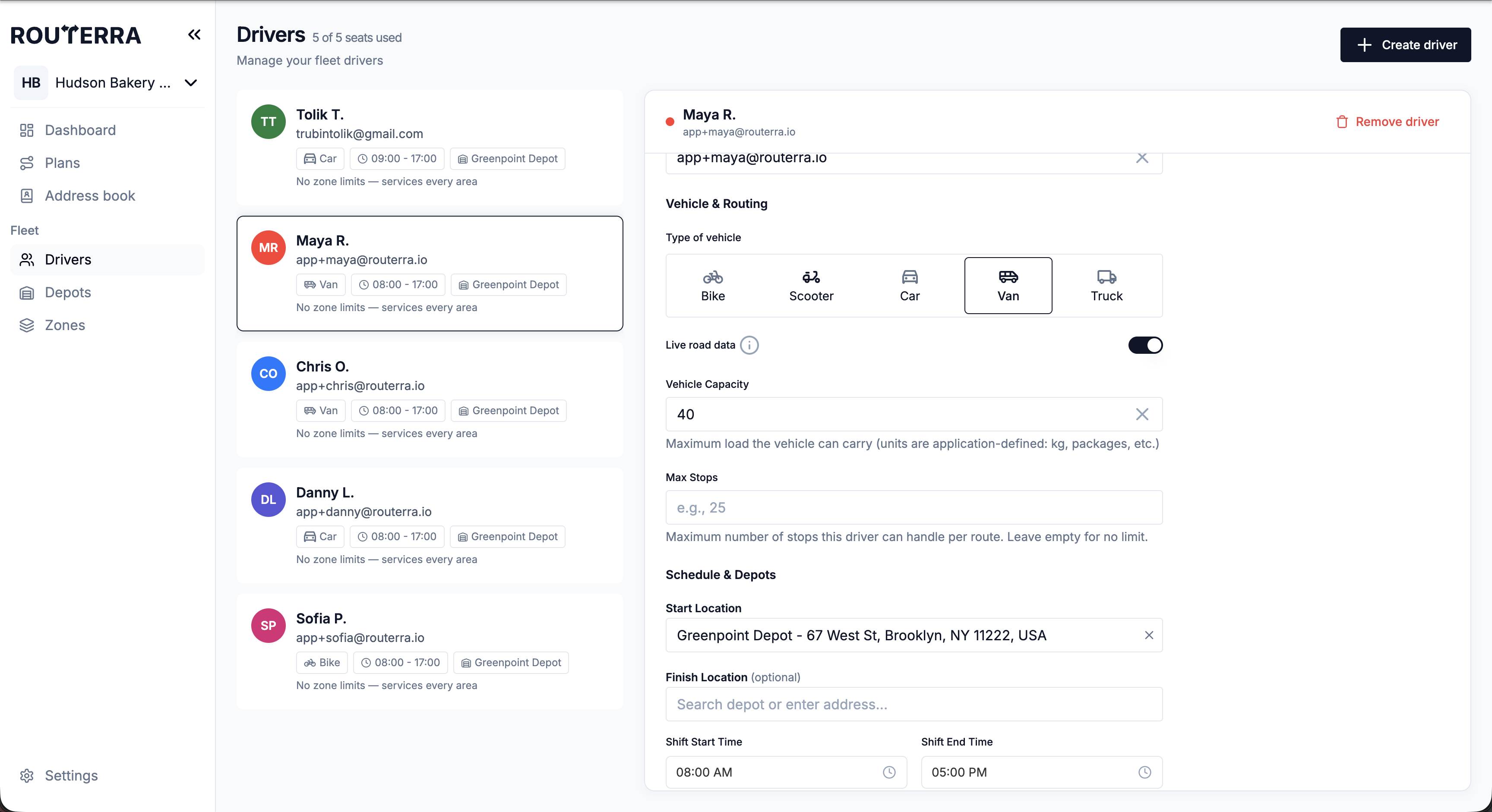
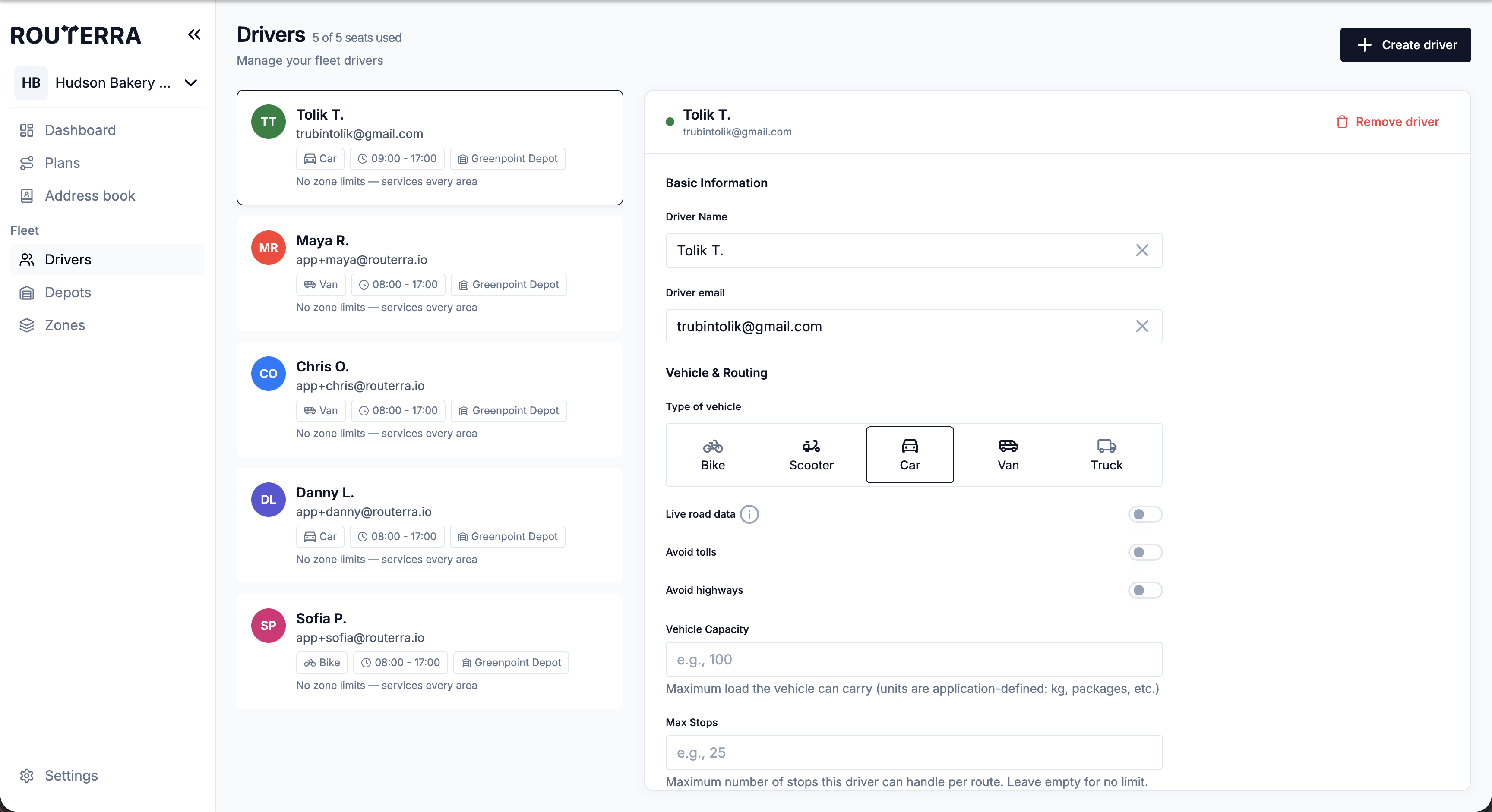
The more the optimizer knows about each driver, the better its routes. A driver with a vehicle type, a capacity, a shift, and a home depot gets routes that actually fit their day. Drivers live under Fleet → Drivers.
Adding a driver
Add a driver with a name and email. That single action does two things: it reserves a seat and sends an invite to the Routerra Teams driver app. The driver signs in with that email to see the routes you send — so use the address they actually check.
The settings that shape routes
| Setting | What it does |
|---|---|
| Type of vehicle | Bike / Car / Scooter / Van / Truck — each has real access limits the optimizer respects (weight, size, road access). |
| Vehicle Capacity | How much the vehicle holds, weighed against each stop's Load. |
| Max Stops | A hard cap on stops per route ("Maximum number of stops this driver can handle per route. Leave empty for no limit"). |
| Start Depot / Finish Depot | Where this driver's day begins and ends (Depots). |
| Shift Start Time / Shift End Time | Working hours the routes must fit inside. This is an overnight shift handles shifts that cross midnight. |
| Color | The driver's color on the map and route cards. |
| Zone restrictions | Which delivery areas this driver may or may not serve — see below. |
You don't have to leave a plan to fix a driver's settings: on the plan's Routes tab, open a route's More actions (⋮) menu and choose Edit driver to open the same driver panel.
Zone restrictions
By default a driver can service every area. Use Zone restrictions to change that:
- Default — services every zone (unless the driver has Allowed zones, in which case only those).
- Allowed — restrict the driver to specific zones.
- Excluded — prevent the driver from servicing certain areas.
This is how you keep the north-side driver on the north side, or keep a bike off the routes that cross the highway. Drawing the zones themselves is covered in Zones. If a driver's settings leave stops unassigned or make optimization fail, see When routes won't optimize.
Seats
Your subscription is measured in driver slots (seats). The drivers page shows usage as "X of Y seats used." One seat = one driver who can receive routes. Remove a driver and their seat frees up for a new hire — seats follow the roster, not individuals. When you try to add a driver past the cap, Routerra prompts you to add a seat. Full mechanics in Trial, seats, and billing.
What's next
- Depots — where routes start and finish
- Zones — drawing the areas you restrict drivers to
- Assign drivers and optimize — putting these settings to work