
Team notifications and the delivery log
Email and text your own team when stops are delivered or skipped and routes start or finish — and check every message sent in the delivery log.
Not everyone on your team lives in the dashboard. Team notifications send an email or a text to the people you choose when something happens on a route — a stop delivered, a stop skipped, a route started or finished. Everything sent, to your team or to customers, lands in the Delivery log.
Both live under Settings → Notifications: the Internal tab is for your team, Customers is for the people you deliver to (Customer notifications by email and SMS), and Delivery log is the record of both.
Email and SMS to your team
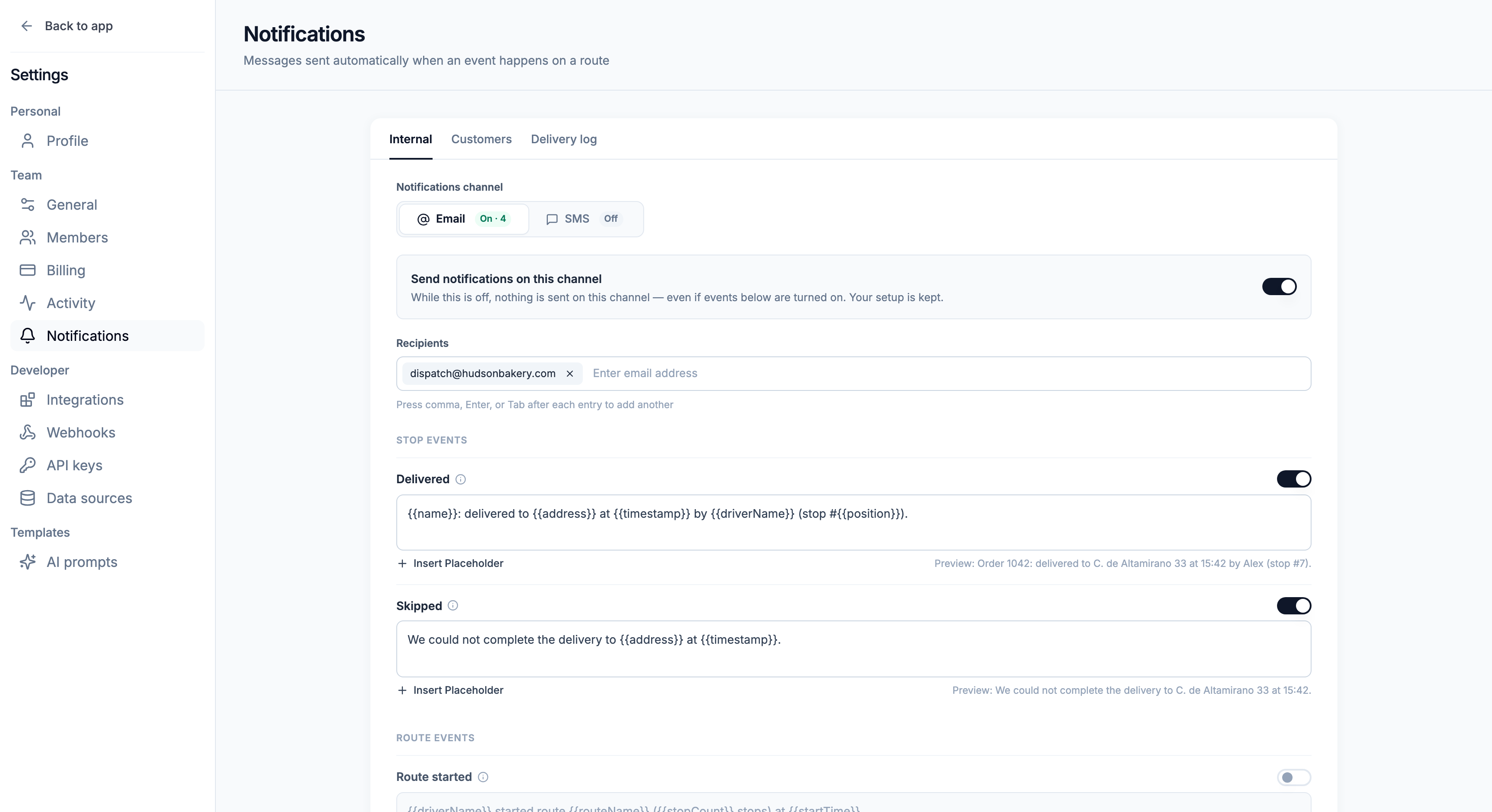
The Internal tab has two channels, Email and SMS, each with its own setup. The pill on each channel shows whether it's on and how many events it sends (On · 3 or Off).
For each channel:
- Switch on Send notifications on this channel. While it's off, nothing is sent on that channel — even if events below are on — and your setup is kept.
- Add Recipients: email addresses for Email, phone numbers with a country code (for example +1234567890) for SMS. Press comma, Enter, or Tab after each one.
- Turn on the events you want and write a message for each (below).
- Press Save changes in the bar at the bottom.
If a channel is on but has no recipients, or an event is on but has no message, the problem is highlighted and saving waits until you fix it or turn the event off.
Events and messages
| Group | Event | Sent when |
|---|---|---|
| Stop events | Delivered | A driver marks a stop delivered |
| Stop events | Skipped | A stop can't be completed |
| Route events | Route started | A driver begins their route |
| Route events | Route finished | A driver closes all their stops |
| Route events | Route reopened | A finished route is made active again |
Each event has its own message. Use Insert Placeholder to drop in values that fill themselves in — for stop events things like the stop name, address, driver name, arrival time and, for Skipped, the skip reason; for route events the route name, driver name, stop count, start and finish times, and delivered and skipped counts. Each message shows a preview with sample values.
For SMS, a counter under the message shows how many characters are left for one SMS, and how many SMS a longer message takes — useful, since each SMS segment is billed by Twilio.
Send a test
Press Send test to see a message the way recipients will. Pick the event, choose who it goes to, and send — the message goes out with sample data. Send test is available once the channel is on and has at least one event turned on.
The delivery log
The Delivery log tab lists every email and SMS Routerra sent for your team: time, event, channel, recipient and status. Failed messages are highlighted in red. Customer messages carry a Customer tag and show which stop and plan they were about, with a link to the plan.
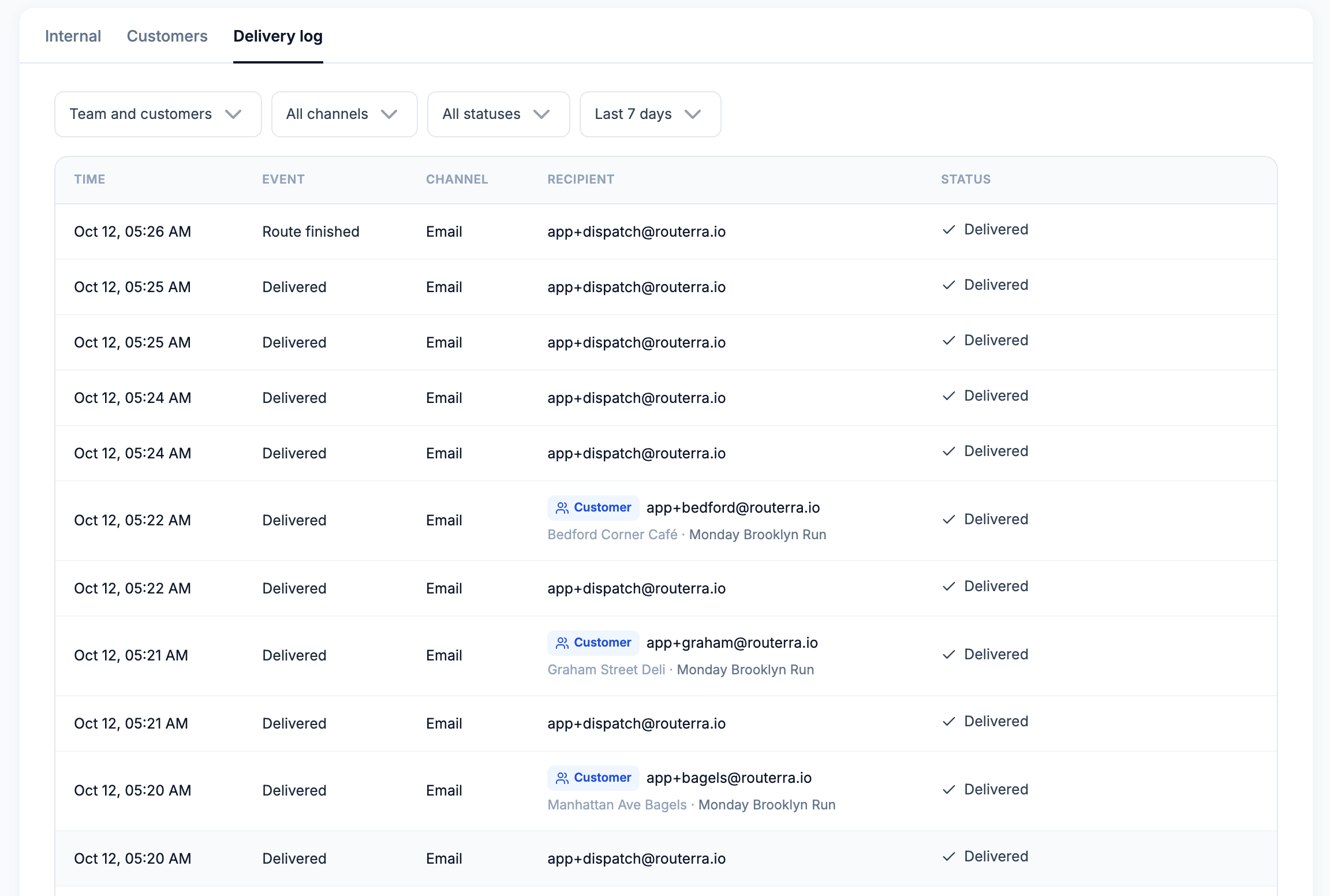
Filter it by audience (Team and customers, Team, Customer), channel (All channels, Email, SMS), status (Sent, Delivered, Failed, Cancelled), and period (Last 7 days, Last 30 days, Last 90 days).
For an SMS, the row also shows Twilio's message SID — search for it in the Twilio console's messaging log to see what the carrier reported.
What the statuses mean:
- Email — shows Delivered as soon as the email provider accepts the message. Routerra gets no later report, so an email marked Delivered can still bounce or land in spam.
- SMS — shows Sent when Twilio accepts the text, then Delivered or Failed once Twilio reports back what the carrier did.
- Cancelled — a customer Delivered or Not delivered update that was withdrawn while it was still waiting to go out, so the customer never got it.
A message that hasn't gone out yet shows Pending; the status filter doesn't offer it.
What's next
- Customer notifications by email and SMS — updates to the people you deliver to
- Connect Twilio — needed for any SMS
- When a delivery fails — what to do when the Skipped message arrives