
Bulk actions on stops
Select many stops by ticking them or drawing a lasso on the map, then move them to a driver, edit them together, or delete them in one go.
Editing stops one at a time is fine for a handful. When you're dealing with a batch — ten deliveries that need a new arrival window, a cluster that should go to another driver, a test import to wipe — select them together and act on all of them at once.
Selecting multiple stops
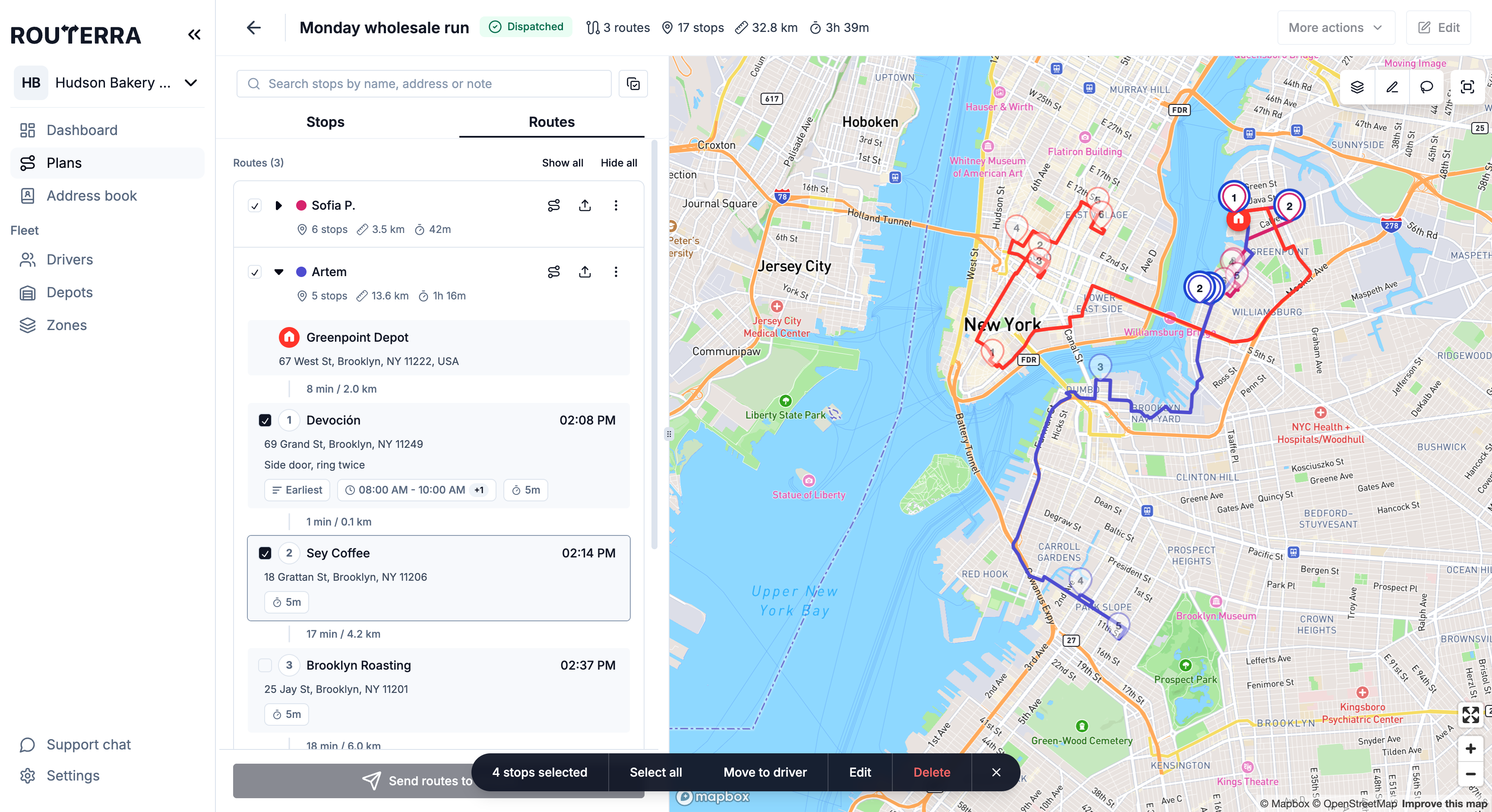
Press Select multiple stops to enter selection mode. It works on both the Stops and the Routes tab. From there:
- Tick the stops you want, or use Select all in the bar to grab every stop on the tab.
- On the Routes tab, each route row has its own checkbox to select all stops on that route.
- The bar shows a running count — "4 stops selected".
- Deselect all clears the selection to start over.
Press ✕ on the bar to leave selection mode when you're finished.
Lasso select on the map
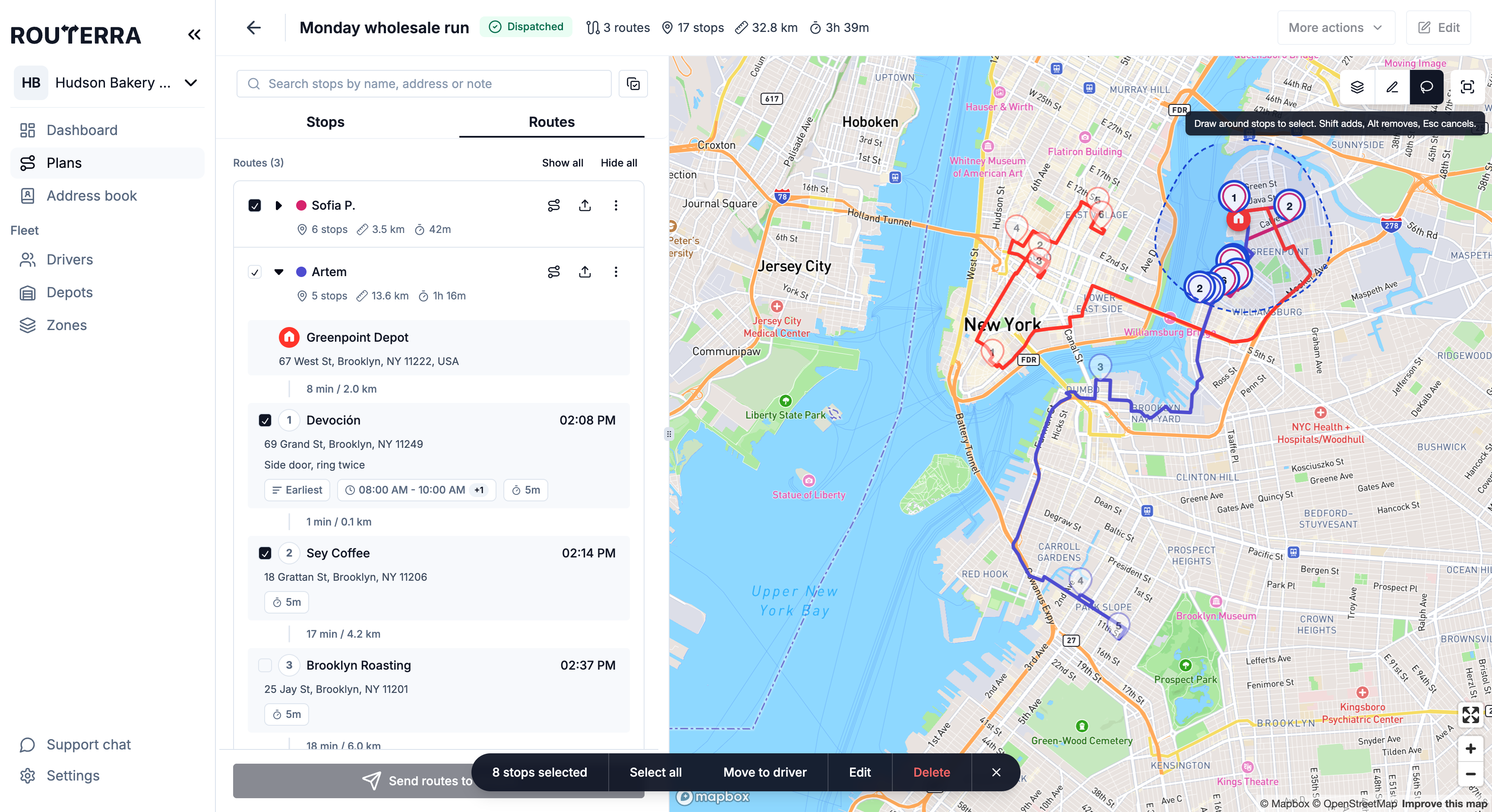
Sometimes it's easier to pick stops by where they are. Press Lasso select in the map toolbar and draw a loop around the stops you want.
- Shift while drawing adds to the current selection.
- Alt while drawing removes from it.
- Esc cancels the loop.
The selected stops show up ticked in the list, and the same bar appears.
What the bar can do
The actions in the bar depend on where you are:
| Action | Where | What it does |
|---|---|---|
| Assign driver | Stops tab, before the plan has routes | Pins the selected stops to a driver for the next optimization (or clears the driver) |
| Move to driver | Routes tab | Moves the selected stops onto another driver's route |
| Edit | Both tabs | Opens a panel to change settings on all selected stops |
| Delete | Both tabs | Removes the selected stops from the plan, after a confirmation |
While the plan is optimizing, Assign driver and Move to driver are greyed out — the routes are being rebuilt and would overwrite the change. Delete stays available.
Move stops to another driver
On the Routes tab, select the stops and press Move to driver. The dialog lists the drivers who already have a route in this plan. Pick one — say, Marta — and it asks How should they be added?:
- Re-optimize Marta's route — the stops are placed where they fit best, and the routes they came from are rebuilt too.
- Add to the end of Marta's route — the stops keep their current order and nothing else on the route changes.
Only the routes involved change; the rest of the plan stays as it is. You can also move stops out of Unassigned Stops this way.
Before you confirm, the dialog warns you if the move would put the driver over their stop limit or vehicle capacity, outside their shift or zones, or onto a route they've already started. The warnings don't block the move. If some of the selected stops can't be moved, the dialog says how many; they stay selected.
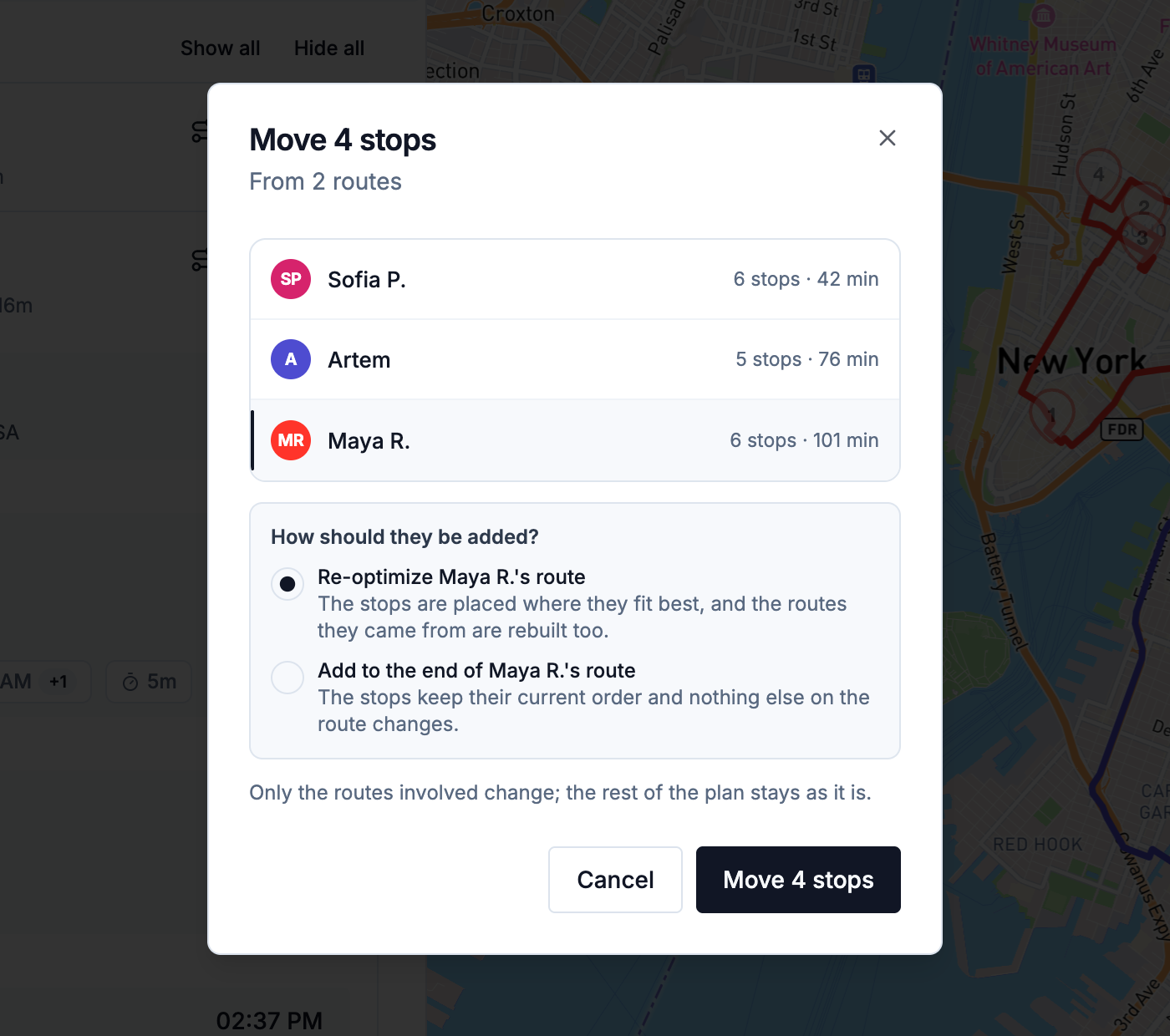
To move a single stop, open it and pick a different driver in its Optimization section — it opens the same dialog. To move a driver's whole route, use Reassign route instead (Adjust routes).
Edit many stops
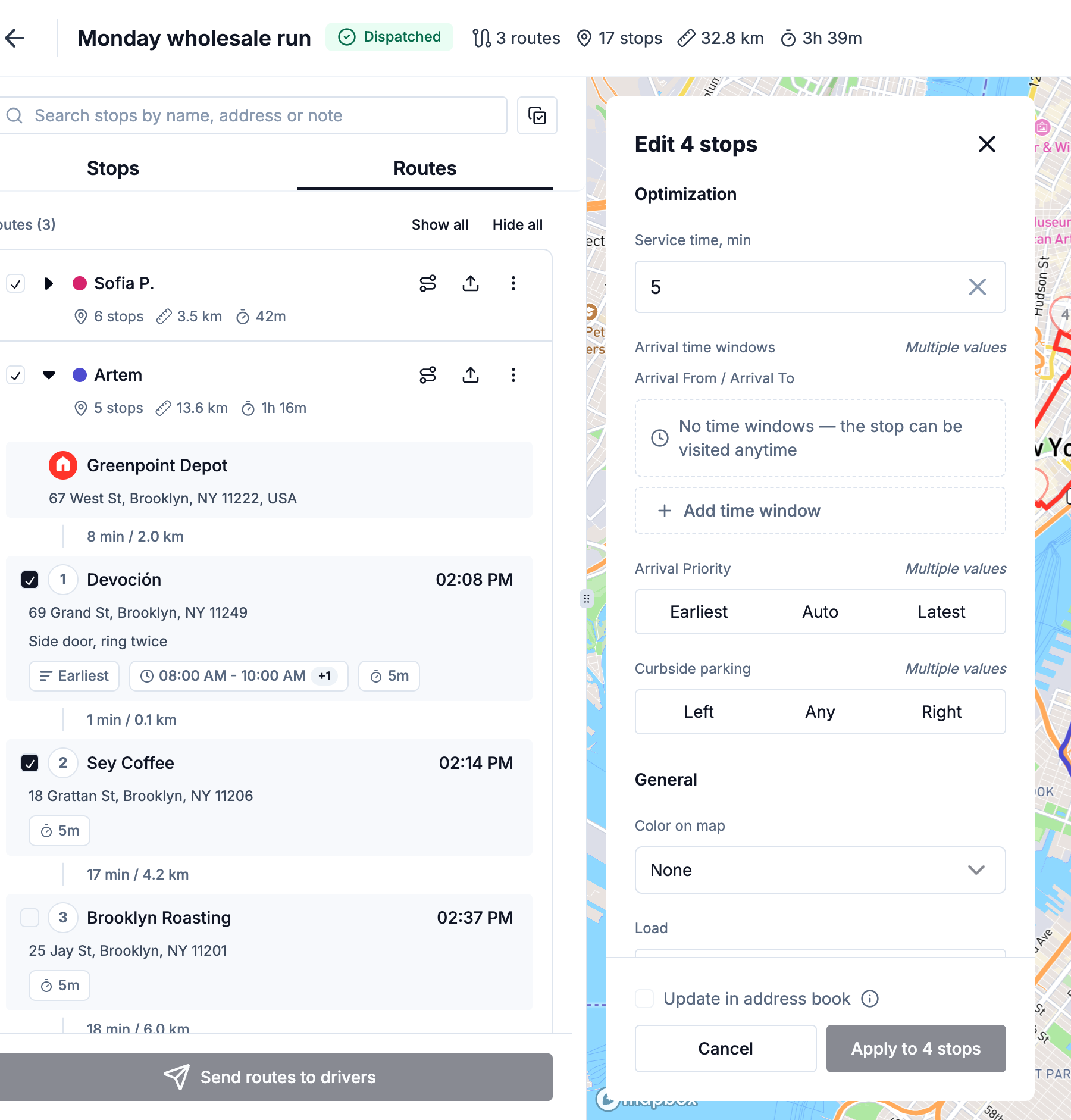
Press Edit in the bar to open the Edit N stops panel. You can change:
- Service time
- Arrival time windows
- Arrival priority
- Curbside parking
- Color on map
- Load
A field where the selected stops disagree shows Multiple values. Only the fields you change are applied. If a change clears values on the selected stops, Routerra asks you to confirm first, because it can't be undone.
If any selected stop came from the address book, the panel also offers Update in address book: tick it to save the same changes to those stops' address-book entries for future plans. Stops that aren't linked to an entry are skipped.
Bulk delete
With stops selected, Delete in the bar removes the whole selection from the plan in one move, after a quick confirmation — it's one action changing many stops, so the app double-checks.
Typical candidates: a bad import, duplicates, a block of cancelled orders, or a test batch you're wiping before the real plan.
Bulk actions in the Address Book
The Team Address Book has its own multiselect: select addresses in the list or on its map, then edit or delete them together. See Address book: labels, map, bulk edit.
What's next
- Stop settings — editing a single stop in detail
- Adjust routes — reassigning whole routes and reshaping their path after optimization