
Follow delivery progress live
The dashboard shows every route's status as drivers check in — delivered counts, next stop, ETA, overdue routes, and the stops that need your attention.
Once routes are dispatched, the dashboard becomes your mission control. Every status a driver taps — delivered, not delivered, with photos and reasons — lands here the moment it happens.
The dashboard at a glance
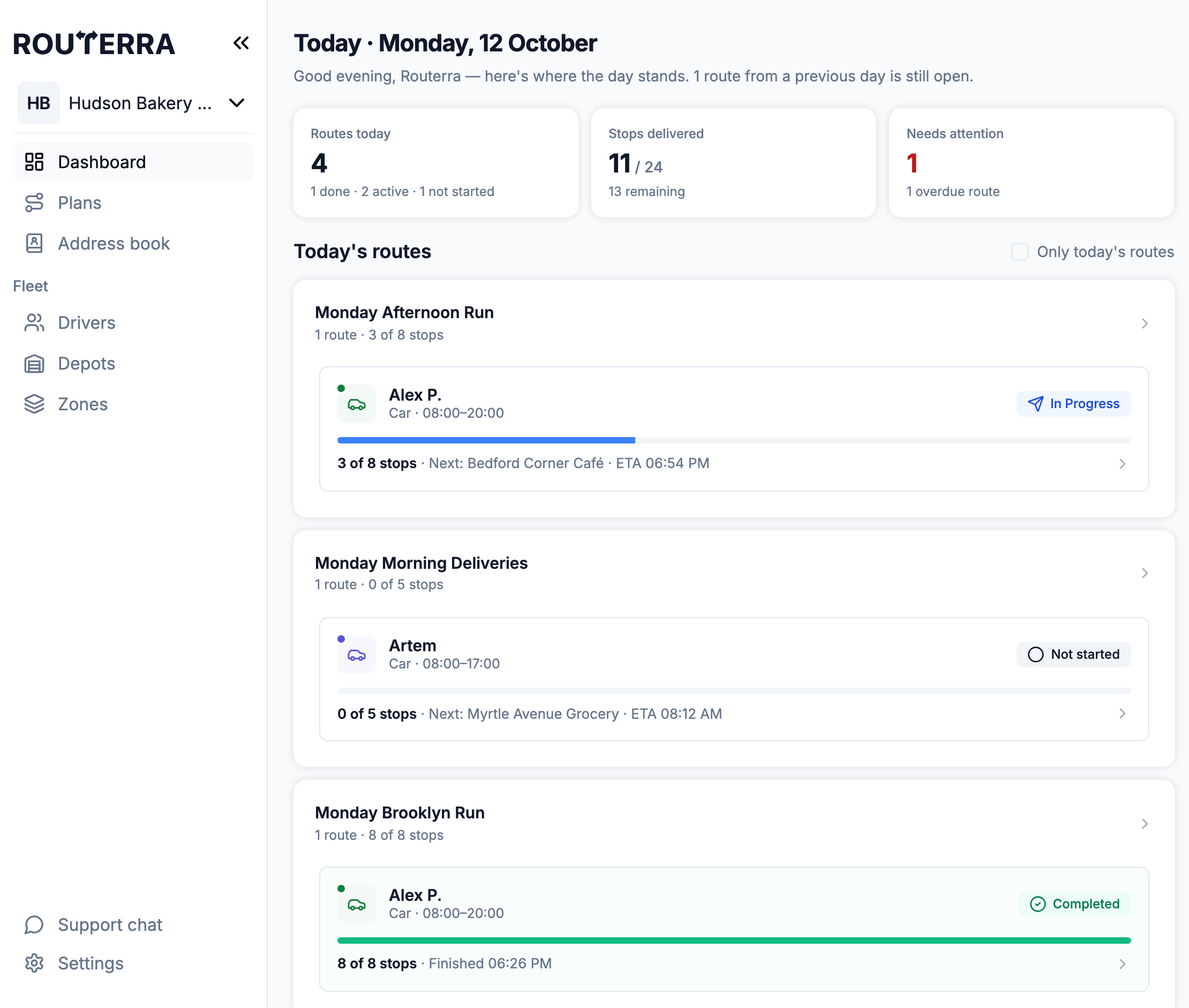
Three cards up top summarize the day:
- Routes today — how many routes are out, split into done, active and not started.
- Stops delivered — completed so far across all drivers, with how many remain.
- Needs attention — the number to keep at zero. It breaks down into overdue routes (earlier days, still open), idle routes (not started although the driver's shift has begun) and failed stops. When nothing needs you, it reads all clear.
Below, Today's routes are grouped per plan. Each plan card shows "N routes · X of Y stops", and each route in it shows how many of its stops are done, how many couldn't be delivered, what's Next, and the ETA — or the finish time once the driver is done.
The Only today's routes checkbox next to the heading hides routes left open from earlier days. A line under the heading tells you how many overdue routes it is hiding, so they never disappear silently.
Routes not closed from previous days
A route that was never finished doesn't vanish at midnight. It moves to Not closed from previous days, a compact list below today's cards, with the date it was scheduled ("scheduled Oct 9 — still open").
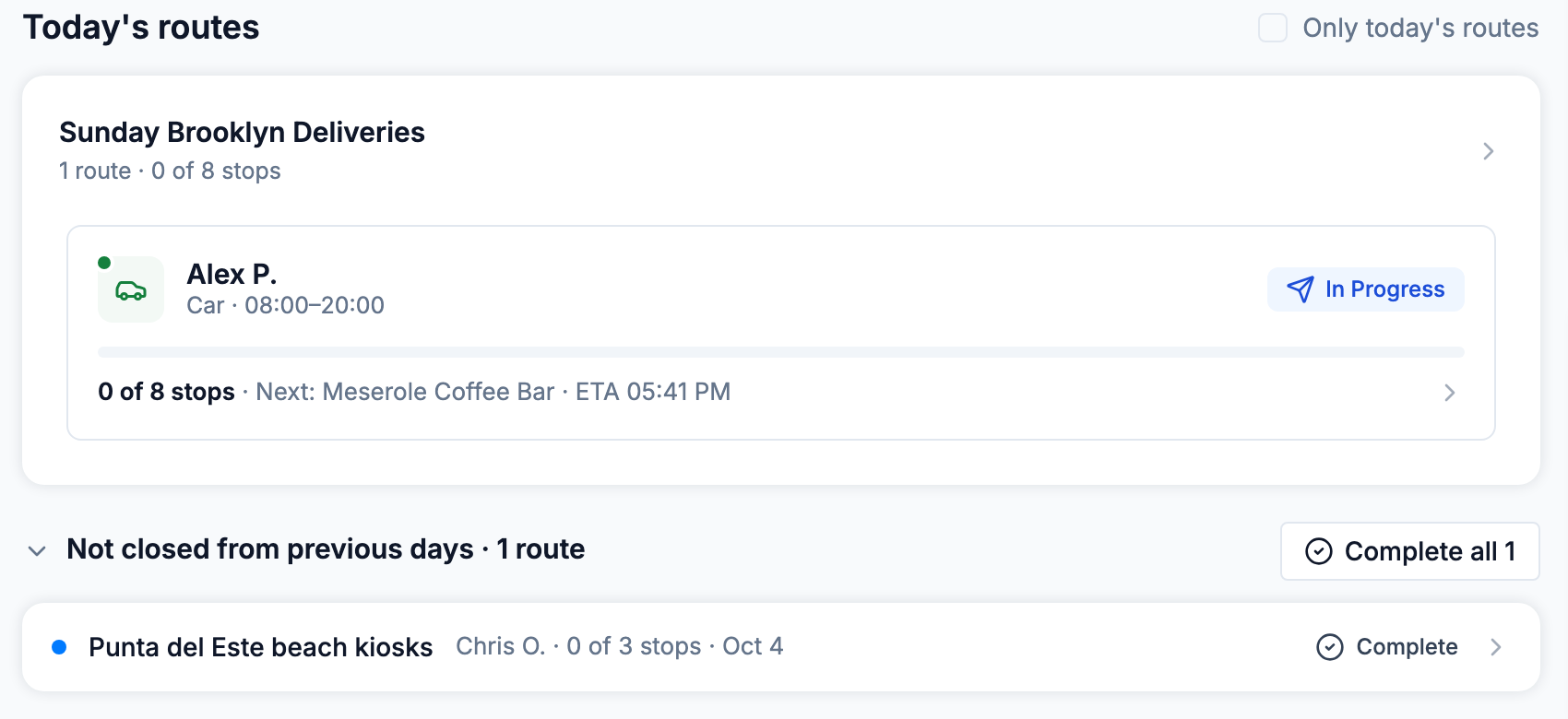
- Press Complete on a row, then Mark as completed, to close one route.
- Press Complete all N to close every route in the list at once (you confirm first).
Statuses on the dashboard, positions on the plan map
The dashboard shows verified events: stop 7 delivered at 11:42, photo attached; stop 9 couldn't be delivered — nobody home. Each update comes from a driver's explicit check-in, which also means it works when drivers dip offline: their statuses sync the moment signal returns.
Want to see where a driver actually is? With Live driver tracking on, the plan map shows each driver's live position and recorded track while a route is in progress. See Live driver tracking on the plan map.
When something needs you
Three situations surface automatically in Needs attention:
- A stop couldn't be delivered. The route shows "N couldn't deliver", and the stop carries the driver's reason and any photos. Decide: retry later today, push to tomorrow, or let the customer know — see When a delivery fails.
- A route is idle. The driver's shift has started but the route hasn't ("hasn't started — shift began 8:00"). Worth a call before the schedule slips.
- A route is overdue. It belongs to an earlier day and is still open. Close it from the list above, or find out why it was never finished.
Digging deeper
- Open a plan to see per-stop statuses in the stop list — Delivered at… in green, Skipped with its reason in red. Search stops by name, address or note.
- On the plan map, pins show status too: delivered stops are faded, failed stops get a ring, and each driver's next stop is highlighted.
- Open any stop to see its full story: status, driver photos and notes in the Attachments panel (Proof of delivery).
- The Activity log (Settings → Activity) keeps the audit trail of who did what, when — for the day you need receipts. See The Activity log.