
When routes won't optimize
Assign drivers & optimize is greyed out, a Dispatch failed dialog opened, or stops ended up unassigned — what each message means and how to fix it.
Most plans optimize in seconds. When one doesn't, Routerra tells you why — on the button, in a dialog, or on the stop itself. Here's what each message means and what to do about it.
Assign drivers & optimize is greyed out
The button on the plan's Stops tab can't run while something is in the way. Hover it to see why:
- Add stops to dispatch the plan — the plan has no stops yet. Import some.
- Resolve issues to dispatch the plan — at least one stop's address wasn't found. Its row reads Location not found. Click to edit address or move the pin. Open it, pick a Did you mean: suggestion or fix the address, and the button comes back (Import and address problems).
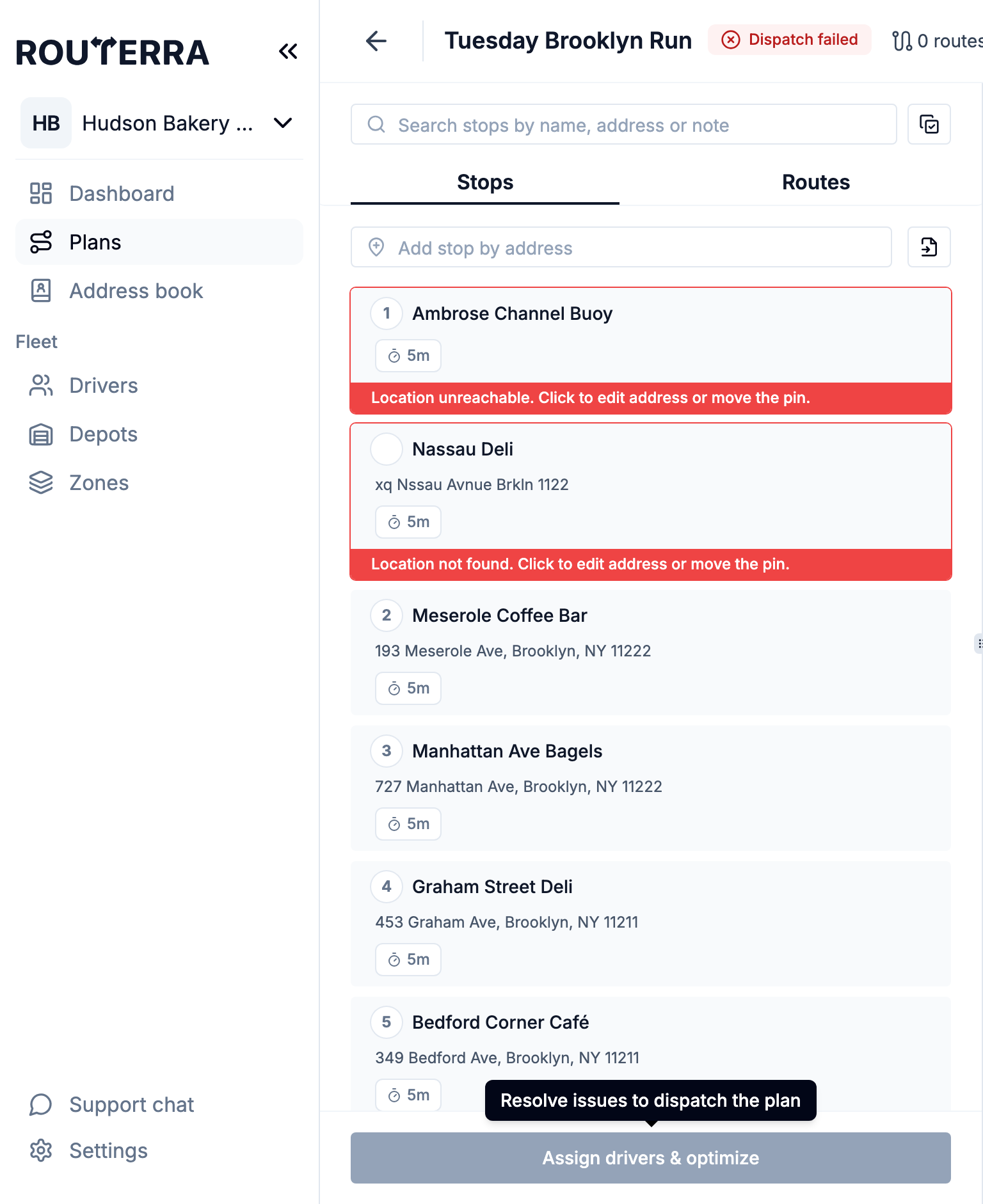
The button is also unavailable while you're selecting stops, the lasso is armed, or Refine is on — finish or close that first. And on an Approved plan you haven't edited since sending, it's replaced by Routes are with drivers with Revoke from Drivers: pull the routes back before you re-optimize. Once you add, delete or edit a stop, the plan shows Has Changes and the button returns (Mid-day changes).
Dispatch failed
If an optimization run can't produce routes, a Dispatch failed dialog opens with the reason. It also opens when you come back to a plan whose last run failed, so you won't miss it. There are three specific reasons, plus a generic one:
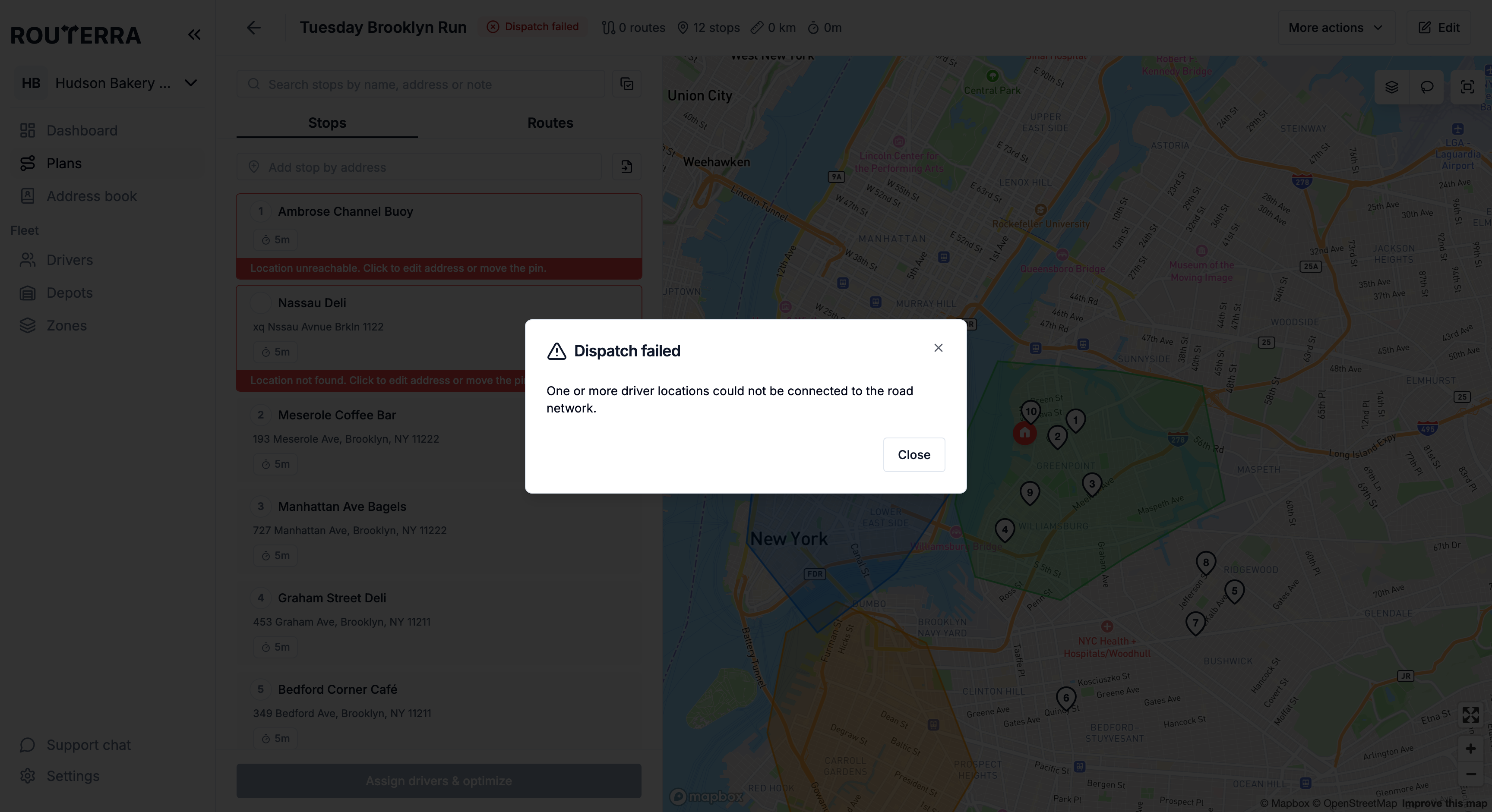
"One or more driver locations could not be connected to the road network." Despite the wording, this usually points at stops, not drivers: the optimizer couldn't reach some stops by road. Those stops are marked Location is outside of transit area in the stop list — look for them first, then fix the address, move the pin, or remove the stop and optimize again. If every stop looks right, check the selected drivers' start and finish points too (More actions (⋮) → Edit driver on the Routes tab, or Fleet → Drivers).
"The route optimizer could not find a valid solution for the given stops and drivers." The constraints can't all be met at once. Look for a driver whose shift is too short for any of the stops, time windows that can't be reached from the depot, zone restrictions that leave nobody able to serve an area, or a vehicle type that can't access the area. Loosen the tightest one — or select more drivers — and optimize again.
"An unexpected error occurred during route optimization." Something went wrong on our side. Try again in a minute. If it keeps happening on the same plan, write to us with the plan's name and date.
"Please try again later." Routerra has no specific reason for the failure. Optimize again; if it fails the same way, write to us as above.
A driver in the wrong city
Assign drivers & optimize builds routes from every driver you check in the Optimize Delivery Plan sheet. A driver whose start location sits far from the plan's stops — another city, an old depot — doesn't just end up with an empty route: the whole run can come back as Dispatch failed.
Before you optimize:
- Check only the drivers who are actually working this area today.
- Make sure each one's start and finish point is current (Fleet → Drivers, or ⋮ → Edit driver on a route).
The reason the dialog shows for an out-of-area driver can vary, so check the drivers you selected whenever a run fails without an obvious stop problem.
Why a stop stayed unassigned
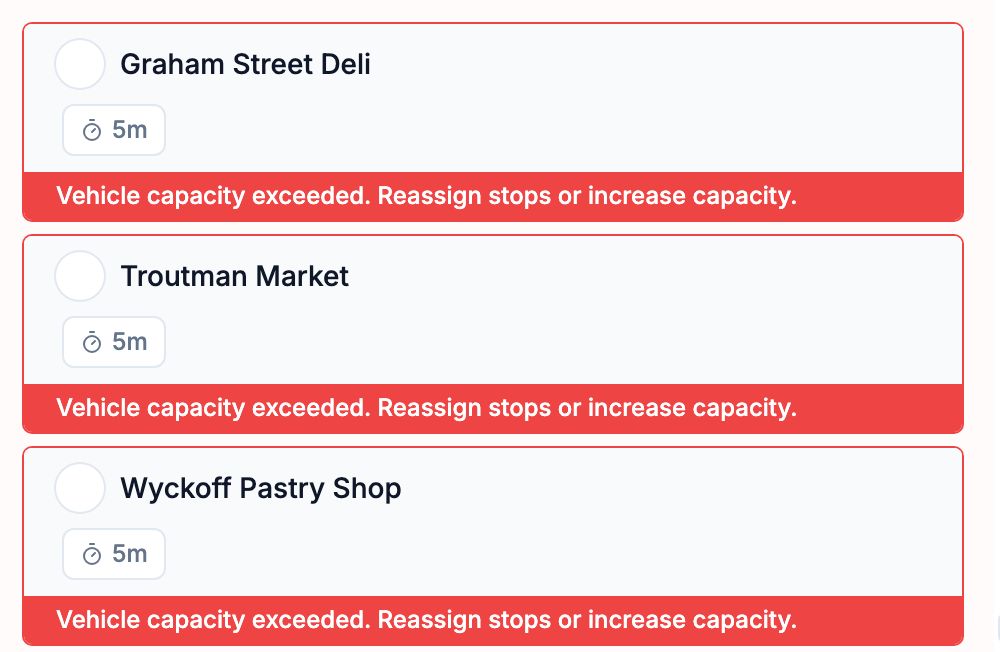
Sometimes the optimization works but a stop can't fit any route. It lands under Unassigned Stops with the reason on its row:
| What the row says | Why | What to do |
|---|---|---|
| Cannot be visited at selected time | No driver can reach it inside its arrival window. | Widen the window, check the driver's shift, or move the stop to a driver who starts closer. |
| Vehicle capacity exceeded. Reassign stops or increase capacity. | The stop's Load doesn't fit in any selected vehicle with the rest of its route. | Raise Vehicle Capacity, lower the Load, or select another driver. |
| Stop location zone is not matching any drivers. | The stop is in a zone none of the selected drivers may serve. | Change a driver's Zone restrictions, or select a driver who covers that zone (Zones). |
| Excluded due to vehicle max stops limitation. | Every driver who could take it has hit their Max Stops. | Raise Max Stops or select another driver. |
| No allowed vehicles available to serve this location. | The location can't be reached by the selected vehicle types (size, weight or road access). | Assign a driver with a suitable Type of vehicle. |
Once the reason is fixed, optimize again — or put the stop on a route by hand: select it and use Move to driver (Bulk operations).
What's next
- Optimize routes — strategies and everything the optimizer respects
- Drivers — shifts, capacity, Max Stops and zone restrictions
- Import and address problems — when the stops themselves are the issue