
Proof of delivery: photos and statuses
Where driver evidence lives, how failure reasons work, and the difference between what the office attaches and what the driver captures.
"Where's my package?" stops being a debate when every stop carries its own evidence. In Routerra Teams, proof of delivery is three things together: the status the driver set, the photos and files they captured, and their notes.
Where to find it
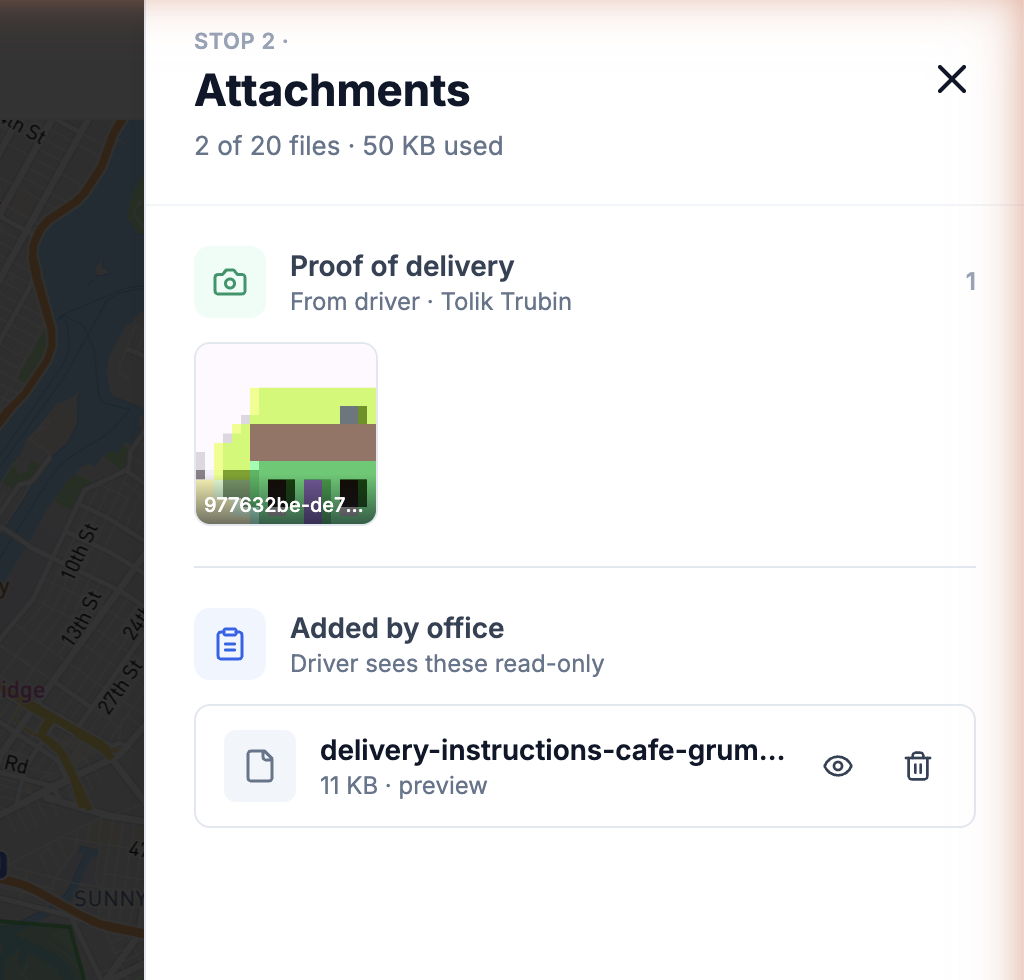
Open any stop and check its Attachments panel. Files are grouped by origin, and the grouping matters:
| Group | Who adds it | What it is |
|---|---|---|
| Proof of delivery | The driver, from the app | Delivery evidence: photos of the handoff or drop spot |
| Added by office | The office | Gate codes, entrance photos — drivers see these read-only |
| From address book | Saved on the address | Files that appear on every stop at that location |
Photos preview in a lightbox; PDFs and documents can be downloaded.
Delivered, or not — with a reason
Drivers don't just tick boxes. A successful stop is Delivered, with optional photos and a note. A failed one is marked Not delivered in the app with a structured reason — Customer not available, Wrong address, Customer refused, Business closed, Access restricted, or Other reason (which needs a short typed note) — plus whatever photos explain it. On the driver's list and in your stop list it shows as Skipped · <reason>.
If a driver closes a stop while they're far from its address (more than about 300 m), the app asks them to confirm first — a small guard against marking the wrong stop.
Failed stops surface immediately in the dashboard's Needs attention, so the decision (retry, reschedule, refund) happens while the driver is still in the field, not at 6 pm from a spreadsheet.
Offline capture, verified sync
Proof works in dead zones: photos, statuses, and notes are stored on the driver's phone and sync automatically when signal returns. A photo taken in an underground parking garage at 10:03 arrives with its real capture context once the driver resurfaces — nothing is lost, nothing needs re-doing.
How long files are kept
Every photo and file on your team's stops is deleted automatically after a period you choose — the ones drivers attach and the ones marked Added by office alike. Set it under Settings → General → Team defaults → Keep proof of delivery: 30 days, 90 days, 180 days or 365 days. If you never change it, files are kept for 365 days. Team owners and managers can change it.
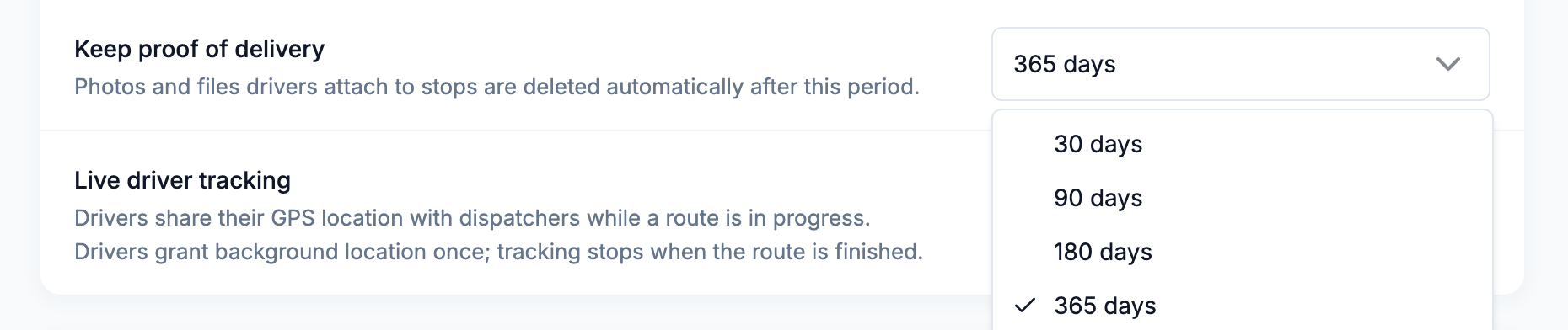
Shortening the period applies to files you already have, too. Routerra clears old files every night, so the next run deletes everything older than the new period — download anything you need to keep before you change it.
Closing the loop with customers
Proof pairs naturally with customer notifications. When a stop has the customer's email or phone number, Routerra can send them On the way, Delivered and Not delivered (with the reason) automatically — set up once in Settings → Notifications → Customers, triggered by the same statuses drivers already set. See Customer notifications by email and SMS.