
Route preferences and defaults
Team defaults for service time, curbside, driver workflow, proof-of-delivery retention, and live tracking; per-driver road preferences; and the strategy per run.
The optimizer starts every plan from a set of defaults — but they don't live in one panel. They're split across three levels, from the broadest to the most specific:
- Team defaults — apply to every stop that doesn't say otherwise.
- Per-driver preferences — travel rules for each driver and their vehicle.
- Per-run strategy — chosen each time you press Assign drivers & optimize.
Team defaults (Settings → General)
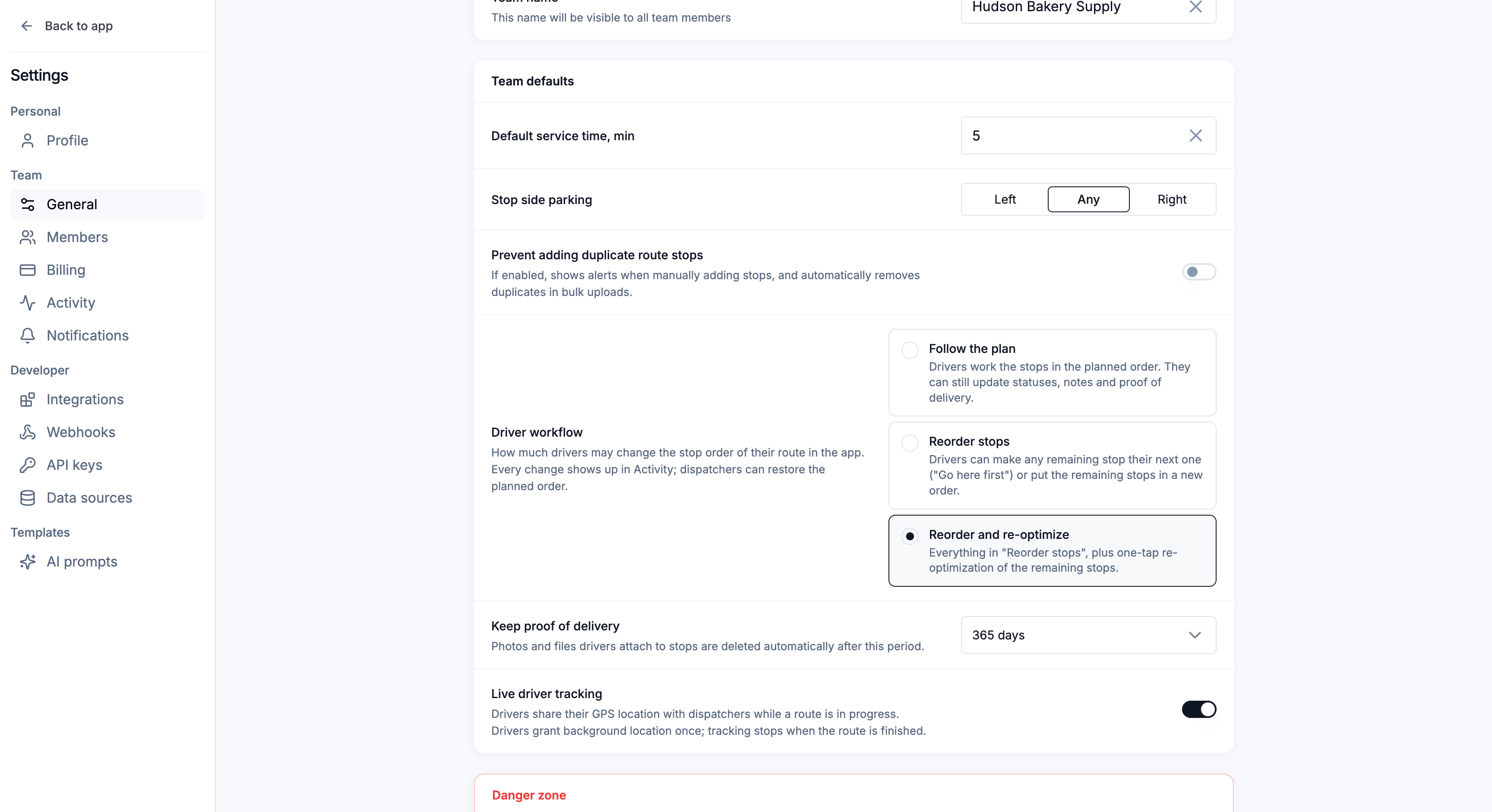
The Team defaults card holds the settings that apply across the whole team. Team owners and managers can change them.
| Default | What it controls |
|---|---|
| Default service time, min | How long a stop takes when it has no per-stop service time. |
| Stop side parking | Default curbside preference — Left, Any, or Right. |
| Prevent adding duplicate route stops | "If enabled, shows alerts when manually adding stops, and automatically removes duplicates in bulk uploads." |
| Driver workflow | How much drivers may change the stop order of their route in the app: Follow the plan, Reorder stops (the default), or Reorder and re-optimize. See When drivers change their stop order. |
| Keep proof of delivery | How long stop photos and files — from drivers and from the office — are kept before they're deleted automatically: 30, 90, 180, or 365 days. See Proof of delivery. |
| Live driver tracking | Drivers share their GPS location with dispatchers while a route is in progress. On by default for new teams. See Live driver tracking. |
Per-driver preferences (Fleet → Drivers)
The travel rules ride with the driver, on their card in Fleet → Drivers:
- Type of vehicle — Bike / Scooter / Car / Van / Truck, each with real access limits the optimizer respects.
- Live road data — plan this driver's routes against real-time traffic. Offered for cars and vans.
- Avoid tolls / Avoid highways — keep their routes off toll roads or motorways. Offered for cars. Turning on Live road data switches these off, and the other way round.
- Vehicle Capacity and Max Stops — hard limits weighed against each stop's Load.
- Start / Finish Location and Shift Start / End Time — where and when their day begins and ends.
Because these are per-driver, a mixed fleet just works: the van with a toll pass takes the bridge while the bike courier's routes stay local.
Per-run strategy (Assign drivers & optimize)
How work is split across drivers isn't a stored preference — you pick a Distribution Strategy every time you optimize: Balance by Stops, Balance by Time, Fastest Overall (recommended), or Balanced Mix. See Assign drivers and optimize.
The driver's navigator
Which navigation app opens when a driver taps Navigate is the driver's own choice, made in the Routerra Teams driver app, not in the web app. The first time a driver taps Navigate, the app asks which one to use and remembers it; they can change it later under Settings › Drive mode › Navigation app. See Get started with the driver app.
How the levels interact
Think of it as fallbacks, most-specific wins:
- A stop's own service time, arrival window, and curbside side (stop settings) beat the team defaults for that stop.
- A driver's vehicle, capacity, depots, and shift shape only that driver's routes.
- Team defaults quietly fill every gap you didn't set explicitly — so getting them right once makes every plan a little less work.
What's next
- Assign drivers and optimize — where these defaults get used
- Drivers: profiles, shifts, and vehicles — the per-driver settings in full