
Customer notifications by email and SMS
Tell customers automatically when their delivery is on the way, delivered, or couldn't be delivered — by email or SMS, sent to the contact saved on each stop.
The status a driver taps can do more than update your dashboard — it can tell the customer. Routerra sends an email or a text when the driver starts the route, when the stop is delivered, and when it couldn't be. You write each message once; the customer's details fill themselves in.
How it works
Three things decide whether a customer hears from you:
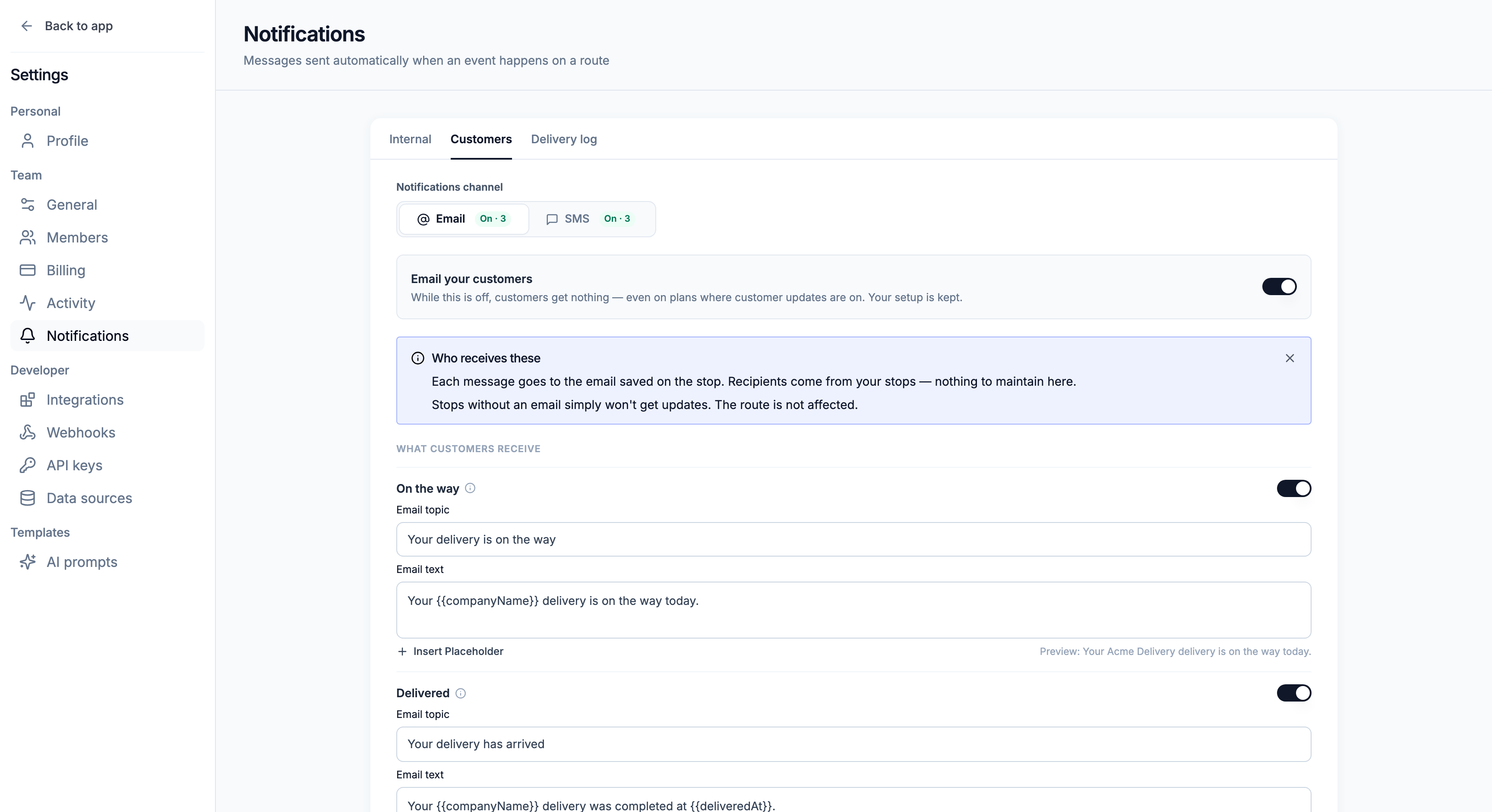
- The channel is on. Under Settings → Notifications → Customers, switch on Email your customers (Email tab) and/or Text your customers (SMS tab).
- The event is on. Pick which of the three updates customers get, and write the message for each.
- The stop has a contact. Each message goes to the email or phone number saved on the stop. There's no recipient list to maintain — stops without a contact simply don't get updates, and the route isn't affected.
Add the customer's contact to a stop
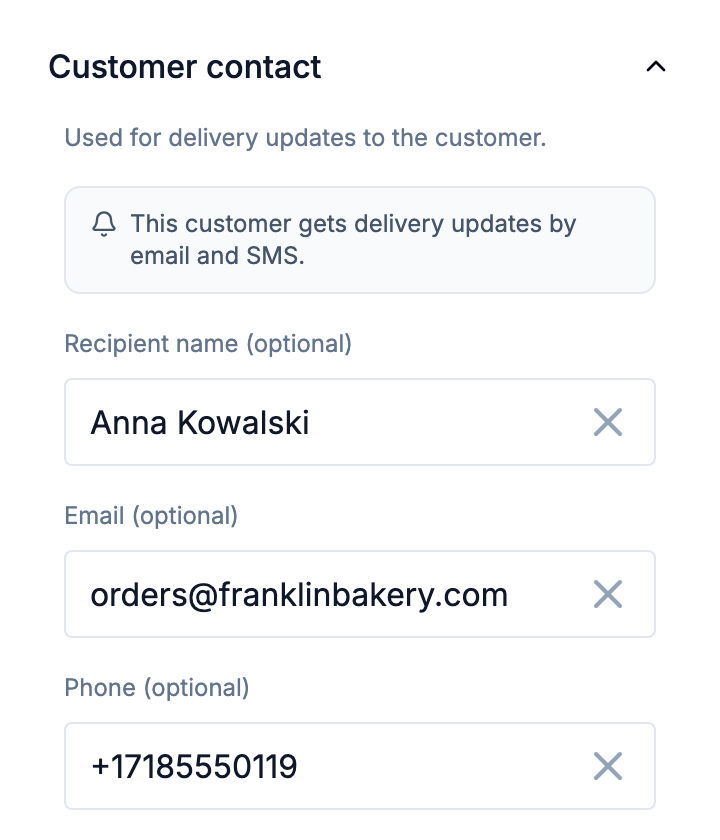
Open a stop and fill in its Customer contact: Recipient name, Email and Phone — all optional. Phone numbers need a country code, for example +34. Address-book entries can hold the same contact, so stops imported from the Team Address Book bring it along.
Under the fields, a line tells you what this customer will get — for example This customer gets delivery updates by email and SMS. — or what's missing (To send delivery updates to customer add their Email or Phone.).
A plan sends customer updates as soon as any of its stops has a contact — there's no per-plan switch. The Plans list shows it in the Customer updates column (On / Off).
The three updates
| Event | Sent when |
|---|---|
| On the way | Once to every customer on a route, the moment the driver starts it. |
| Delivered | When the driver marks this customer's stop delivered. |
| Not delivered | When the driver can't complete this customer's stop — with the reason. |
For email, each event has an Email topic (the subject line) and Email text; for SMS, an SMS text. Use Insert Placeholder to add values that fill themselves in: Recipient name, Order name, Address, Your team name, Driver Name and Support phone in any message, plus ETA window in On the way, Delivered at in Delivered, and Skip reason in Not delivered.
How your emails look
Emails are sent as "Your team via Routerra" from a no-reply address, so customers know who they're from but replies aren't read. On the Email tab, under How your emails look, add:
- Logo — a public https link to a PNG, JPEG, GIF or WebP, shown at the top of every email.
- Signature — shown under every message.
- Support phone and Support email — how a customer reaches you, shown at the bottom of every email.
A live Preview next to the fields shows the email for the event you're editing.
Text messages
Texts go out through your own Twilio account. Until Twilio is connected, the SMS tab can't be switched on and no customer is texted — see Connect Twilio. Customer texts go to the phone number on the stop, which needs a country code.
Customers who asked not to be messaged
The SMS tab also holds the do-not-message list. A customer lands on it by replying STOP to one of your texts, and gets no more texts from you after that. The stop's contact line shows Opted out — this customer replied STOP. To start messaging someone again, remove them from the list.
The list covers texts only. If the stop also has the customer's email, delivery updates by email keep going out — remove the email from the stop if they shouldn't get those either.
Send a test
Press Send test to check a message before customers see it. Pick the event; the message goes out with sample data to you, never to a customer — to up to 5 addresses or numbers you enter. A test uses your unsaved changes, so save afterwards to make real messages match.
Every message sent — tests included — appears in the Delivery log tab with its status. See Team notifications and the delivery log.
Switching updates off
- For everyone: switch off Email your customers or Text your customers. While a channel is off, customers get nothing on it — your setup is kept.
- For one event: turn that event off.
- For one customer: remove the contact from the stop, or for texts, they reply STOP.
What's next
- Team notifications and the delivery log — updates for your own team, and the record of everything sent
- Proof of delivery — the evidence behind each Delivered and Not delivered
- Connect Twilio — needed for any SMS