
Connect Twilio for SMS
SMS customer notifications send through your own Twilio account. Connect it once — credentials, sender, test — and every stop can text your customers.
Email notifications work out of the box. SMS goes through your own Twilio account — you bring the credentials and the number, Routerra sends the messages. Connect it once under Settings → Developer → Integrations → Twilio SMS ("Send SMS notifications when stop status changes") and the SMS channel lights up everywhere in the app. The same Twilio card also sits in the SMS panels under Settings → Notifications — its button opens the same sheet, so you can connect from wherever you notice it's missing.
Before you start
You'll need, from your Twilio console:
- Your Account SID (starts with
AC, 34 characters). - Your Auth Token (32 characters).
- At least one sender — a Twilio Phone Number or a Messaging Service.
Connecting
Open Connect Twilio
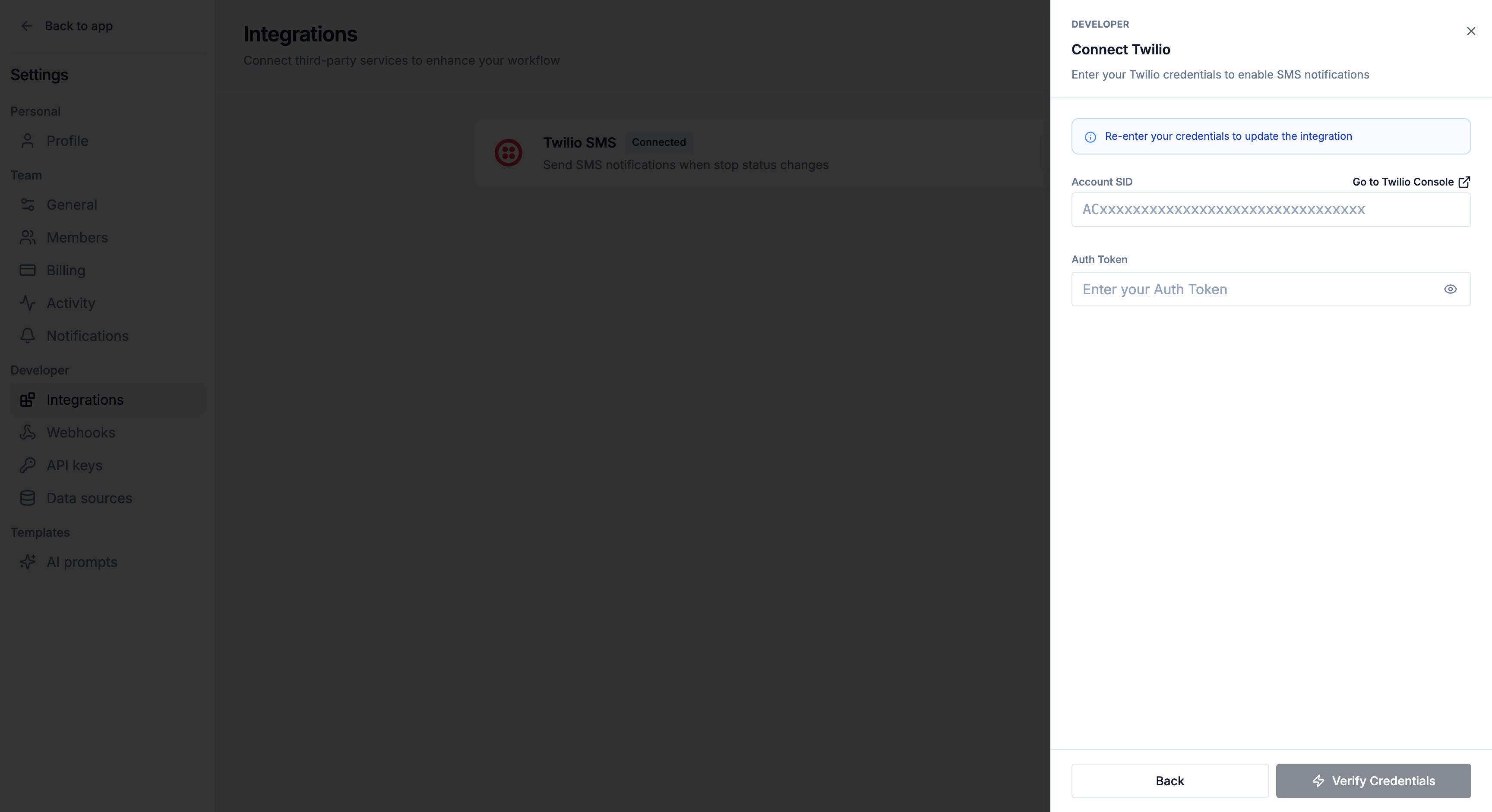
On the Twilio SMS card press Connect. The Connect Twilio sheet opens: "Enter your Twilio credentials to enable SMS notifications."
Enter and verify credentials
Paste your Account SID and Auth Token, then press Verify Credentials. Routerra checks them with Twilio and stores them in the same step — invalid values are caught here ("Account SID must start with AC and be 34 characters").
Select a sender and connect
Once verified, pick a sender: one of your Phone Numbers or a Messaging Service (marked Recommended — Messaging Services handle sender pools, compliance, and scaling for you). No senders listed? Configure one in your Twilio console first. Press Connect Twilio, and the card shows Connected.
Change or disconnect
Once connected, press Configure on the card. The sheet shows your current configuration and asks "What would you like to update?":
- Change Sender — switch to a different phone number or messaging service.
- Update Credentials — change your Account SID or Auth Token.
To remove the integration, press Disconnect on the Twilio SMS card under Settings → Developer → Integrations and confirm. "Routerra will forget your Account SID, Auth Token and sender. SMS notifications stop until you connect Twilio again."
Costs are on your Twilio account
Because SMS sends through your Twilio account, Twilio bills you directly for the messages — Routerra doesn't mark up or resell texts. Watch your Twilio balance and per-message pricing the same way you would for any other Twilio app.
Turning SMS on
Connecting Twilio doesn't send anything by itself — it unlocks the SMS channel. You switch SMS on per audience under Settings → Notifications:
- Internal tab, SMS channel — turn on Send notifications on this channel to text your team. See Team notifications.
- Customers tab, SMS channel — turn on Text your customers to text the phone number saved on each stop. See Customer notifications.
Until Twilio is connected, those panels show "Connect Twilio to send SMS" — texts go out through your own Twilio account, so nothing there can be switched on and no SMS is sent.
Troubleshooting failed sends
- Credentials rejected — re-check the SID/token in your Twilio console; re-enter them to update the integration.
- No senders to pick — you haven't provisioned a phone number or Messaging Service in Twilio yet.
- Texts not arriving — confirm the recipient number is in full international format (e.g.
+1234567890), and check your Twilio logs for carrier-side errors.
What's next
- Team notifications — email and SMS to your own team
- Webhooks — the build-your-own alternative to prebuilt integrations