
Import and address problems
A pin landed wrong, a file was rejected, or a photo import missed stops — the common import snags and how to clear each one.
Most imports just work. When one doesn't, it's usually one of three things: a stop geocoded to the wrong spot, a file got rejected, or a photo import missed some stops. Here's the fix for each.
An address couldn't be found
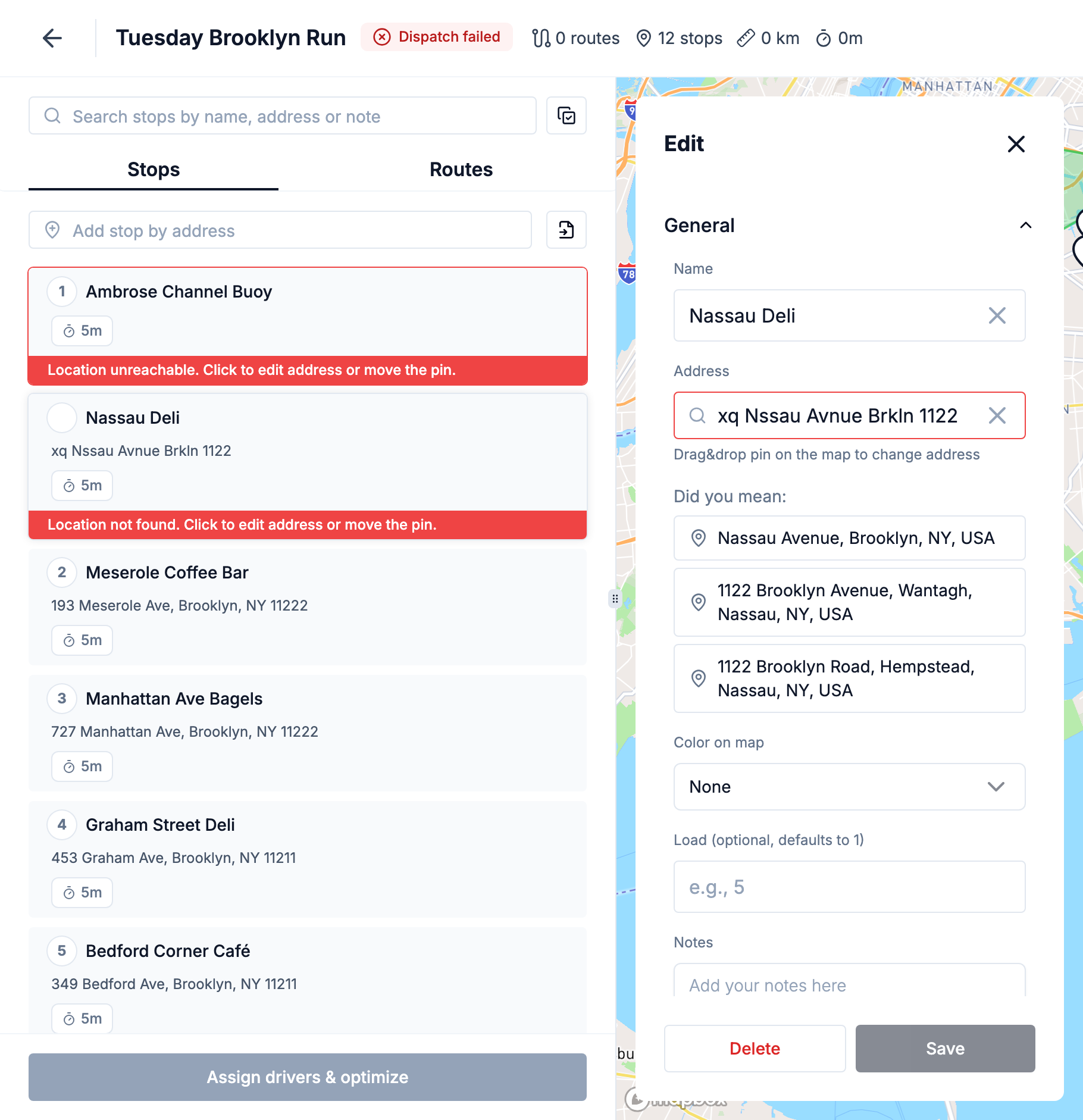
When geocoding can't place an address at all, the stop says so in red: Location not found. Click to edit address or move the pin. While any stop is in that state, Assign drivers & optimize stays greyed out with Resolve issues to dispatch the plan — fix those stops first.
Open the stop. Under the address, the sheet lists Did you mean: suggestions — the closest matches for what you typed. Click the right one and the stop gets that address and pin in one go. No match? Correct the address text yourself, or move the pin on the map.
A stop landed on the wrong pin
Geocoding turns text into a map location, and occasionally it guesses wrong — an ambiguous address, a new building, a typo. The fix is to correct the coordinates directly:
Open the stop
You'll spot it on the map — the pin sits somewhere that doesn't match the address.
Fix the address or coordinates
Correct the address text, or drag the pin / set exact coordinates to the right spot.
Let the Address Book remember it
If the stop came from the Team Address Book, tick Update in address book before you save — the corrected pin is saved on the entry, so every future stop at that address reuses it. For a new customer, add the address to the Address Book once it's right.
A file was rejected
Uploads have limits and expectations. When a file can't be imported, an Import failed dialog says why. Check:
- Format — CSV, XLS, XLSX, or PDF. Export from your spreadsheet tool if it's something else.
- Size — up to 10 MB per file, 25 MB total.
- Empty file — "Uploaded file is empty. Please upload file with some content."
- Too many rows — a file can hold up to 250 rows with data. Split a bigger list into several files.
- Too many columns — up to 100 columns with data. Delete the columns you don't need.
- Rows too long — each row can hold up to 500 characters. Clean up long notes or merged cells.
- Column mismatch — if columns aren't picked up, press Download Template in the Upload File dialog and match its shape. You can also add an AI Prompt hint to tell Routerra where extra data lives ("phone numbers are in column F").
Pasting a list instead? Each line can be up to 255 characters.
Full import details are in Import stops.
A photo import missed stops
Photo (image) import reads a picture of your manifest with AI — quality depends on the source image. If stops are missing or garbled:
- Improve the photo — good lighting, flat page, no glare, text in focus.
- Add an AI Prompt hint — tell it what to look for and where.
- Always check the extracted list against the original before importing — especially apartment numbers and unit suffixes.
Still stuck?
If an import keeps failing and the file looks fine, send it our way at info@routerra.io and we'll take a look.
What's next
- Import stops — every import method in detail
- The Team Address Book — making a pin fix permanent
- When routes won't optimize — what to do once the stops are clean but dispatch still fails