
Mid-day changes: add, move, and re-send
The day changes after you've dispatched. Add a stop, move work between drivers, re-optimize, and re-send — without anyone dictating addresses over the phone.
You dispatched at 8am. By 11 the day looks different — a rush order came in, a driver's van died, a customer moved their window. A sent plan in Routerra isn't frozen. Some changes reach the drivers' apps straight away; bigger ones mean pulling the routes back, rebuilding, and sending again.
What you can change while routes are with drivers
Once you press Send routes to drivers, the plan is Approved. Until you edit a stop, the Stops tab no longer offers Assign drivers & optimize. In its place you'll see Routes are with drivers — Pull them back to change stops or re-optimize. and a Revoke from Drivers button.
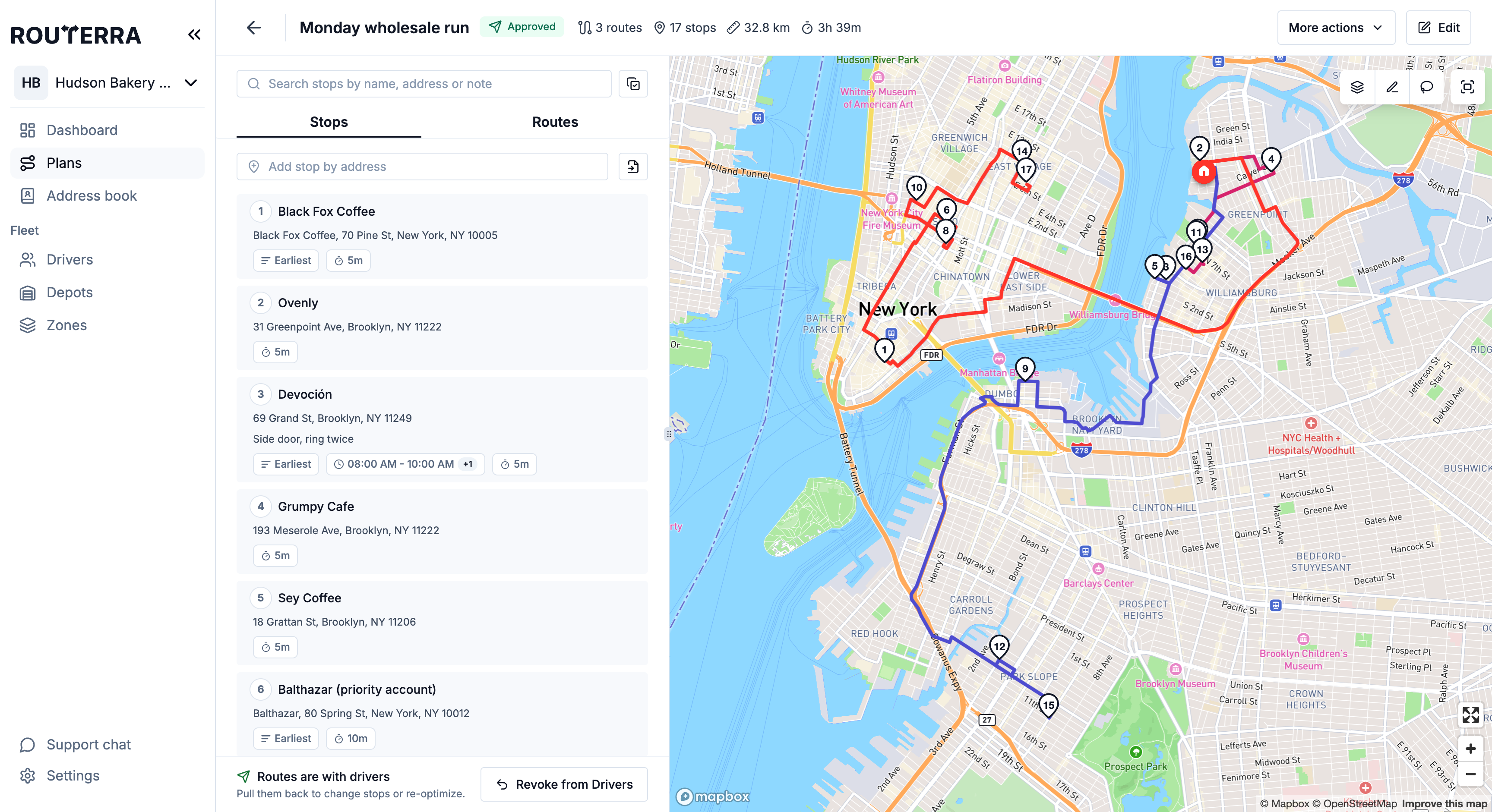
That leaves two kinds of change:
- Direct changes that go to the drivers' apps immediately: Reassign route and Move to driver (below). No re-send needed.
- Rebuilds — re-optimizing the plan as a whole. If you haven't touched any stops, revoke first, then optimize and send again. Once you've added, deleted or edited a stop, the plan is Has Changes and you optimize and send straight away — no revoke.
Adding a stop to a dispatched plan
Add the stop to the plan
Search the address or drop it on the map, same as any stop. On an approved plan, Routerra warns you first: This stop will not be included in the current routes. To update drivers, you'll need to re-optimize and resend the routes.
Put it on a route
The quickest way: select the new stop and use Move to driver — pick the driver and choose Re-optimize their route (the stop lands where it fits best) or Add to the end. The driver sees it straight away.
Or rebuild and re-send
If the change affects everyone's routing, run Assign drivers & optimize on the Stops tab, then Send routes to drivers again. Adding the stop already moved the plan to Has Changes, so there's nothing to revoke — drivers keep their current routes until the new ones arrive. Stops drivers have already delivered or failed keep their statuses — re-optimizing doesn't wipe the morning's work.
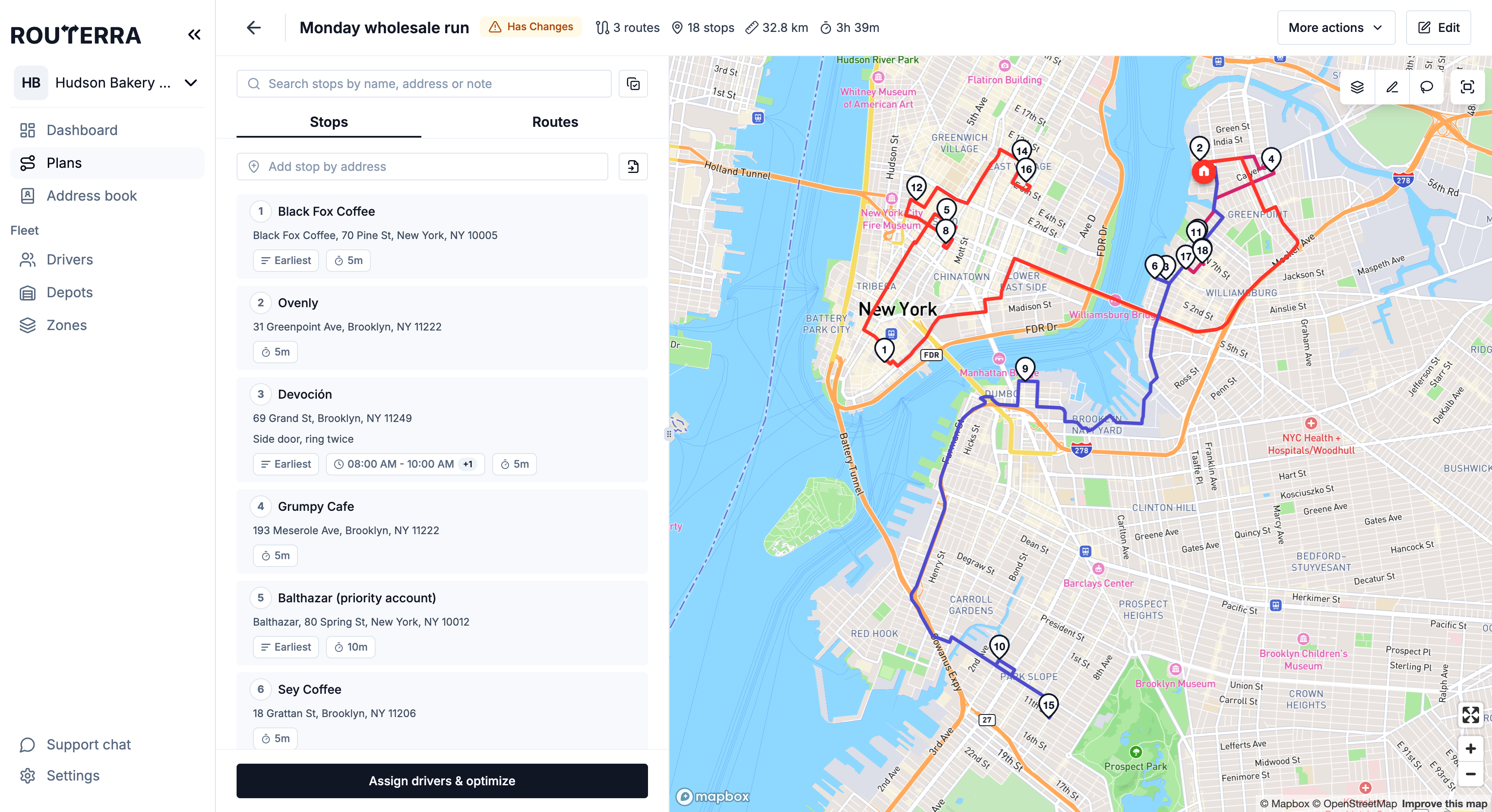
When a plan's routes no longer match what drivers have, its status shows Has Changes — your reminder that the drivers' copy is out of date until you optimize and send again.
On a Dispatched or Approved plan, these edits set it: adding or deleting stops, changing a stop's address, side, load or other routing details, and reordering a route from the office. Restoring a driver-reordered route to the planned order doesn't. Drivers keep seeing their current routes while the plan is in Has Changes.
Moving work between drivers
A driver drops out mid-shift — sick, breakdown, ran long. Two tools move their work without a re-send:
- Reassign route — from the More actions (⋮) menu on the driver's route. The whole route goes to another driver exactly as optimized: The route is not re-optimized: stop order, arrival times and path stay exactly as planned. If the other driver already has a route in this plan, choose Swap routes or Assign as a second route. If the route was already started, its progress carries over to the new driver.
- Move to driver — select some stops (on the map with the lasso, or in the list) and move just those. Choose Re-optimize the target's route, which also rebuilds the routes the stops came from, or Add to the end, which changes nothing else. Only stops that are still pending move; delivered and failed stops stay put.
On an approved plan, both changes appear in the driver apps immediately. Details in Refine routes and Bulk operations. This is the exact mid-morning playbook in A typical morning.
When a driver changed their own stop order
If your team lets drivers reorder their stops, a route a driver reordered carries a strip — Marta reordered the stops at 10:42 — with Restore plan to put it back. Optimizing over it warns you first: 1 route has a stop order changed by its driver. Optimizing replaces it. More in When drivers change their stop order.
When to Revoke
Revoke from Drivers pulls the routes out of the driver app entirely. Reach for it when the plan needs a real rebuild and you don't want anyone driving the stale version in the meantime — then rebuild and send fresh. For moving one route or a few stops, Reassign route and Move to driver are smoother. More in Send routes to drivers.
What's next
- Send routes to drivers — the dispatch and revoke mechanics
- Refine routes — reassigning routes and adjusting the line by hand
- Follow delivery progress live — watching the change land