
Offline: what syncs and when
What drivers can do with no signal, what dispatchers see during an offline stretch, and when a quiet route is (and isn't) worth worrying about.
Delivery routes run through basements, parking garages, rural dead zones, and elevators. The Routerra Teams driver app is built for that — it's offline-first, so losing signal never stops the work.
What a driver can do offline
Everything that matters for running the route:
- The route itself — stops, addresses, order, and expected arrival times are already on the phone.
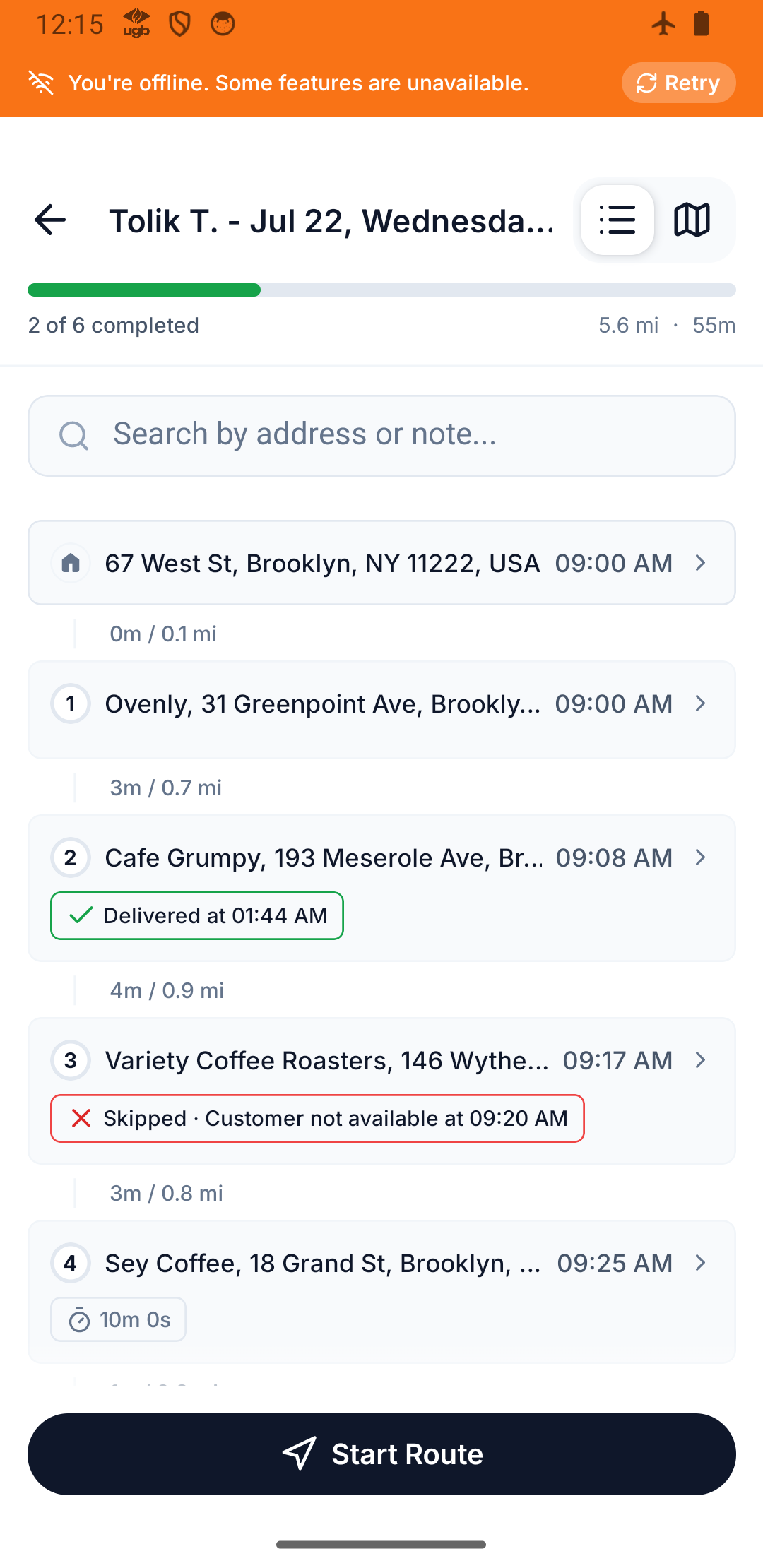
- Marking stops — Delivered, or Not delivered with a reason, works with no connection.
- Notes and proof of delivery — photos, files, and notes are saved locally the moment you add them.
- Reordering stops (if your team allows it) — the new order is saved and syncs later. Until then, arrival times read ETA after sync. Re-optimize needs a connection.
One precondition: a route has to be opened online once. If it reached the phone but was never opened with signal, the app says This route is not on your phone yet and asks you to go online once to download its stops. After that the route works offline.
An offline banner appears when the phone is disconnected. It's informational — "You're offline. Some features are unavailable.", or, once you've marked stops while disconnected, "You're offline. 1 change will sync when you're back online." — not a stop sign. Keep driving.
When and how it syncs
The instant signal returns, everything the driver captured while offline syncs automatically — statuses, notes, and photos, in the order they happened, with their real timestamps. A photo taken in a garage at 10:03 arrives stamped 10:03 once the driver resurfaces. Nothing needs re-doing.
If the dispatcher changed the same stop in the meantime, the dispatcher's change wins and the app tells you (Stop 4 was updated by your dispatcher).
What the dispatcher sees
On the office side, an offline stretch looks like quiet — the driver's status updates pause, then arrive in a batch when they reconnect. So on the dashboard (Follow delivery progress live):
- A gap in updates during a known dead zone is normal, not a stall.
- When the driver reconnects, several stops may flip to Delivered / Skipped at once — that's the batch catching up.
With live driver tracking on, the plan map tells you more. The phone keeps recording GPS offline, so:
- While no new position arrives, the driver's dot stops moving and their route shows Signal delayed (no new location for more than 2 minutes while moving), then Connection lost (more than 5 minutes while moving, or 30 minutes while parked).
- Once the phone reconnects, the dot catches up with the driver and the recorded track fills in the stretch they drove offline.
When to worry (and when not to)
- Don't worry: short silences, known dead zones, Signal delayed for a few minutes, a batch of updates arriving together after a gap.
- Do check in: Connection lost that doesn't clear, no updates at all from a driver who should clearly be back online by now, or an idle route on the dashboard — on the dashboard, idle means the driver's shift has started but the route hasn't. If the app itself looks empty, see A driver doesn't see their route.
What's next
- Get started with the driver app — the driver's full first day
- Live driver tracking on the plan map — tracking statuses and what to do about each
- Follow delivery progress live — reading the dashboard during offline stretches