
Stop settings
Note and colour on map are free. Service time, arrival window, priority, and curbside parking change what the optimizer does and need a paid plan.
Every stop has eight settings, and the same eight exist whether you're editing a stop on a route or a saved stop in your address book. Four are free on any plan: address, position, note, and Color on map. The other four — service time, arrival window, priority, and curbside parking — change what the optimizer does with that stop, and need a paid plan.
Tap a stop and open Edit Stop — every setting is a tappable row. The rows use short labels; the full names below are the titles of the screens they open, so Color opens Color on map, Priority opens Arrival priority, Stop side opens Curbside parking, and Set arrival time opens Arrival time range.
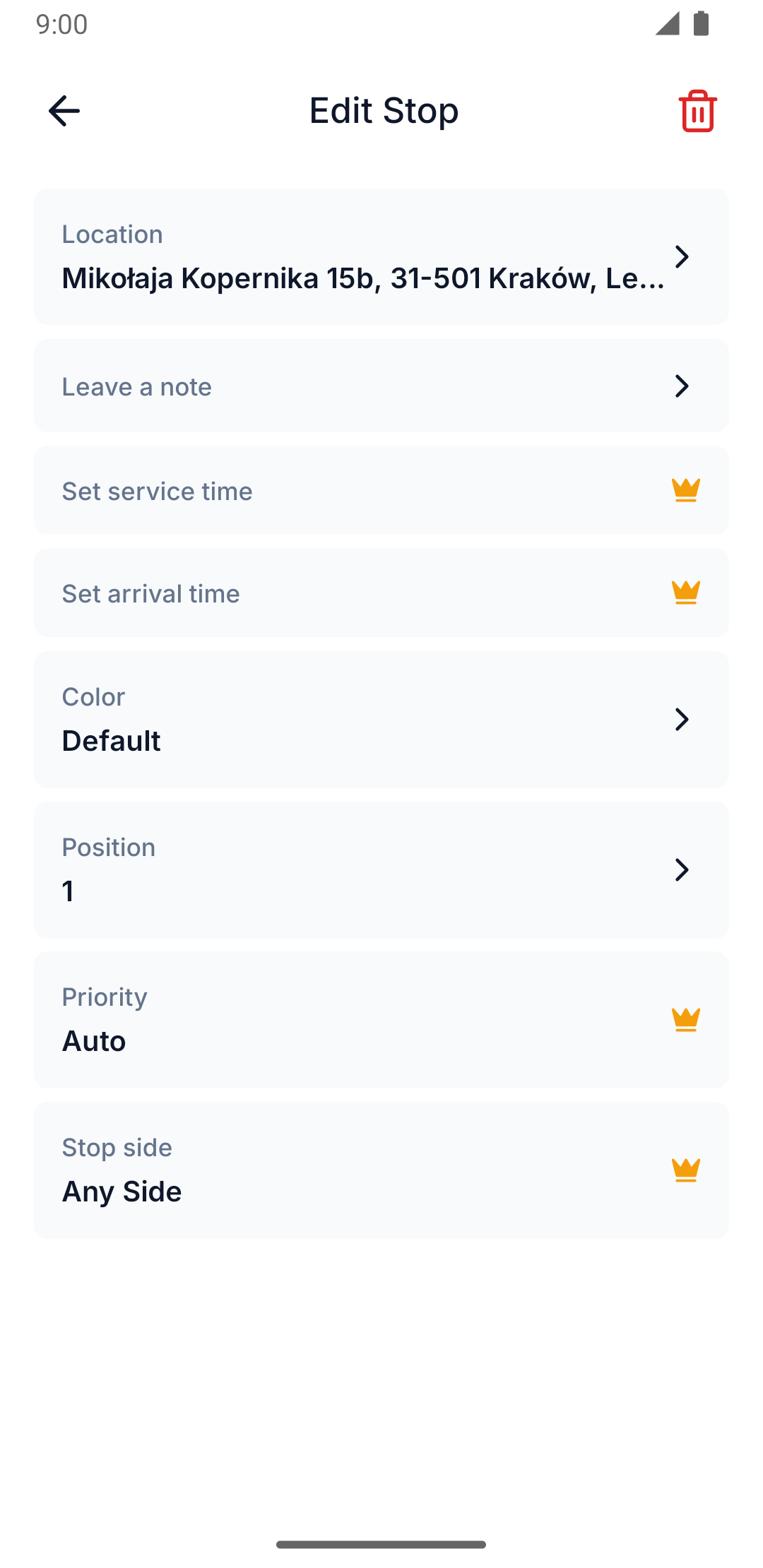
Click a stop's marker or list row to open its settings popover.
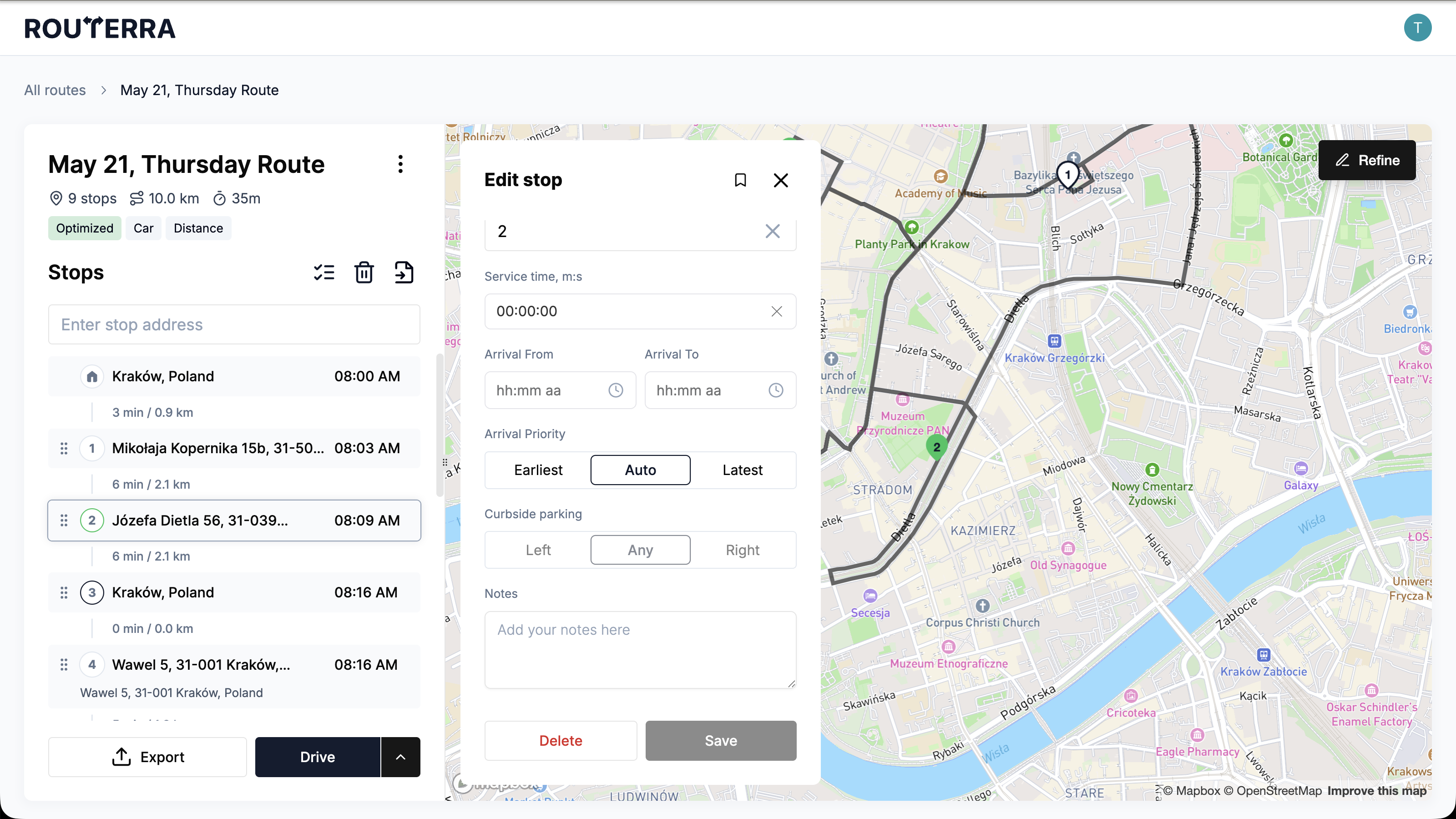
Free on every plan: note and Color on map
A note is a free-text field for anything a driver needs at that stop — access instructions, a gate code, a customer preference.
Color on map sets one of eight colours — None, Slate, Orange, Yellow, Green, Blue, Purple, Pink — and the same eight colours are on web and in the app. The colour you pick drives both the map pin for that stop and its accent in the stop list, so it's a quick way to group or spot stops at a glance. It has no effect on optimization.
What needs a paid plan
These four fields need a paid plan on both web and the app, and each one feeds directly into how Optimize your route sequences your stops:
- Service time — how long you expect to spend at the stop. The optimizer adds this to your drive time at every stop it plans around, so it affects the arrival times of everything after it.
- Arrival time range — a From/To window the optimizer tries to schedule the stop's arrival inside. A range where From is later than To is valid, not a mistake — it's meant for windows that cross midnight, and displays as Overnight.
- Arrival priority — tells the optimizer how to weigh this stop's timing against the rest of the route: Earliest (try to arrive earlier), Auto (let optimization decide), or Latest (arrive closer to the end).
- Curbside parking — the preferred side to approach the stop from (Left Side, Any Side, or Right Side), for easier delivery.
The same four fields are gated identically when you're editing a saved stop, not just a stop already on a route.
How the paid boundary shows up
Without a paid plan, both clients let you see these four fields exist — they just won't let you open or edit them. They unlock as soon as you're on a paid plan.
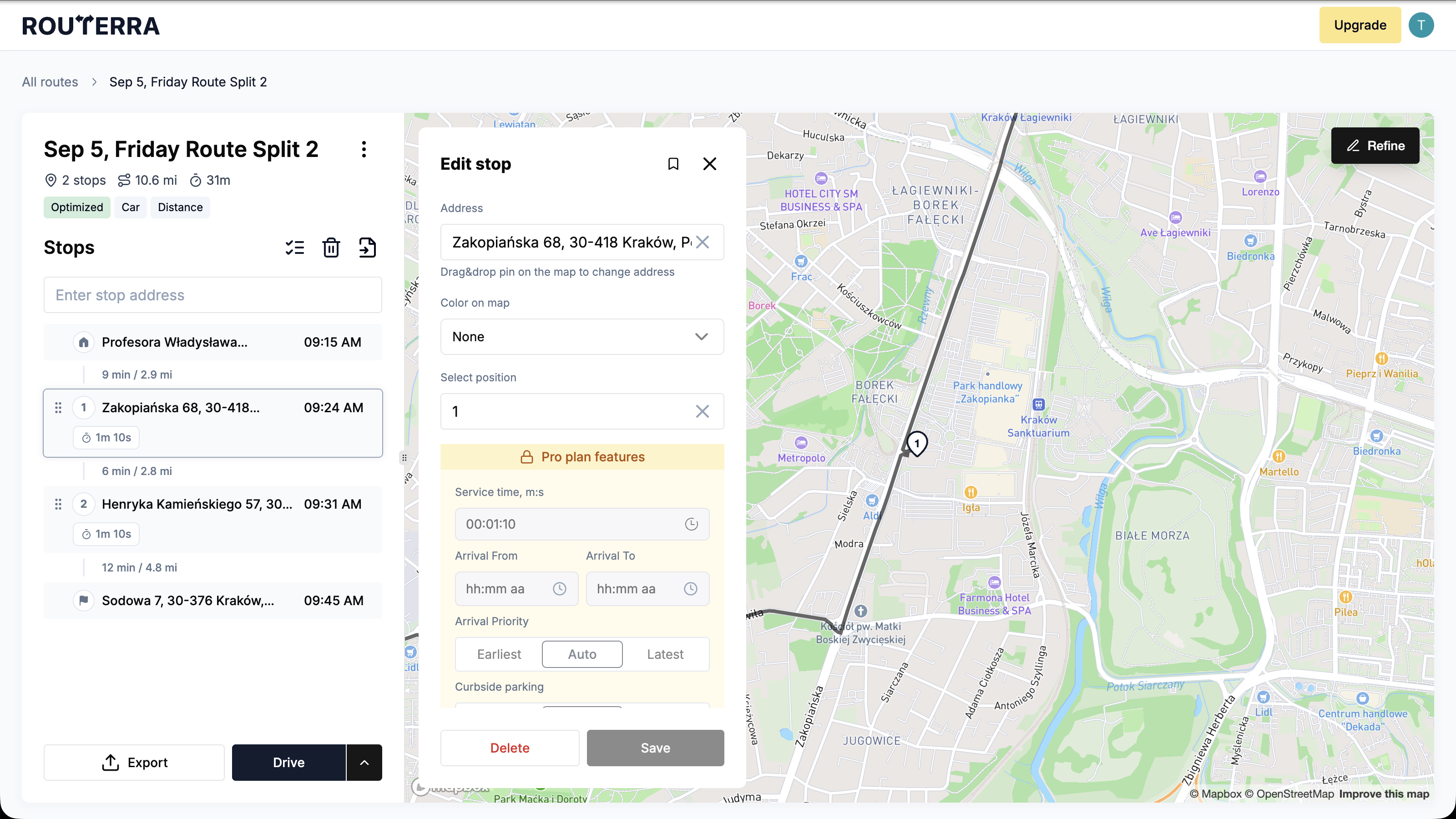
The four fields still show in the stop popover, greyed out under a lock banner reading Pro plan features. Clicking the banner opens a dialog listing what upgrading unlocks, with a button straight into the upgrade flow.
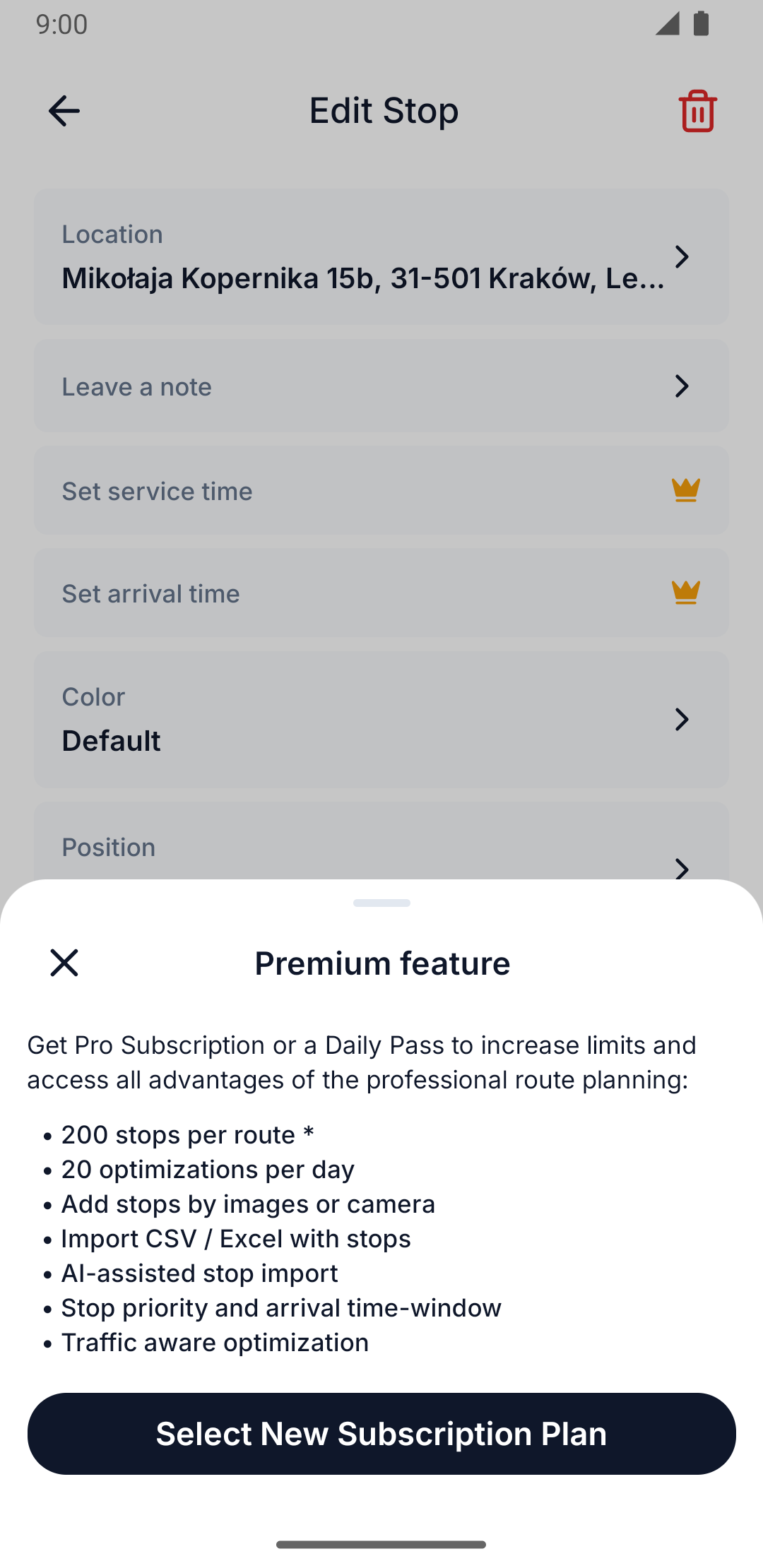
Each gated row on the Edit Stop screen shows a premium indicator instead of its usual value. Tapping the row doesn't open the editor — it opens the Premium feature sheet instead.
See Plans and limits for what's on the free plan versus a paid one.
Visit the same address often? Save it once with these settings already filled in — see Saved stops.