
Change the order of your stops
Move a stop to a different position by hand, select several stops at once, and understand what manual ordering does to an optimized route.
Optimizing puts your stops in the order Routerra thinks is fastest. Sometimes you know better — a customer who has to be first, a gate that's only open in the morning. You can move stops by hand, and the two clients give you different ways to do it.
Move one stop
Two ways, and you can use whichever suits the move:
- Drag the stop up or down the list to where you want it. Best for nudging something a place or two.
- Set its position directly in the stop's settings. Best for long routes, where dragging stop 47 up to position 3 is a fight.
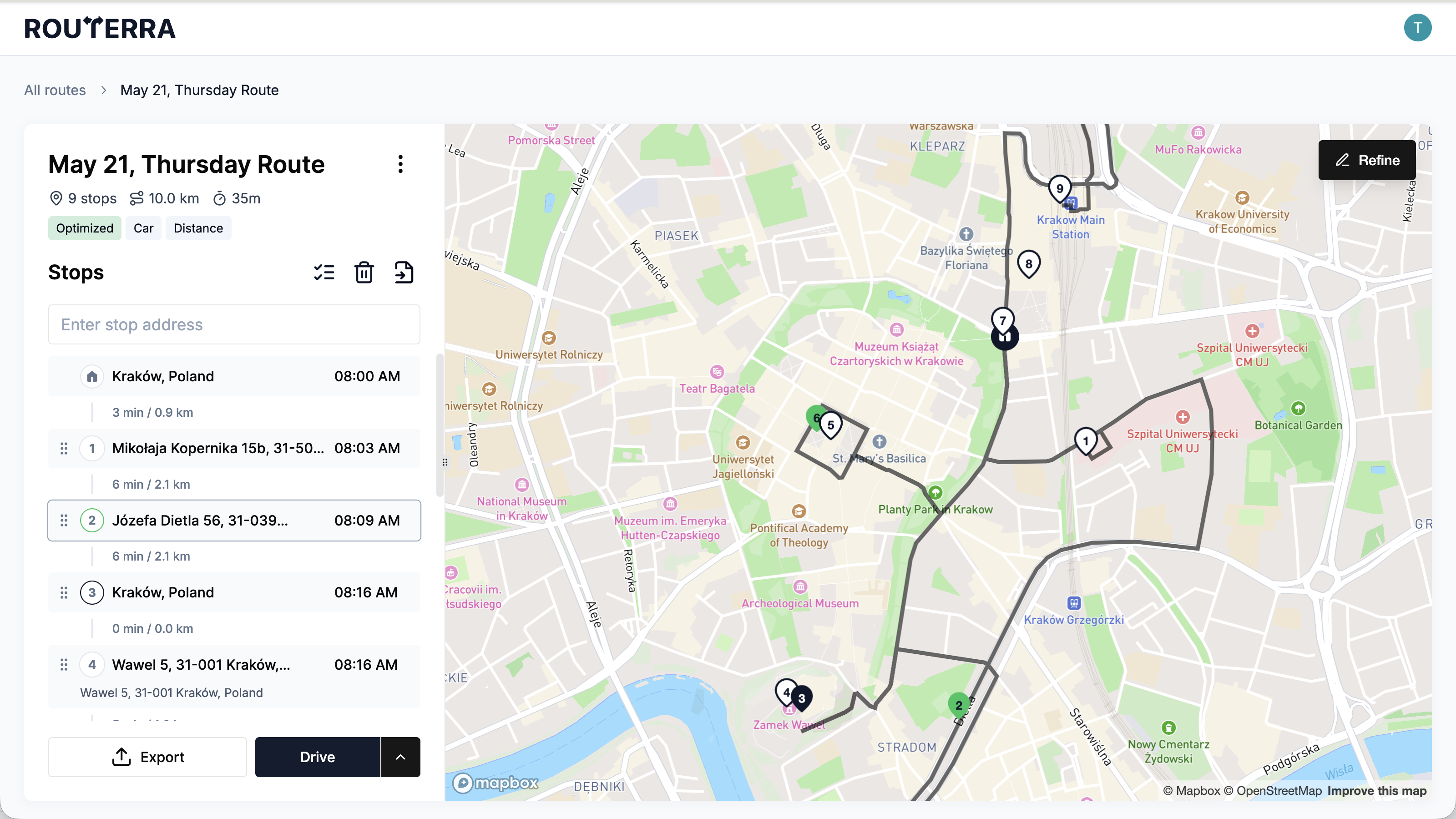
Open the stop and use Change position, then pick the position you want it to take. Enter the number and the other stops shuffle around it.
There's no drag-to-reorder in the phone app — not in the stop list, not anywhere. If you've used the web app and are looking for it, that's why you can't find it. Use Change position instead.
What moving a stop does to the route
Reordering by hand puts the route into Manual status. That's Routerra recording that the order is yours, not its own — it stops treating the sequence as optimized and leaves it exactly as you've arranged it.
A Manual route is still fully driveable. If you'd rather hand the order back to the optimizer afterwards, run Optimize again and it recalculates from scratch, discarding your arrangement.
Work on several stops at once
Both clients let you select multiple stops and act on them together — but what you can do with a selection differs.
Use Select Multiple Stops, tick the stops you want, and the bar offers three actions:
- Complete — mark them all delivered
- Cancel — mark them all skipped
- Delete — remove them from the route
Each asks for confirmation first, and reports back — "Stops deleted successfully", "Stops completed successfully", "Stops canceled successfully".
Complete and Cancel are only available once the route is ready to drive. On a route you're still building, only Delete applies.
You can select several stops — including Select all — and delete them together.
Marking a batch of stops delivered or skipped in one go is a web-app feature; in the phone app you record outcomes one stop at a time as you drive them. See Mark a stop delivered or skipped.