
Upgrade or cancel your plan
Where billing actually happens for your device, how to change or cancel a plan, and why cancelling in the app is not the same as cancelling in the store.
Where you subscribed decides where you manage it. On the web, Routerra runs your checkout and billing directly. In the app, Apple or Google is the merchant — Routerra never touches the charge. See Plans and limits for what each plan includes; this article is about where to change or cancel one you already have.
Change or cancel your plan
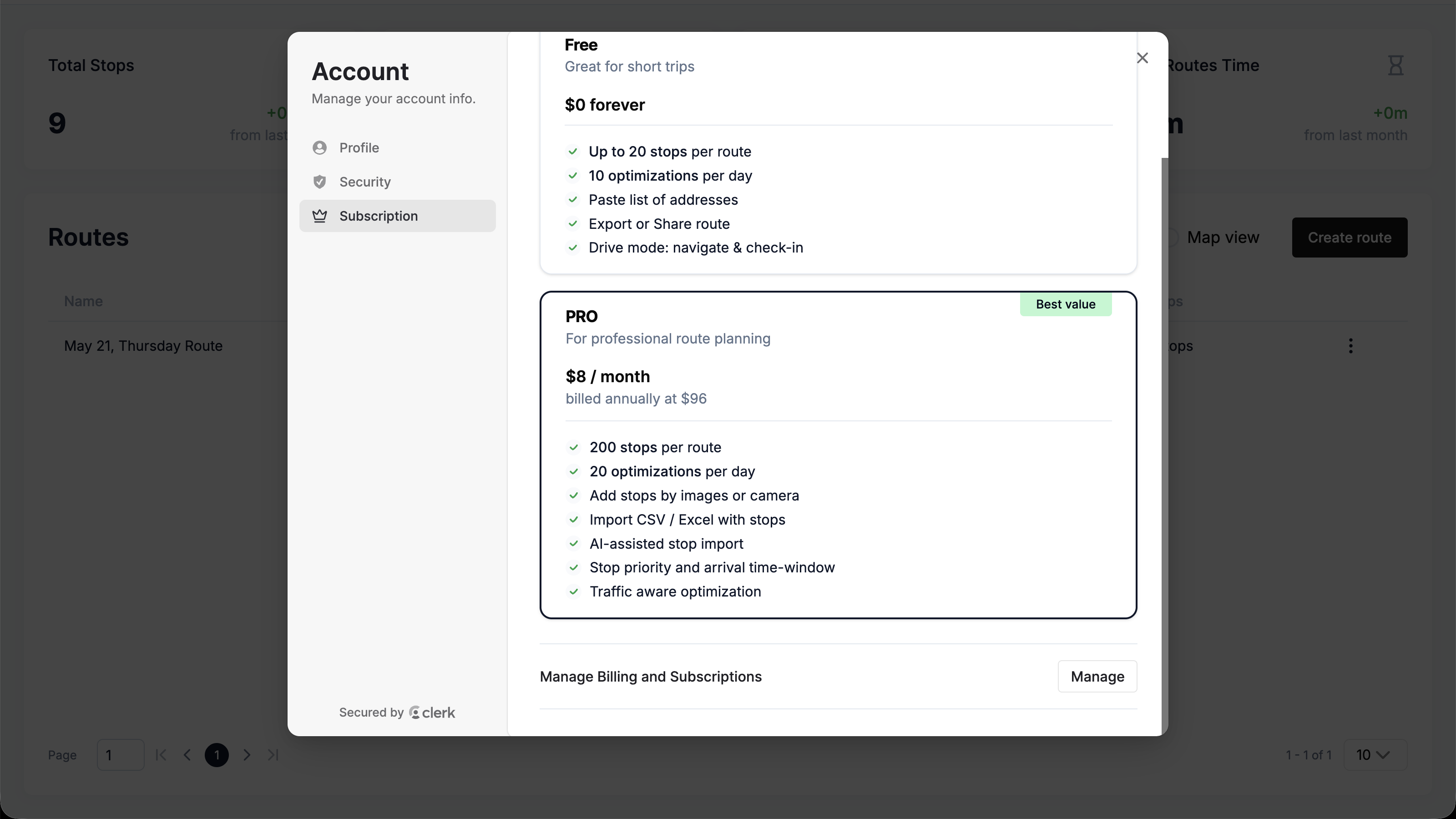
Click your avatar in the header to open your account menu, then choose the Subscription tab. If you're a paying subscriber, press Manage under Manage Billing and Subscriptions — it opens your billing portal, where you can change your plan or cancel.
Open Profile and tap Subscription. On a monthly or annual plan you'll see two buttons — Manage Subscription and Cancel Subscription; there's nothing to manage on the free plan, so they don't appear there.
Tap Cancel Subscription and a confirmation names the destination before you commit anything: on iOS it reads "You'll be redirected to App Store to manage your subscription." — on Android it names Google Play instead. It also tells you the date your Pro access runs until. Confirming sends you to the store's own subscription page; cancelling isn't something the app finishes on its own.
Manage it on the platform where you bought it
A subscription lives with the store or account that sold it to you. Bought it in the app? Manage or cancel it through the App Store or Google Play, not on the web. Bought it on the web? Manage or cancel it through your Routerra account, not through the app. If you're not sure which one applies, it's whichever platform you were using when you subscribed.
If prices change
An active subscription keeps the price you subscribed at. When plan prices change later, the new price applies to new subscriptions — yours stays as it is for as long as your current subscription remains active. If you cancel and subscribe again later, the price current at that moment applies.
Paid but the app still shows the free plan? See Restore purchases.