
Navigate to a stop
How the Navigate button hands off to Google Maps, Waze or Apple Maps, what to expect from each one, and how to change which app it opens.
Routerra doesn't navigate you itself. Press Navigate on a stop and it hands the destination off to a map app instead — which one depends on your Default navigator setting.
Choose your default navigator
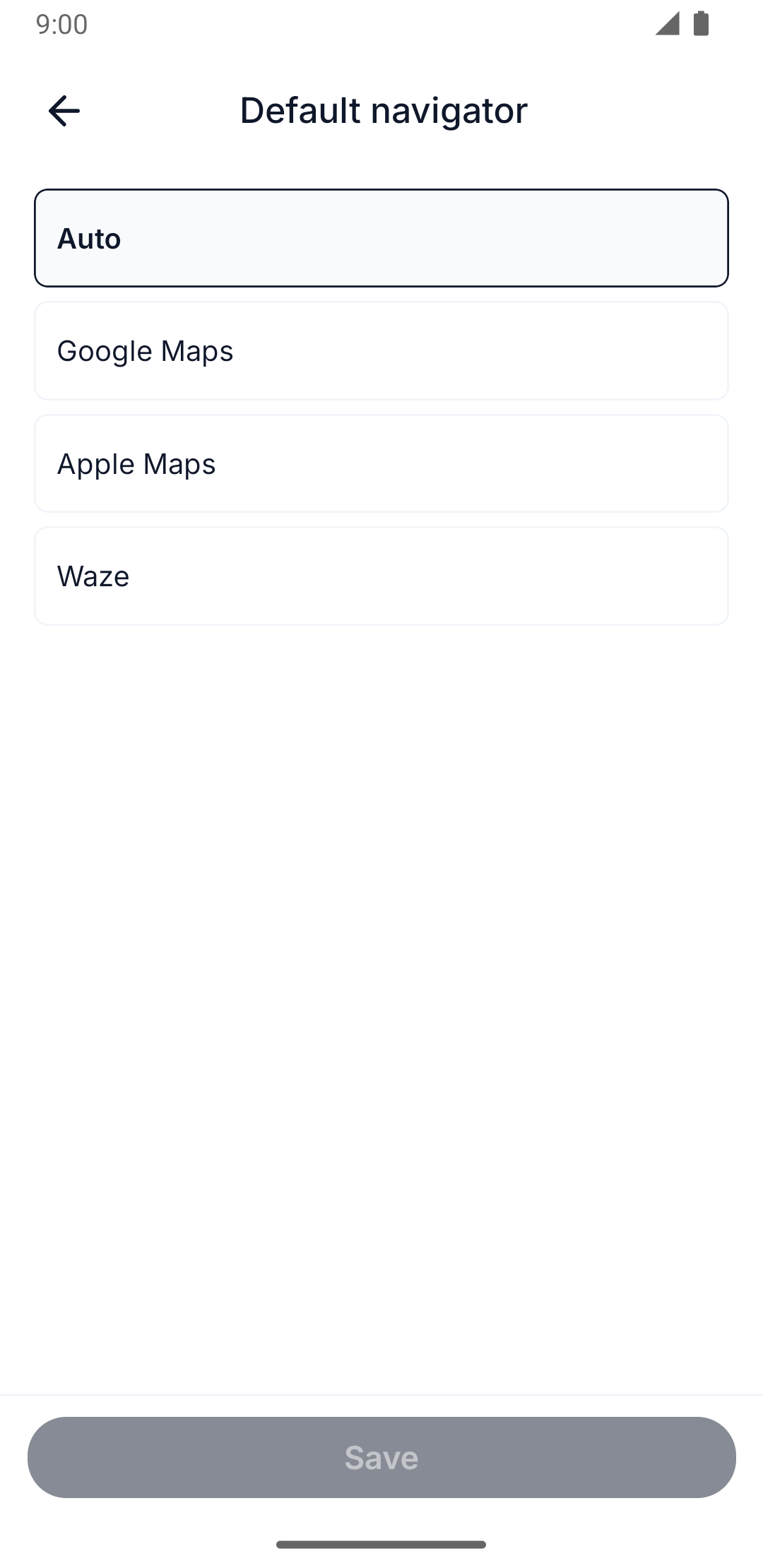
Both clients have the same Default navigator setting, with the same four options: Auto, Google Maps, Apple Maps, and Waze. Pick one to always hand off to that app, or leave it on Auto to decide per trip.
Navigate to a stop
Press Navigate on the current stop and your chosen app opens with the destination already set. With Google Maps set as the default on iOS, for example, Google Maps opens in navigation mode, since the handoff link requests turn-by-turn directly. Waze behaves the same way, on iOS or Android.
Apple Maps is the one exception: on iOS it opens with the route drawn, but Apple doesn't let an externally launched app start driving on its own, so you tap Go once inside Apple Maps to begin.
Leave the setting on Auto and there's no single app — on iOS it opens Apple Maps, and on Android it opens the system's app-chooser so you pick per trip.
Whichever app opens, Routerra hands off the stop's exact coordinates, not the address text — so a pin you've dragged to the right spot is what you're navigated to, precisely.
Press Navigate and the destination opens in a new browser tab instead of an app. Your Default navigator choice is honored only when the browser itself is running on a phone; on a desktop or laptop browser, Navigate always opens the Google Maps website, regardless of the setting.
Once you've arrived, mark the stop's outcome — see Mark a stop delivered or skipped.