
Add stops one at a time
Add one stop by address search, tapping the map, or your current location — and exactly where each method is available on web and in the app.
Adding stops one at a time works the same way whether you're setting up a route from scratch or dropping in one more stop later. There are three ways to do it — search for the address, tap the map, or use where you are right now — and which ones are on screen depends on the client.
Search for an address
Type into the add-stop field — placeholder text reads Enter stop address. From three characters, a popover opens with matching predictions. If any of your saved stops match too, they appear above the search results under a Saved Stops heading — pick one to add it with its saved settings already applied.
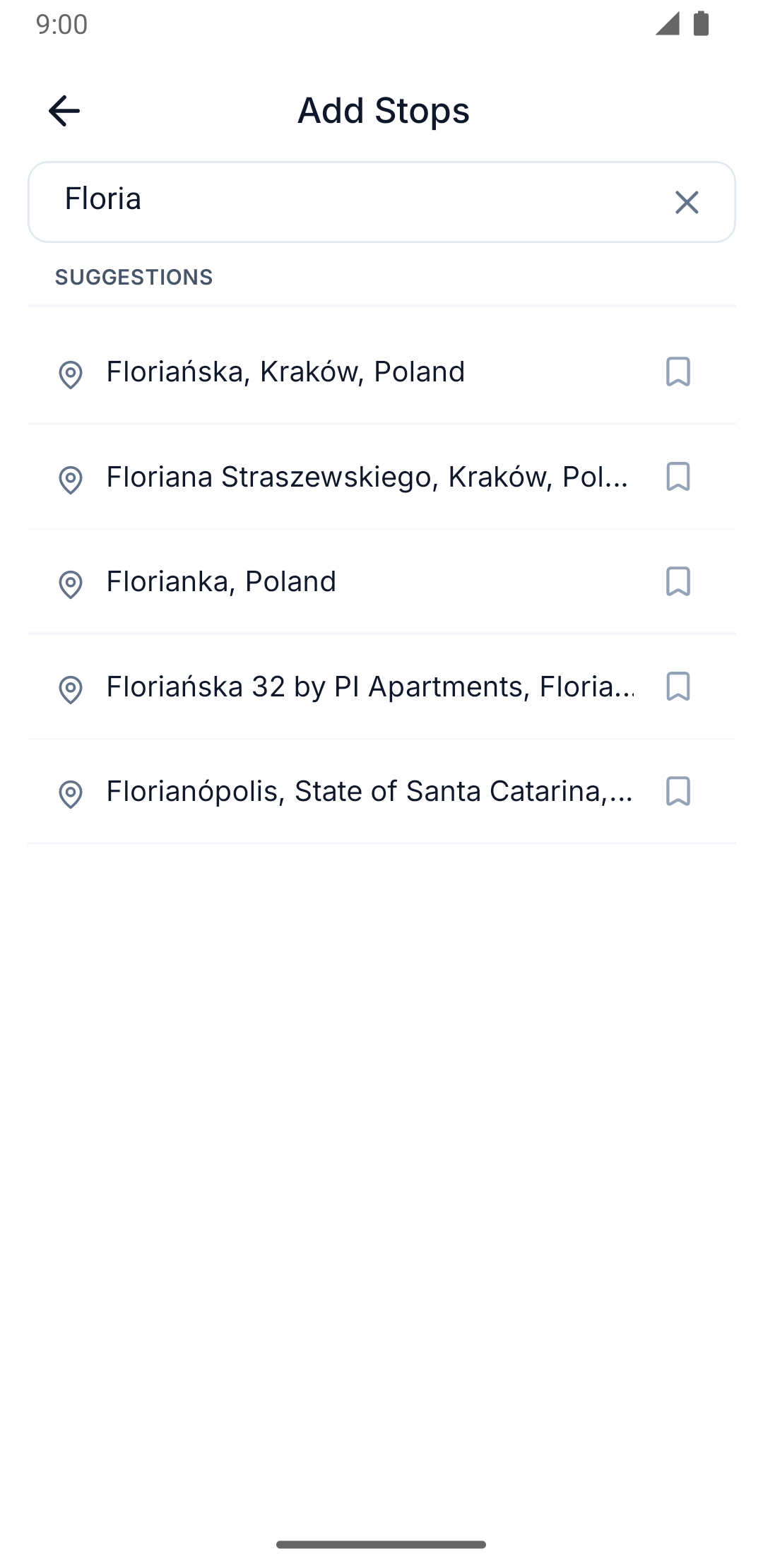
On the Add Stops screen, type into the search field — placeholder text reads Enter address. Predictions appear once you've typed at least three characters.
Choose a location on the map
This is where the two clients genuinely differ.
Below the search field, a Choose location on map row opens a full-screen map picker. Drag the map to position the pin over the spot you want, then press Confirm — the resolved address fills the field. This picker lives inside the add-stop flow itself.
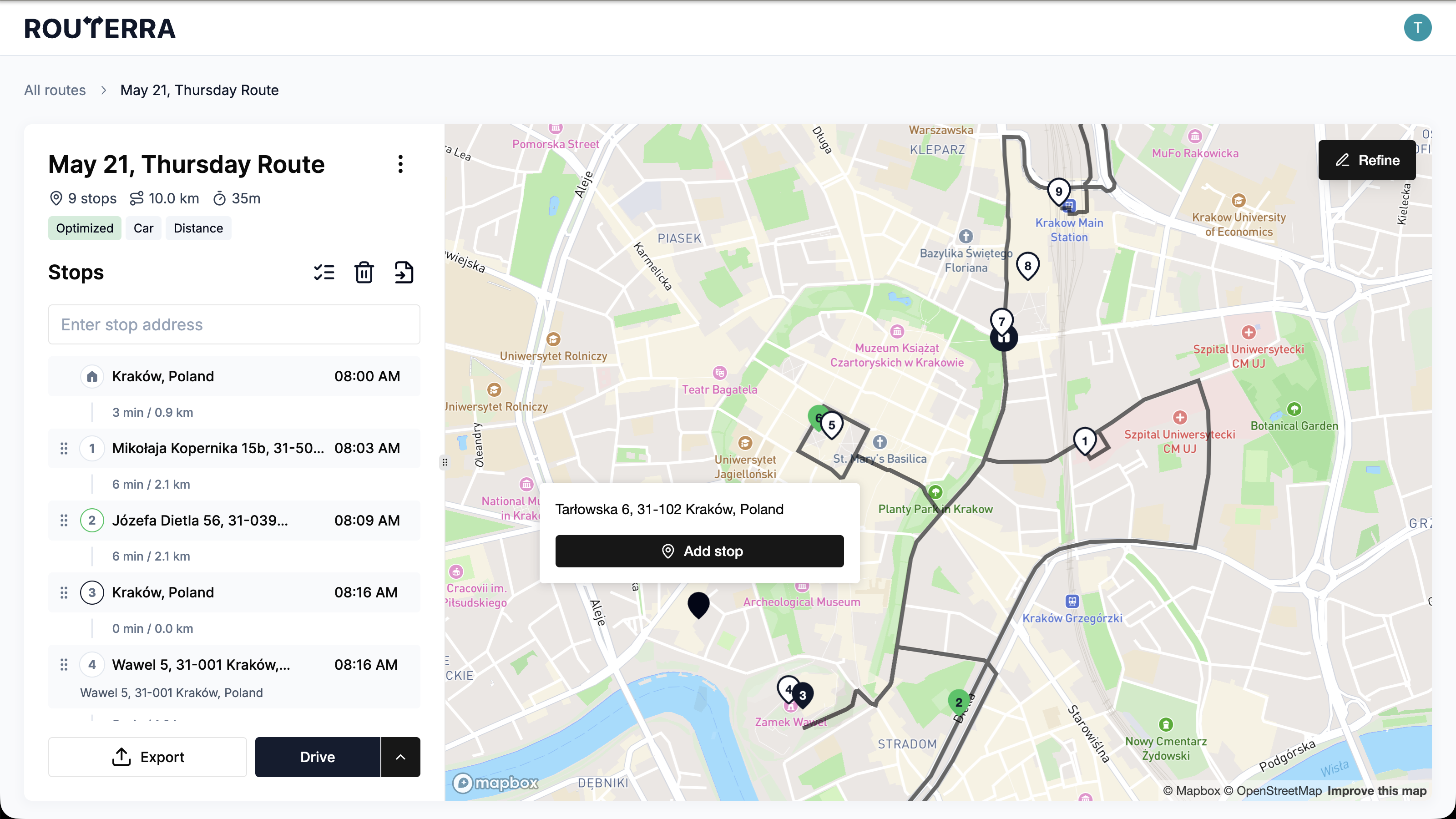
The add-stop field has no map-picker option — there's no button for it anywhere in that panel. To place a stop by pointing at the map instead, use the map itself: click anywhere on it, and Routerra resolves the address and shows it in a popup over the pin. Press Add stop in the popup to add it there.
Use my current location
Available, but only in specific places — neither client offers it from the add-stop screen itself.
Use my current location appears in the start-location, finish-location, default-location, and saved-stop editors. It is not on the Add Stops screen — if you're standing at the address you want to add, you still need to search for it or drop a pin.
A locate button sits next to the route form's start and finish location fields only — there's no equivalent in the add-stop field.
Need to get many stops in at once instead of one by one? See Import stops. Once a stop is in the route, its arrival window, service time, and other per-stop details live in Stop settings.