
Create a route
Name it, set the day and start time, choose where it starts and finishes, and set the options the optimizer will respect.
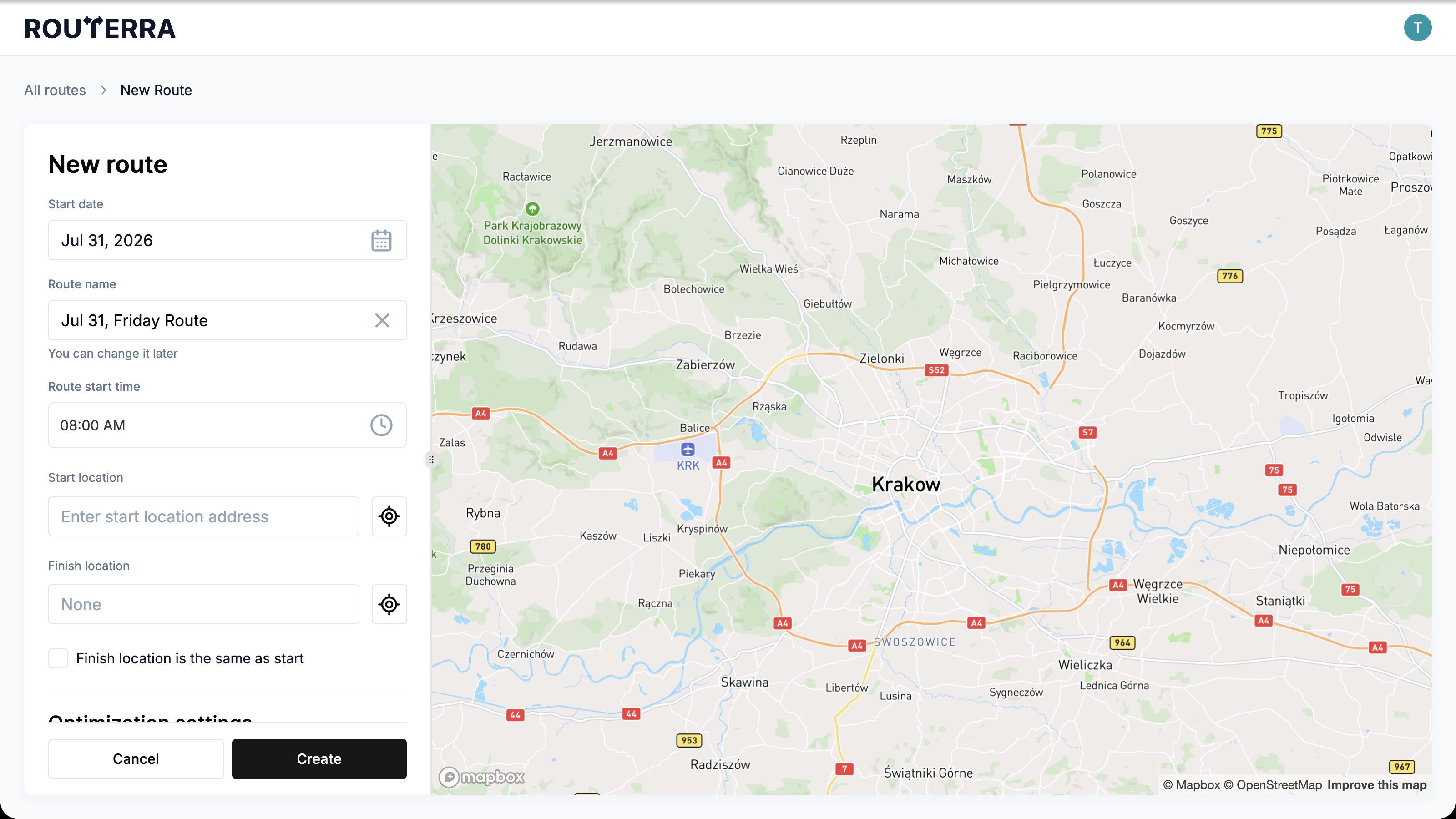
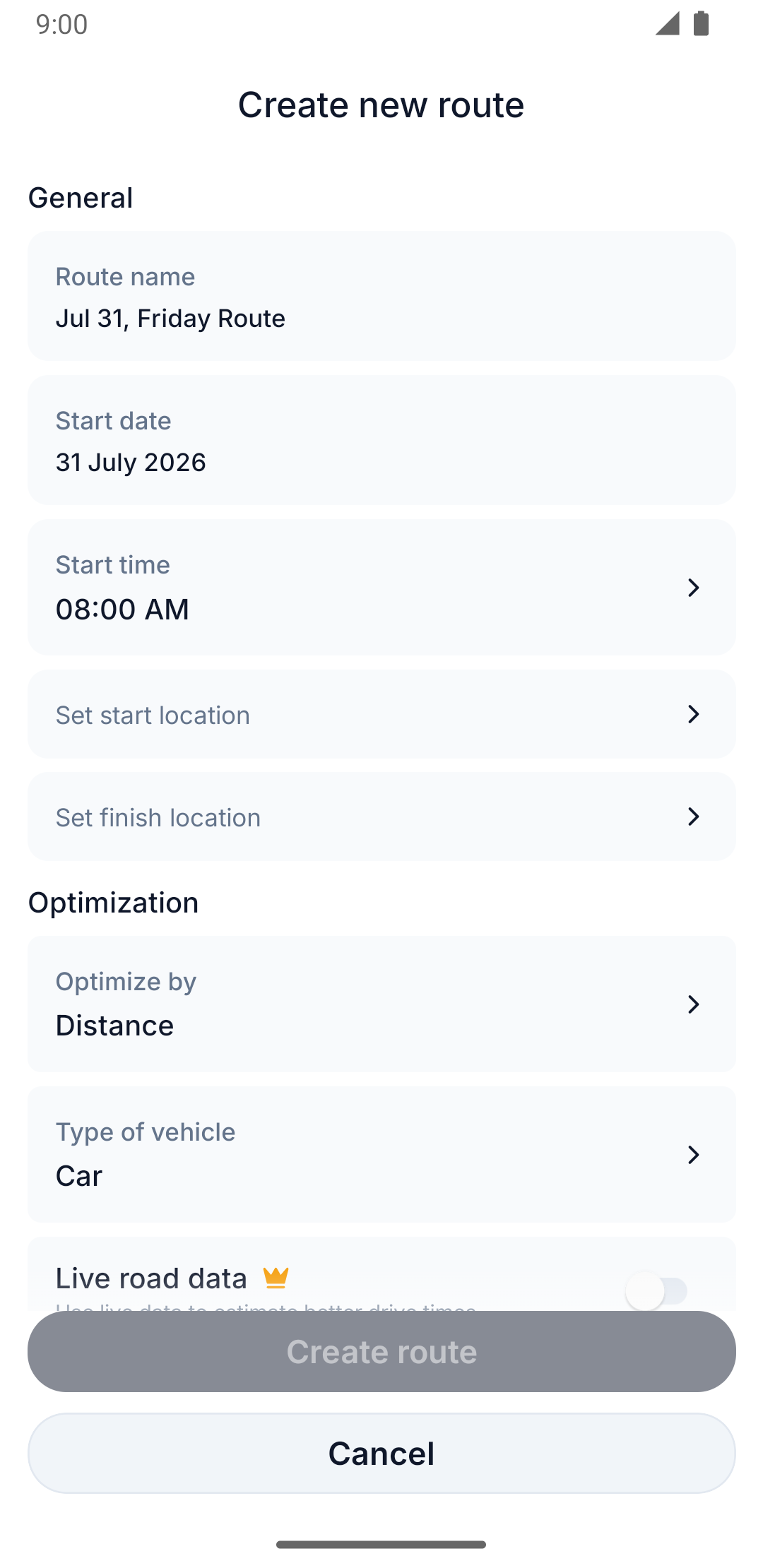
Every route starts with the same short form: a name, a date, a start time, where it begins and ends, and a few options the optimizer will respect. Web and the app collect exactly the same fields — they just present them differently.
The route form is one scrolling panel next to a live map preview, grouped under headings like Optimization settings.
The route form is a list of tappable rows — each one opens its own screen to fill in.
Name it, date it, time it
Three fields are always required: Route name, Start date, and the route's start time — the row is labelled Route start time on web and Start time in the app. The name field validates as you type — an empty name shows an inline error and the route can't be saved without one.
Choose where the route starts and finishes
A start location is required; a finish location is optional. Leave the finish empty and the route simply ends at the last stop.
The finish field offers a Same as start option and a delete action to clear it back to empty.
Setting the finish location opens a sheet with three choices: Same as start, Another (pick a different address), or None — the route ends at the last stop.
Add a note for the start or finish point
Both the start and finish points can carry a note — the place for depot access instructions, gate codes, or anything a driver needs before they even start driving. On web it's inside the start/finish popover on the route page; on the app it's its own screen for each point, Edit Start Note and Edit Finish Note.
Set the optimization toggles
Three more options live on the same form, and which ones you see depends on the vehicle type you pick:
| Option | Shown for | Notes |
|---|---|---|
| Live road data | Car or Van | Paid-plan feature — uses real-time traffic to estimate drive times |
| Avoid tolls | Car only | |
| Avoid highways | Car only |
Turning on Live road data turns off both Avoid tolls and Avoid highways, and turning on either of those turns off Live road data — the three are mutually exclusive, and this behaves the same way on both clients.
Edit or duplicate a route
Editing and duplicating a route both reuse the same form you used to create it, with every field pre-filled. Duplicating gives the copy a new name based on the original — on the app it's suffixed (duplicate).
Save your settings as the new default
Web has no equivalent of the app's Save route settings as default option — your account defaults still seed each new route's fields, but there's no one-tap way to update them from the form itself.
On the create screen only, a Save route settings as default option carries your choices — vehicle, optimization toggles, and more — into every future route you start. It has no equivalent on web.
With the route created, the next step is getting stops into it — see Add stops one at a time or Import stops.
Reset, duplicate or delete a route
Once a route exists, its actions live in the route's own menu. Both clients offer the same four:
- Edit — reopen the form and change the route's settings.
- Duplicate — make a copy. Useful for a round you drive weekly: copy last week's and adjust it, rather than rebuilding it.
- Reset — put the route back to its original state. "This will reset the route to its original state."
- Delete — remove the route entirely. "This will permanently delete this route and its data. This action cannot be undone."
The actions are in the route's menu; export is reached from the panel under the route rather than from this menu.
The app's ⋯ menu holds Route options — and it carries two things the web menu doesn't. Export and Share Route are in this same menu, and deletion is split into two separate actions: Delete All Stops, which empties the route but keeps it, and Delete Route, which removes it. Emptying a route is the one to use when you want to reuse the route's settings with a new set of stops.
While a bulk upload is being analysed, every item in this menu is disabled — and if an upload starts while you have the menu open, it closes itself. Wait for the import to finish, then reopen it.
Deleting is permanent on both. If there's anything worth keeping, export the route first.