
Export a route to PDF or CSV
Download a route as a PDF, Excel or CSV file, find where it landed on your computer or phone, and know which columns each format carries.
Routerra can hand you the whole route as a file: PDF to print or pass to a driver, Excel or CSV to keep, re-import, or feed into something else. All three formats are available on every client and on every plan.
Export the route
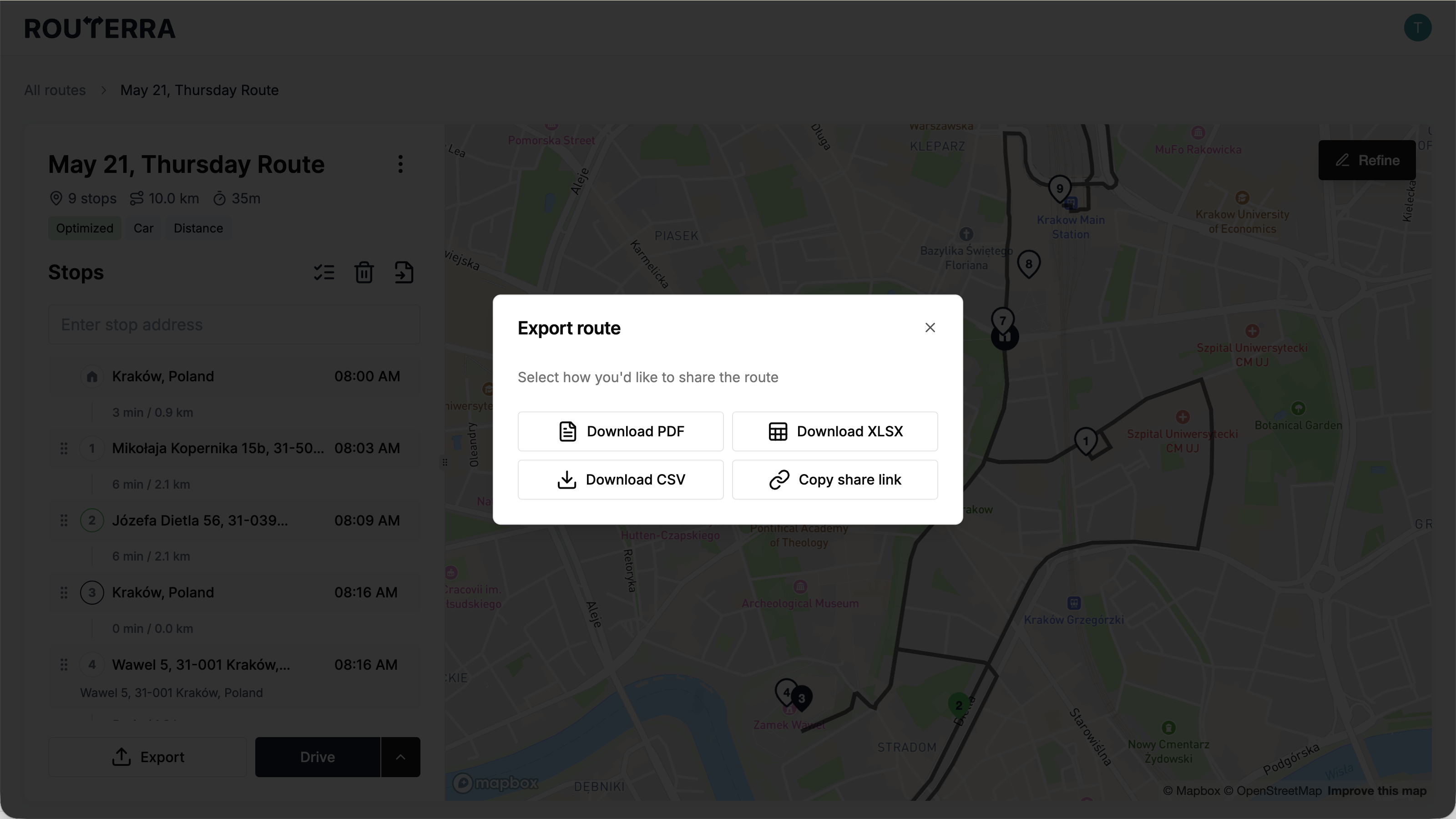
Export sits in the panel under the route, and opens a dialog titled Export route. Choose Download PDF, Download XLSX or Download CSV.
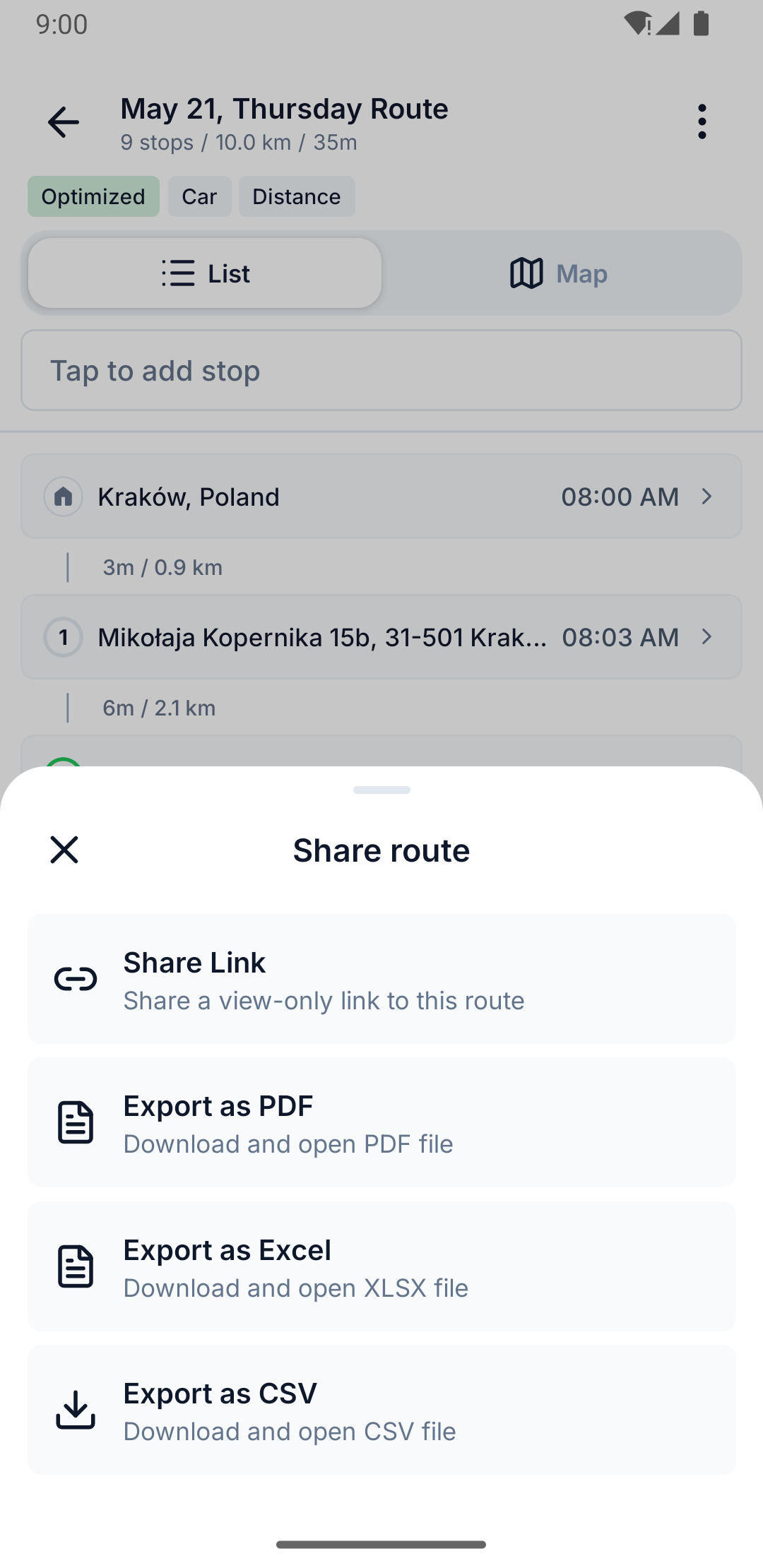
Open the route's ⋯ menu and tap Export. The screen offers Export as PDF, Export as Excel and Export as CSV, each with a line underneath describing what it does.
Where the file goes
This is the part that differs, and it's the usual reason people think an export failed when it didn't.
It's an ordinary browser download. The file lands wherever your browser puts downloads — check the downloads bar or your Downloads folder.
On both phone platforms the app downloads the file and then hands it straight to the system, so what you do next happens immediately rather than later.
On Android, the file is saved inside Routerra's own storage and opened right away with whichever app handles that file type. It does not appear in your phone's public Downloads folder — if you go looking there afterwards you won't find it, and nothing has gone wrong. Save or share it from the app that opens it if you want to keep a copy elsewhere.
On iOS, the file goes to the system share sheet as soon as it's ready. That sheet is where you decide what happens to it — save to Files, mail it, send it to another app. If you dismiss the sheet without choosing, the file isn't kept.
When it doesn't work
The phone app confirms a finished download with File downloaded. If it fails you'll get Export failed — "Failed to export route" — which almost always means the request didn't complete. Check your connection and try again; exporting needs one, because the file is generated for you rather than assembled on the phone.