
Plans and limits
What's free versus what a paid plan adds, the two independent limits — a per-route stops ceiling and a daily optimization allowance — and where to check them.
Every account can plan and drive routes right away, with two limits that cap how much you can do in a day. A paid plan raises both limits and unlocks a handful of features on top. Numbers change, so this article won't quote any — your current limits are shown in the app itself, and later sections say exactly where to look.
What's included on every plan
The comparison is about capability, not price — nothing here costs extra to read about, and every gated row below just needs a paid plan, whatever it happens to cost you.
| Every plan | Paid plan adds | |
|---|---|---|
| Create, optimize, and drive routes | Yes | — |
| Add stops one at a time or paste a list | Yes | — |
| Stop note and Color on map | Yes | — |
| Stops per route | Capped — see your limit in the app | Higher cap |
| Optimizations per day | Capped — see your limit in the app | More per day |
| Import stops from a file or a photo | — | Needs a paid plan (Import stops) |
| Service time, arrival window, priority, curbside parking | — | Needs a paid plan (Stop settings) |
| Live road data (Car or Van) | — | Needs a paid plan |
If you only need the paid features for a single day rather than an ongoing plan, the PRO day pass is a one-time purchase that gives about 24 hours of full access.
Two separate limits, not one
It's easy to assume one number covers everything, but a paid plan actually raises two independent limits:
- Stops limit — how many stops a single route can hold. It's a ceiling, not something that gets used up, so there's nothing to refill.
- Optimizations — how many times you can run Optimize today. This one does get used up, and refills on a rolling countdown rather than at a fixed time each day.
Cross either one and you'll know right away. Add a stop past your per-route limit and you'll hit the Route Stops Limit Reached dialog. Try to optimize past today's limit and web opens the Daily Optimization Limit Reached dialog directly; the app shows the same information inside its upgrade sheet instead of a dedicated dialog.
Where to see your current limits
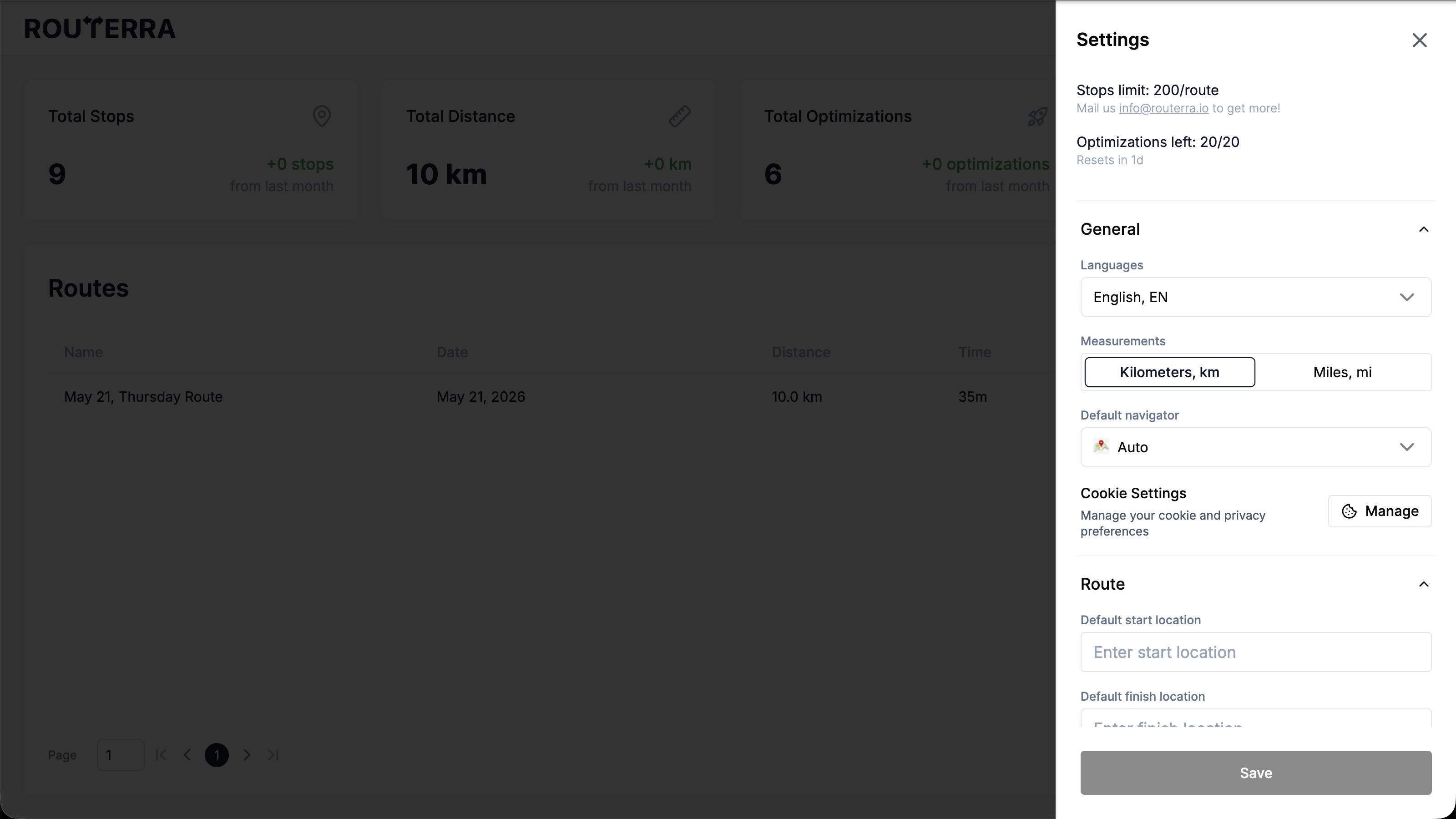
Open Settings. Near the top, Stops limit shows your per-route cap and Optimizations left shows how many runs you have today. Once you've used any, a Resets in countdown appears underneath the optimizations line.
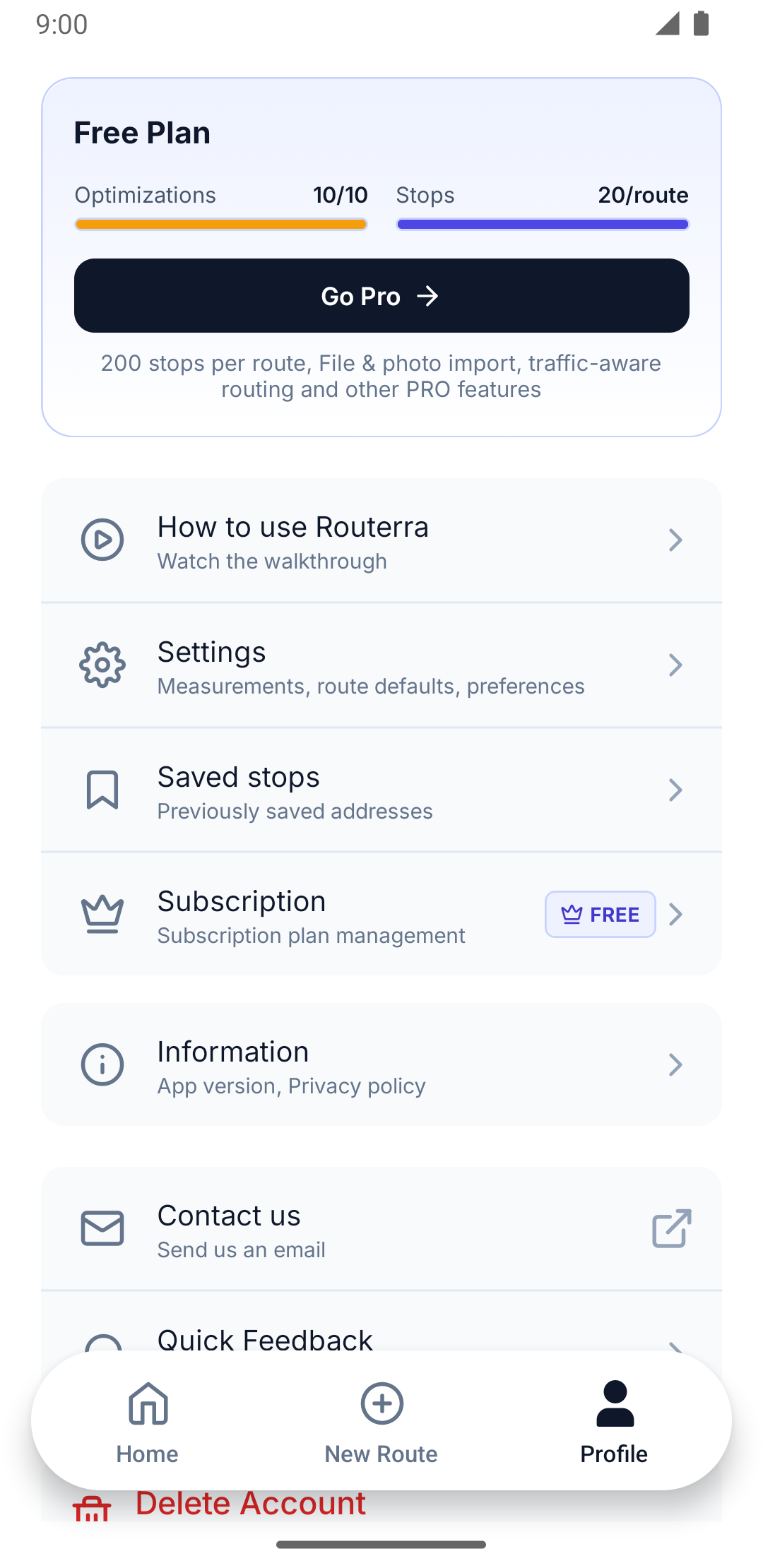
Open the Profile tab. The plan card near the top shows two meters side by side: Optimizations, filled to match how many runs you have left today, and Stops, labelled with your plan's per-route cap.
The Stops meter is always shown as a full bar — it's a label for your ceiling, not a gauge of how full your current route is, so don't read it as usage.
See Manage your subscription to change or cancel your plan.