
Import stops: paste, file, photo
Get a whole route's worth of stops in at once — paste a list, upload a spreadsheet, or photograph a manifest — and what each method needs to work.
Adding stops one at a time is fine for a handful, but most routes start with a whole list at once. There are three ways to import a batch of stops — paste a list, upload a file, or upload a photo of one — and where you start them from depends on the client.
| Method | Available on | Best when |
|---|---|---|
| Paste a list | Every plan | Your stops are in a message, note, or email |
| Upload a file | Paid plan | You have a spreadsheet or document — XLS, XLSX, CSV, or PDF |
| Upload a photo | Paid plan | Your list only exists on paper or in a photo |
Paste a list works on every plan. Uploading a file or a photo needs a paid plan — on both web and the app.
Open the import menu — the icon button labeled Import Stops — and it opens with Paste List, Upload File, and Upload Image as menu items, with Saved Stops below them.
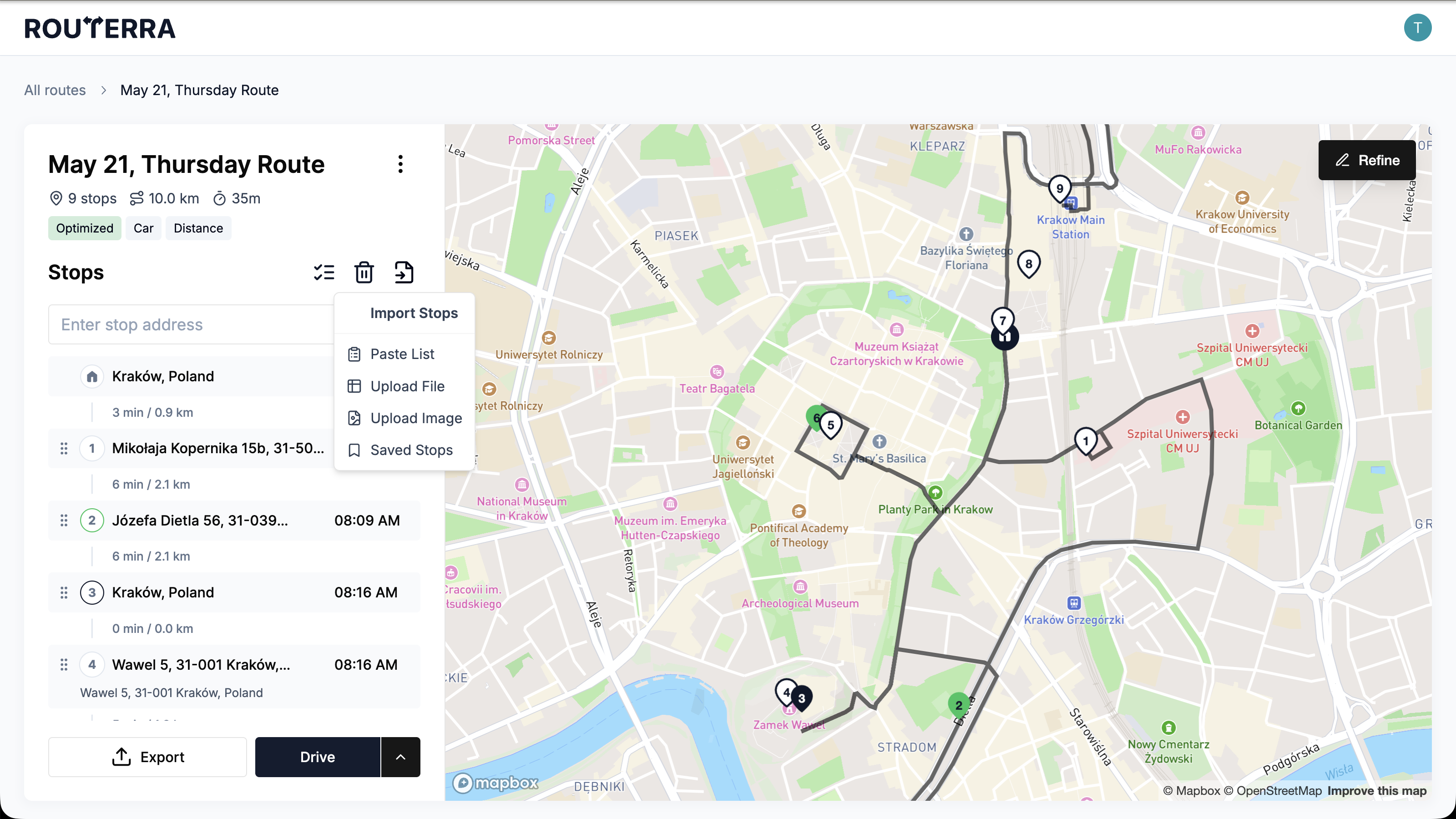
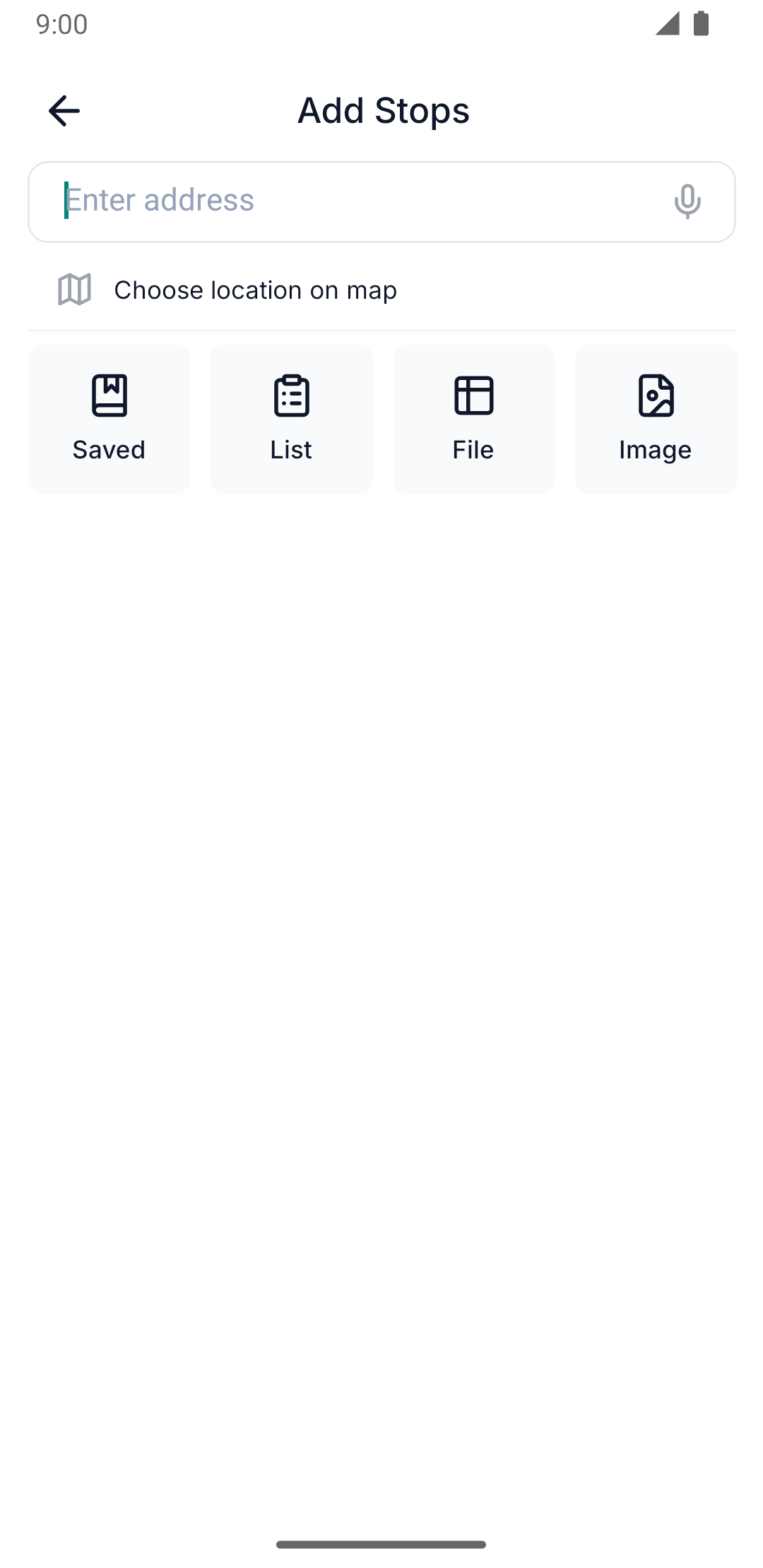
On the Add Stops screen, below the search field, four icons sit side by side: List, File, and Image alongside your saved stops. Tap one to open its own screen.
Nudges toward bulk import
Two banners — app only, nothing like them on web — nudge you toward a bulk method while you're still adding stops one at a time on the Add Stops screen:
- After you've added three stops manually, a Have many stops? banner appears: "Paste your full address list — no need to add one by one." Press List to switch to Paste List, or Got it to dismiss it.
- Paste more than one address into the regular address-search field, and a Multiple addresses detected banner offers Add all at once to add every detected address as its own stop in one go.
Paste a list of addresses
The fastest way in, and available no matter what plan you're on.
Open Paste List
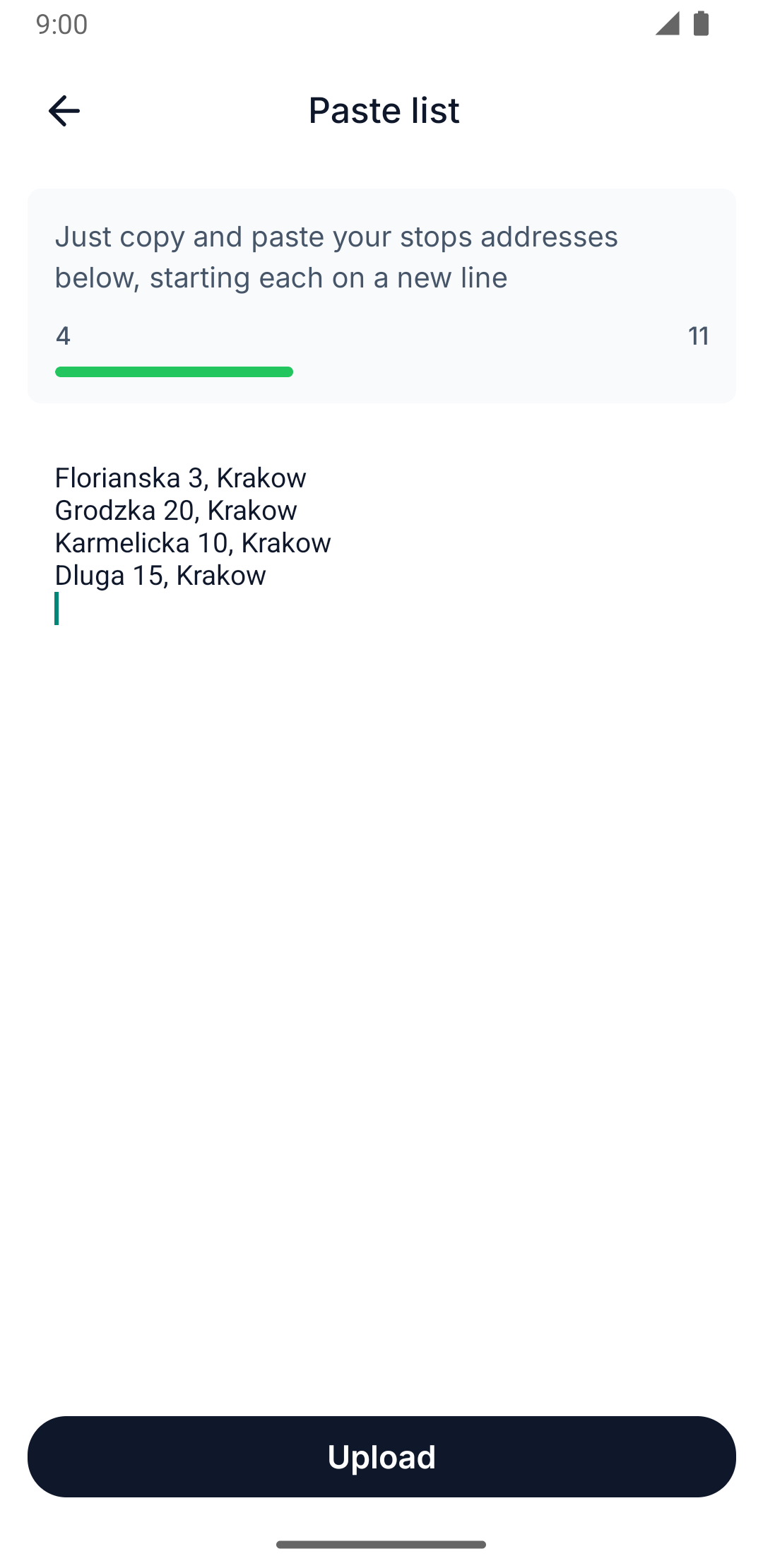
On web, choose Paste List from the import menu. On the app, tap List — it opens a screen titled Paste list.
Paste your addresses — one per line
Each line becomes one stop. A counter tracks how many of the addresses you've pasted are valid against how many more stops you can still add.
Press Upload
Routerra finds each address on the map. Stops appear in the route as they're matched.
Upload a file
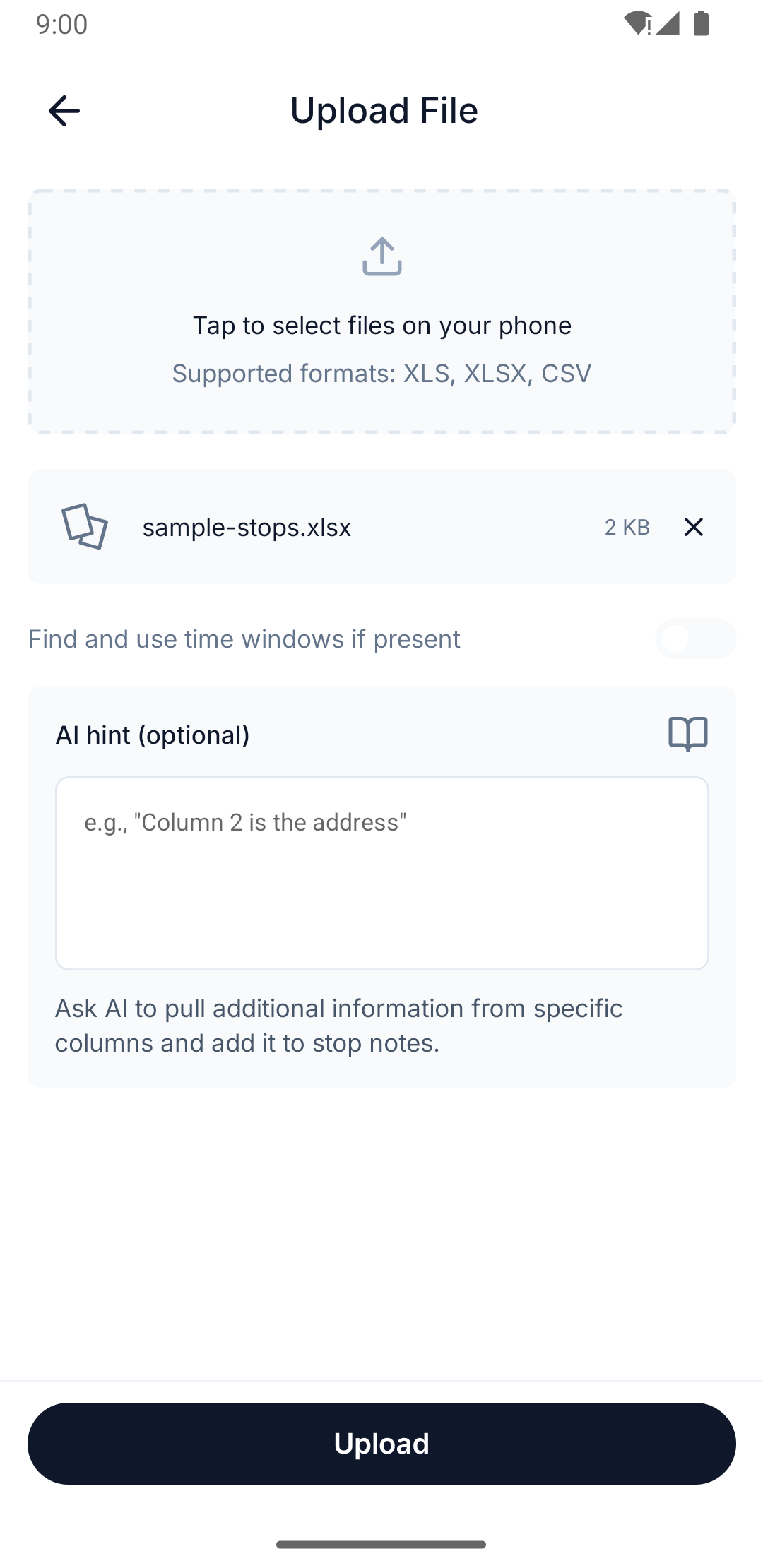
Choose Upload File and pick an XLS, XLSX, CSV, or PDF file. This needs a paid plan on both web and the app — a free plan sees an upgrade prompt instead of the file picker.
| Limit | Value |
|---|---|
| Rows with data | 250 |
| Columns with data | 100 |
| Characters per row | 500 |
| File size | 10 MB per file, 25 MB total |
Two options appear alongside the file picker:
- Find and use time windows if present — a toggle that reads arrival-window-style columns (for example, "deliver between 9 and 12") straight into the imported stops.
- An optional AI hint field — labeled AI Prompt (optional) on web and AI hint (optional) in the app — a plain-language note telling the parser where to find extra details, like which column holds phone numbers or unit numbers.
Upload a photo
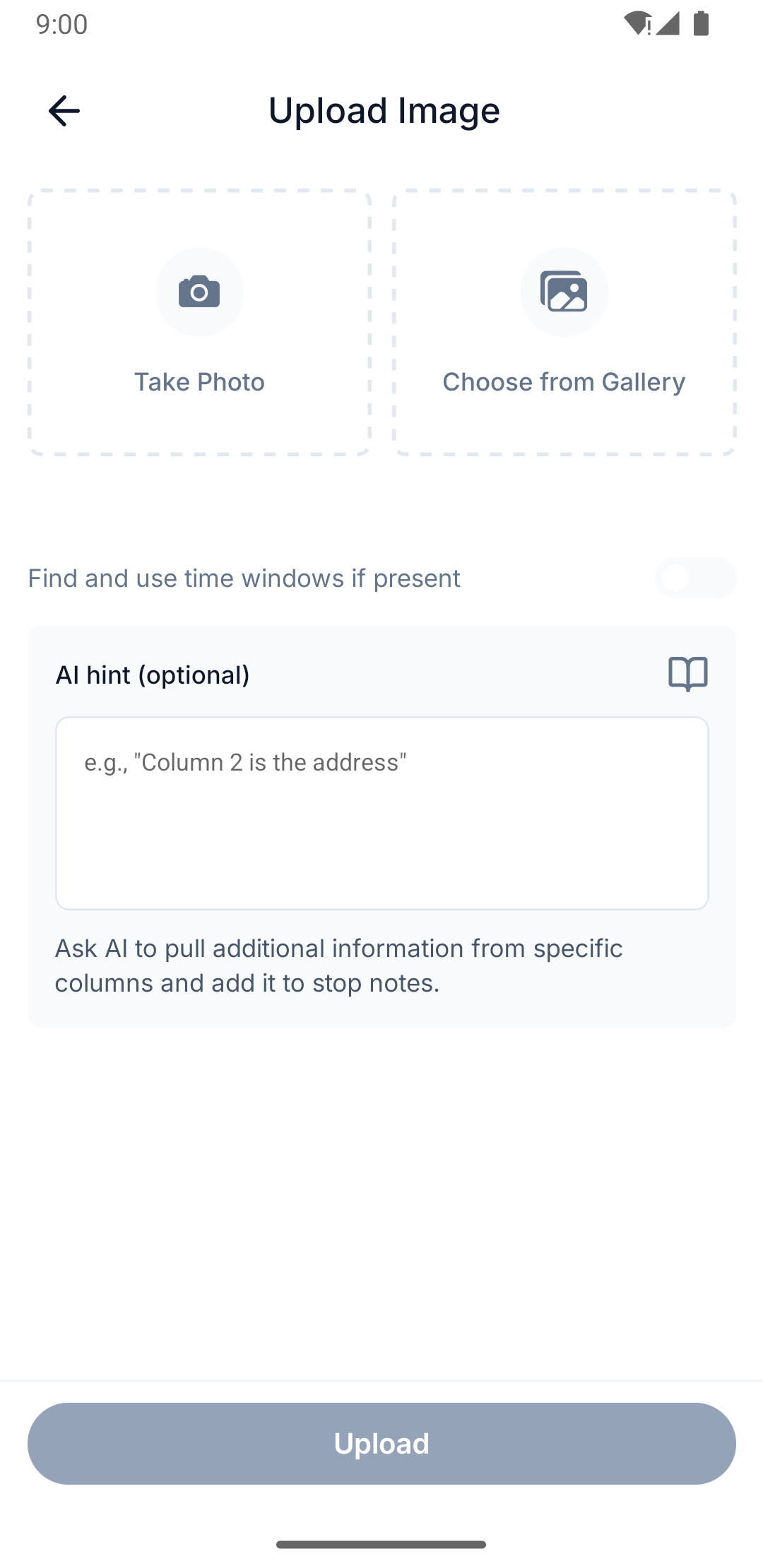
Choose Upload Image. This also needs a paid plan on both clients. Routerra reads the image and pulls out the stops it finds — it works on printed manifests, handwritten lists, and screenshots.
The app offers Take Photo to capture a manifest with the camera, or Choose from Gallery to pick an existing image.
On desktop, web is effectively "choose a file" — there's no camera capture, just a picker for an image already on your computer.
The same Find and use time windows if present toggle and AI hint field are here too, working the same way they do for file uploads.
Save an AI hint and reuse it
If your files always come out of the same system, you'll be typing the same hint every week. Save it once instead. Saved prompts live behind Open saved prompts on the file and image import screens, and you can add one — or several at once — into the hint field with a tap.
A saved prompt has a name and its content. The name is what you'll pick from the list, so make it descriptive: the apps suggest the idea with placeholders like "Notes" and 'Notes from "details" column'. Both are required.
You can create, edit, delete and reuse saved prompts on both clients, and delete several at once. One thing differs:
The sheet has a search box — Search prompts... — which filters by both name and content. A long library stays usable, so name prompts however you like.
There's no search in the phone app's saved-prompts sheet — it's a plain list you scroll. Keep names short and clearly different from each other, because once you have a dozen, scrolling past near-identical names is the only way to find the one you want.
Saved prompts are reachable only from the file and image importers, so like those, they need a paid plan.
What happens at the stop limit
Every plan caps how many stops a route can hold. While you paste a list, the counter turns into a limit warning once you'd go over it, and the upload is blocked until you trim the list. File and photo imports enforce the same cap — anything over it doesn't get added. See Plans and limits for how many stops each plan allows.
Upload rejected, or stops missing afterwards? See My file or photo import failed.