
Drive your route
Start driving, work through the stops in order, and see how far through the day you are — on the phone app and on the web, kept in sync as you go.
Once a route has an order to follow, drive mode takes you through it stop by stop: the current stop's details, a way to navigate to it, and a way to mark it done before moving to the next.
When you can start driving
A route can be driven once it's Optimized, As added, Manual, or Reversed. On the web, a reversed route currently can't start drive mode. Drive mode is also blocked for a route someone shared with you — shared routes are view-only on both clients.
Enter drive mode
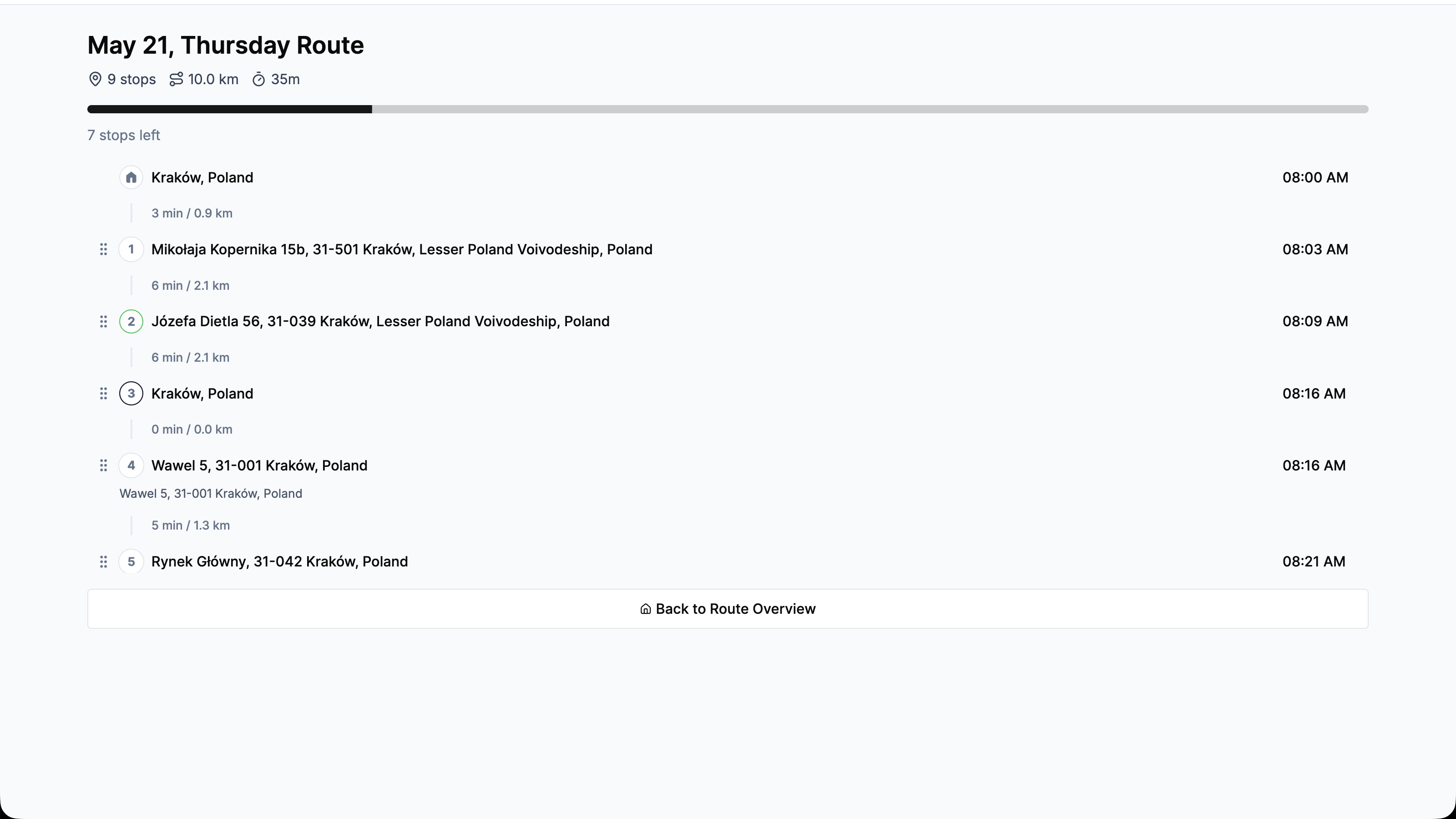
Open the route and press Drive. The page shows a progress bar, a line counting down how many stops are left, and the current stop's details — with the rest of the stop list below it.
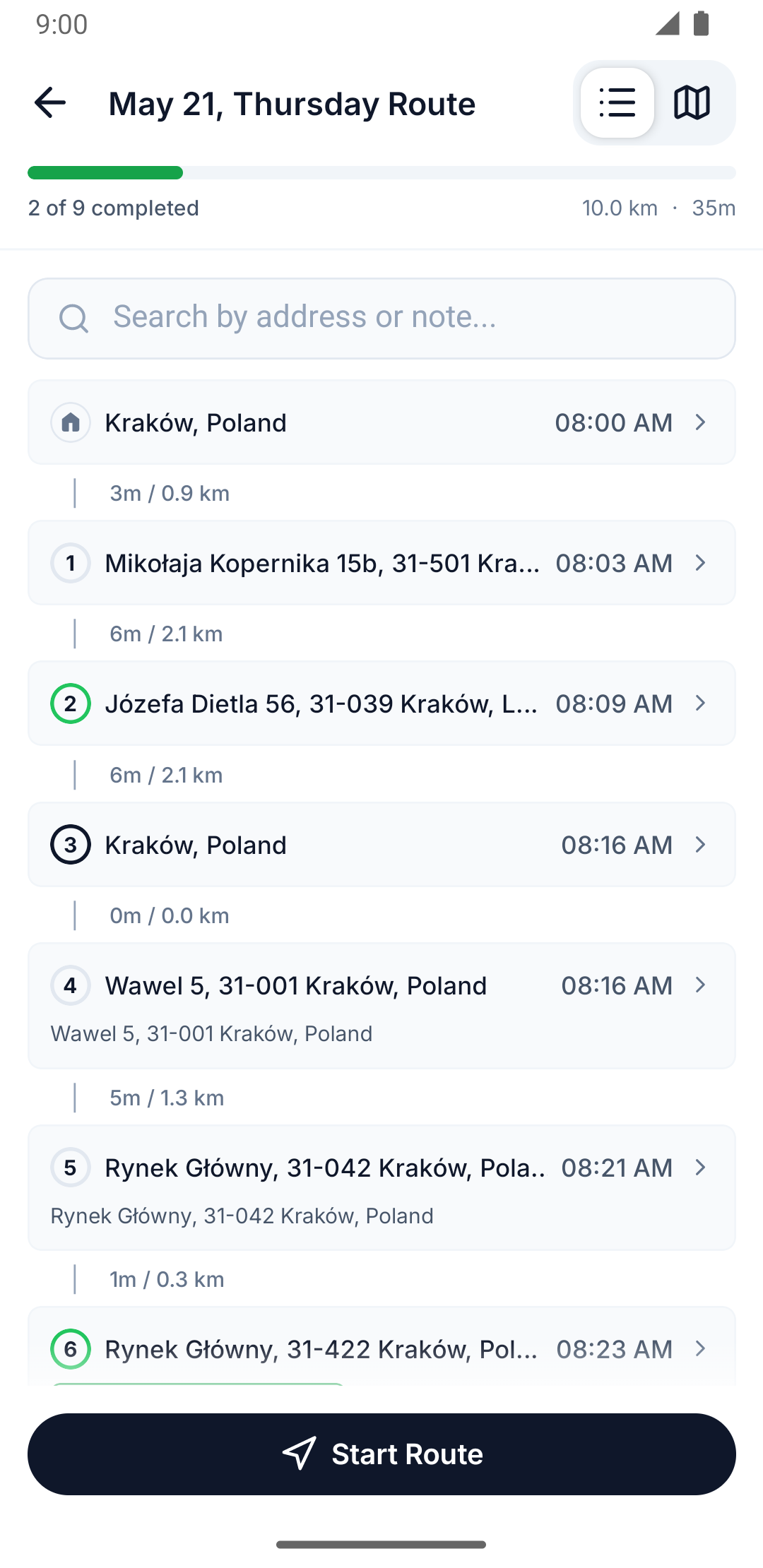
Tap the route's split button — it reads Drive once the route has an order to follow — to enter drive mode directly.
Drive mode has its own lifecycle over the progress bar: Start Route before you begin, then Resume and Complete Route while you're in progress, and Reopen Route once the route is finished. The progress bar itself counts how many stops of the total you've completed so far. Your drive session is saved — close or kill the app mid-route and drive mode picks up where you left off.
At five or more stops, a search box appears above the stop list ("Search by address or note...") so you can jump to a specific stop instead of scrolling.
Work through the stops
Each stop's card shows where you're headed next. Press Navigate to hand off to your map app, then mark the stop's outcome — covered in Mark a stop delivered or skipped.
Edit the current stop's note
You don't have to leave drive mode to fix or add a note on the stop you're at.
Press the note field under the current stop — it reads Add note when empty — to open the note editor, make your change, and save.
Press Leave a note on the current stop to open the note editor inline, then save.
Finishing the route
On mobile, once every stop is resolved you'll see the "All stops completed! Ready to complete this route?" prompt — press Complete Route to close it out, or Reopen Route afterward if you need to go back and fix something. On the web, there's no separate finish action: the route reaches Completed as soon as every stop has been resolved.