
Multi-Stop Route Planner for Up to 200 Stops
Google Maps caps a route at 10 destinations — your starting point plus 9 stops — and drives them in exactly the order you entered, without optimizing it.
To plan a route with more than 10 stops, use a multi-stop route planner: it takes dozens or hundreds of addresses at once, calculates the fastest visiting order, and hands each stop to Google Maps, Waze, or Apple Maps for turn-by-turn navigation.
Routerra plans and optimizes up to 200 stops in a single route.
Free for up to 20 stops per route — no credit card.


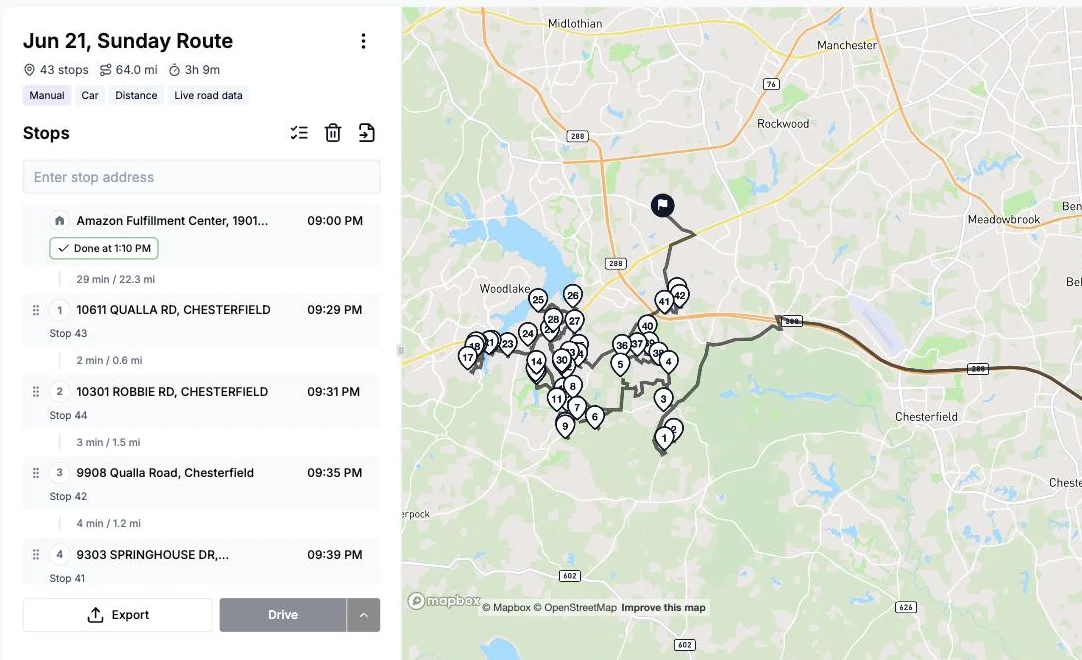
How many stops can you actually add?
destinations per route — and that includes your starting point
stops before adding and reordering by hand stops being workable
stops planned and optimized in a single route
Your Options Past 10 Stops
There are exactly four ways past the wall. Three are free workarounds with real trade-offs; the fourth is what this page is about.
- 1
Split the trip into 10-stop chunks
Plan your first 10 stops as one Google Maps route, start the next route where that one ends, and repeat until you run out of addresses.
The catch: You juggle several sets of directions and must finish route A before opening route B — and none of the chunks optimize your stop order.
- 2
Plot everything in Google My Maps
My Maps holds hundreds of pins on one custom map, so it is genuinely useful for seeing your whole day at once.
The catch: Turn-by-turn directions still run through regular Google Maps — the same 10-destination cap — so to actually drive it you are back to splitting.
- 3
Chain routes with the URL hack
You can hand-edit a Google Maps directions URL and keep appending addresses past the cap — it really does produce a 15-stop route.
The catch: It is fiddly, not officially supported, and breaks whenever Google changes its URL format. The stops also still drive in the order you typed them.
- 4
Use a dedicated multi-stop route planner
Paste all your addresses at once, let it calculate the fastest visiting order, and hand each stop back to Google Maps, Waze, or Apple Maps for navigation.
This is what Routerra does — free for up to 20 stops per route, and up to 200 stops in one optimized route on Pro.
Paste the List, Get the Order
The whole job is two screens: drop in every address at once, then let the optimizer set the sequence.
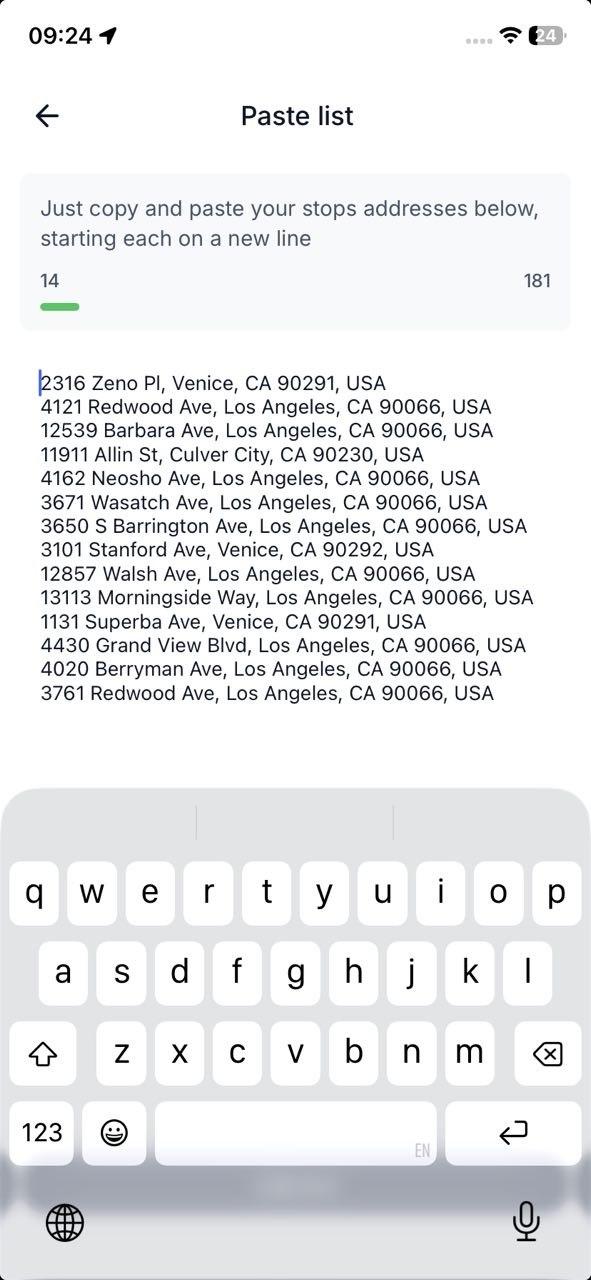
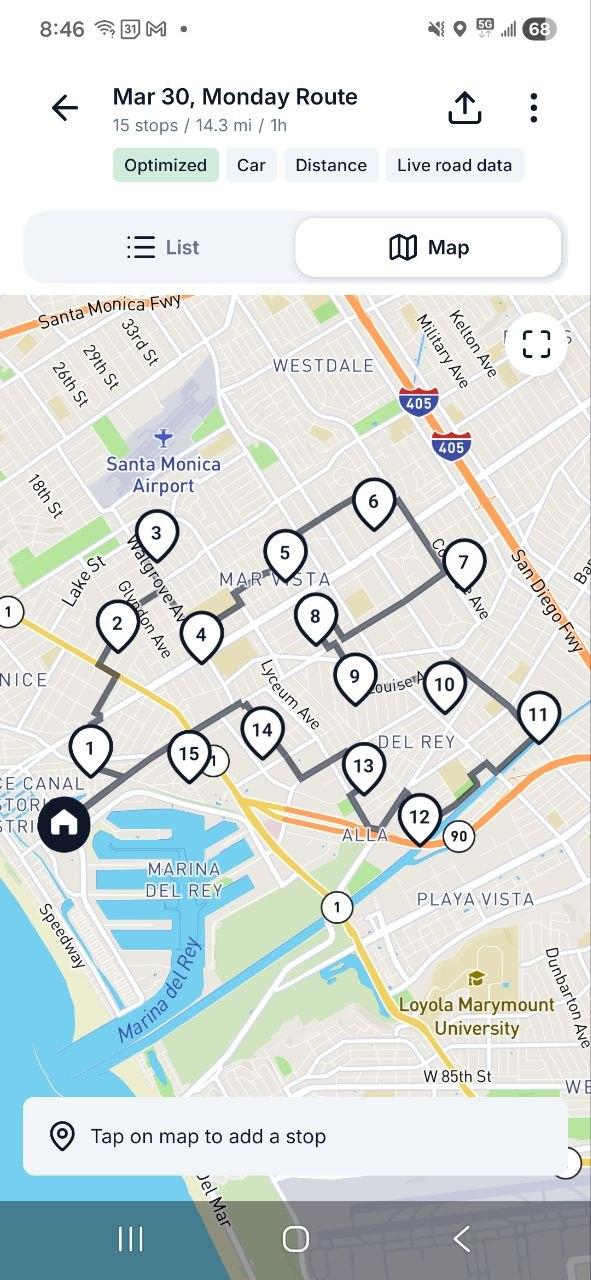
From there, Drive Mode hands each stop to Google Maps, Waze, or Apple Maps for turn-by-turn navigation — you keep the nav app you already trust.
Routerra vs. Google Maps, Apple Maps, and Dedicated Planners
Only the facts: stop limits, optimization, pricing, and how you get addresses in.
| Feature | Routerra | Google Maps | Apple Maps | Circuit (Spoke) | RouteXL |
|---|---|---|---|---|---|
| Max stops per route | 200 on Pro · 20 free | 10, incl. your start point | 15 | 10 on the free plan | 20 free · up to 200 paid |
| Optimizes stop order | Yes — fastest or shortest, traffic-aware | No — drives the order you entered | No | Yes | Yes — no live traffic |
| Price | Free · Pro $14.99/mo ($119.99/yr) | Free | Free (built into iPhone) | Free tier · $20/mo premium | Free tier · €35–€70/mo |
| Address import | CSV / Excel / PDF, pasted text, photo or screenshot (AI) | None — manual entry (My Maps CSV gives pins, not a route) | None — manual entry | — | Address list import only |
Google Maps is heck to use with the 10 stop maximum. I had 5 Google Map instances open for each day... It was a mess! So thank you for developing this software!

The Full Feature List
Every Routerra feature and the plan it ships in, stated plainly. Where something works through another app or has a limit, the note says so.
- Free & Pro
Route Optimization
One tap reorders your stops into the fastest drive.
- Free & Pro
Multi-Stop Planning
Up to 20 stops per route on Free, up to 200 on Pro.
- Free & Pro
Address Book
Save up to 1,000 recurring stops for reuse.
- Free & Pro
Drive Mode
Stop-by-stop driving screen with Navigate, Complete, and Skip on every stop.
- Free & Pro
Turn-by-Turn Navigation
Via hand-off: each stop opens in Google Maps, Waze, or Apple Maps — not an in-app engine.
- Free & Pro
Offline Mode
Planned routes keep working when there's no signal.
- Free & Pro
Route Export & Sharing
Export CSV or PDF, or share a route link.
- Free & Pro
Bulk List Import
Paste a list of addresses and add them all at once.
- Free & Pro
Route Statistics
See total distance, drive time, and stop count for every route.
- Free & Pro
Route Reversal
Reverse your stop order in one tap — great for return trips.
- Free & Pro
Duplicate Route
Copy any route to reuse it the next day with the same stops.
- Free & Pro
Dark Mode
A dark theme on mobile for comfortable night driving.
- Free & Pro
Voice Input
Add stops by voice on mobile — speak addresses hands-free.
- Free & Pro
Bulk Stop Actions
Select multiple stops to complete, skip, or delete them at once.
- Pro
Time Windows
Set arrival windows per stop — the optimizer plans around them.
- Pro
Stop Priority
Mark stops as high-priority so they're served first.
- Pro
Bulk Import (CSV / Excel / PDF)
Upload a spreadsheet and your stops land in one list.
- Pro
OCR Import (Photos & Camera)
Snap labels or screenshots; the addresses are read for you.
- Pro
AI-Powered Stop Extraction
AI pulls addresses out of pasted text, manifests, and images.
- Pro
Saved AI Prompts
Save and reuse AI prompts for faster repeat imports.
- Pro
Split Route
Divide a long route into smaller sub-routes — web only.
- Pro
Traffic-Aware Optimization
Real-time traffic is factored into the optimized order.
- Teams
Proof of Delivery
Drivers capture photos and notes at each stop. Not part of Free or Pro.
- Teams
Live Progress Tracking
Status-based: you see stops complete in real time, not a GPS dot on a map.
- Teams
Customer Notifications
Automatic SMS and email updates to your customers.
- Teams
Multi-Driver Dispatch
Plan for the whole fleet and send each driver their route.
- Teams
API & Webhooks
REST API plus signed webhooks for your own systems.
- Teams
Data Source
Connect your own system and pull stops directly into a plan.
- All plans
Web, iOS & Android Apps
The web app runs at app.routerra.io; native apps on both stores.
- All plans
Multi-Language Support
Available in English, Spanish, Portuguese, French, German, Italian, Polish, and Ukrainian.
Frequently Asked Questions
Plan Your First Multi-Stop Route Free
Add up to 20 stops per route free — no credit card. Optimize the order, then navigate with Google Maps, Waze, or Apple Maps.