
Optimize your route
What Optimize actually does, the two alternatives in the same menu, the daily limit on how often you can run it, and why the button is sometimes greyed out.
Once a route has stops in it, Optimize reorders them into the sequence you should actually drive — respecting your route and stop settings, and honoring live road data when it's on. Each successful run spends one of your day's optimizations, so the button is worth understanding before you lean on it.
What Optimize does
Press Optimize and Routerra reorders every stop on the route for the fastest sequence it can find, given your settings. The route's status changes to Optimized. Re-running it on a route that's already optimized asks first — on the app, a confirmation reads Re-optimize Route?, "This route is already optimized. Are you sure you want to re-optimize it?".
Optimize sits at the top of the route's dropdown menu, above the two alternatives below — and above Split, which does something different again.
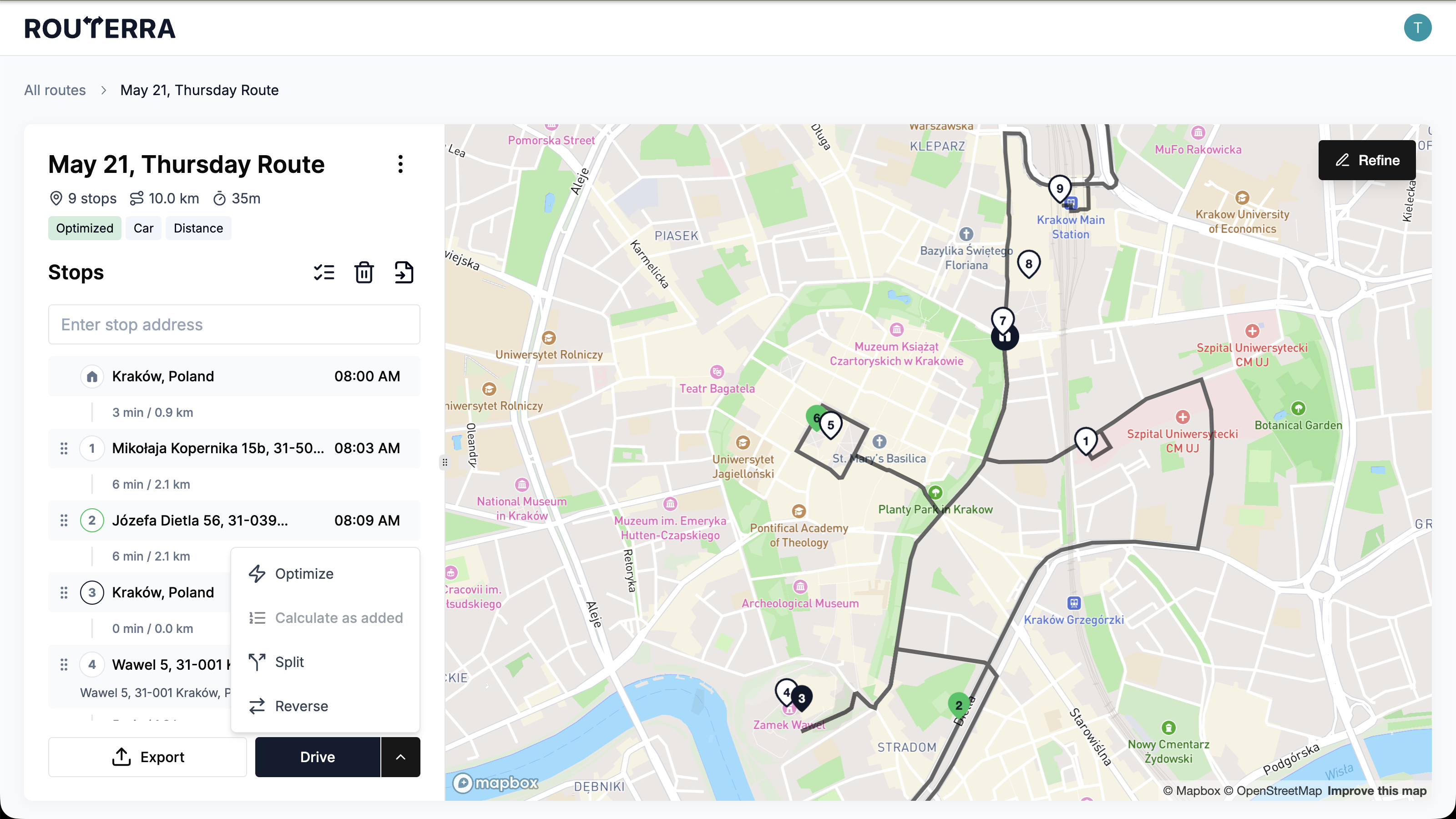
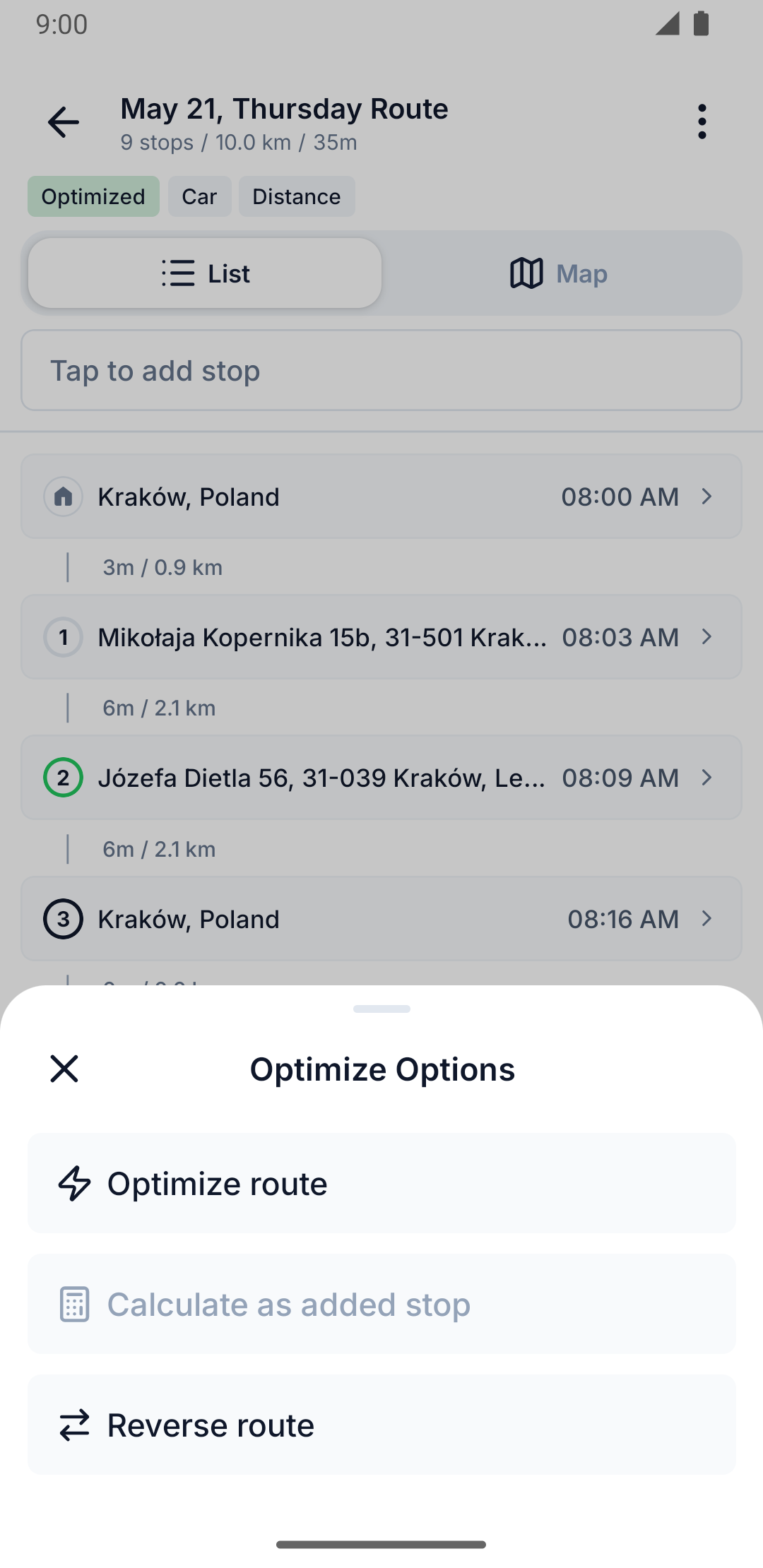
Tap the route's split button — it reads Optimize (or Drive once the route already has an order to follow) — to run it directly, or open the Optimize Options sheet for the same alternatives.
The two alternatives
Two of the menu's other items reorder stops without spending a full optimization:
- Calculate as added (the app calls it Calculate as added stop) — keeps the stops in the order you added them, and sets the route's status to As added instead of Optimized. Use it when your own order already makes sense and you just want drive times and ETAs calculated against it.
- Reverse (labelled Reverse route in the app, and on web's confirmation) — flips the current stop order end to end and sets the route's status to Reversed. Confirming it shows the same warning on both clients: "Reversing may result in a non-optimal route." followed by "Set Arrival Time or "Earliest" Priority for last stops and re-optimize."
Split, the fourth item (web only)
Split doesn't reorder anything — it divides the route's existing stops into several new routes. It asks for a maximum number of stops per route, then creates the new routes and leaves them in your routes list; a route can be split into at most 20 of them. The app has no equivalent. See Split a long route into several for the dialog, the limits, and where the new routes end up.
Your daily optimization limit
Every plan has two independent limits, and only one of them is about optimizing:
- Optimizations — how many times you can run Optimize today. Web's Settings shows it as Optimizations left; the app's Profile plan card labels the same meter Optimizations. Both refill on a rolling countdown, shown as Resets in plus a duration like "3h 12m" — not a fixed reset time.
- Stops limit — how many stops a single route can hold on your plan. Web calls it Stops limit; the app's meter is labelled Stops. This is a per-route ceiling, not something that gets used up.
Running out of optimizations doesn't grey out the button; being over the stops limit does. Specifically:
- Out of optimizations: pressing Optimize opens the Daily Optimization Limit Reached dialog on web, or an upgrade-plan sheet in the app. On a free plan, an exhausted monthly allowance is worded Monthly Optimization Limit Reached rather than "Daily" on both clients — same situation, a different meter behind it.
- Over the stops limit: you'll hit the Route Stops Limit Reached dialog when you try to add another stop. That's not the only place it's enforced, though — a route that is already over the limit also greys out Optimize itself, on both clients.
See Plans and limits for what each plan includes.
Why is Optimize greyed out?
If the button itself is disabled — not just blocked behind a dialog — it's one of the reasons below. Most of them aren't worked out in the browser or the app at all: the server decides whether a route can be optimized and returns that as a single yes/no alongside the route, and both clients honour it. What differs between the two is the wording you're shown and the handful of checks each client adds of its own. One condition doesn't grey the button out on either of them:
| Web | App | |
|---|---|---|
| Optimize already running | Greys out | Greys out |
| Zero stops on the route | Greys out | Greys out |
| Over per-route stop limit | Greys out | Greys out — Drive stays enabled |
| Unresolved stop problem | Greys out | Greys out |
| No start location address | Greys out | Greys out |
| Last optimize failed | Not checked | Greys out |
| Out of daily optimizations | Stays enabled — opens the Daily Optimization Limit dialog | Stays enabled — opens the upgrade-plan sheet |
The exact wording each client shows you is below.
Web puts a tooltip over the disabled button, using the first of these that fits:
- Optimization in progress — an optimize request for this route is already running.
- Route should have stops — the route currently has zero stops.
- Stops quota reached — despite the label, this is about your route's stop count against your plan's per-route stop limit, not your optimizations. It's a different limit from the daily optimization count above.
- Resolve issues before optimization — the catch-all. Usually a stop with an address that couldn't be geocoded, but the same sentence also appears when the route has no start location address, which is easy to miss because nothing in the stop list looks wrong.
That numbering is about which sentence you're shown, not a sequence of checks — the underlying "can this route be optimized?" answer arrives from the server as one flag.
The app greys the button out for:
- Optimization in progress — an optimize request for this route is already running.
- No stops to optimize — the route currently has zero stops.
- Over your plan's stop limit — the route holds more stops than your plan allows. This one is the app's own check, and it disables Optimize only: Drive stays enabled, deliberately, so a 40-stop route you built on Pro and then dropped back to Free is still a route you can go and drive. You just can't re-optimize it until you're under the limit again.
- Route not optimizable — the server has marked the route as not optimizable: a stop with an address that couldn't be geocoded, or a route with no start location address.
- Route optimization failed — the last optimize attempt on this route failed; the button stays disabled until that's resolved.
Being out of today's optimizations is checked as well — before any of the above — but it deliberately leaves the button enabled, which is the last row of the table.
Two other dropdown items have their own disabled conditions, separate from Optimize: Split greys out above 200 total stops, and Reverse greys out on a freshly created route that hasn't been optimized yet.
Reverse route greys out on a freshly created route that hasn't been optimized yet, the same as on web. Splitting a route isn't available in the app at all.
Refine the path between stops (web only)
Optimizing decides the order of your stops. Refine is about the path between them — the actual roads. Use it when the route is technically fine but takes a road you know to avoid: a gate that's usually shut, a turn that's impossible in a long vehicle, a shortcut the map doesn't know about.
Open Refine and the map invites you to "Drag route points to adjust the path". Pull the route line onto the road you want and it re-routes through that point. Each drag adds a waypoint, and each one can be undone — or removed later with Remove waypoint. The estimated time updates as you go, so you can see what your preferred road costs against the route Routerra picked.
When you're happy, save; you'll get "Route saved successfully". If you leave Refine with drags you haven't saved, it asks first — Discard route changes?, with Discard Changes and Keep Editing — so you can't lose the work by clicking away.
The phone app has no equivalent. Its map shows your route but the line isn't draggable. Refining a path is something to do in the browser.
Once you have an order to drive, head to Drive your route.