How to Use Apple Maps Offline: Download Maps & Navigate Without Internet
In this article
To use Apple Maps offline, download the area before you lose signal: open Maps → tap your profile icon (right of the search bar) → Offline Maps → Download New Map → pick a city or Current Location → drag the rectangle over the area you need → tap Download.
Once it finishes, Apple Maps works with no connection inside that area — and it works for more than driving. We forced the app onto its downloaded data and got routes for driving, walking, cycling and transit, plus place search, business listings and opening hours. What you lose is the live layer: routes are calculated on predicted traffic and scheduled departures, and Look Around disappears. A metro-sized area runs a few hundred megabytes — ours was 357.8 MB — and, unlike Google Maps, downloads never expire; Apple refreshes them automatically instead.
That is the short answer. The rest of this guide is the walkthrough, the four settings that decide how offline maps behave, and the part most guides skip: what happens when your route has more than one stop.
How we tested. Every screenshot below is from Apple Maps on an iPhone 17 Pro running iOS 26.3, in the iOS Simulator. We downloaded the San Francisco area, then switched on Apple's own Only Use Offline Maps setting — "use downloaded maps even when you have an internet connection" — to force the app onto offline data, and ran every check from there. That verifies the offline data path and the offline UI. It is not a road test: we could not test airplane mode on cellular, CarPlay, or how far back this works in older iOS versions, so this guide does not make claims about any of those.
Why This Matters on a Multi-Stop Route
You are halfway through a delivery route when your phone drops to "No Service." The next stop is three turns away, and you have no idea which way to go.
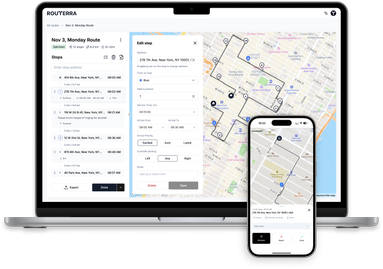
Offline Apple Maps solves half of that: it can navigate you to a single destination. But it does not know your stop list, your order, or which stops you have already finished. That is the other half — and it is why this guide covers two things: Apple Maps for offline navigation, and Routerra for keeping the multi-stop route itself working offline.
Can You Use Apple Maps Without Internet?
Yes — but only if you download the map area before you lose signal.
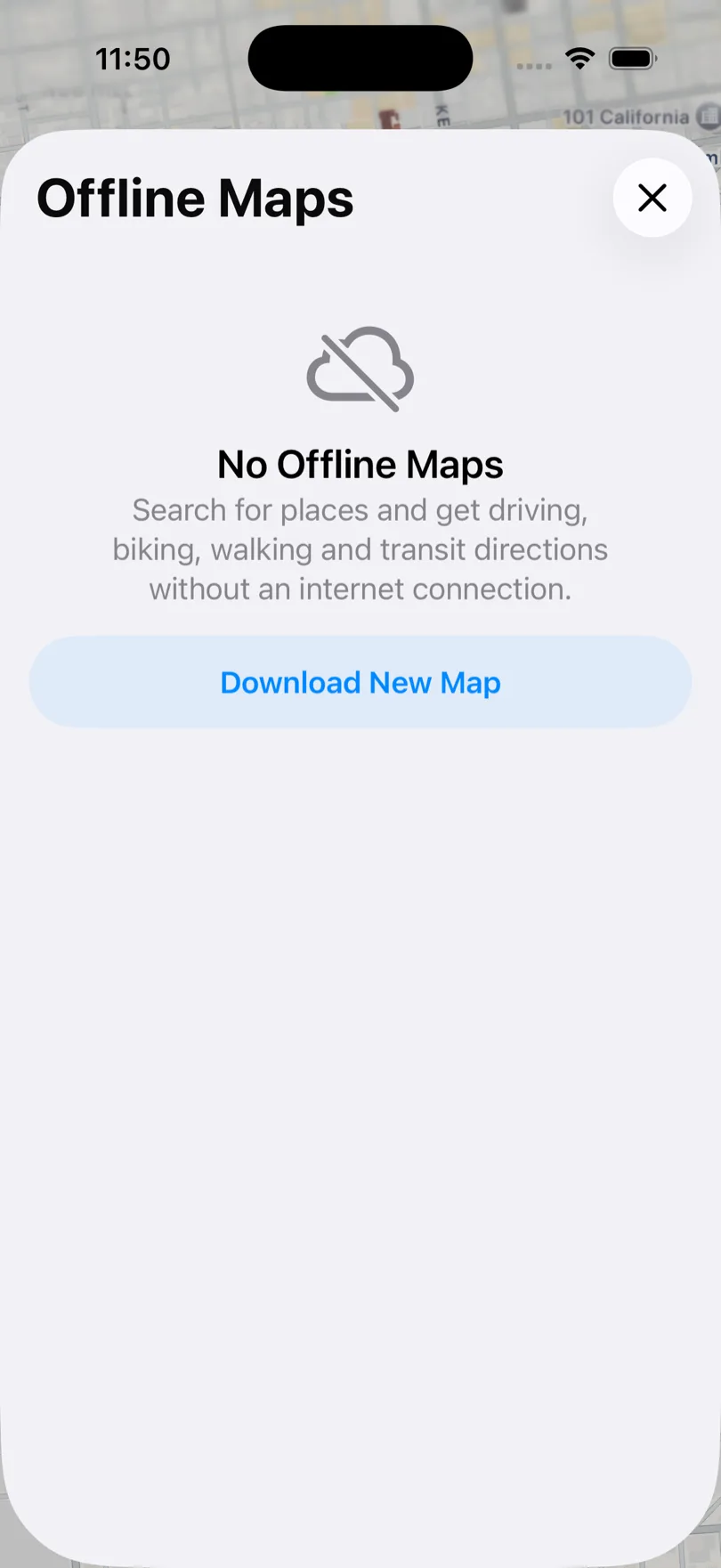
Apple is unusually direct about this. The empty state in Offline Maps spells out exactly what a download buys you: "Search for places and get driving, biking, walking and transit directions without an internet connection."
The key distinction:
| Scenario | What happens |
|---|---|
| No internet, no downloaded map | Apple Maps can't route. You get an empty grid where the map should be. |
| No internet, downloaded map covering your area | Search and all four direction modes work off the saved data. |
| No internet, downloaded map but your route leaves it | Works inside the saved rectangle, fails past its edge. |
The takeaway: download a map area that covers your entire planned route before you start driving.
How to Download Apple Maps for Offline Use
1. Open your profile menu
Open Maps and tap the profile icon at the right of the search bar. The menu that opens has an Offline Maps row — it shows Download when you have nothing saved yet, and a count once you do.
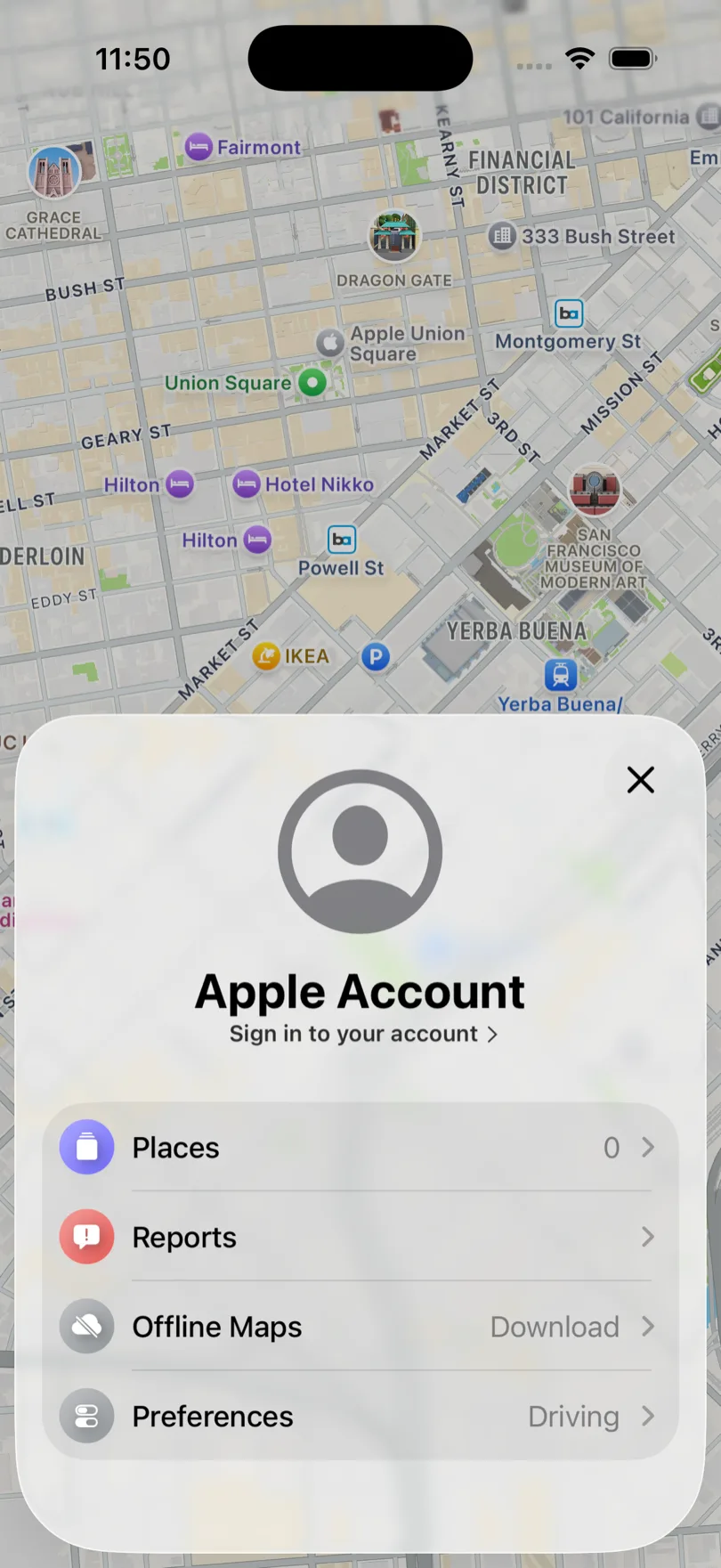
2. Tap Offline Maps → Download New Map
You can either search for a city or take Current Location. Searching is the better habit for delivery work: you can prepare tomorrow's area tonight, from home, without being anywhere near it.
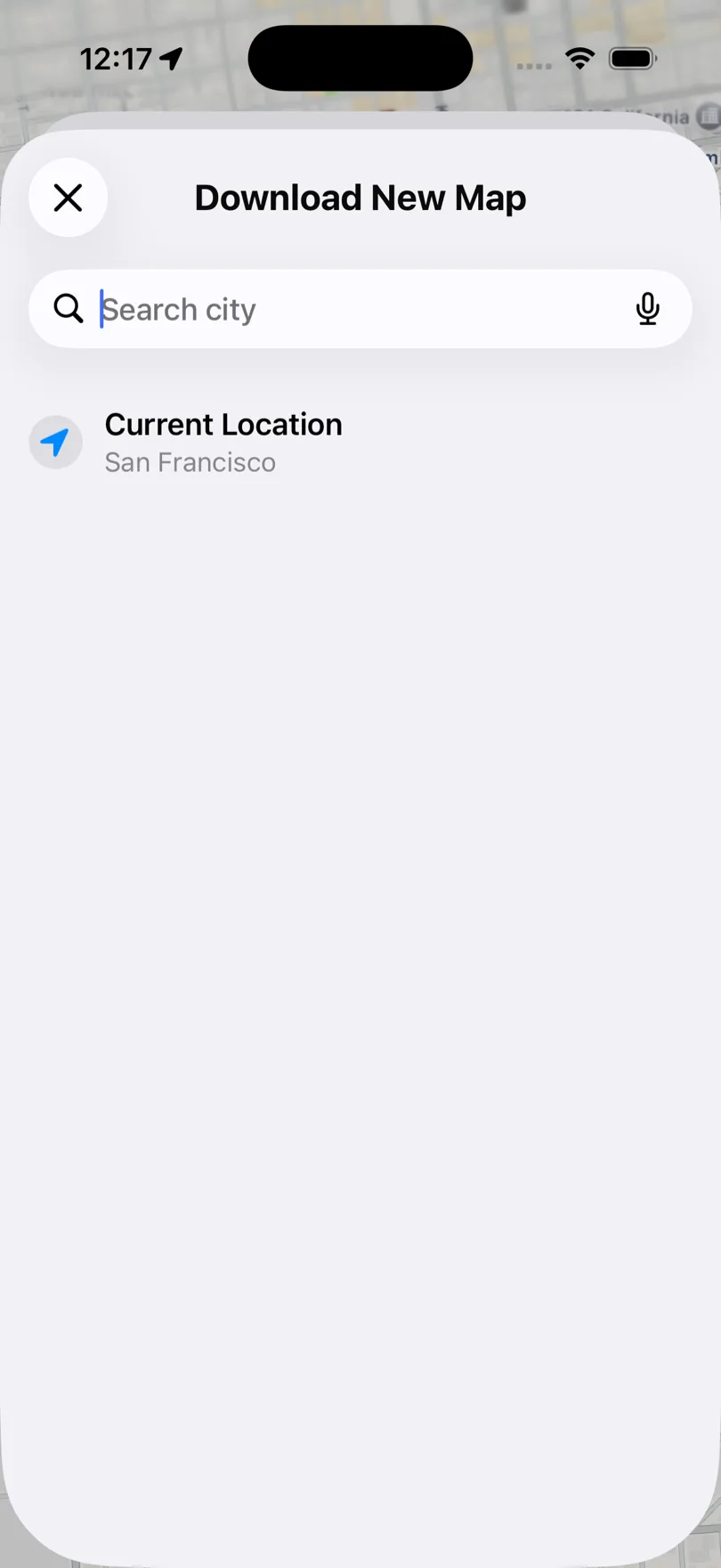
3. Size the rectangle, and read the number
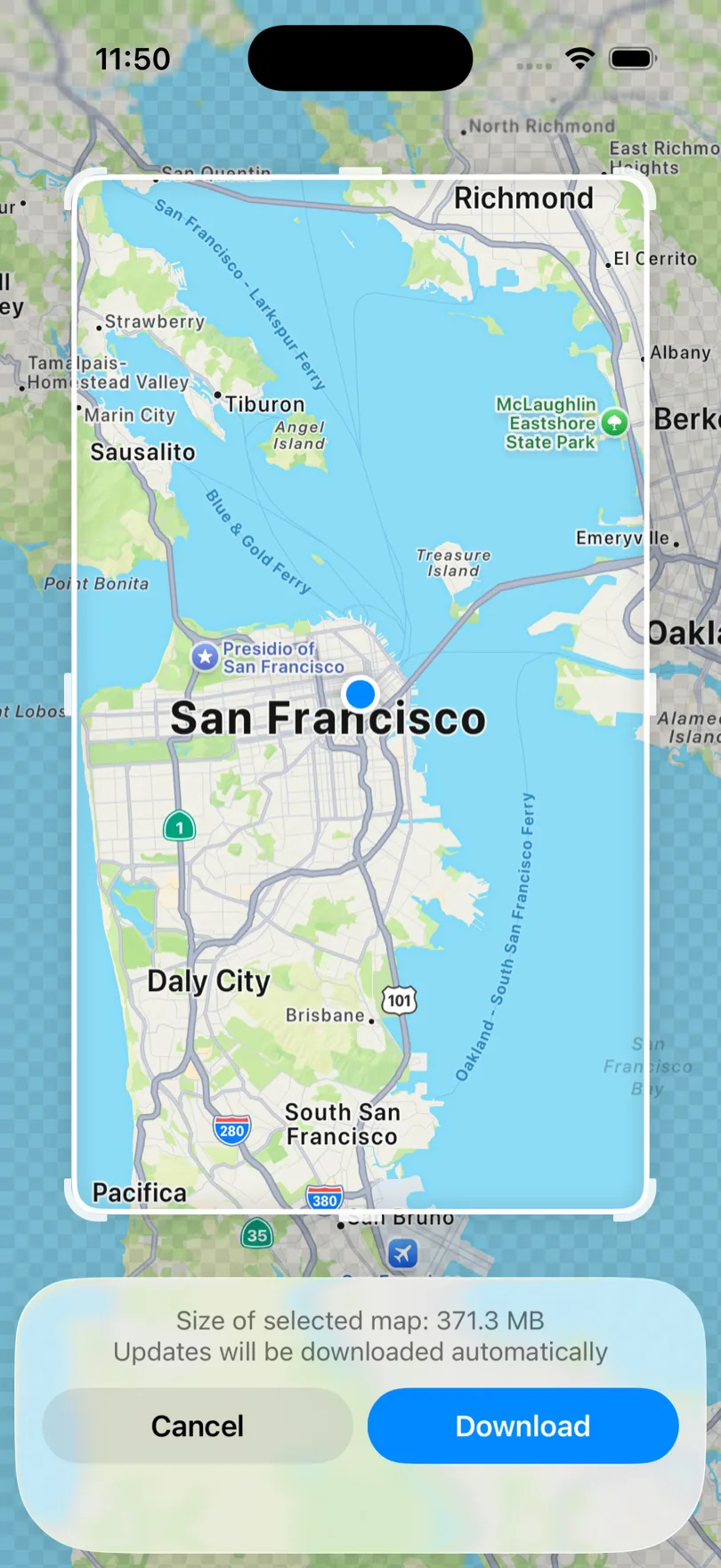
Apple drops a rectangle with draggable corner handles over the area. Drag and pinch until it covers your whole route — every stop and the roads between them, with margin.
Two things on this screen matter. The bar at the bottom shows "Size of selected map", which updates live as you resize — ours read 371.3 MB for the San Francisco Bay Area. Under it, Apple states plainly: "Updates will be downloaded automatically." That single line is the biggest practical difference from Google Maps, and we come back to it below.
4. Tap Download and let it finish
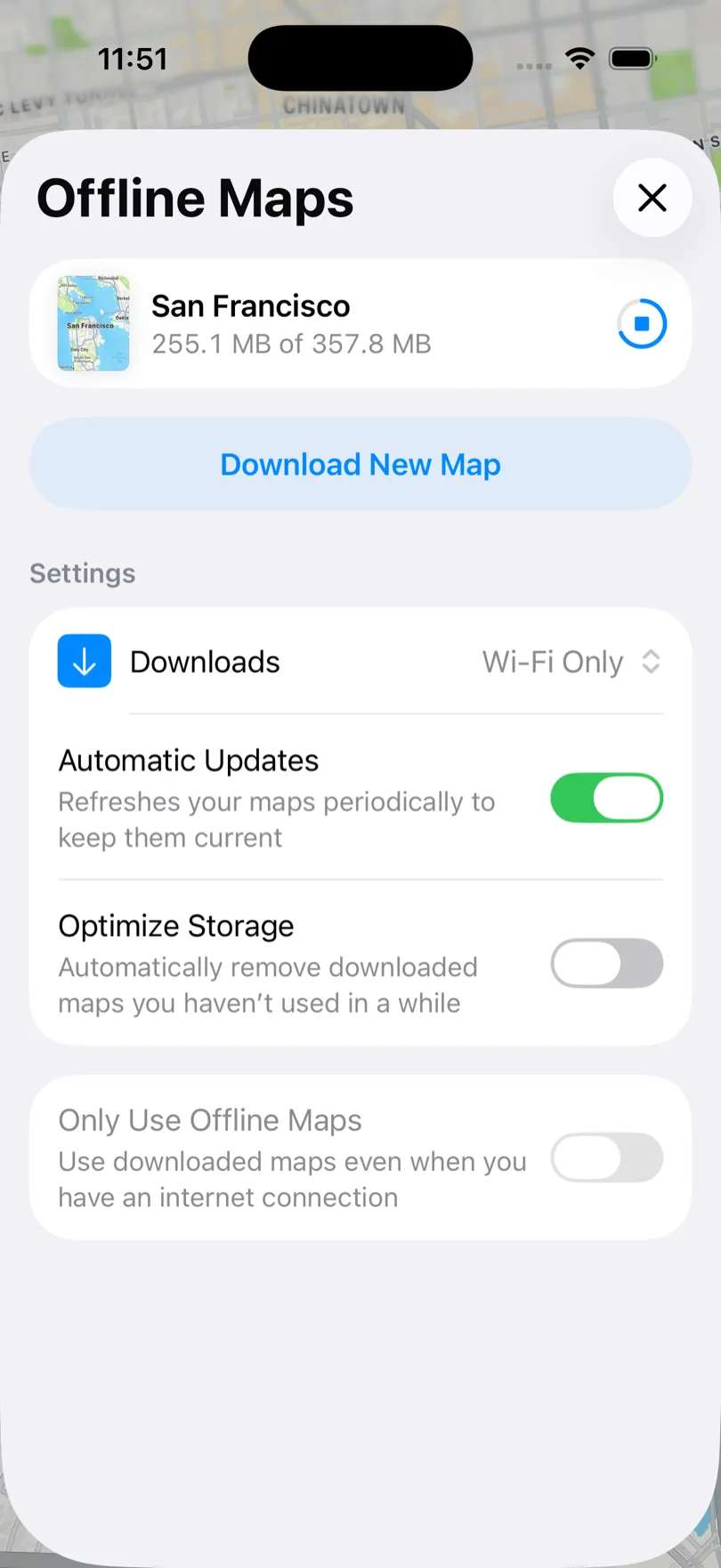
The area appears in the list with a live byte counter and a stop button. Ours ran to 357.8 MB — worth noting that the finished download came in smaller than the 371.3 MB estimate, the opposite of Google Maps, where our Phoenix area was estimated at 85 MB and landed at 190 MB. Apple's estimate is the pessimistic one.
Wait for it to finish before you leave coverage. A partial download will not help you.
How large should the downloaded area be?
Cover more than you think you need. If your route crosses a metro area, take the whole metro, not the neighbourhood you start in.
- Metro-sized area: a few hundred megabytes — ours was 357.8 MB
- Shrink the rectangle and the number drops immediately, so you can trade coverage against storage before you commit
- Watch the estimate before confirming; you can always resize a saved map later
- If your route spans two metros, save more than one area
Tip: By default Apple only downloads offline maps over Wi-Fi. Grab them the night before rather than on the road.
The Four Settings That Control Offline Maps
Once you have one map saved, a Settings block appears under the list. These four are the whole offline model, and three of them are easy to miss:
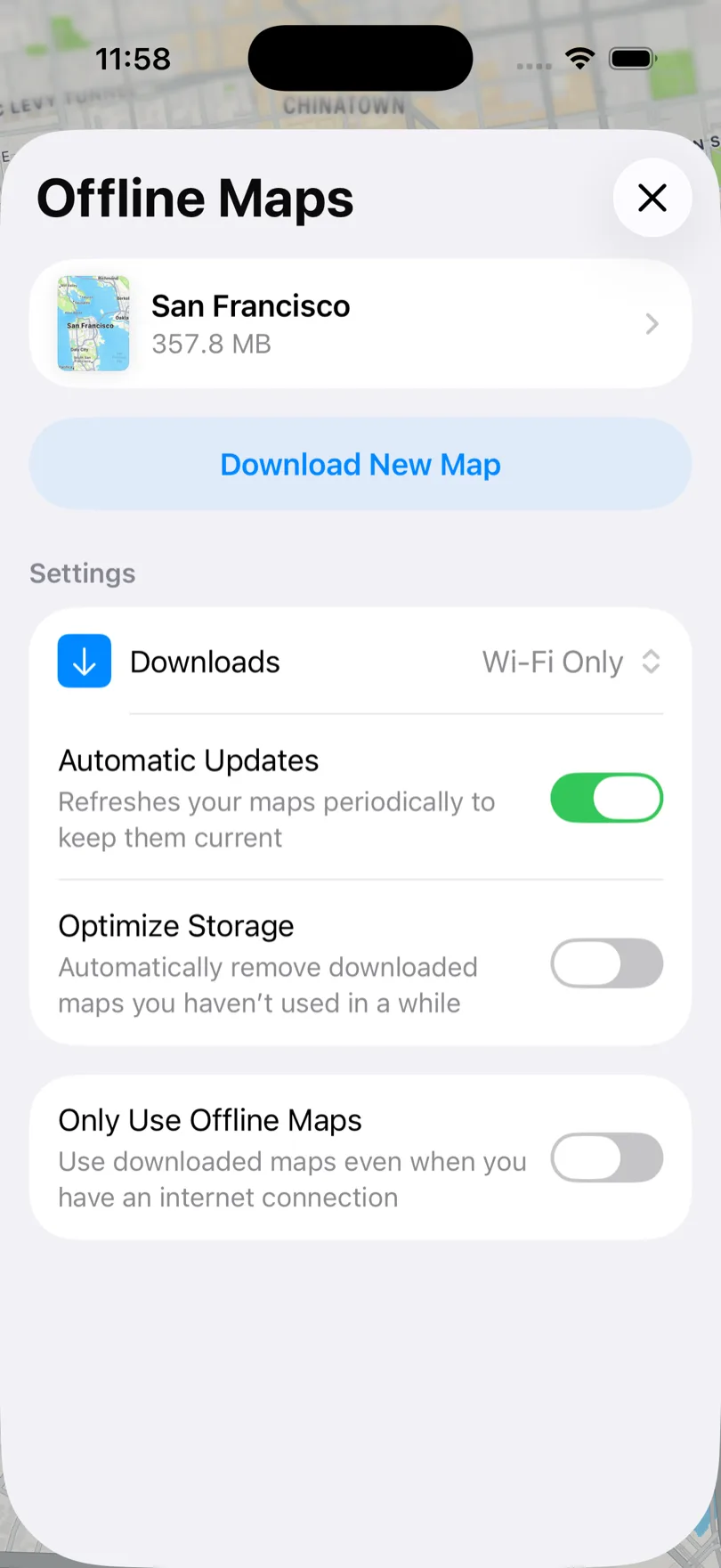
- Downloads — Wi-Fi Only. The default. Change it if you want to grab an area on cellular mid-shift.
- Automatic Updates — on by default. "Refreshes your maps periodically to keep them current." This is what replaces Google's expiry date.
- Optimize Storage — off by default. "Automatically remove downloaded maps you haven't used in a while." Leave it off if you re-run the same territory seasonally, or Apple may quietly delete the area you were counting on.
- Only Use Offline Maps — off by default. "Use downloaded maps even when you have an internet connection." This is the switch we used for testing, and it is genuinely useful on the road: it stops Maps burning data in a patchy-signal area where it keeps half-connecting and stalling.
One gotcha worth knowing before you rely on that last switch: while it is on, you cannot download new areas. Apple blocks it outright.
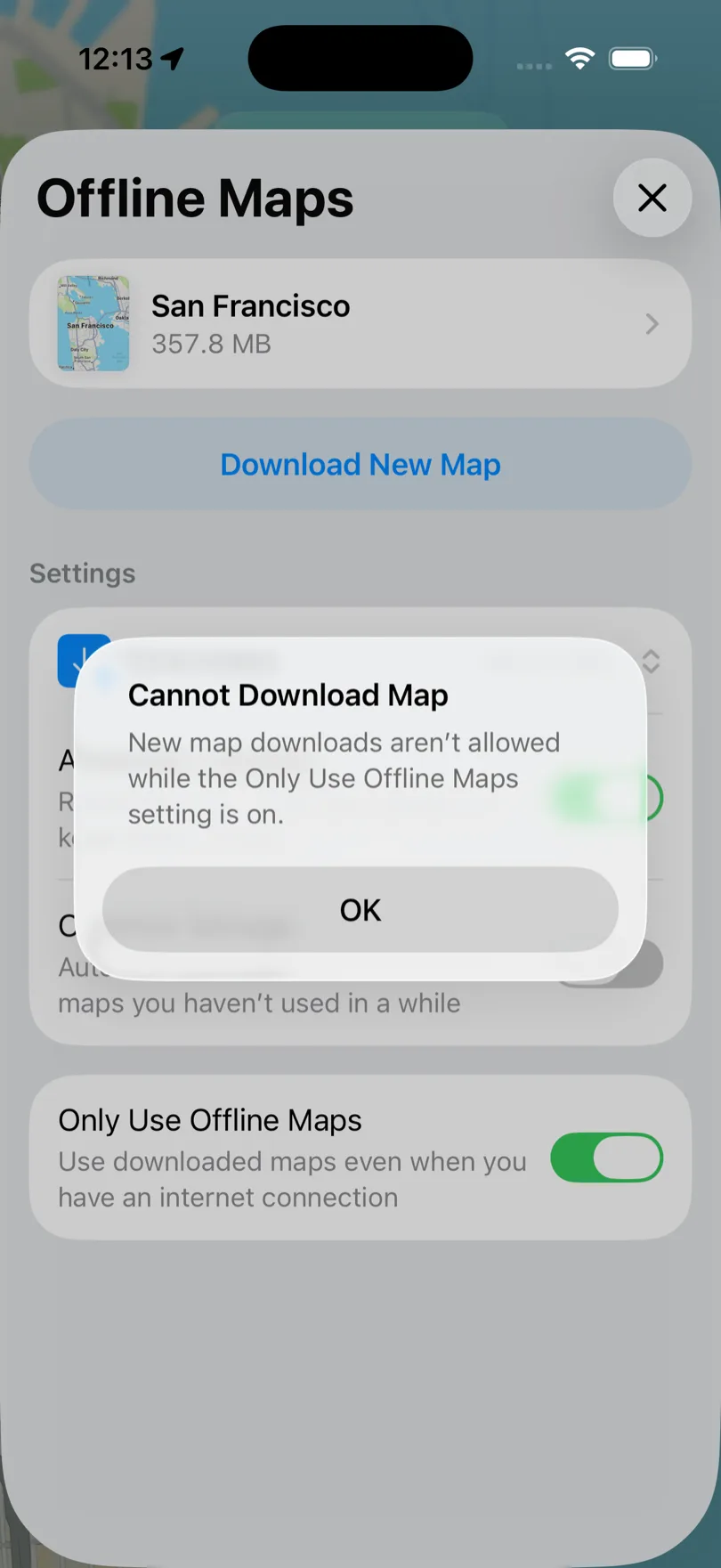
So the order matters: download the area first, then flip the switch.
Apple Maps Offline Maps Do Not Expire
This is the headline difference, and it is worth being precise about.
Google Maps expires an offline area after about a year and shows you the date on the tile — ours read "Expires Aug 17, 2027 unless updated." Apple shows no expiry at all. Open a saved map and you get its size, a Resize control, Rename, a per-device heading, a Map Updated timestamp, and Delete Map. There is no countdown anywhere, because Automatic Updates is doing that job in the background.
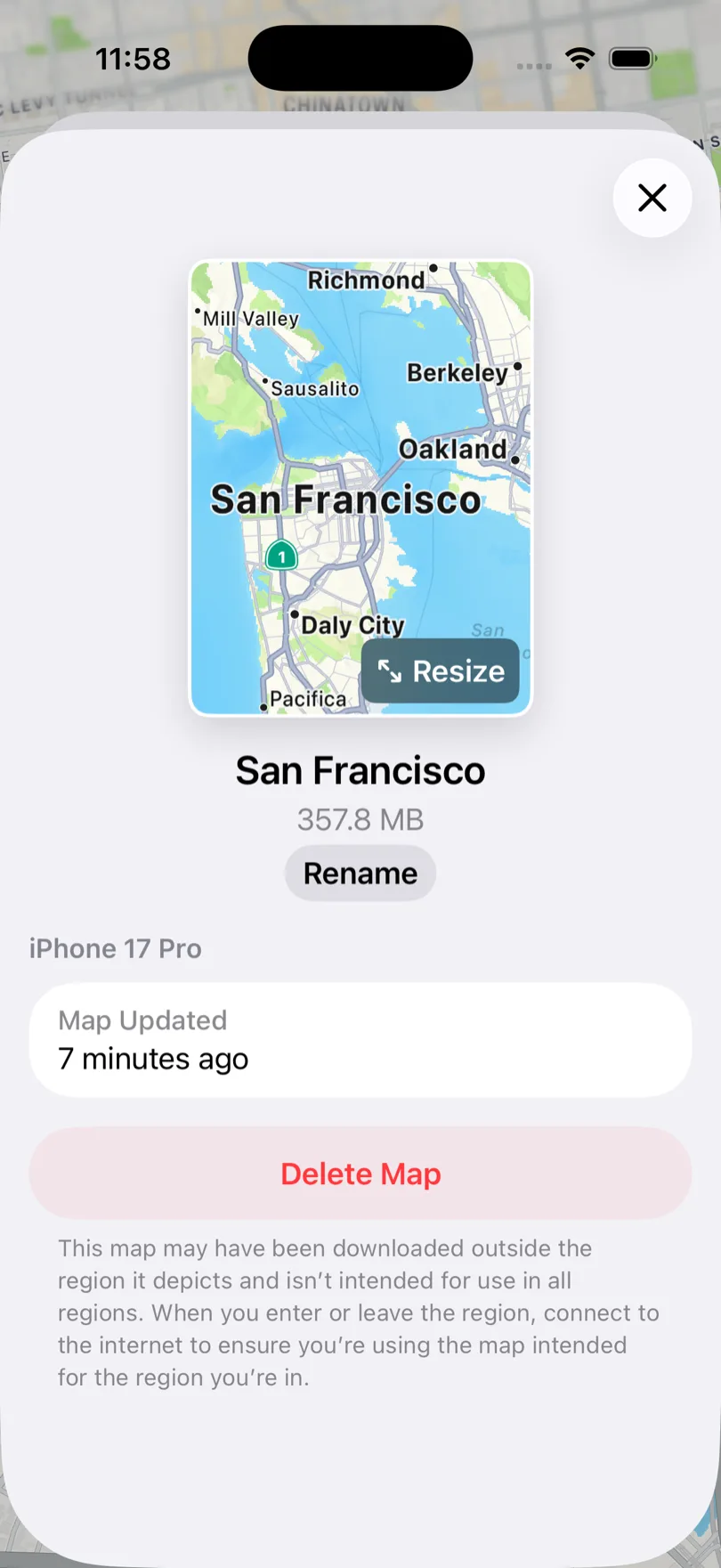
Apple does add one caution on this screen: a map "may have been downloaded outside the region it depicts," and you should connect to the internet when you enter or leave a region so you get the map intended for where you are.
What Works Offline in Apple Maps
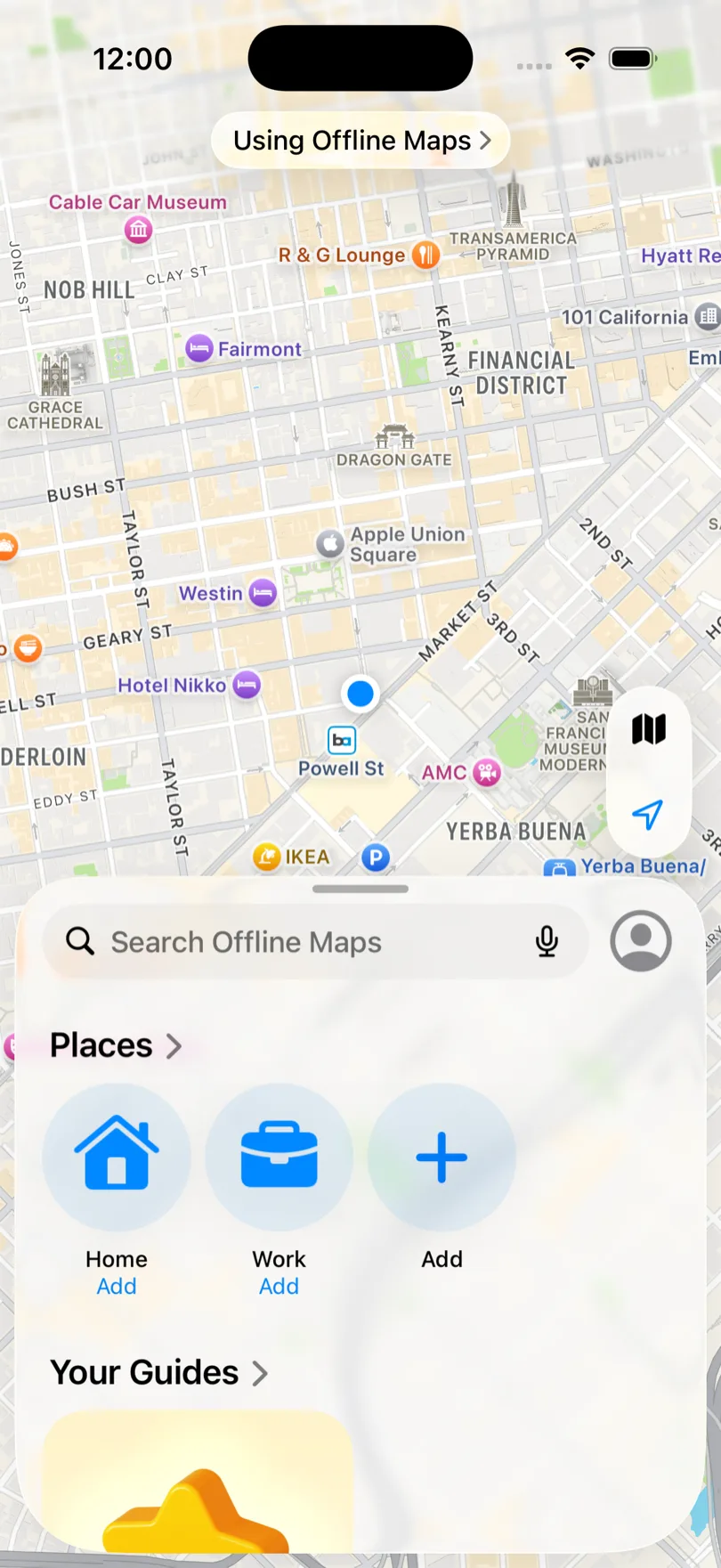
With the map downloaded and the app forced offline, a "Using Offline Maps" pill sits above the map and the search field relabels itself to "Search Offline Maps" — so you always know which data you are on. This is Apple's equivalent of the crossed-out cloud icon in Google Maps, and it is much harder to miss.
Place and business search works
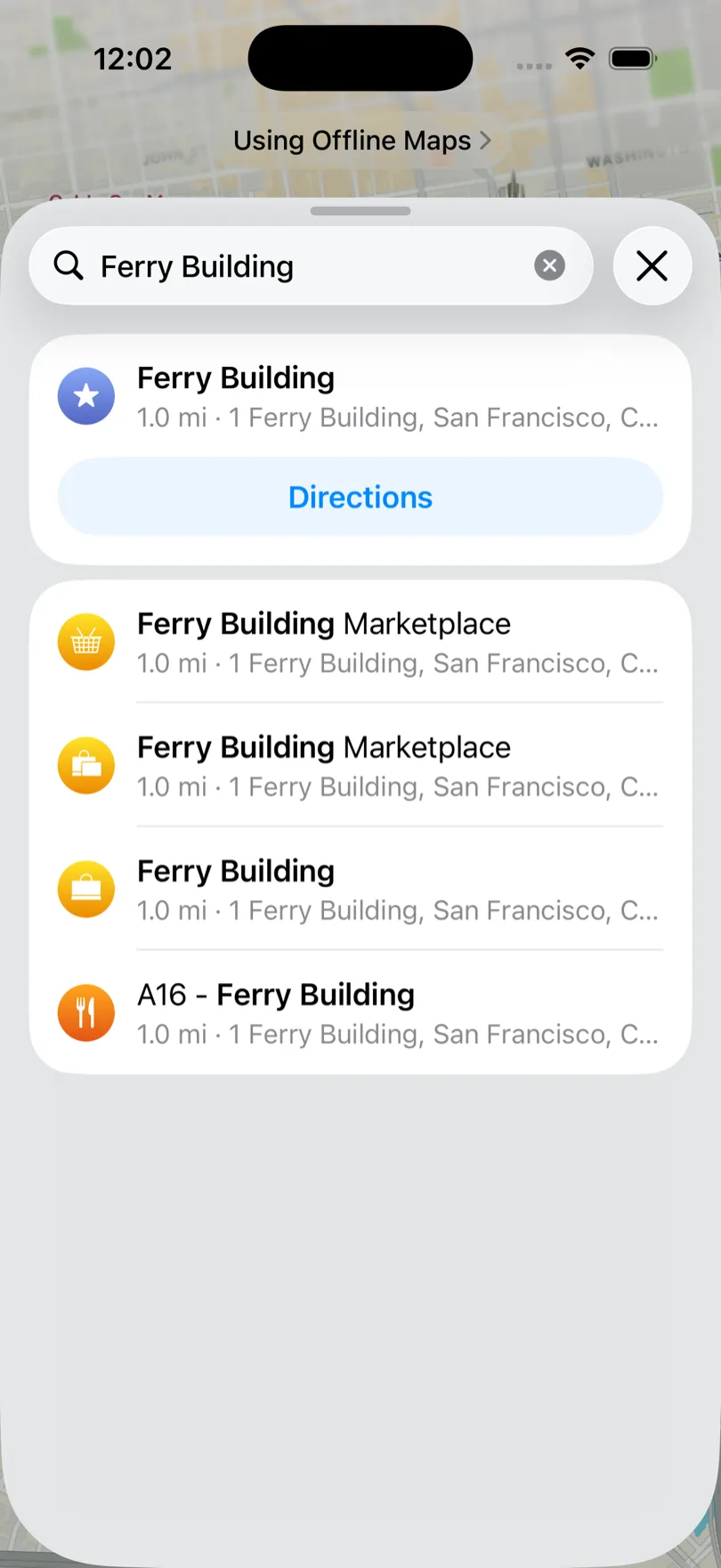
Not just addresses. Searching "Ferry Building" offline returned the landmark, Ferry Building Marketplace, and A16 – Ferry Building — individual businesses inside the building — each with a distance and a full street address.
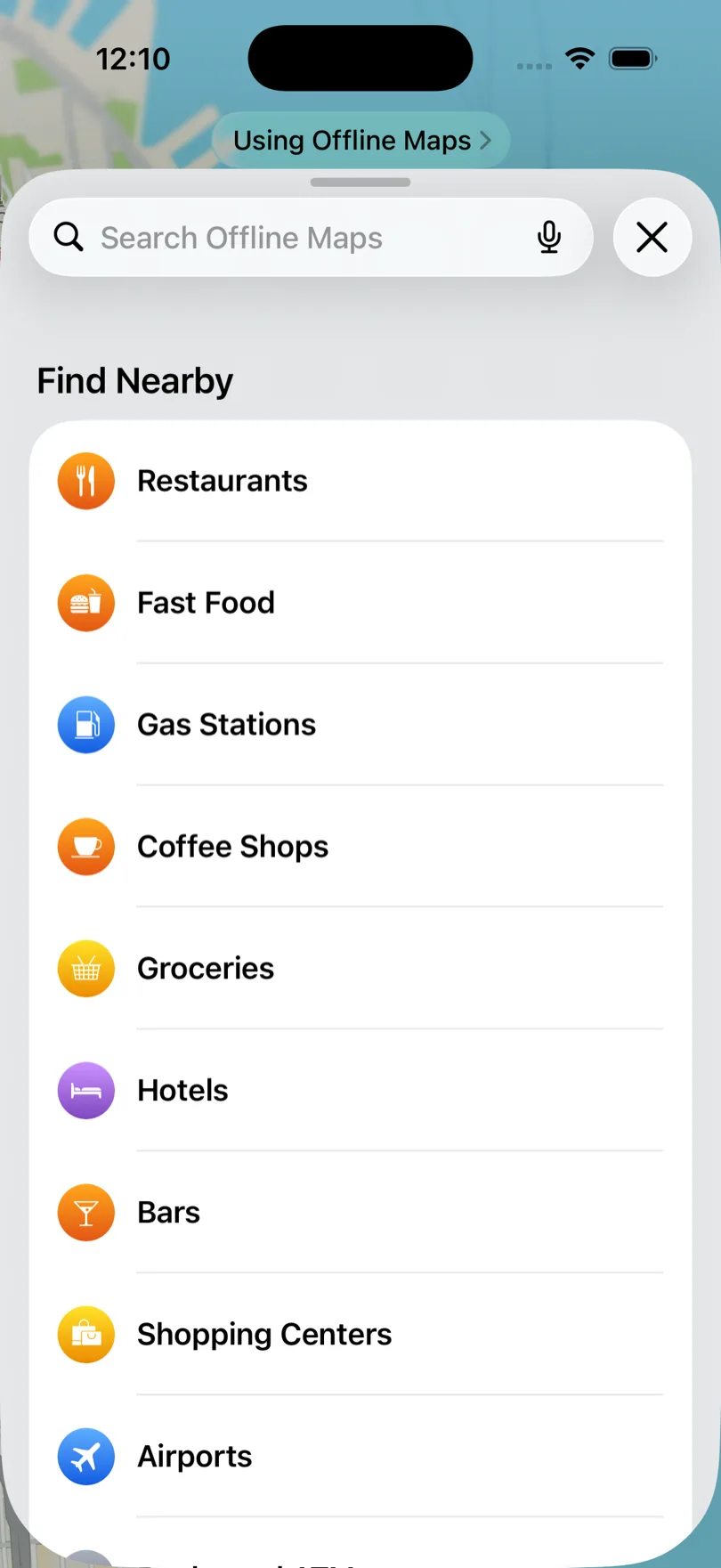
The Find Nearby categories work too — Restaurants, Fast Food, Gas Stations, Coffee Shops, Groceries, Hotels, Bars, Shopping Centers, Airports. For a driver hunting fuel or a bathroom in a dead zone, that is the useful one.
Place cards keep their detail
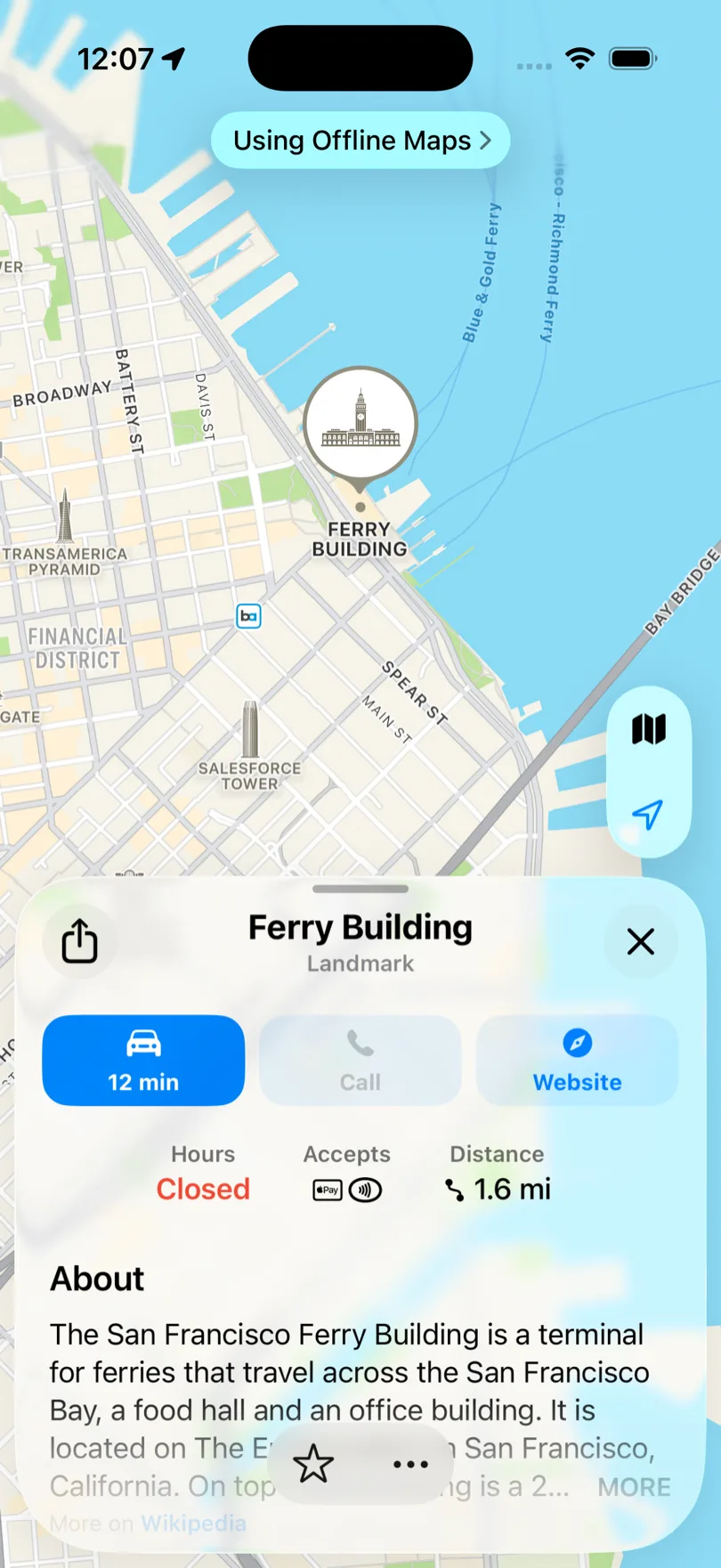
Opening a result offline still gave us opening hours, the payment methods accepted, the distance, and a full description sourced from Wikipedia. Only the network-dependent bits fall away.
All four direction modes work
This is where Apple pulls clearly ahead of Google offline. We ran the same trip in each mode with the map offline, and every one returned a real route.
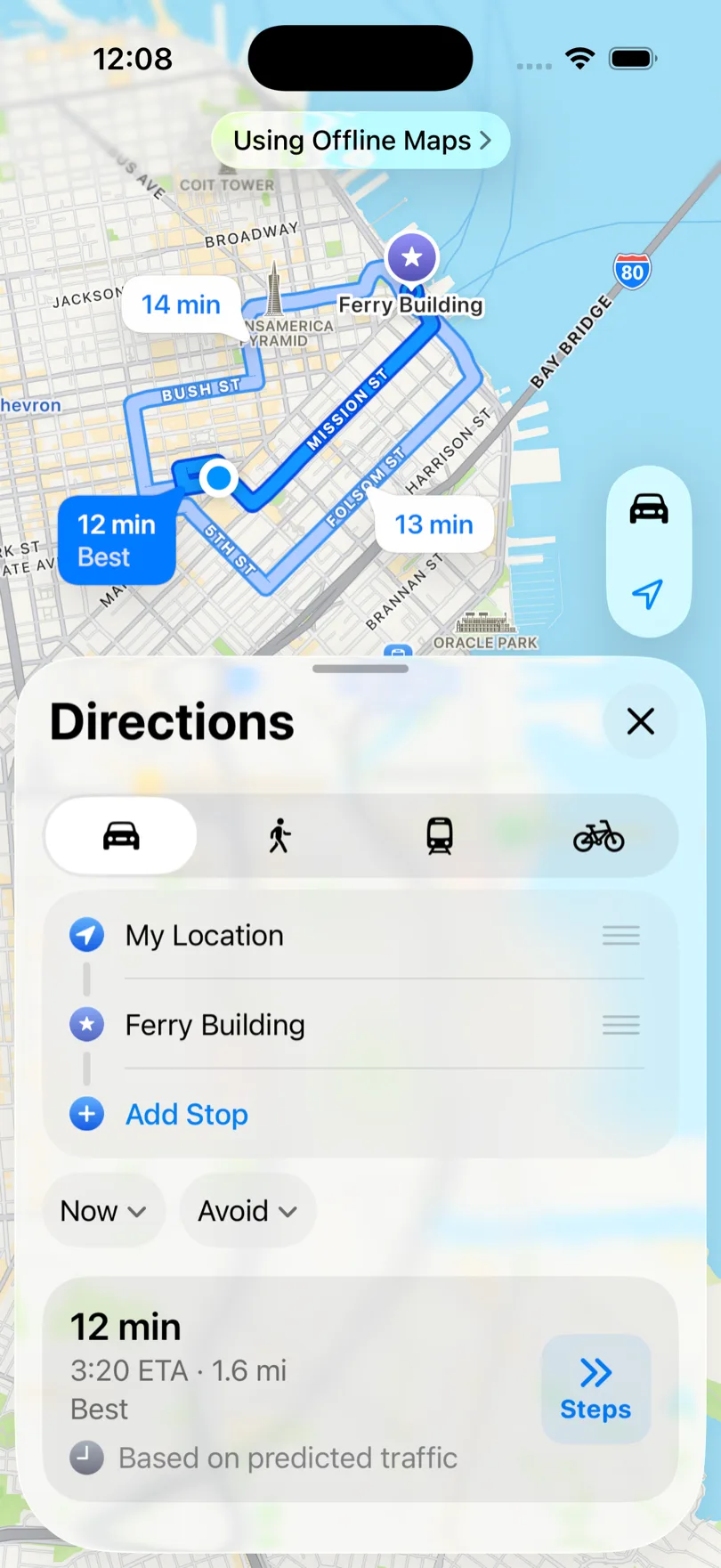
Driving — three route options at 12, 13 and 14 minutes, with distance and ETA. Note the label: "Based on predicted traffic." Not live traffic; Apple's historical model of what that road is usually like at that hour.
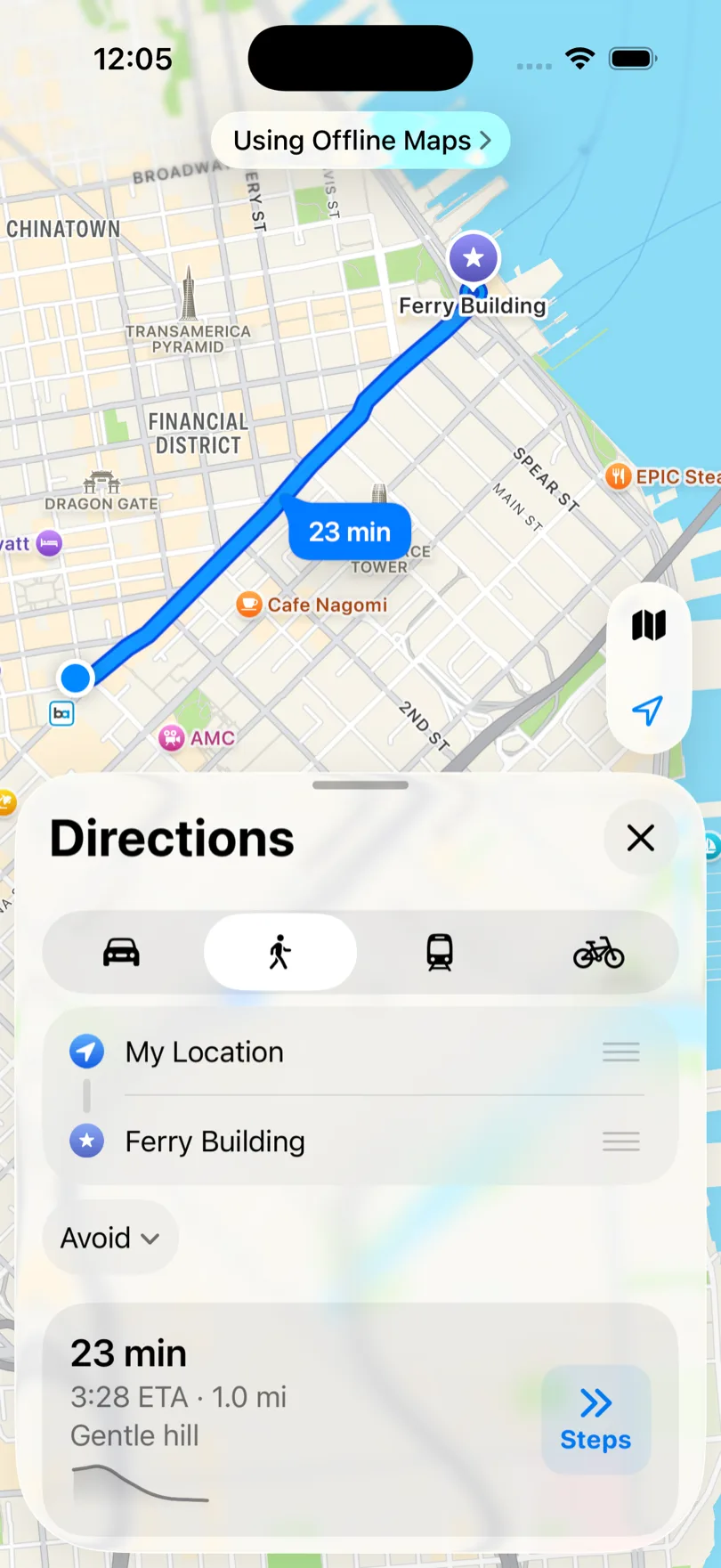
Walking — 23 min over 1.0 mi, complete with the elevation profile and a "Gentle hill" summary.
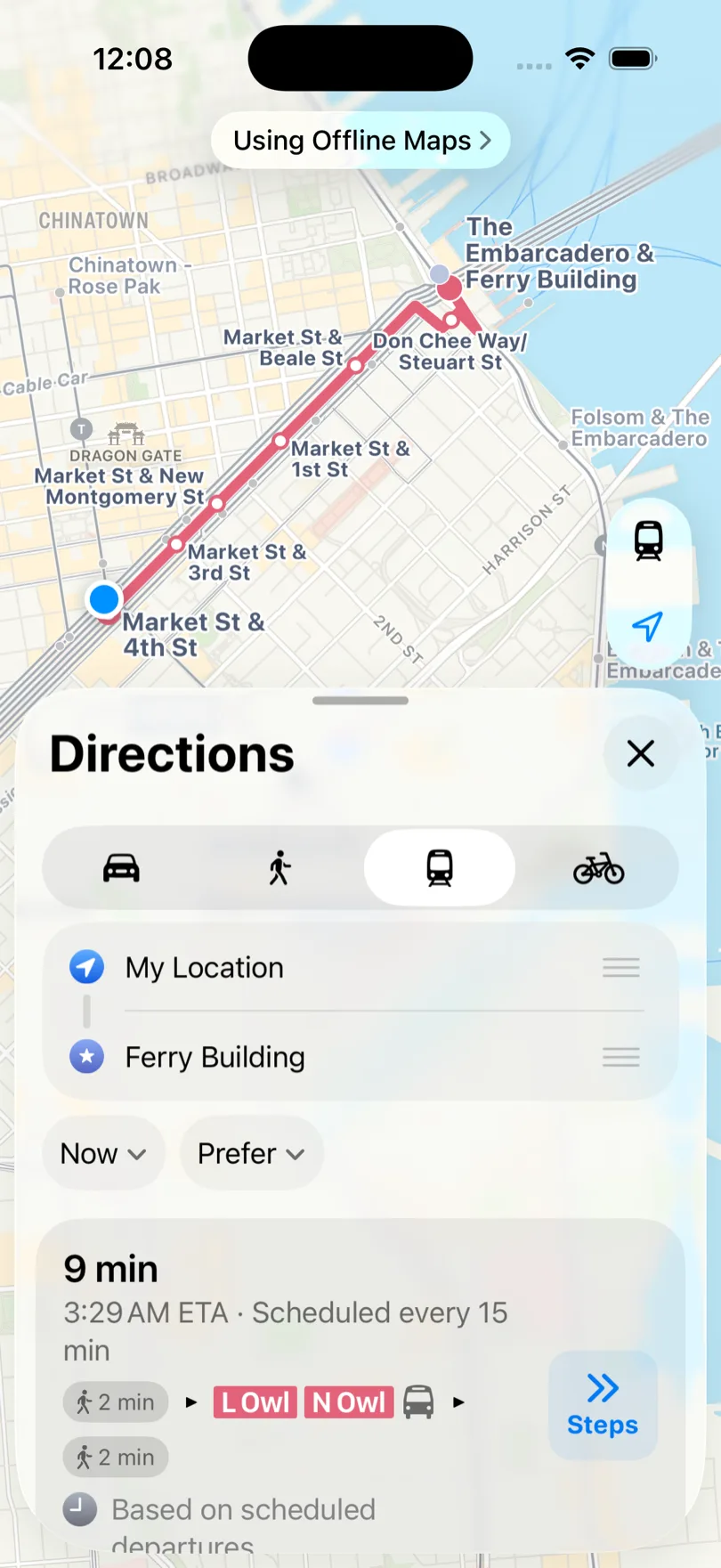
Transit — the one we expected to fail, and it did not. Apple returned a 9-minute trip with named lines, walk segments at each end, and "Scheduled every 15 min." The footnote reads "Based on scheduled departures" — the timetable ships inside the offline map, so you get the plan, not live vehicle positions or disruptions.
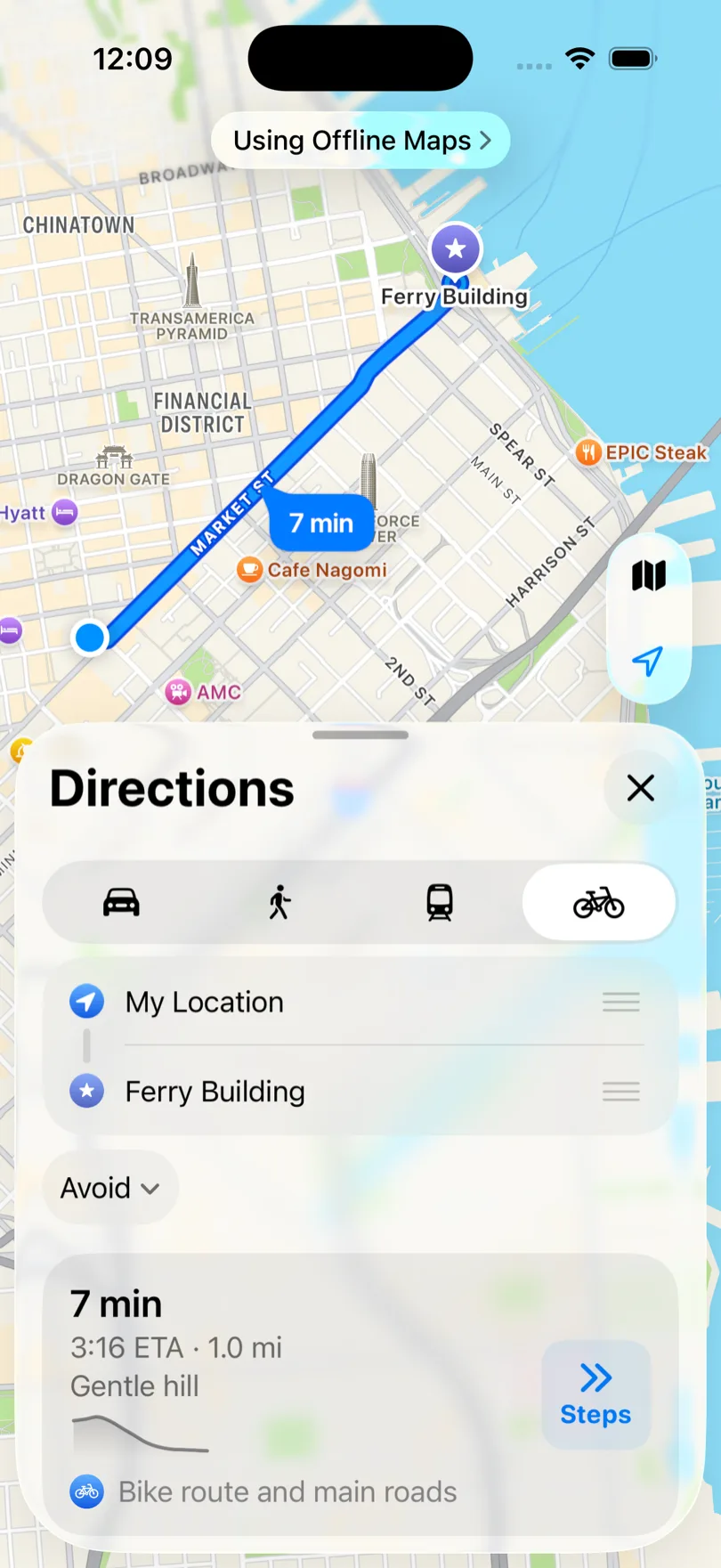
Cycling — 7 min over 1.0 mi, with the elevation profile and a "Bike route and main roads" summary.
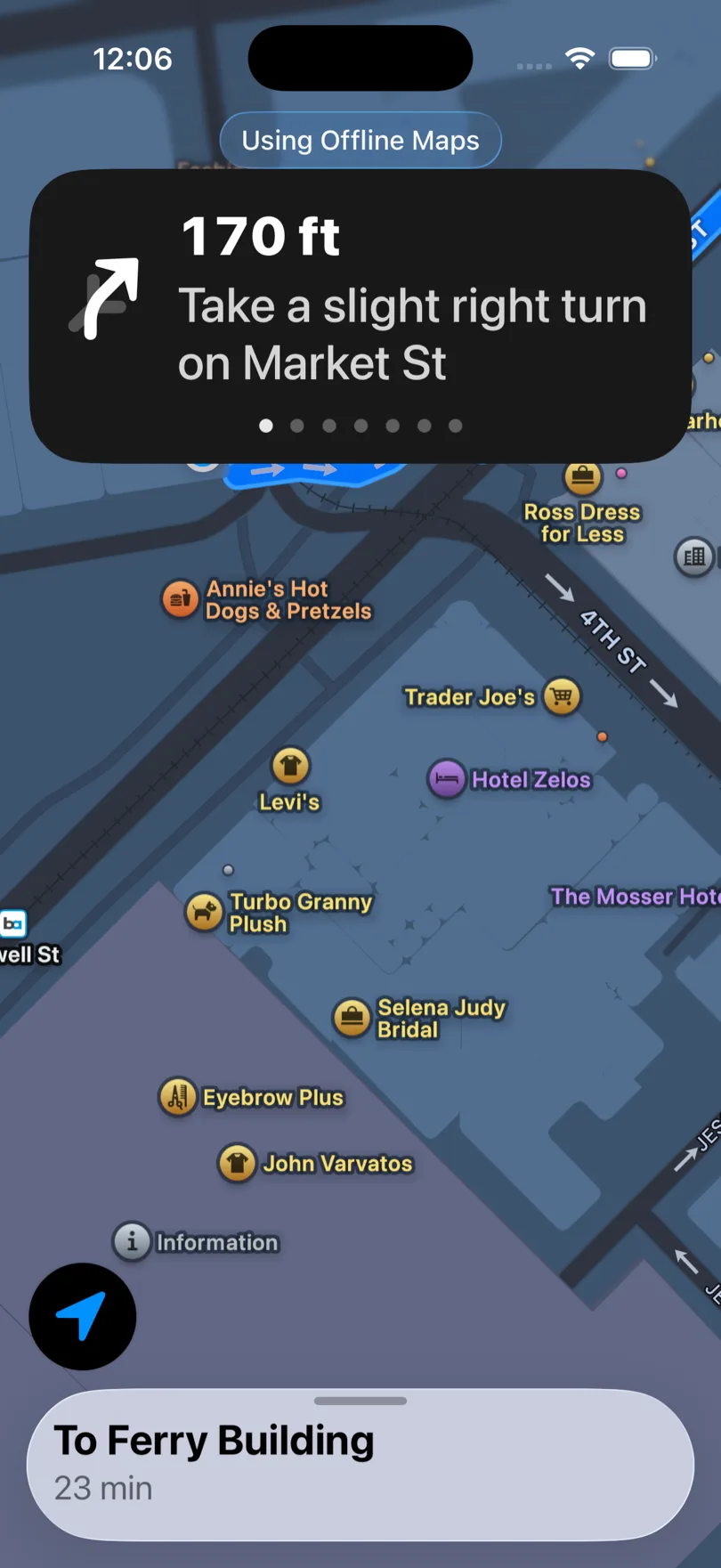
Turn-by-turn guidance runs offline
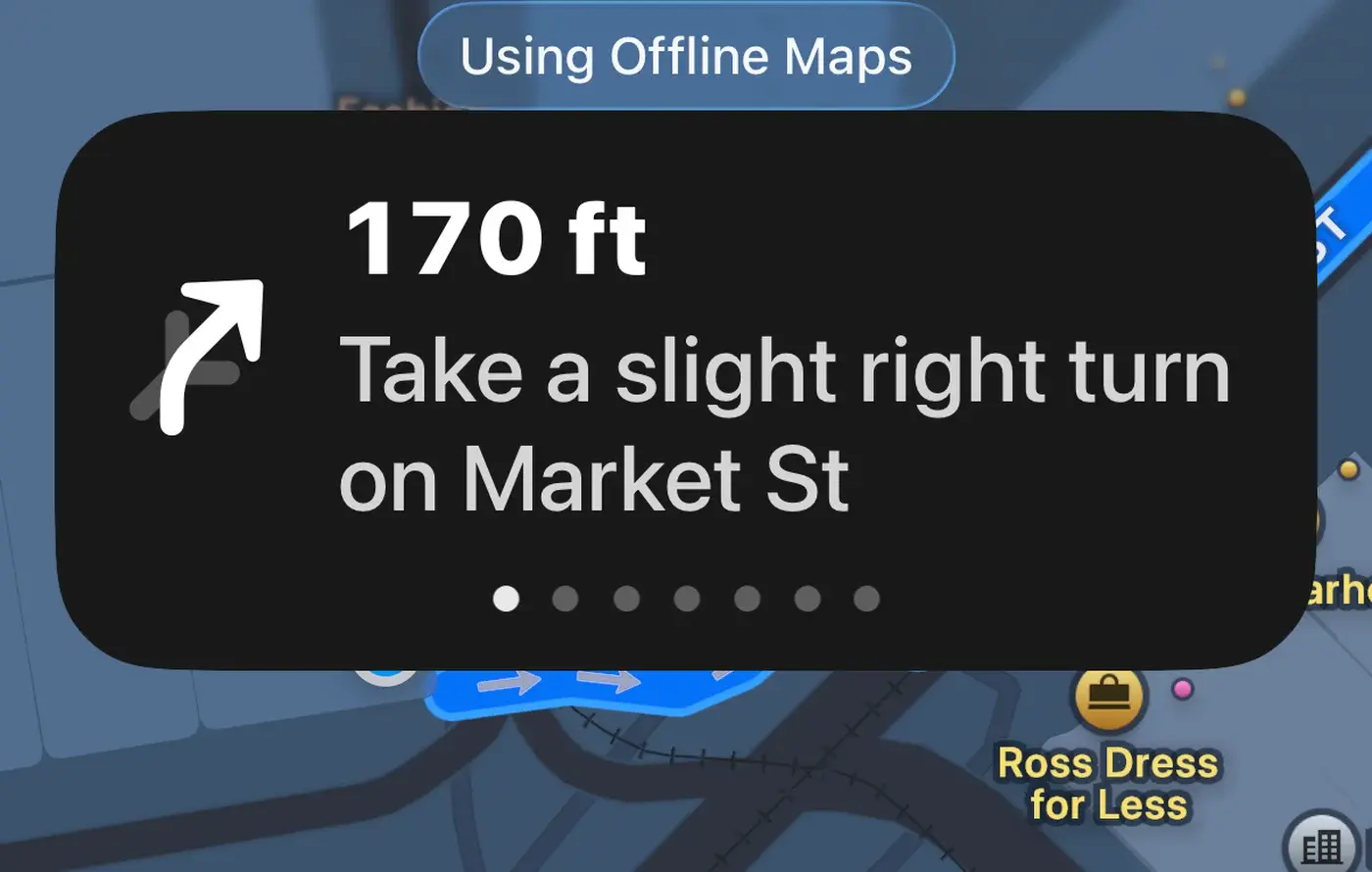
Starting the route offline gave us full step-by-step guidance — distance to the next manoeuvre, the instruction, a step pager, and the trip summary with End Route. The "Using Offline Maps" pill stays visible the whole time.
What does NOT work
- Live traffic — driving routes come from predicted traffic, so you will not see the jam ahead
- Live transit — scheduled departures only; no delays, cancellations or real-time positions
- Look Around — Apple's street-level view. The binoculars button simply disappears from the map while you are offline
- Anything outside your rectangle — search and routing stop at the edge of what you saved
- Downloading new areas — blocked entirely while Only Use Offline Maps is on
Apple Maps vs Google Maps Offline
Both are worth having. They are not equivalent.
| Apple Maps | Google Maps | |
|---|---|---|
| Driving directions | Yes | Yes |
| Walking / cycling | Yes | No |
| Transit | Yes, scheduled | No |
| Place & business search | Yes | Yes |
| Expiry | None — auto-refreshed | ~1 year |
| Estimate vs actual size | Came in under estimate (371.3 → 357.8 MB) | Came in over (85 → 190 MB) |
| Offline indicator | "Using Offline Maps" pill | Small crossed-out cloud |
| Force-offline switch | Yes (Only Use Offline Maps) | No |
| Live traffic | No | No |
If you are on iPhone and you only download one, download the Apple Maps area — the walking, cycling and transit coverage is a genuine advantage, and you never have to think about expiry. If you also want Google Maps offline as a backup, the flow is similar but the limits are tighter. And if you were considering Waze for this, don't: Waze cannot navigate offline at all.
The Multi-Stop Problem: Maps Alone Aren't Enough
Downloading Apple Maps solves the navigation problem — you can get turn-by-turn directions to a single destination without internet.
But if you are managing a route with multiple stops — deliveries, pickups, service calls — you need more than navigation. You need to know:
- What's your next stop?
- What's the address?
- Have you completed this one already?
- Which stops are left?
Apple Maps will not answer any of those. It also caps you at a handful of manually added stops with no optimization and no import — the reason we wrote a separate guide on getting past 15 stops in Apple Maps.
A navigation app tells you how to get somewhere. A route management app tells you where to go next.
If your route app requires internet, losing signal means losing your stop list, your progress, and your ability to mark deliveries — even while Apple Maps is still happily navigating.
This is the problem Routerra solves.
How Routerra Works Offline
Since version 1.10, Routerra's phone app works fully offline in drive mode. When your connection drops, an offline banner appears — and you keep working.
What you can do without a connection
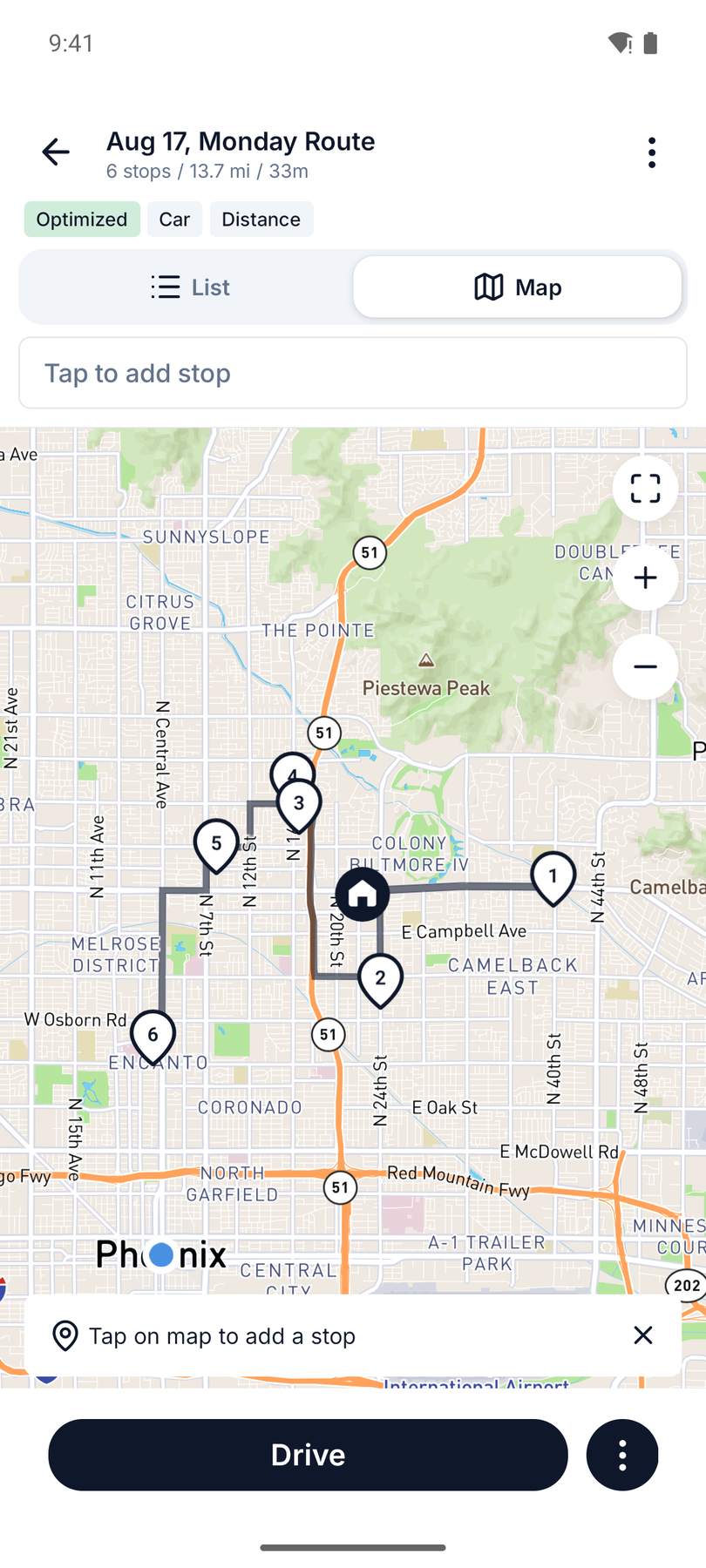
- View your route — the full stop list, addresses, order, and route details stay accessible
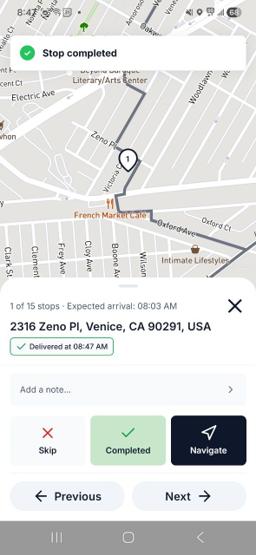
- Mark stops as delivered — tap Complete and move on
- Mark stops as skipped — tap Skip and choose a reason (Customer Not Available, Wrong Address, Customer Refused, Business Closed, Access Restricted, Postponed, or Other)
- Add notes to individual stops or to the entire route
- Start, finish, or reopen your route
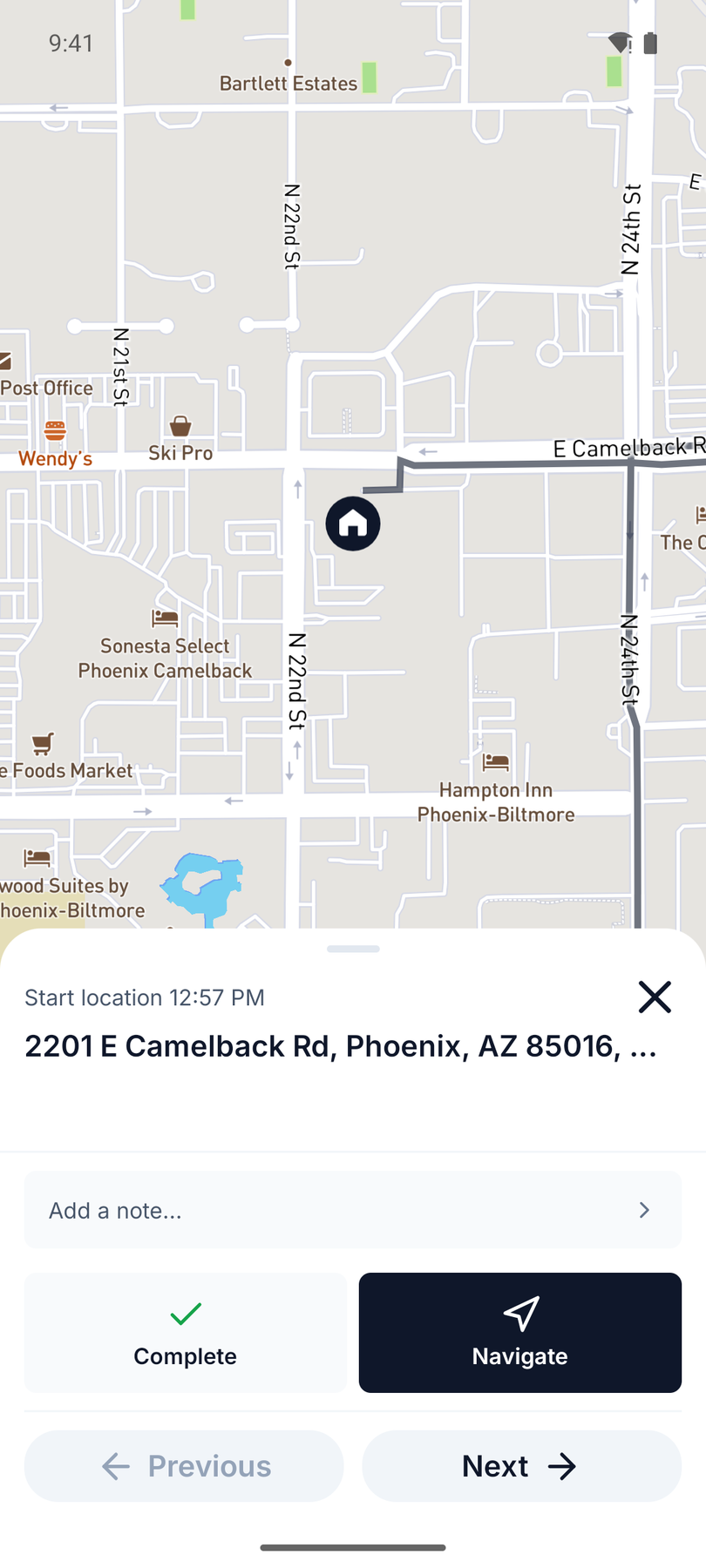
- Navigate to a stop — Routerra opens your chosen navigation app with the stop's exact coordinates
Pointing Routerra at Apple Maps
Routerra has a Default navigator setting with four options: Auto, Google Maps, Apple Maps, and Waze. On iPhone, leaving it on Auto already hands off to Apple Maps; set it explicitly if you want that guaranteed.
One iOS quirk to expect: Apple Maps opens with the route already drawn, but Apple does not let an externally launched app start driving on its own, so you tap Go once inside Apple Maps to begin guidance. That is one extra tap per stop, and it is Apple's rule, not Routerra's.
Automatic syncing
Everything you do offline is stored on your phone. The moment your connection returns, Routerra syncs all changes in the background — in the order they happened, with the original timestamps. A badge shows how many changes are waiting.
There is no "sync" button. It just works.
What requires a connection
Routerra's offline mode covers drive mode — the part where you are actively running your route. Some actions still need internet:
- Creating a new route
- Editing route settings or stop details
- Importing stops
- Optimizing a route
- Signing in
Hence the recommended workflow: plan and optimize while you have internet, then drive it — even through dead zones.
The Complete Offline Workflow
Before you leave
- Create and optimize your route in Routerra — add your stops, optimize the order, review.
- Open the route on your phone while you still have signal, so the app has it cached.
- Download the Apple Maps area covering every stop and the roads between them.
- Confirm both are ready — route loaded, download finished.
- Optionally, switch on Only Use Offline Maps so Apple Maps stops fighting a weak signal.
- Start driving.
During the route
- Open Routerra to see your next stop — address, notes, position in the route.
- Tap Navigate — Apple Maps opens with the stop's coordinates and the route drawn.
- Tap Go in Apple Maps and drive it on the downloaded map.
- Arrive. Switch back to Routerra.
- Mark the stop — Complete if delivered, or Skip with a reason.
- Next stop. Repeat.
If you lose internet mid-route
Nothing changes. Routerra keeps working. Apple Maps keeps navigating inside the downloaded area. You mark stops, add notes, and move through the route exactly as you would online. When signal returns, Routerra syncs everything automatically.
Important: Routerra Does Not Download Apple Maps
Routerra manages your route — the stop list, the order, delivery status, notes. It does not download maps or provide navigation itself.
Apple Maps provides navigation. When you tap Navigate in Routerra, it opens Apple Maps with the destination coordinates, and Apple Maps uses its own data — including any offline area you saved.
For this to work end-to-end, you download the Apple Maps area yourself before starting. Routerra cannot do it for you, and Apple Maps cannot navigate offline without it.
| App | What it does | What it needs offline |
|---|---|---|
| Routerra | Manages the route: stop list, order, completion status, notes | The route must be opened in the app before losing signal |
| Apple Maps | Turn-by-turn navigation to each stop | The relevant map area must be downloaded beforehand |
Tips for Drivers
- Download the night before over Wi-Fi — it is the default, and a few hundred megabytes is not a roadside job.
- Leave Optimize Storage off if you work a territory seasonally, so iOS doesn't delete the area between runs.
- Download wider than the route needs. Detours happen, and resizing later is one tap.
- Open your Routerra route before you set off so the stop list is cached.
- Turn on Only Use Offline Maps for a known dead-zone shift — but download everything first, because it blocks new downloads while on.
- Check the pill. If "Using Offline Maps" isn't showing, you're still on the network.
FAQ
Can you use Apple Maps without internet? Yes, if you download the map area first. Open Maps, tap your profile icon, tap Offline Maps, then Download New Map. Once the area is saved, Apple Maps gives you driving, walking, cycling and transit directions plus place search inside it with no connection at all.
How much storage does an offline Apple Map use? A metro-sized area is a few hundred megabytes. Our San Francisco Bay Area selection was estimated at 371.3 MB and finished at 357.8 MB on the device. You can drag the selection rectangle smaller to cut the size, and Apple Maps shows the estimate before you confirm.
Do Apple Maps offline maps expire? No. Unlike Google Maps, which expires downloads after about a year, Apple Maps shows no expiration date at all. Instead it has an Automatic Updates setting, on by default, that refreshes saved maps periodically to keep them current.
Does Apple Maps work offline for walking and transit, not just driving? Yes. We tested all four modes with maps forced offline and every one returned a route: driving, walking, cycling and transit. This is a real difference from Google Maps, whose offline navigation is driving only.
Does offline Apple Maps show live traffic? No. Offline driving routes are labelled "Based on predicted traffic" rather than live conditions, and offline transit is labelled "Based on scheduled departures". You get the road network and the timetable, not what is happening right now.
Can Routerra work offline? Yes. Routerra's phone app works offline in drive mode since version 1.10. You can view your route, mark stops as delivered or skipped, add notes, and start or finish routes without a connection. Changes sync automatically when you're back online.