How to Use Google Maps Offline: Download Maps & Navigate Without Internet
In this article
To use Google Maps offline, download the map area before you lose signal: open Google Maps → tap your profile icon (top right) → Offline maps → Select your own map → pinch and drag the rectangle over the area you need → tap Download. The steps are the same on iPhone and Android.
Once the download finishes, Google Maps works with no connection at all inside that area: turn-by-turn driving navigation, route calculation, and place search. What you lose is the live layer — no traffic, no traffic-based rerouting, no transit, walking or cycling directions, no Street View, no satellite view. A city-sized area is typically 50–200 MB, and downloaded maps expire after about one year.
That is the short answer. The rest of this guide is the walkthrough, the limits, and the part most guides skip: what happens when your route has more than one stop.
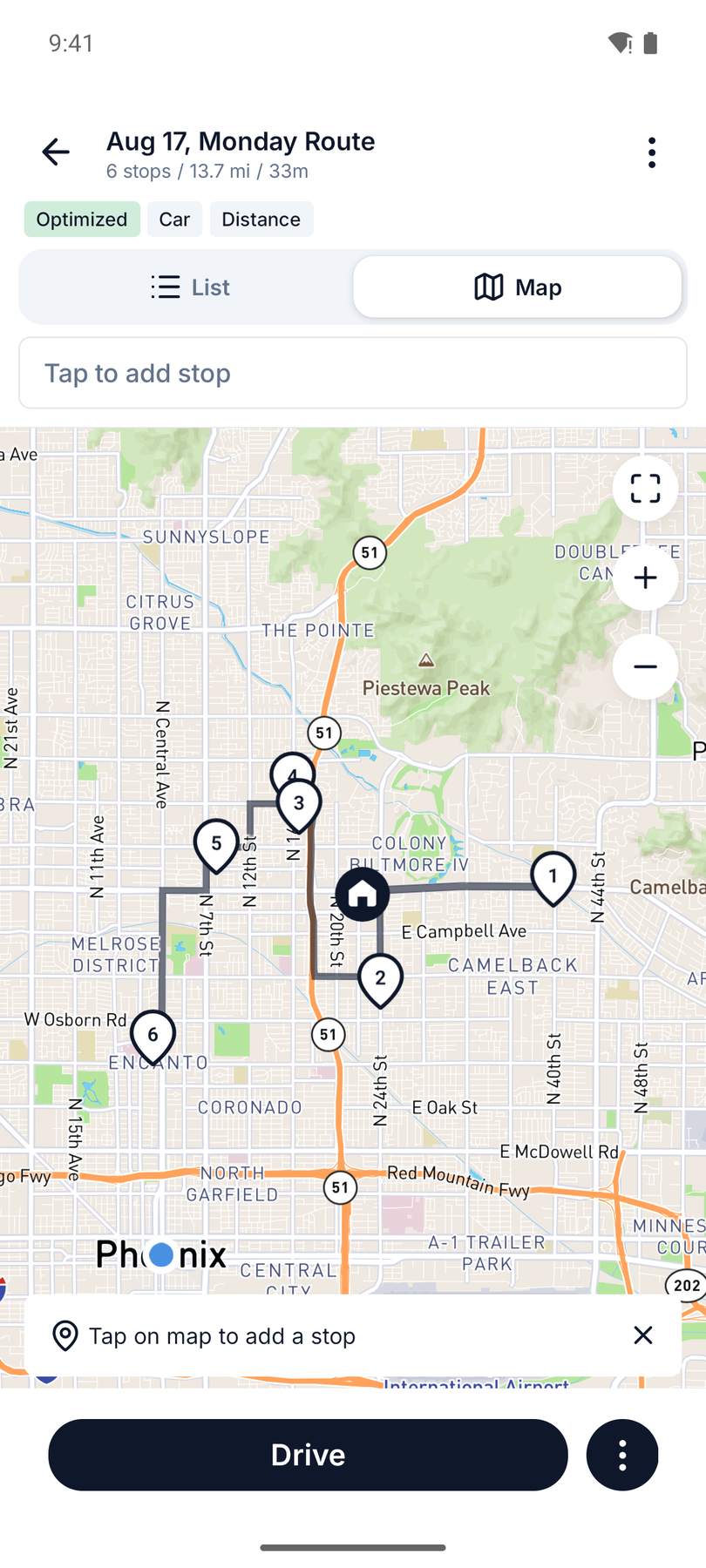
Every screenshot below comes from a real test we ran on an Android phone in central Phoenix — we downloaded the offline area in Google Maps, put the phone in airplane mode, and drove a 6-stop route on the saved map.
Why This Matters on a Multi-Stop Route
You are halfway through a delivery route when your phone drops to "No Service." The next stop is three turns away, and you have no idea which way to go.
Offline Google Maps solves half of that: it can navigate you to a single destination. But it does not know your stop list, your order, or which stops you have already finished. That is the other half — and it is why this guide covers two things: Google Maps for offline navigation, and Routerra for keeping the multi-stop route itself working offline.
Can You Use Google Maps Without Internet?
Yes — but only if you download the map area before you lose signal.
Google Maps lets you save a section of the map to your phone. Once downloaded, that area is available for:
- Turn-by-turn driving navigation
- Driving directions and route calculation
- Searching for places within the downloaded area
The key distinction:
| Scenario | What happens |
|---|---|
| No internet, no downloaded map | Google Maps can't navigate. You see a blank or incomplete map. |
| No internet, downloaded map covering your area | Navigation works. You get turn-by-turn directions using the saved map. |
| No internet, downloaded map but your route goes outside it | Navigation works within the downloaded area but fails where coverage ends. |
The takeaway: download a map area that covers your entire planned route before you start driving.
How to Download Google Maps for Offline Use
The process is similar on iPhone and Android, but the exact steps differ slightly.
On iPhone
On iPhone, check Apple Maps first. Its offline maps cover walking, cycling and transit as well as driving, and they never expire — see How to Use Apple Maps Offline for the tested walkthrough.
- Open Google Maps on your iPhone.
- Tap your profile icon (the circle with your photo or initial) in the top-right corner.
- Tap Offline maps.
- Tap Select your own map (or the + button if you already have offline maps).
- A blue rectangle appears on the map. Pinch and drag to cover the area you need. Make sure the rectangle includes your entire route — starting point, all stops, and the roads between them.
- Tap Download. The map will download over your current connection (Wi-Fi recommended for large areas).
Note: The steps above reflect Google Maps as of mid-2026. If the menu labels or layout have changed on your version, look for "Offline maps" in your profile or settings — the feature has been in Google Maps for years and the core flow is the same.
On Android
- Open Google Maps on your Android phone.
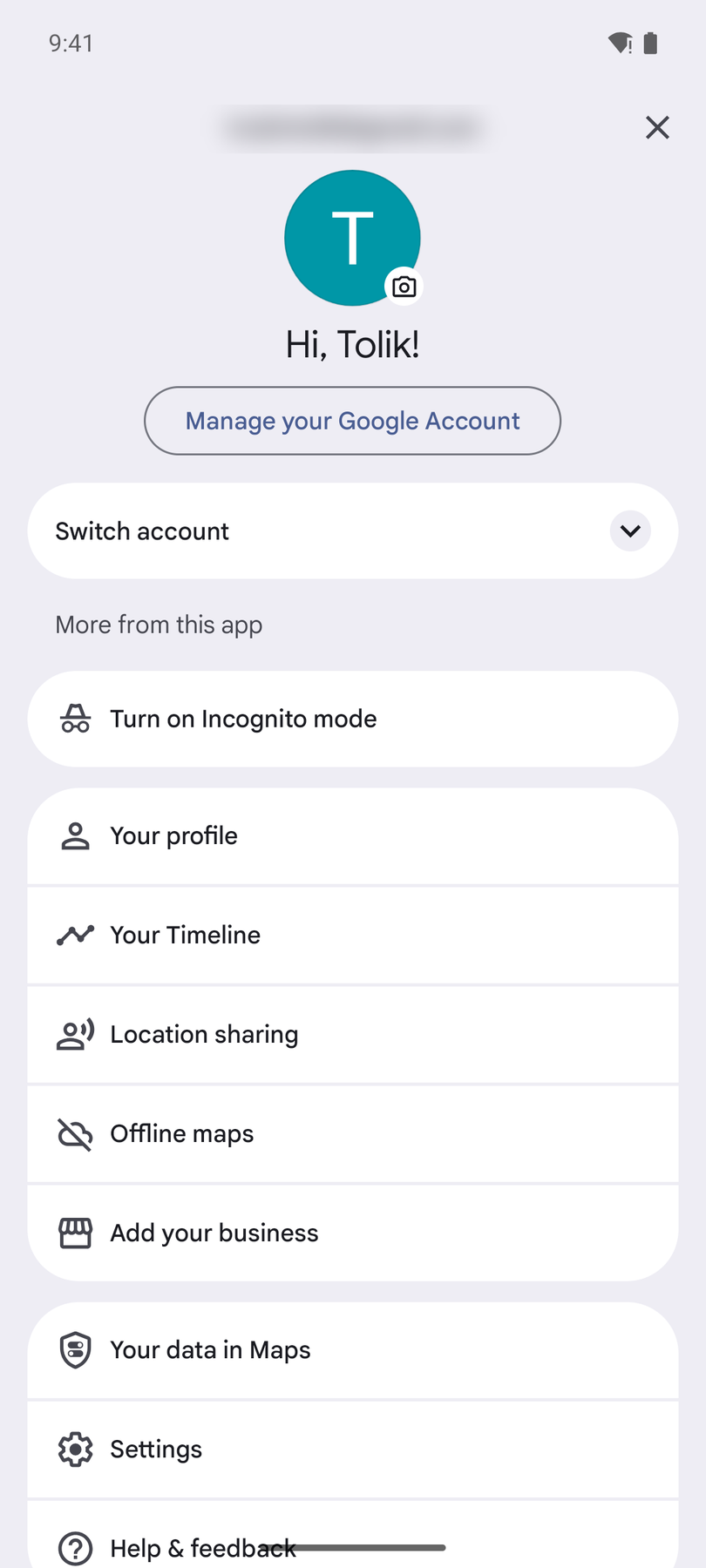
- Tap your profile icon in the top-right corner.
- Tap Offline maps in the menu that opens.
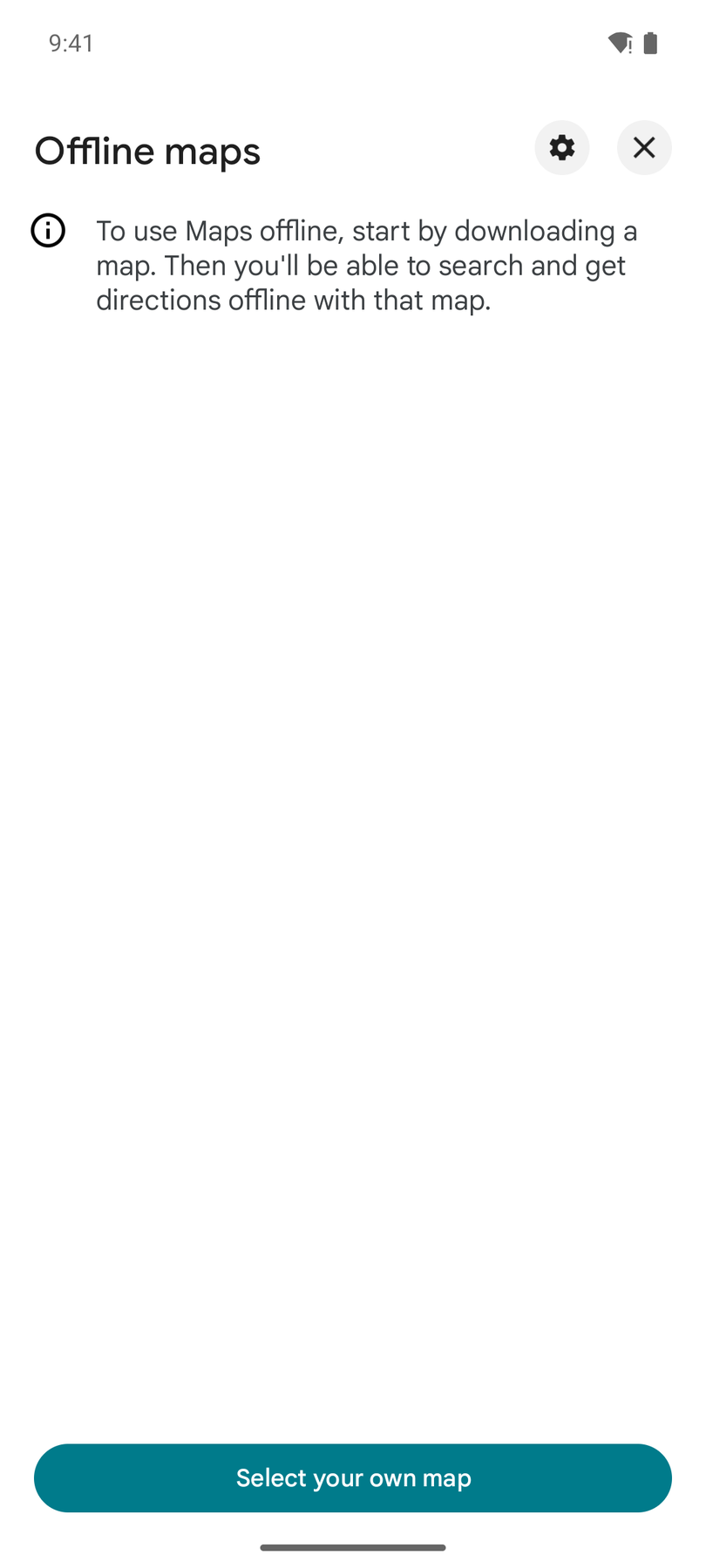
- Tap Select your own map.
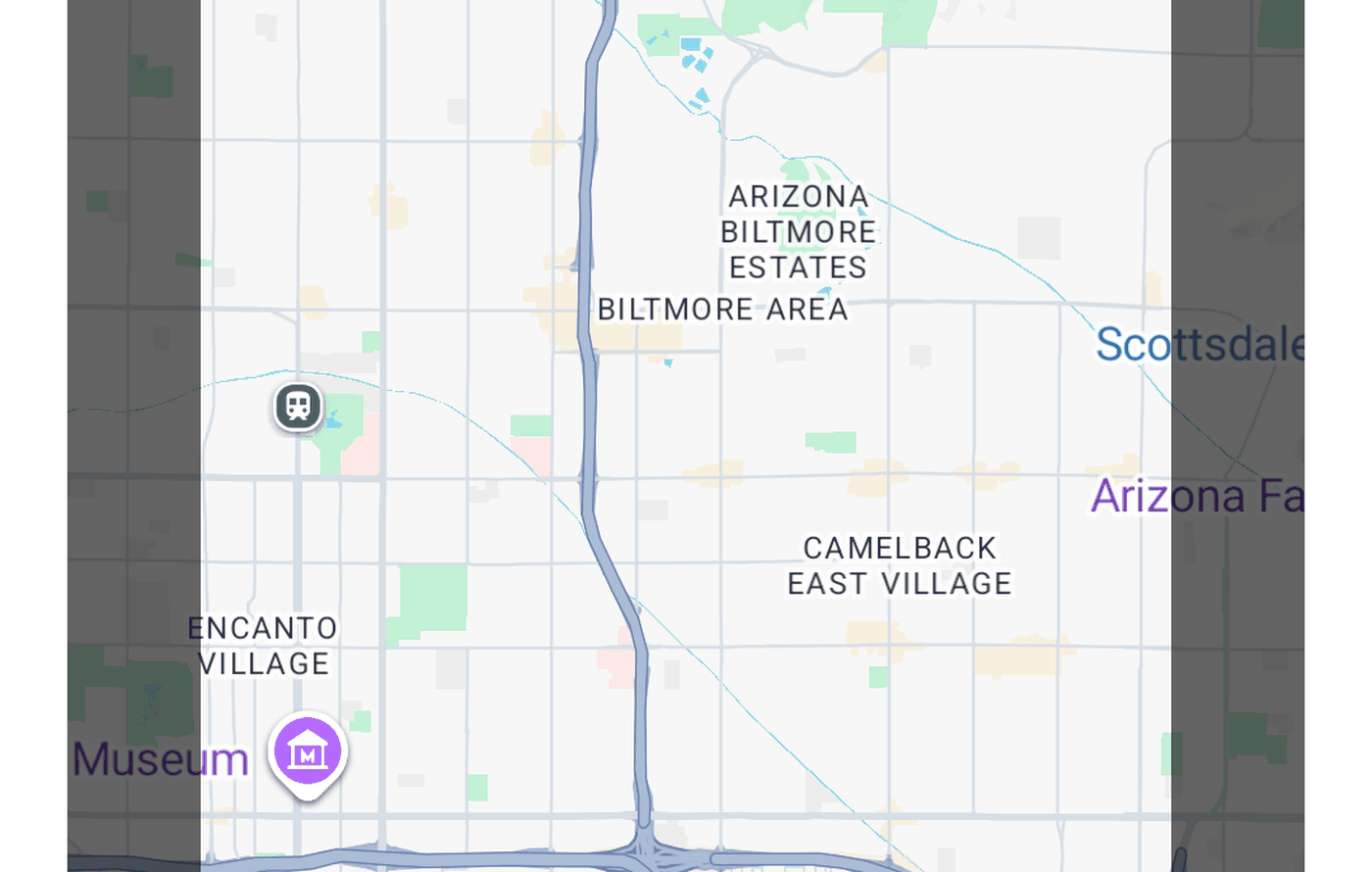
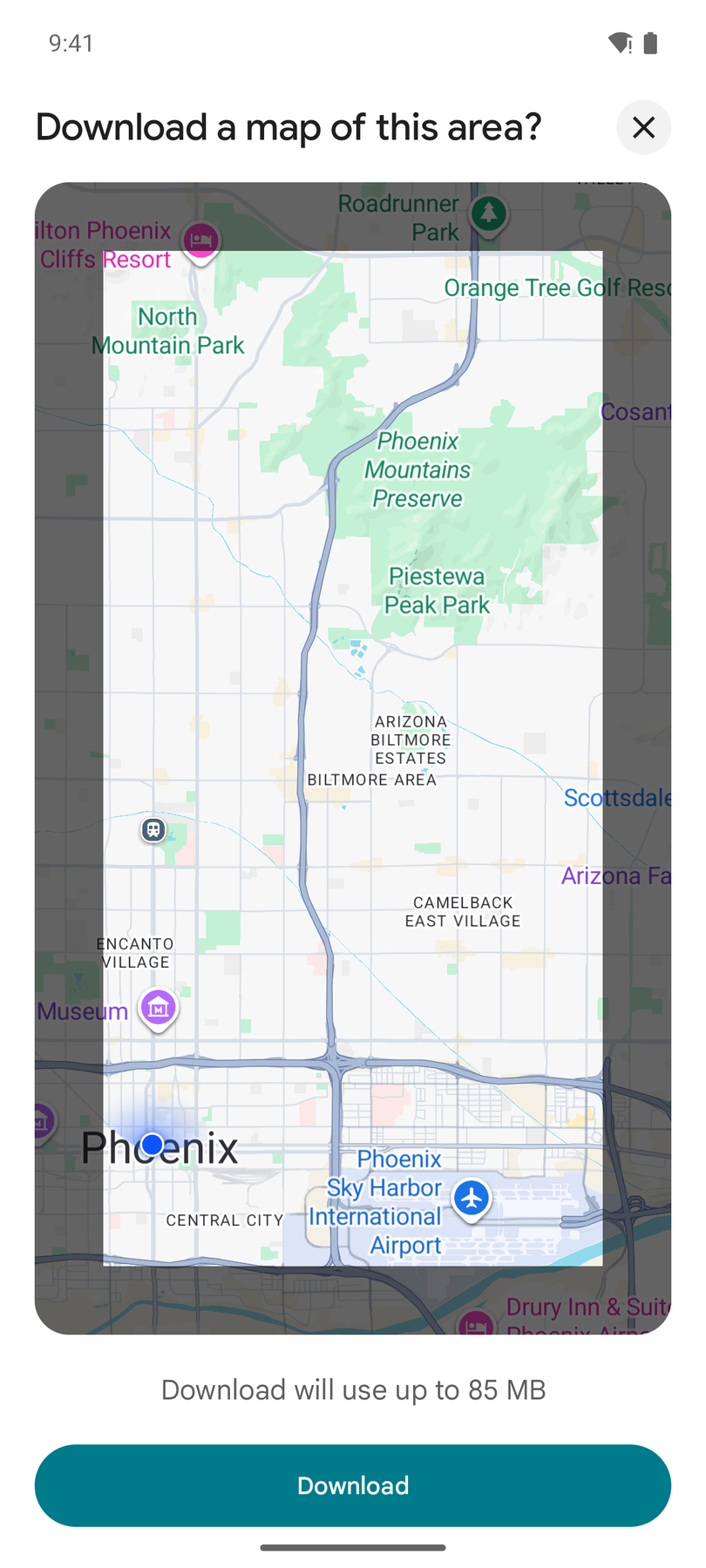
- Pinch and drag to position the rectangle over your route area. Cover the full area — all stops, all roads between them. Google Maps shows the estimated download size under the map (our central-Phoenix selection showed "up to 85 MB").
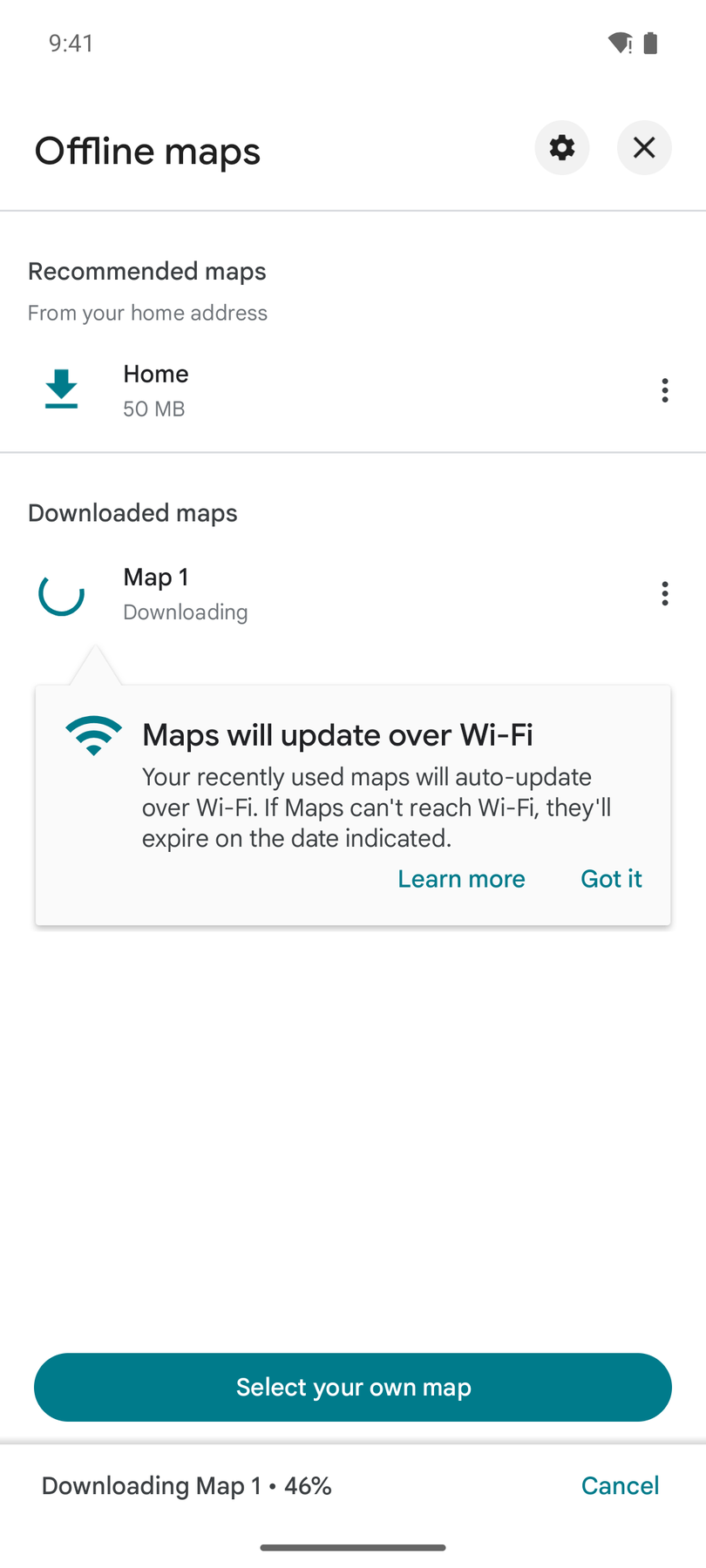
- Tap Download. You'll see the progress in the Offline maps list; wait for it to finish before you leave coverage.
On some Android versions, you may also see a "Download offline map" prompt when you search for a specific area. This is another way to save a region, but manually selecting ensures you cover exactly the area you need.
How Large Should the Downloaded Area Be?
Cover more than you think you need. If your route runs from one side of a city to another, download the whole city — not just the starting neighborhood.
A few guidelines:
- City-sized area: typically 50–200 MB
- Larger regional area: can reach 500 MB or more
- Rural areas with fewer roads and details use less space
- Google Maps shows the estimated download size before you confirm
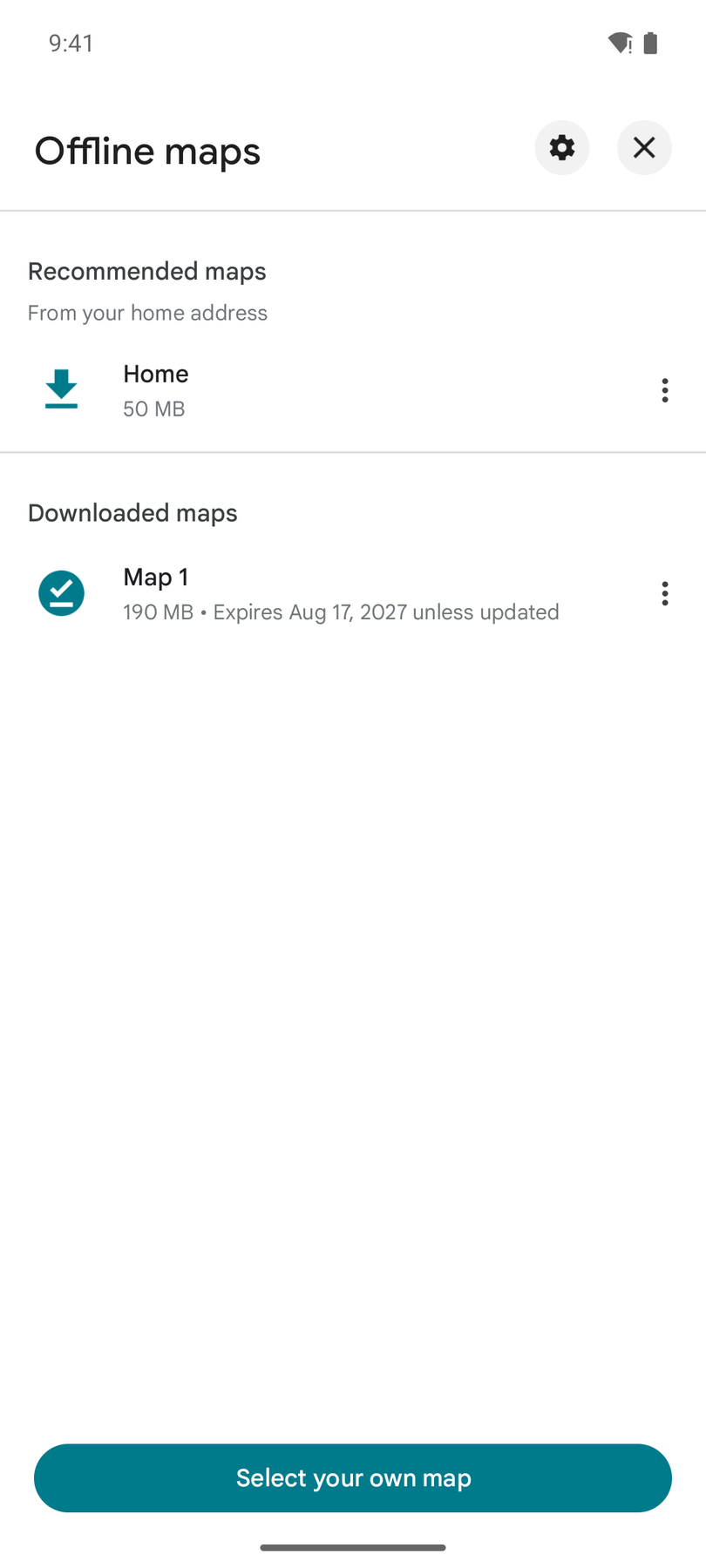
- The finished download can be larger than the estimate — our Phoenix area was estimated at "up to 85 MB" but reported 190 MB on the device once complete. Leave storage headroom.
If your route crosses multiple cities or a large region, you may need to download more than one offline area to cover it fully.
Tip: Download offline maps over Wi-Fi before you leave. Mobile data works too, but large map downloads can use significant data.
What Works Offline in Google Maps
Once you have a downloaded map, Google Maps can do quite a bit without internet — but not everything.
What works
- Turn-by-turn driving navigation within the downloaded area
- Driving directions between points inside the downloaded region
- Route calculation for driving
- Searching for places (businesses, addresses) within the downloaded area
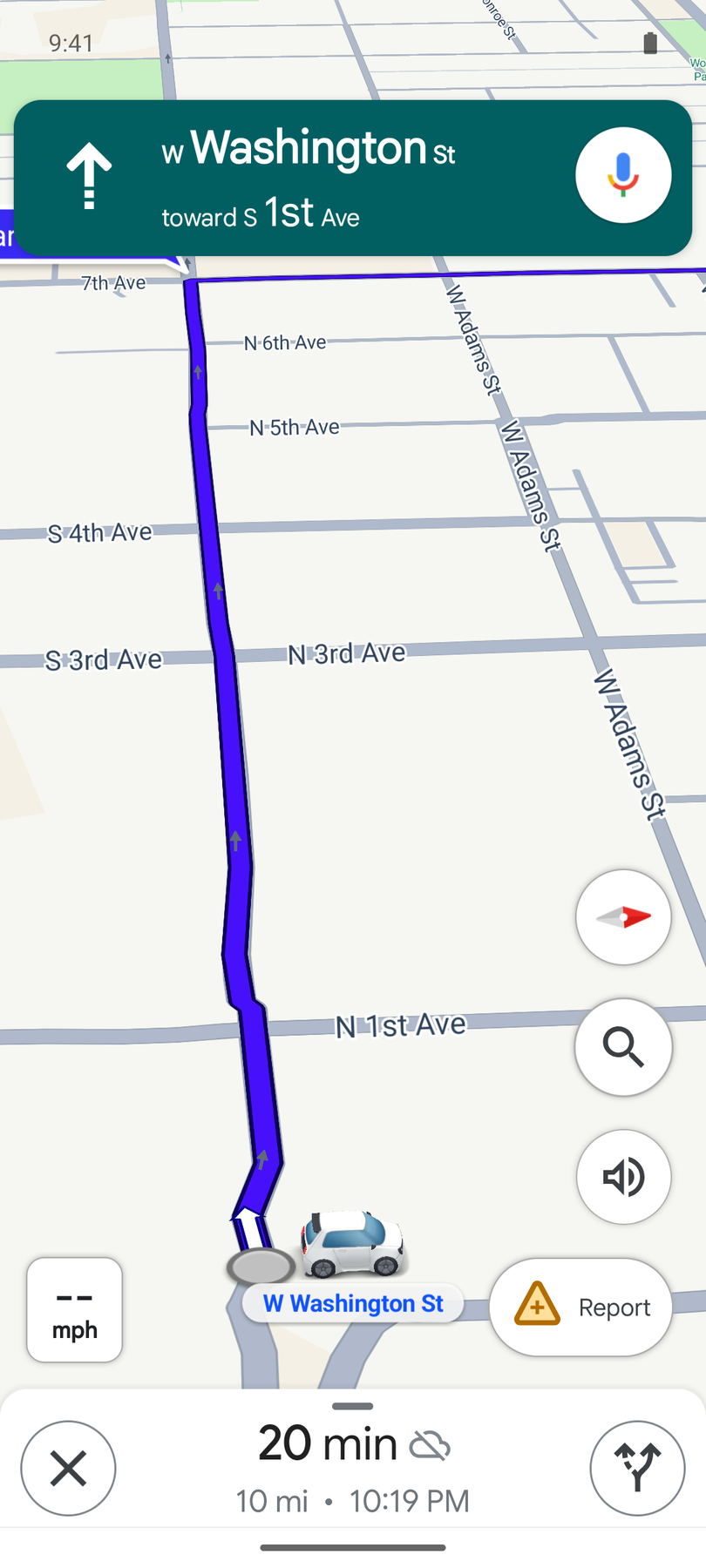
We verified this by putting the phone in airplane mode and starting navigation to a stop inside the downloaded Phoenix area. Google Maps calculated the route and started turn-by-turn guidance — the small crossed-out cloud icon next to the ETA is the only sign you're offline.
What does NOT work
- Live traffic data — routes are calculated without real-time traffic, so you won't see congestion or delays
- Traffic-based rerouting — Google Maps can't suggest faster alternatives based on current conditions
- Transit, walking, or cycling directions — offline navigation is driving only (on iPhone, Apple Maps offline does handle all four)
- Street View
- Satellite imagery — offline maps show the standard map view
- Places outside your downloaded area — if you search for or navigate to somewhere not covered by your download, it won't work
What this means in practice
Offline Google Maps navigation is reliable for driving from A to B when you've downloaded the right area. What you lose is the live layer — traffic, incidents, real-time rerouting.
For most delivery and driving scenarios, the road network doesn't change day to day. If you know your route, having the map downloaded is enough to navigate reliably. You just won't know if there's a traffic jam ahead.
Before You Start Driving: Download the Map
This is the single most important step. If you regularly drive through areas with poor or no mobile coverage — rural roads, underground parking, border crossings, industrial areas — make downloading offline maps part of your pre-route routine.
Make it a habit:
- Know the general area your route covers.
- Open Google Maps → Profile → Offline maps → Select your own map.
- Drag the rectangle to cover the entire route area with some margin.
- Download.
- Confirm the download completed before leaving.
If your route is long or spans a large region, download a wider area or multiple offline regions.
The Multi-Stop Problem: Maps Alone Aren't Enough
Downloading Google Maps solves the navigation problem — you can get turn-by-turn directions to a single destination without internet.
But if you are managing a route with multiple stops — deliveries, pickups, service calls — you need more than just navigation. You need to know:
- What's your next stop?
- What's the address?
- Have you completed this one already?
- Which stops are left?
A navigation app tells you how to get somewhere. A route management app tells you where to go next.
If your route app requires internet to function, losing signal means losing access to your stop list, your progress, and your ability to mark deliveries — even if Google Maps can still navigate.
This is the problem Routerra solves.
How Routerra Works Offline
Since version 1.10, Routerra's phone app works fully offline in drive mode. When your connection drops, an offline banner appears — and you keep working.
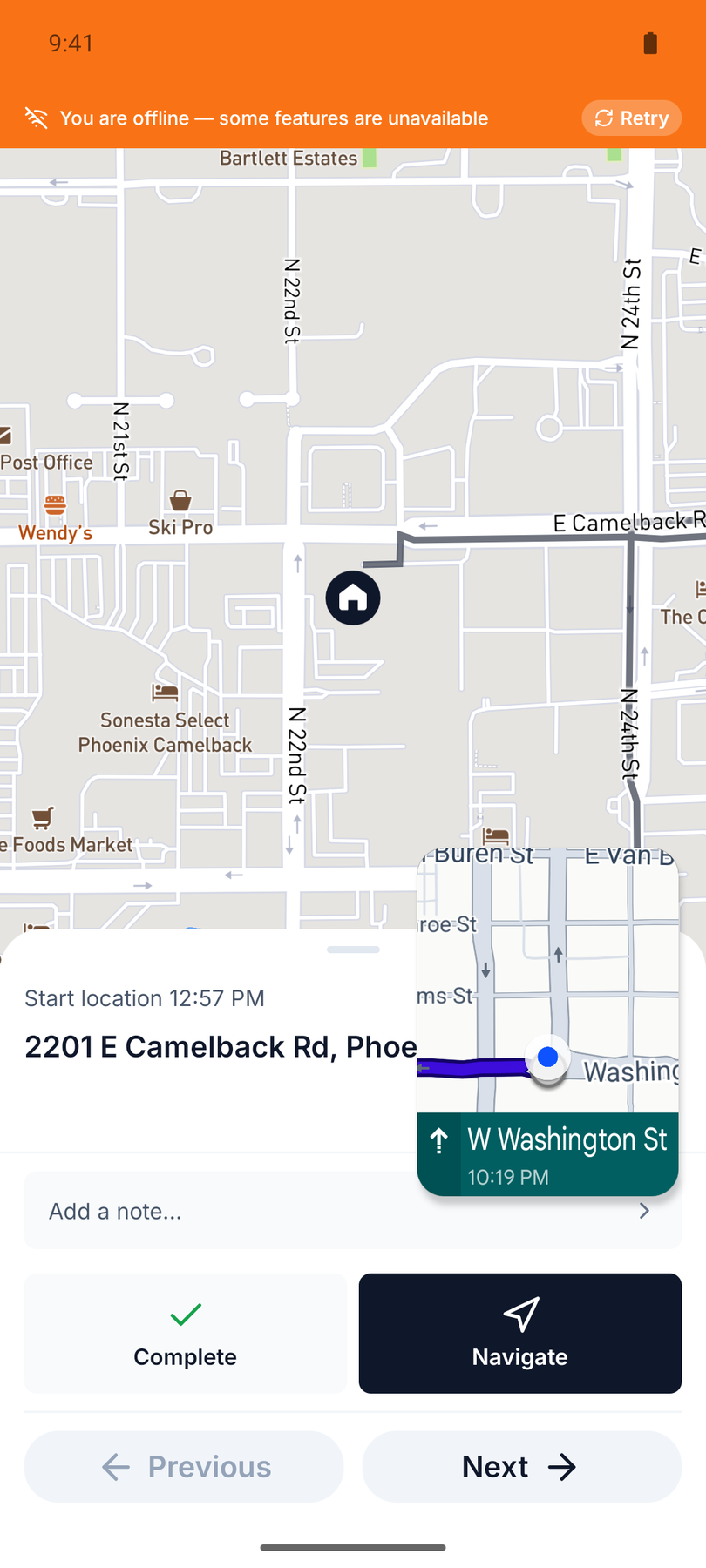
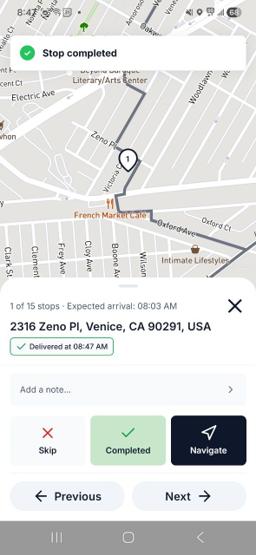
That's the same Phoenix route from earlier, in airplane mode: Routerra shows "You are offline — some features are unavailable," but the stop card, Complete button, and Navigate button all keep working — while Google Maps continues offline turn-by-turn in the picture-in-picture bubble.
What you can do without a connection
- View your route — the full stop list, addresses, order, and route details stay accessible
- Mark stops as delivered — tap Complete and move on
- Mark stops as skipped — tap Skip and choose a reason (Customer Not Available, Wrong Address, Customer Refused, Business Closed, Access Restricted, Postponed, or Other)
- Add notes to individual stops or to the entire route
- Start, finish, or reopen your route
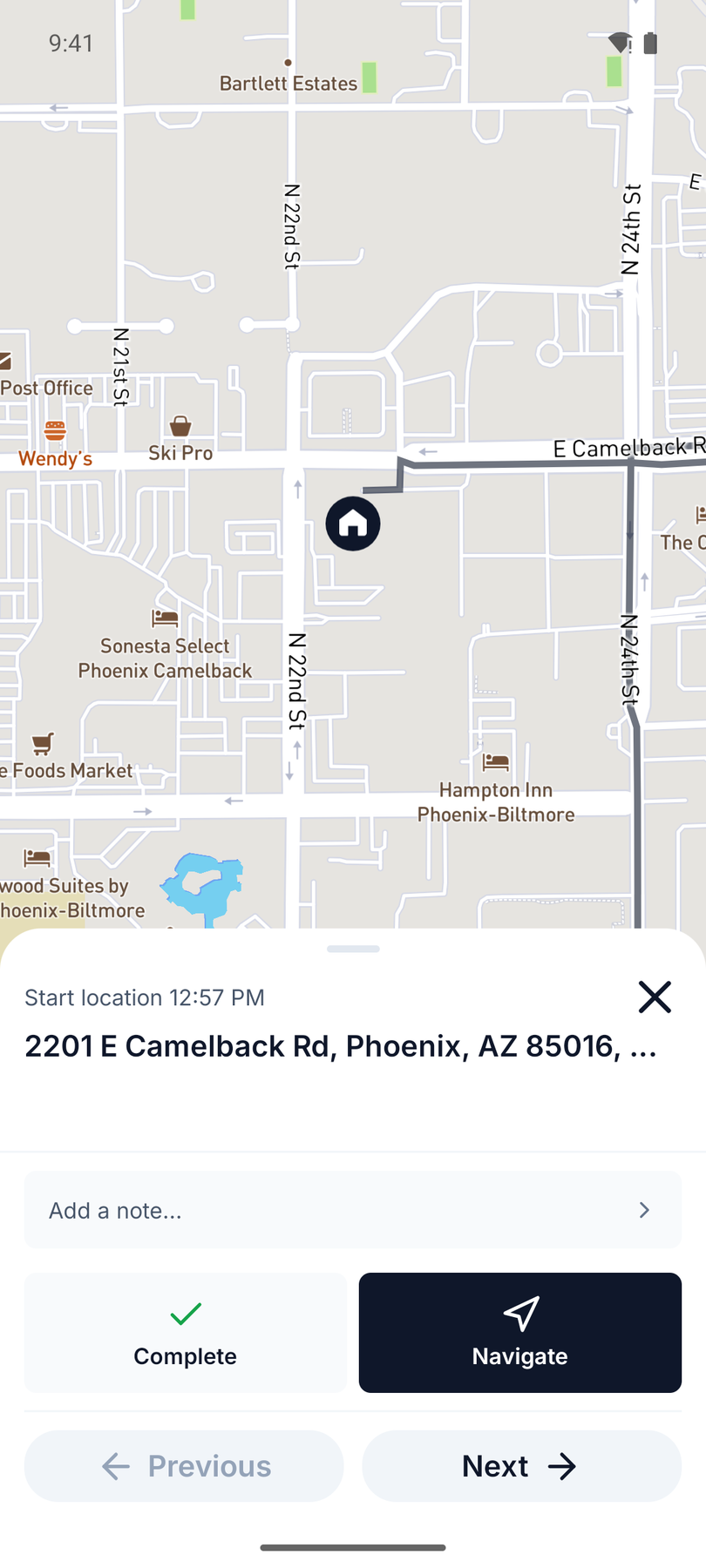
- Navigate to a stop — Routerra opens Google Maps (or your preferred navigation app) with the stop's exact coordinates
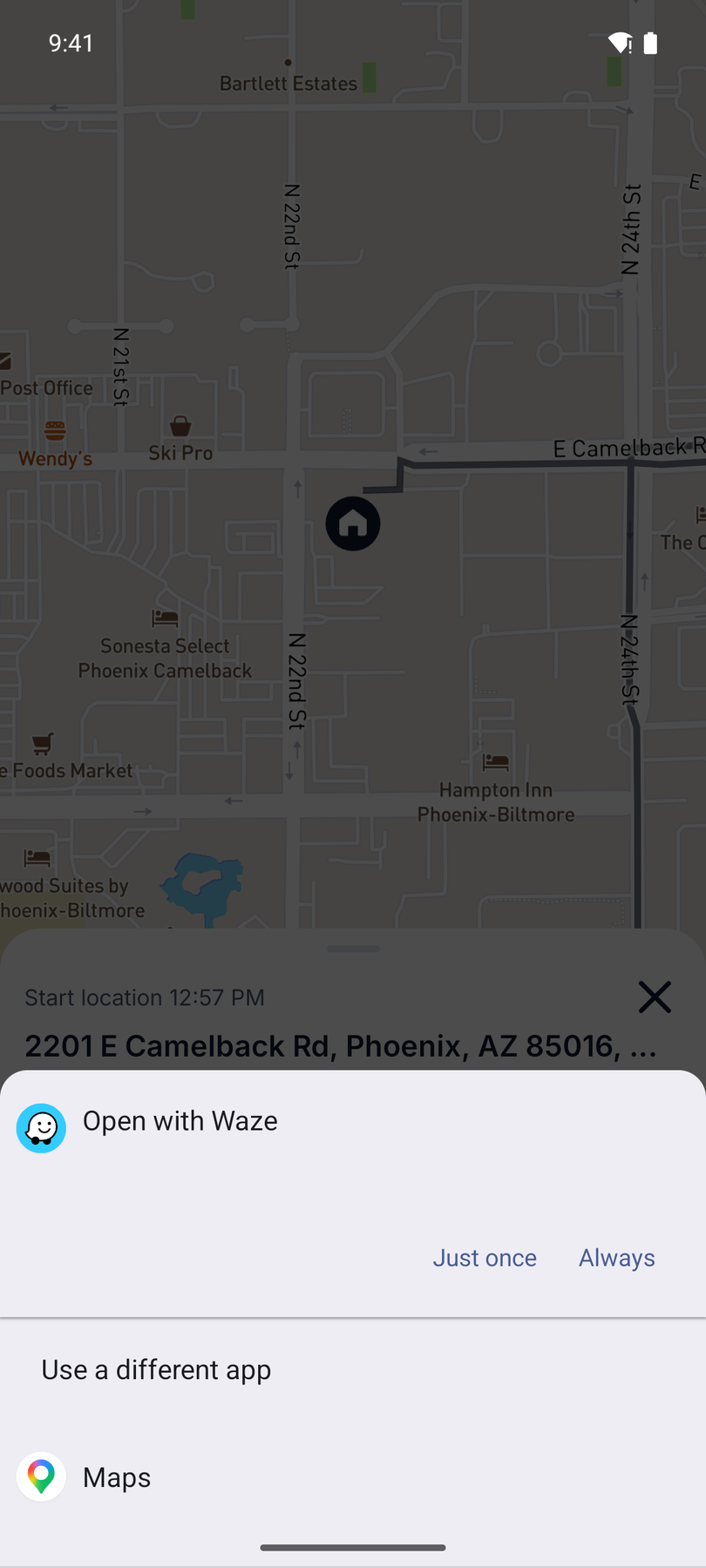
When you tap Navigate, Android asks which navigation app to use — Google Maps, Waze, or whatever you have installed. For the offline workflow, pick Google Maps (Waze can't navigate without internet).
Automatic syncing
Everything you do offline is stored on your phone. The moment your connection returns, Routerra syncs all changes in the background — in the order they happened, with the original timestamps. A badge shows how many changes are waiting to sync.
There is no "sync" button. It just works.
What requires a connection
Routerra's offline mode covers drive mode — the part of the workflow where you are actively running your route. Some actions still need internet:
- Creating a new route
- Editing route settings or stop details
- Importing stops
- Optimizing a route
- Signing in
This is why the recommended workflow is: plan and optimize your route while you have internet, then drive it — even through dead zones.
The Complete Offline Workflow
Here's how to combine Google Maps offline navigation with Routerra's offline drive mode for a reliable multi-stop workflow — even in areas with no mobile coverage.
Before you leave
- Create and optimize your route in Routerra — add your stops, optimize the order, review.
- Open the route on your phone in the Routerra app. The app holds what it has loaded, so open it while you still have signal.
- Download the Google Maps area that covers your route. Go to Google Maps → Profile → Offline maps → Select your own map. Make the rectangle cover every stop and every road between them.
- Confirm both are ready — your Routerra route is loaded and your Google Maps area has finished downloading.
- Start driving.
During the route
- Open Routerra to see your next stop — address, notes, position in the route.
- Tap Navigate — Routerra opens Google Maps with the stop's coordinates.
- Google Maps navigates you using the downloaded offline map — turn-by-turn, no internet needed.
- Arrive at the stop. Switch back to Routerra.
- Mark the stop — tap Complete if delivered, or Skip with a reason if not.
- Move to the next stop. Repeat.
If you lose internet mid-route
Nothing changes. Routerra keeps working. Google Maps keeps navigating (within the downloaded area). You mark stops, add notes, and move through the route exactly as you would online.
When your signal returns, Routerra syncs everything automatically.
Important: Routerra Does Not Download Google Maps
This distinction matters.
Routerra manages your route — the stop list, the order, delivery status, notes. It does not download maps or provide navigation itself.
Google Maps provides navigation. When you tap Navigate in Routerra, it opens Google Maps with the destination coordinates. Google Maps then uses its own map data — including any offline maps you've downloaded — to navigate you there.
For this offline workflow to function end-to-end, you need to download the Google Maps area yourself before starting the route. Routerra cannot do this for you, and Google Maps cannot navigate offline without a downloaded map.
| App | What it does | What it needs offline |
|---|---|---|
| Routerra | Manages the route: stop list, order, completion status, notes | The route must be opened in the app before losing signal |
| Google Maps | Provides turn-by-turn navigation to each stop | The relevant map area must be downloaded beforehand |
Managing Your Offline Maps
Check your downloaded areas
Open Google Maps → Profile → Offline maps. You'll see a list of all your saved map areas with their size and expiration date. The map we downloaded on August 17, 2026 shows "Expires Aug 17, 2027 unless updated" — exactly one year.
Update or delete maps
- Tap a saved map to update it with the latest data or to delete it and free up storage.
- Google Maps can auto-update offline maps over Wi-Fi. Enable this in Offline maps → Settings (the gear icon) → Auto-update offline maps.
Expiration
Downloaded maps expire after about one year. Google Maps notifies you before they expire. If auto-update is enabled and you're connected to Wi-Fi, maps are refreshed automatically.
Tips for Drivers
- Download maps the night before over Wi-Fi — not on the road with limited data.
- Open your Routerra route before you set off so the app has the stop list cached.
- Download a wider area than your route strictly needs — you may take detours, and the margin costs very little extra storage.
- Check that your Google Maps download has finished before you leave coverage. A partially downloaded map won't help.
- Keep both apps updated — offline functionality improves with app updates.
FAQ
Can you use Google Maps without internet? Yes, if you download the map area beforehand. Google Maps lets you save map regions for offline use on both iPhone and Android. Once downloaded, you get turn-by-turn navigation, driving directions, and place search within the saved area — all without a data connection.
How much storage does an offline Google Map use? It depends on the area size. A city-sized region typically uses 50–200 MB. Rural areas with fewer details use less. Google Maps shows the estimated size before you confirm the download.
How long do offline maps last before they expire? Downloaded maps expire after about one year. Google Maps will notify you before expiration and can auto-update them over Wi-Fi if you enable that setting.
Does offline Google Maps show live traffic? No. Live traffic data, incident reports, and real-time rerouting all require an internet connection. Offline navigation uses the downloaded road network without traffic information.
Can Routerra work offline? Yes. Routerra's phone app works offline in drive mode since version 1.10. You can view your route, mark stops as delivered or skipped, add notes, and start or finish routes — all without a connection. Changes sync automatically when you're back online.
Does Routerra download Google Maps for you? No. Routerra manages your route and stops. When you tap Navigate, it opens Google Maps (or your chosen navigation app) with the destination coordinates. For offline navigation, you need to download the relevant Google Maps area separately before you lose signal.