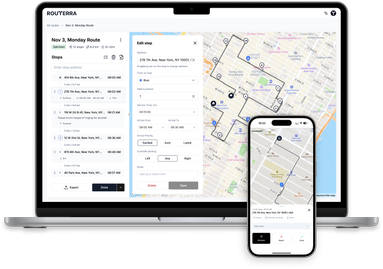
How to Use Waze for Navigation: Complete Guide for 2026
In this article
To navigate with Waze: tap the "Where to?" bar, type your destination, and hit Go — the app picks the fastest route from live, community-reported traffic and reroutes you automatically as conditions change. That part takes seconds to learn.
What makes Waze worth mastering is everything around it: police and hazard alerts, speed-limit warnings, toll avoidance, voice commands, CarPlay and Android Auto — and its one hard limit: Waze can only add a single stop to a route. This guide covers all of it: first-trip setup, the settings worth changing, the alert system, and the multi-stop workflow professional drivers use to get around that limit.
What Makes Waze Different?
Before diving into the how-to, it's worth understanding what sets Waze apart from other navigation apps:
- Community-Powered Data: Every Waze user contributes to the map by sharing speed data and reporting incidents while driving
- Real-Time Alerts: Get instant notifications about police, accidents, road hazards, and construction
- Live Traffic Routing: Waze continuously recalculates your route based on current traffic conditions
- Social Features: See other Wazers on the map and share your ETA with friends
- Fun Customization: Personalize your experience with different voices, car icons, and moods
Planning Your Route
Setting a Destination
Getting started with navigation in Waze is straightforward:
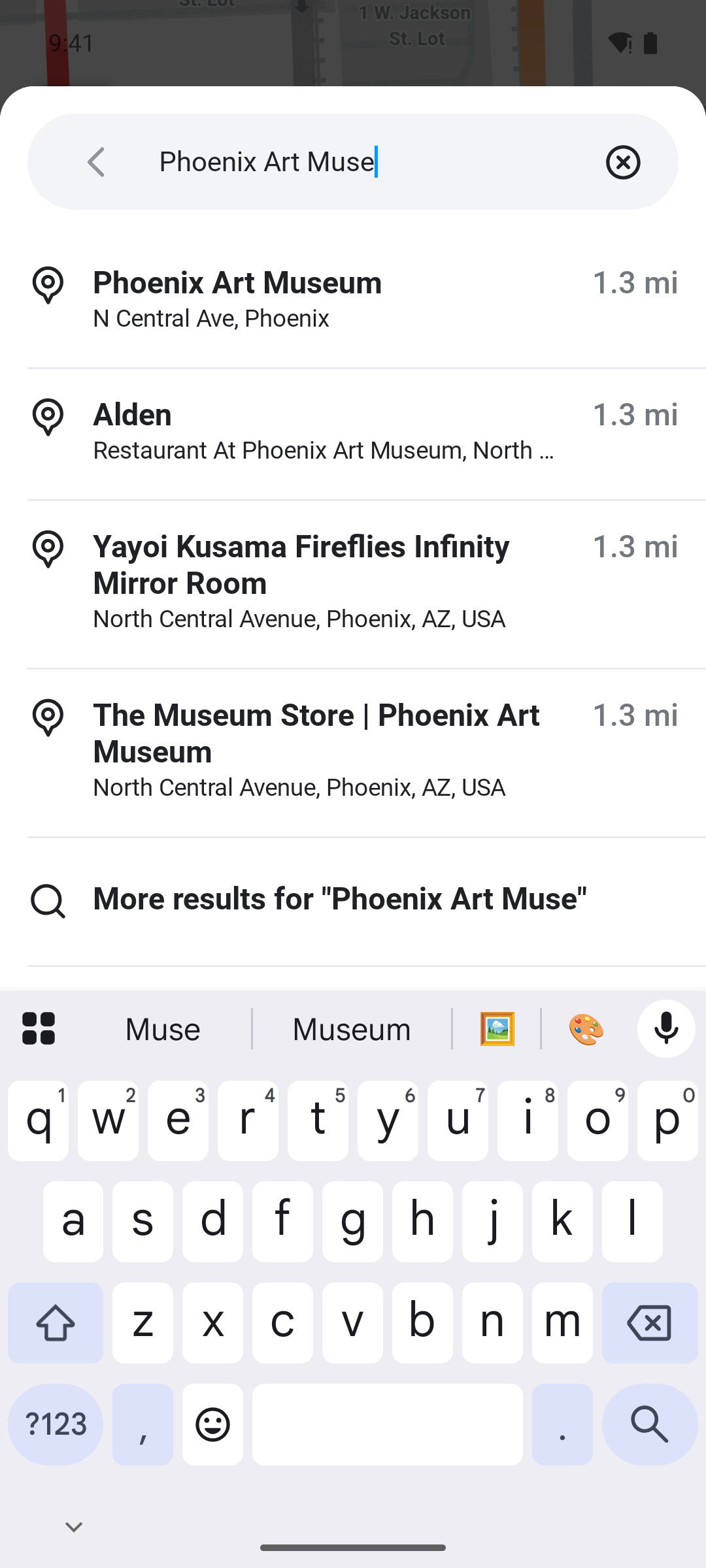
- Tap the search bar labeled "Where to?" at the bottom of the screen
- Enter your destination by typing an address, business name, or landmark
- Select from search results – Waze will show matching locations
- Tap "Go" to start navigation
Pro Tip: You can also use voice input by tapping the microphone icon next to the search bar. Simply say your destination and Waze will find it for you.
Comparing Routes
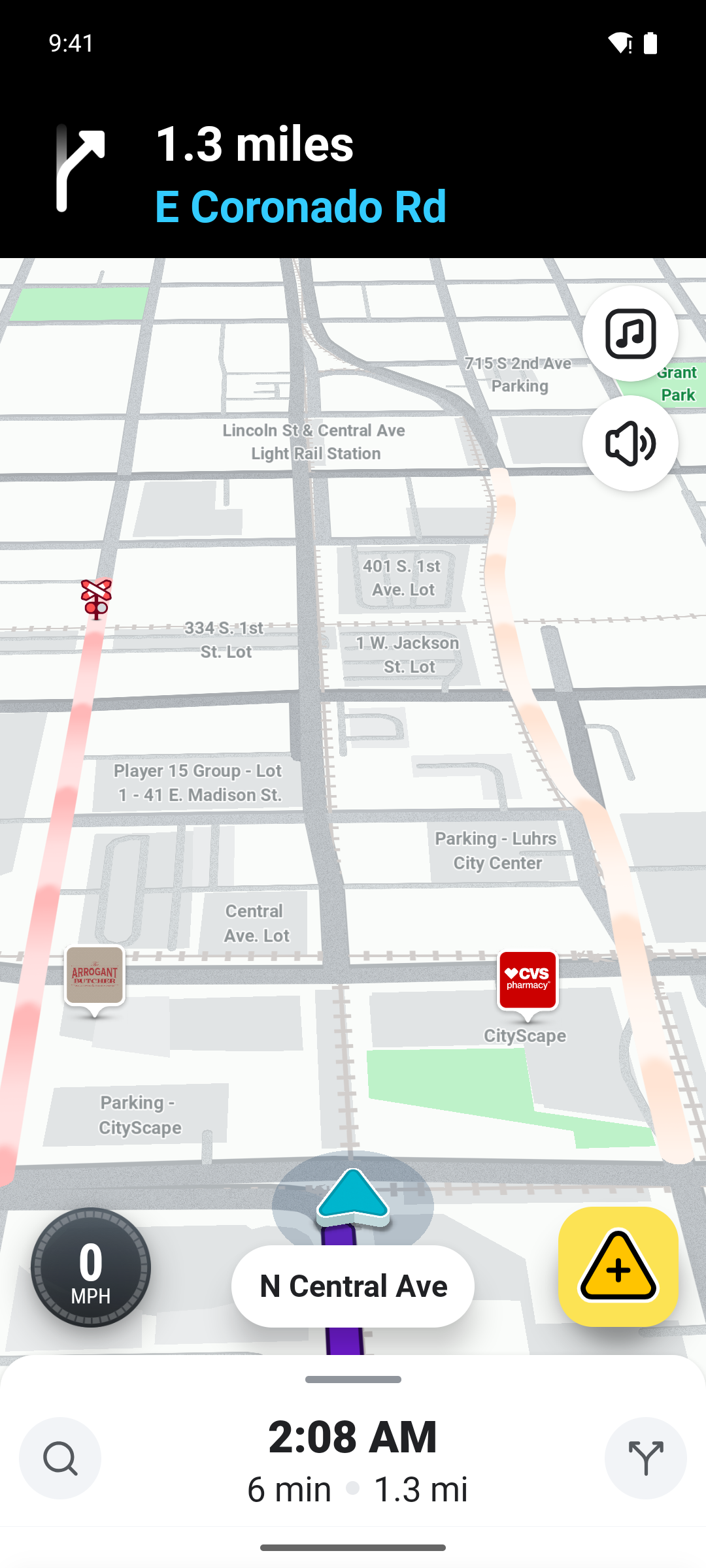
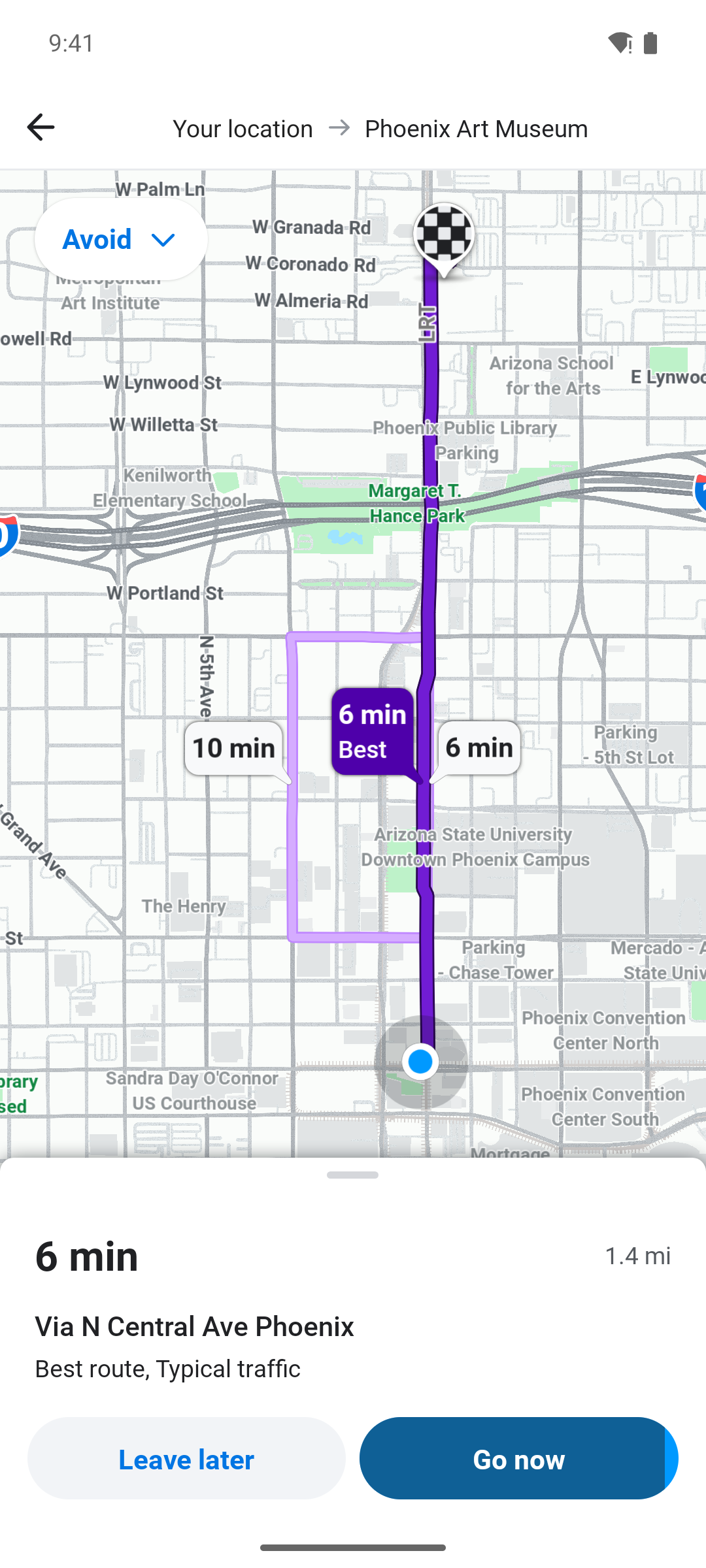
After entering your destination, Waze typically offers multiple route options:
- View all routes by tapping on the route summary card
- Compare options – each route shows estimated time, distance, and traffic conditions
- Check for incidents – routes may show icons for hazards, police, or construction
- Select your preferred route – tap on it to make it active
Waze usually recommends the fastest route based on current conditions, but you might prefer an alternative to avoid highways or make stops along the way.
Adding a Stop
While Waze isn't designed for complex multi-stop routes, you can add one intermediate stop:
- During navigation, tap the menu icon (three lines) at the bottom left
- Select "Add a stop"
- Search for and select your stop location
- Waze will recalculate the route including your stop
Note: For routes with more than 2-3 stops, consider using a dedicated route planner and then navigating each leg with Waze.
Customizing Your Navigation Experience
Avoiding Toll Roads
If you prefer to save money by avoiding tolls:
- Tap the Settings icon (gear) in the top left corner
- Select "Navigation"
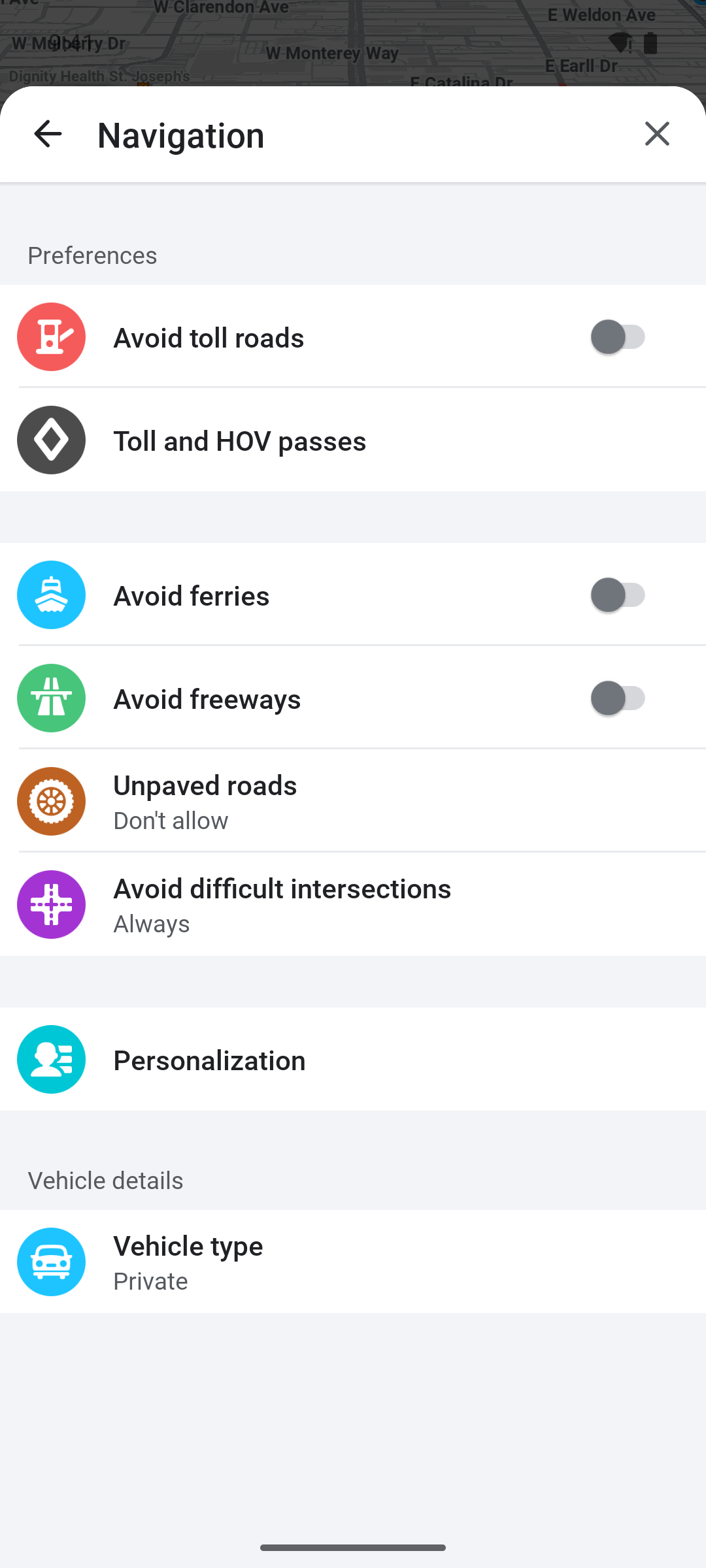
- Toggle "Avoid toll roads" on
You can also see toll locations on your route before starting navigation and decide on a case-by-case basis.
Avoiding Ferries, Freeways, and Dirt Roads
Waze offers additional route preferences for different driving needs:
- Go to Settings > Navigation
- Find the "Road types" section
- Toggle options to avoid:
- Freeways – for a more scenic or less stressful drive
- Ferries – if you want to stay on land
- Unpaved roads – to protect your vehicle
- Difficult intersections – for easier navigation
These settings are especially useful if you're driving a vehicle that can't handle certain road conditions or if you simply prefer a certain type of driving experience.
Map Display Settings
Customize how the map looks while you're driving:
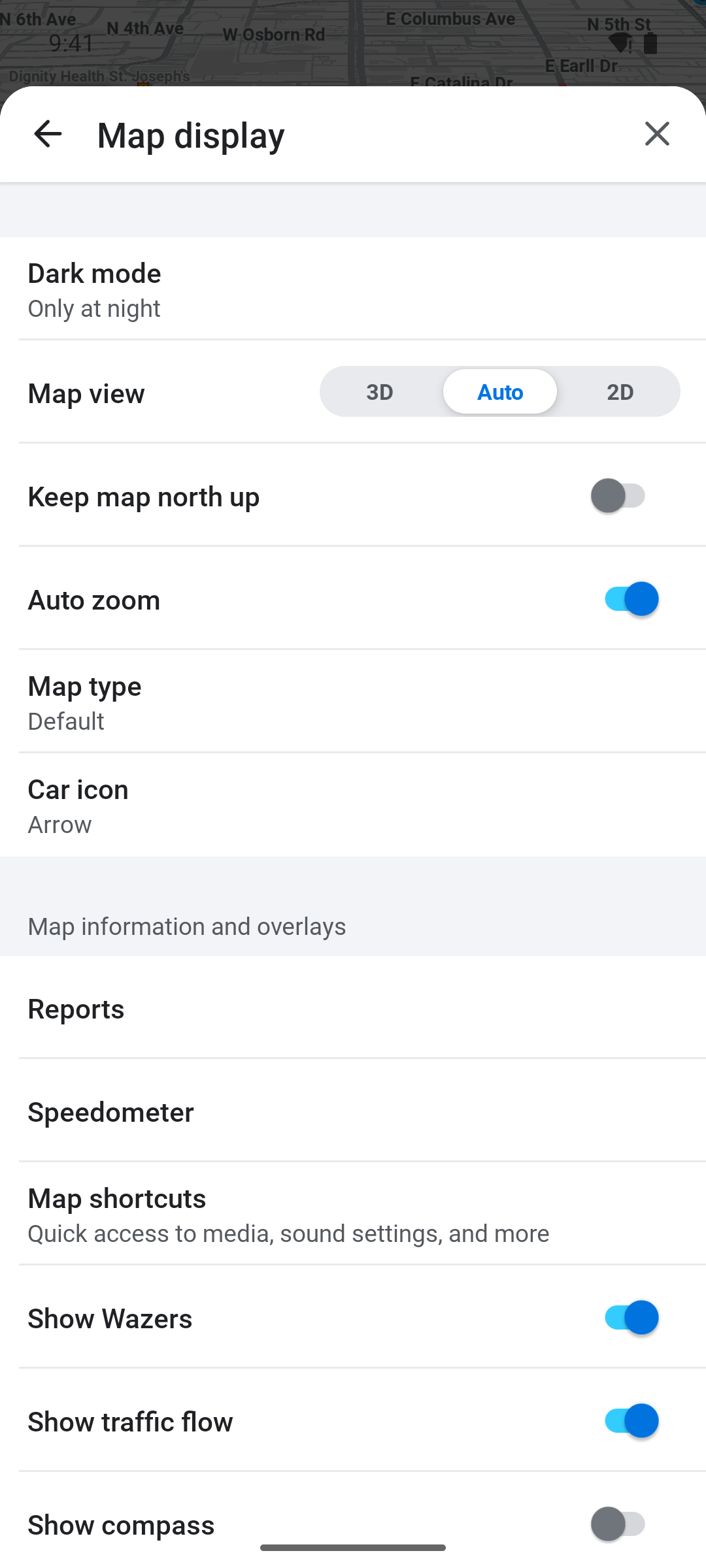
- Go to Settings > Map display
- Adjust these options:
- Color scheme: Choose between automatic, day, or night mode
- Show traffic: Toggle real-time traffic colors on roads
- Show Wazers: See other drivers on the map
- Show reports: Display hazard and police icons
Speed Limit and Speedometer
Waze helps you stay within legal speed limits:
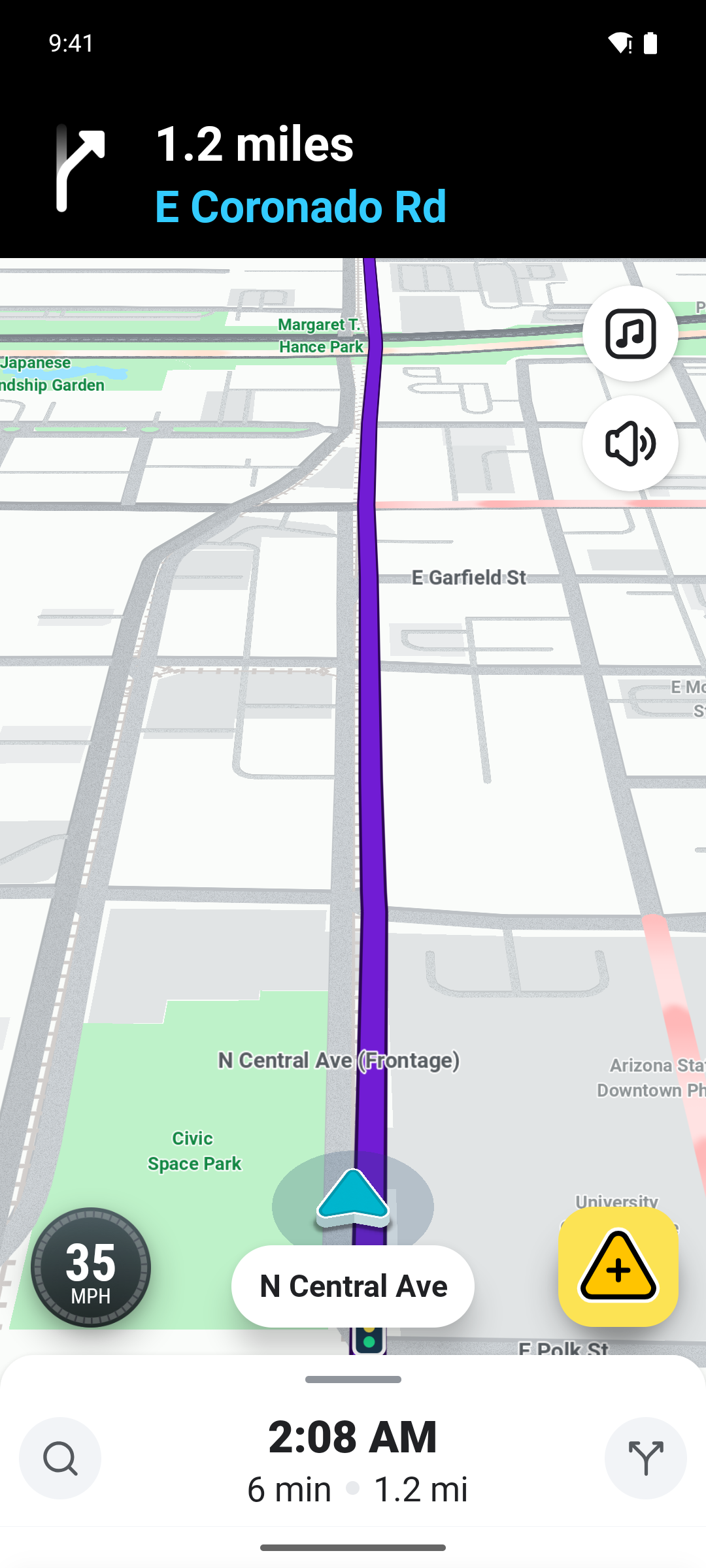
- Current speed is displayed at the bottom of the screen during navigation
- Speed limit for your current road appears nearby
- Speeding alerts: The speedometer turns red and beeps if you exceed the limit
To customize speed alerts:
- Go to Settings > Speedometer
- Choose when to be alerted (at limit, 5% over, 10% over, etc.)
- Select alert type (visual, sound, or both)
Connecting to Your Car's Display
Apple CarPlay
To use Waze with CarPlay:
- Connect your iPhone to your car via USB cable or wirelessly (if supported)
- On your car's display, select Waze from the CarPlay home screen
- The Waze interface will appear on your car's screen
Android Auto
For Android Auto users:
- Connect your Android phone to your car via USB cable or wirelessly
- Launch Android Auto on your car's display
- Select Waze from the app launcher
Using Waze through CarPlay or Android Auto keeps your phone's screen free while providing larger, easier-to-read navigation on your car's built-in display.
Waze Integrations
Waze connects with several popular apps to enhance your driving experience:
Music Streaming
- Spotify: Control playback and browse playlists without leaving Waze
- Apple Music: Access your music library while navigating
- Other players: Basic controls for most music apps
To connect: Go to Settings > Audio player and link your preferred music service.
Calendar Integration
Connect your calendar to get automatic departure time suggestions based on your upcoming appointments. Waze will notify you when it's time to leave based on current traffic conditions.
Contact Sharing
Share your ETA with friends and family:
- During navigation, tap the share icon
- Choose to share via SMS, WhatsApp, email, or a shareable link
- Recipients can track your progress in real-time
Social Features
Connect your Facebook account to:
- See friends who are also using Waze
- Easily navigate to friends' locations
- Share your planned drives
Understanding Waze Icons
As you navigate, you'll see various icons on the map. Here's what they mean:
Driver Icons
- Waze car icons: Other Waze users on the road (can be customized to different vehicles)
- Your icon: Shows your position and direction
Alert Icons
| Icon | Meaning |
|---|---|
| 🚔 | Police reported in area |
| ⚠️ | Road hazard (debris, pothole, etc.) |
| 🚧 | Construction zone |
| 🚗💥 | Accident reported |
| 📷 | Speed camera location |
| 🛣️ | Road closure |
Place Icons
- Gas stations: With current fuel prices
- Parking: Available parking spots
- Food/Coffee: Restaurants and cafes along your route
Reporting to the Waze Community
One of Waze's greatest strengths is its community-driven data. You can contribute by reporting:
How to Report While Driving
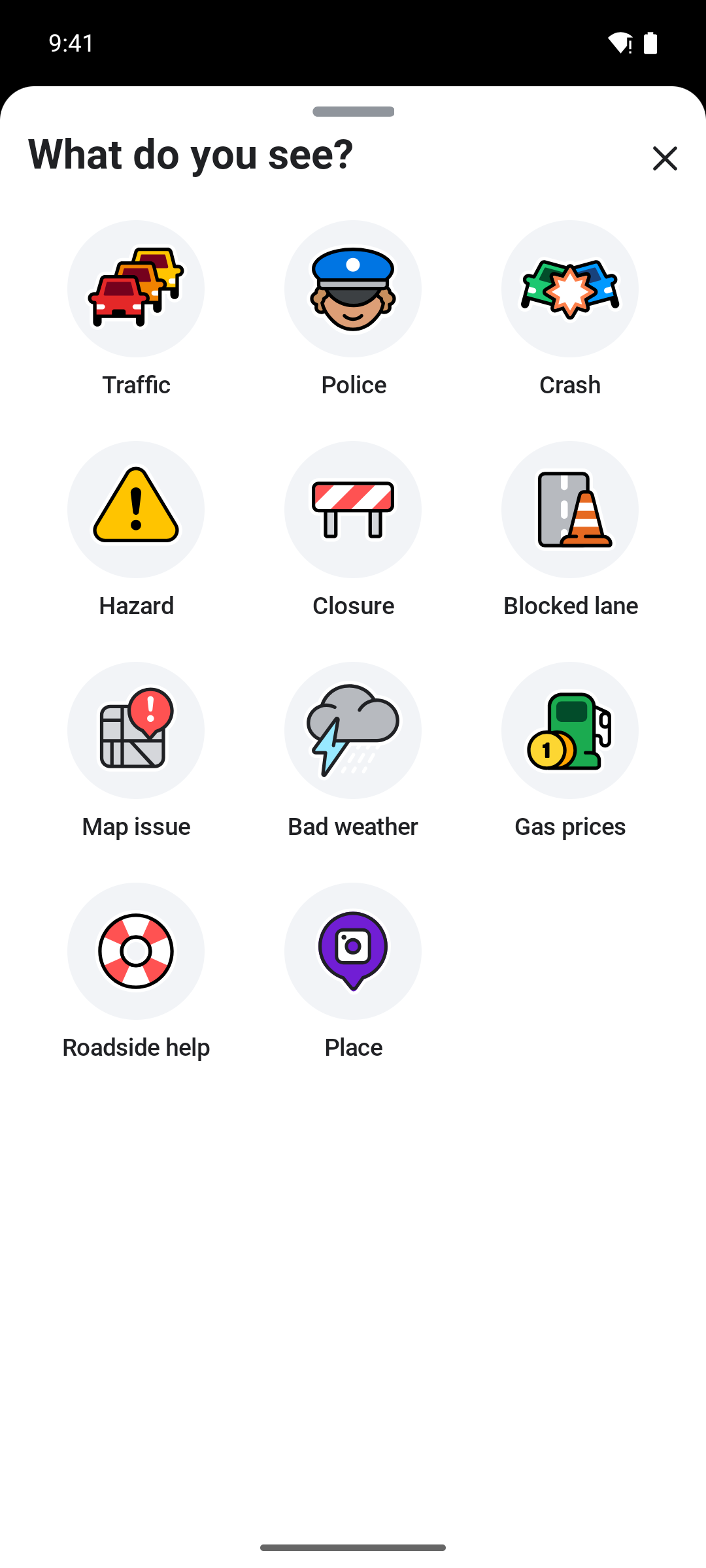
- Tap the orange report button in the bottom right corner
- Select the type of report:
- Police: Officer spotted
- Hazard: Object on road, weather conditions, etc.
- Traffic: Jam severity
- Accident: Collision ahead
- Map issue: Wrong turn, missing road, etc.
- Gas prices: Update fuel costs at stations
Safety First: Use voice commands ("Report police" or "Report hazard") to report while keeping your eyes on the road.
Map Editing
Advanced users can contribute to the Waze map through the Waze Map Editor (WME) – a web-based tool for adding roads, fixing turn restrictions, and updating place information. This is how the Waze community keeps maps accurate and up-to-date worldwide.
Protecting Your Privacy
Waze collects location data to function, but you can control your privacy:
- Go to Settings > Privacy
- Adjust these options:
- Go invisible: Hide yourself from the map so other Wazers can't see you
- Location history: Manage or delete your saved locations
- Ad personalization: Control how ads are targeted
Your data still contributes to traffic calculations even when invisible, but your icon won't appear to other users.
Voice Commands
Waze supports hands-free voice commands for safer driving:
- "Navigate to [destination]" – Start navigation
- "Navigate home" / "Navigate to work" – Quick access to saved places
- "Report police" / "Report traffic" / "Report hazard" – Submit reports
- "Stop navigation" – End current route
- "What's my ETA?" – Hear estimated arrival time
- "Find gas stations" – Locate nearby fuel
To enable: Go to Settings > Voice & sound > Talk to Waze and enable voice commands.
Gas Station and Parking Finder
Waze can help you find essentials along your route:
Finding Cheap Gas
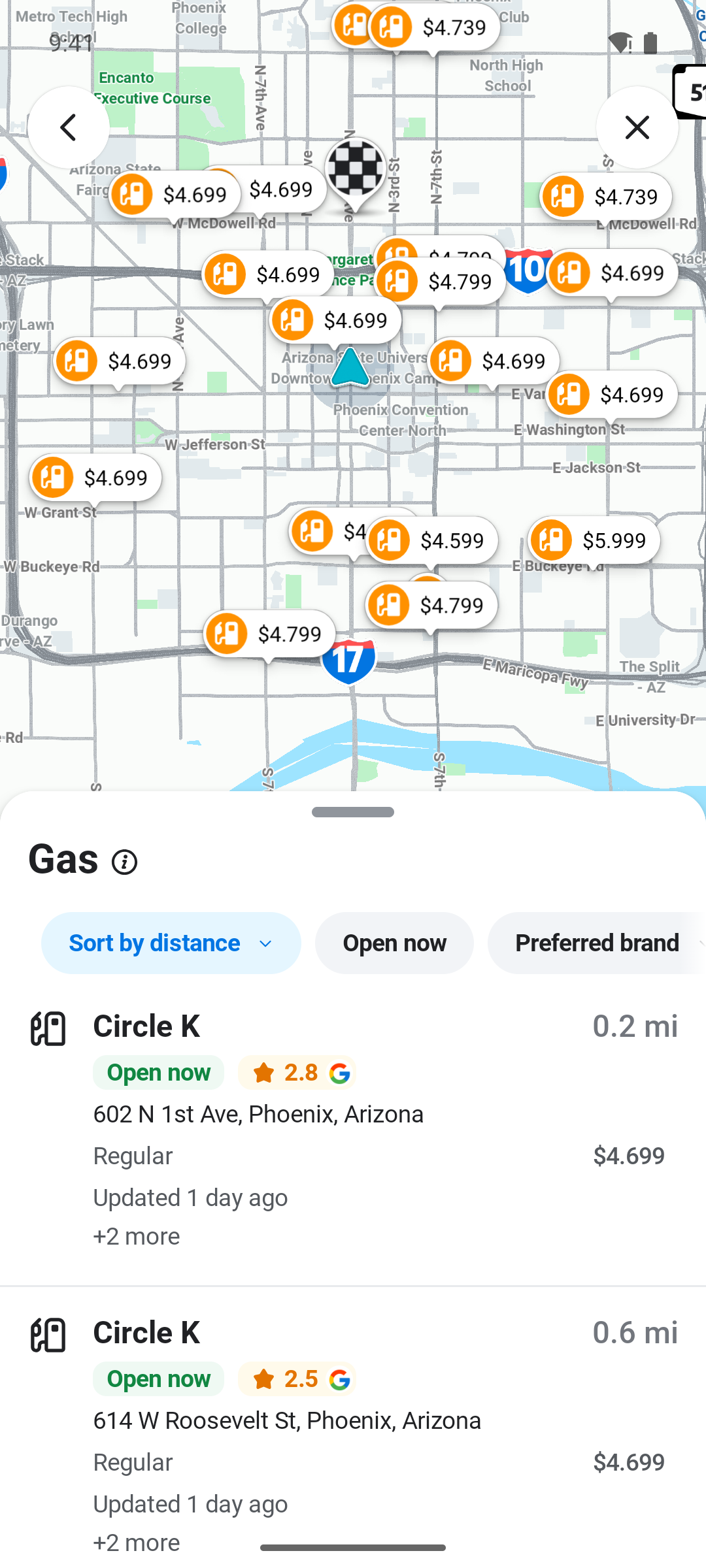
- Tap the search icon
- Select "Gas stations"
- View stations sorted by price or distance
- Tap a station to add it as a stop
Gas prices are updated by the Waze community, so they're usually current and accurate.
Worth knowing what this lever is actually worth before you detour for it. Filling up 30 ¢ a gallon cheaper is about $5 a week on a 16-gallon habit, while taking miles out of the route is worth $10–13 a week in gas alone and more again in wear and time — we ranked every lever by dollars in how to save gas while DoorDashing. Our gas cost calculator turns your own miles, MPG and local pump price into a weekly number.
Finding Parking
In supported cities, Waze shows:
- Street parking availability likelihood
- Parking lots near your destination
- Pricing information when available
Waze vs Google Maps: Which Should You Use?
Since Google owns both apps, you might wonder which is better. Here's a quick comparison:
| Feature | Waze | Google Maps |
|---|---|---|
| Real-time traffic | ✅ Excellent (community-driven) | ✅ Good |
| Police/speed traps | ✅ Yes | ❌ Limited |
| Hazard reports | ✅ Detailed | ❌ Basic |
| Walking/Transit | ❌ No | ✅ Yes |
| Offline maps | ❌ Limited | ✅ Full support |
| Business info | ❌ Basic | ✅ Comprehensive |
| Multi-stop routes | ❌ 1 stop only | ⚠️ Up to 10 stops |
| Fun/gamification | ✅ Yes | ❌ No |
Bottom line: Use Waze for driving when you want the best traffic avoidance and real-time alerts. Use Google Maps for walking, transit, or when you need offline maps — Google Maps is the only one of the two that can navigate with no connection at all, once you have downloaded the map area in advance.
Limitations of Waze
While Waze excels at personal navigation, it has some limitations:
Multi-Stop Routing
Waze only supports one intermediate stop per route. If you need to plan routes with multiple stops (deliveries, errands, sales calls), you'll need a dedicated multi-stop route planner.
Commercial Vehicle Routing
Waze doesn't account for:
- Vehicle height/weight restrictions
- Truck routes and limitations
- Delivery time windows
- Commercial loading zones
For commercial routing needs, use specialized fleet management software.
Offline Functionality
Waze requires an internet connection for:
- Real-time traffic updates
- Hazard and police alerts
- Route recalculations
- Community features
Without data, Waze offers only basic map viewing.
If you regularly drive through dead zones, this is the one job to hand to Google Maps instead: download the area beforehand and it gives you full turn-by-turn navigation with no signal. We tested the whole flow in airplane mode in How to Use Google Maps Offline.
The Ultimate Solution: Routerra + Waze Drive Mode
Here's the thing: Waze is an incredible navigator, but it was never designed to be a route planner for multiple stops. If you're a delivery driver, sales rep, service technician, or anyone who needs to visit 10, 20, or even 100+ locations in a day, Waze alone simply won't cut it.
But what if you could have the best of both worlds?
This is exactly what Routerra was built for. It bridges the gap between powerful route optimization and Waze's excellent turn-by-turn navigation through a seamless Drive Mode integration.
How the Routerra + Waze Workflow Works
Step 1: Import Your Stops into Routerra
Start by adding all your destinations to Routerra. You can:
- Type or paste addresses directly
- Import from CSV/Excel for bulk uploads
- Upload a screenshot – Routerra's AI extracts addresses automatically
- Connect Google Sheets for dynamic lists
Whether you have 5 stops or 200, Routerra handles them all in seconds.
Step 2: Optimize Your Route
With one tap, Routerra's optimization engine calculates the most efficient order for your stops. It considers:
- Real-time traffic conditions
- Time windows (if certain stops need to be visited at specific times)
- Service duration at each location
- Your starting point and preferred end location
- Priority levels for urgent deliveries
You'll instantly see stats like total distance, estimated time, and projected savings compared to the original order.
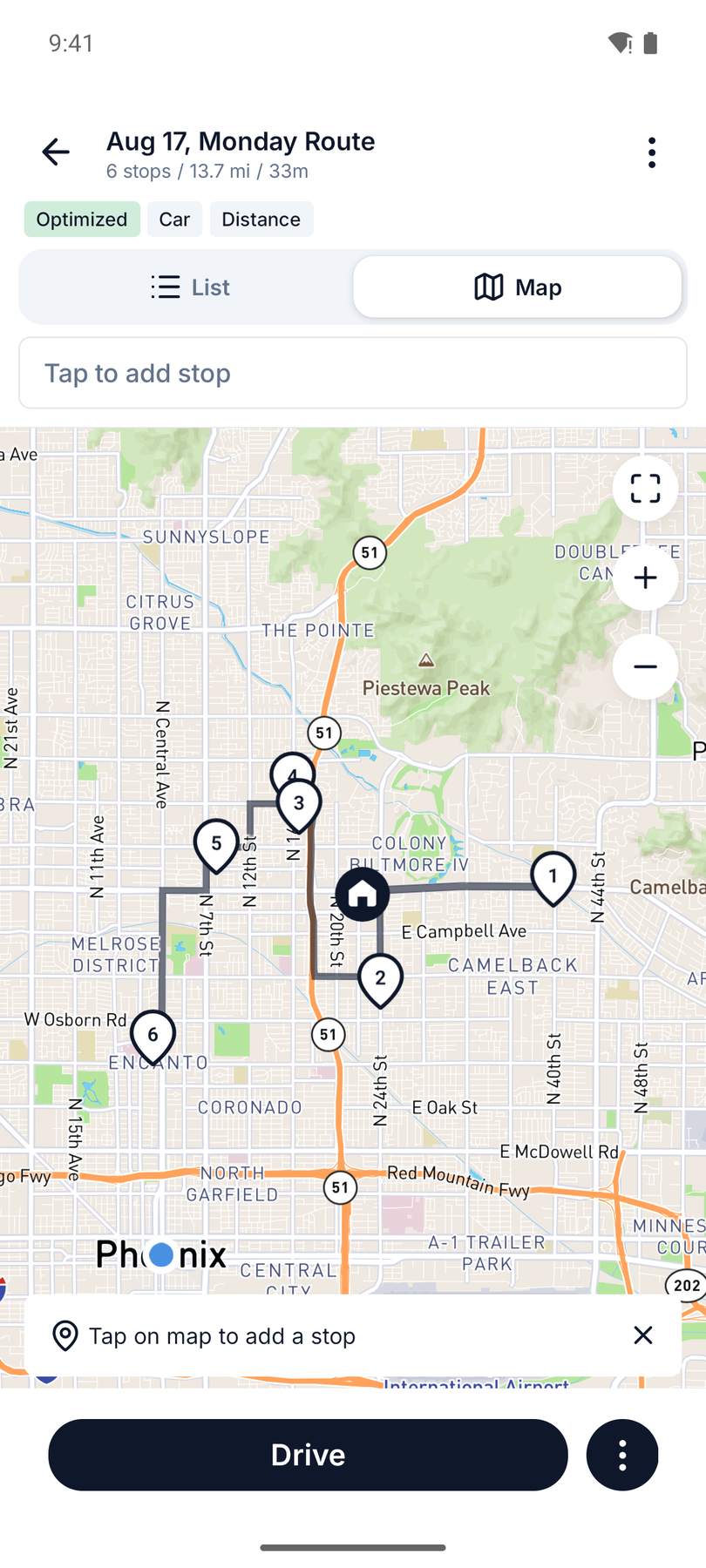
Step 3: Review and Modify
Unlike rigid planning tools, Routerra lets you fine-tune your route:
- Drag and drop stops to manually reorder if needed
- Add notes for specific delivery instructions
- Set priorities for time-sensitive stops
- Lock certain stops in position before re-optimizing
- View on map to ensure the route makes sense visually
Once you're satisfied with your route, you're ready to hit the road.
Step 4: Enter Drive Mode
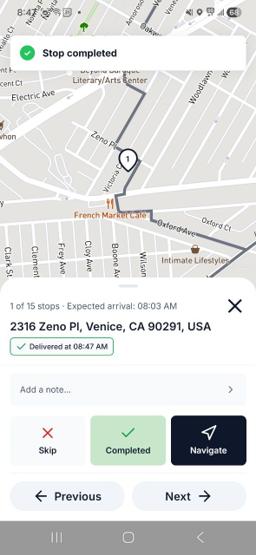
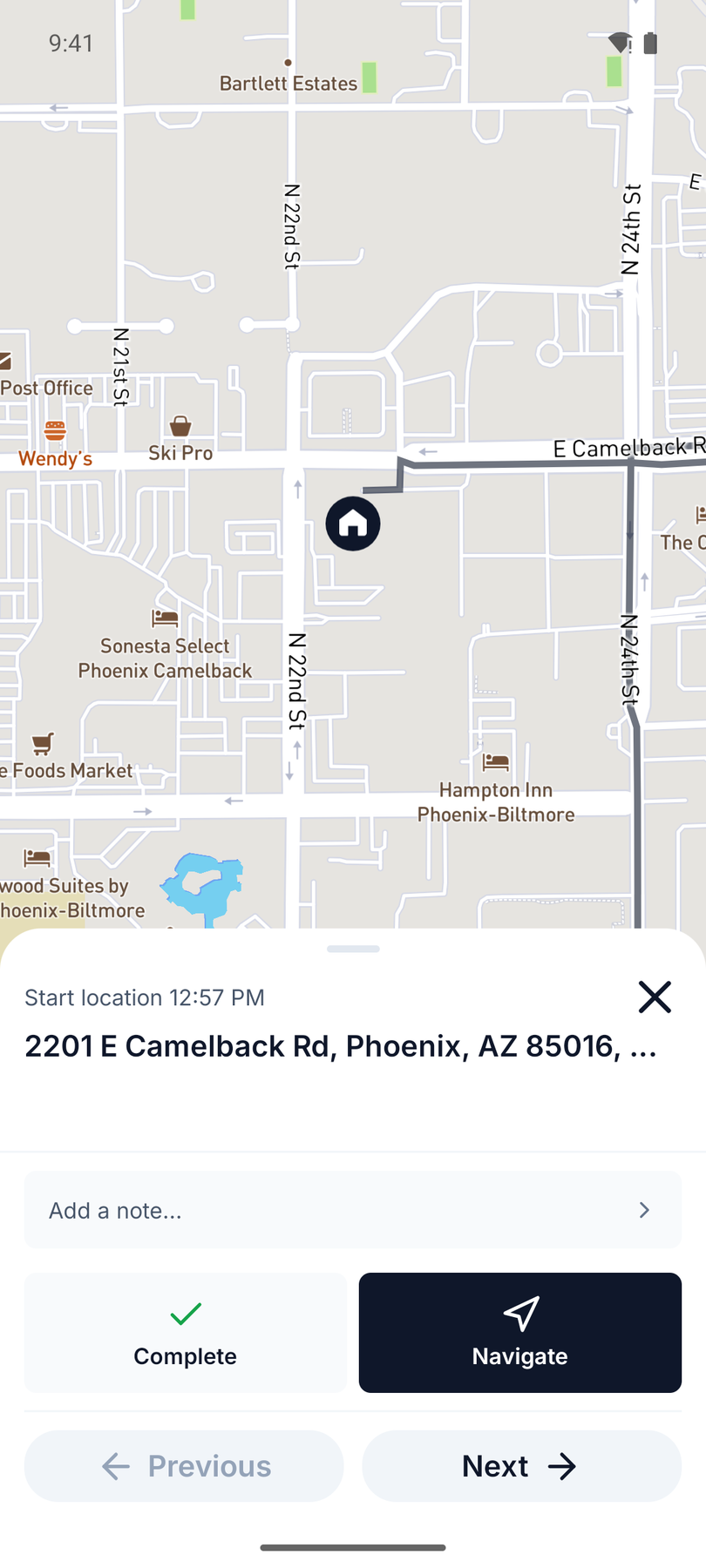
This is where the magic happens. Tap "Start Route" to enter Routerra's Drive Mode – a streamlined interface designed for when you're actually driving.
In Drive Mode, you'll see:
- Your current stop prominently displayed with address and any notes
- One-tap navigation button to open the stop in your preferred navigator
- Progress tracker showing completed vs. remaining stops
- Quick actions to mark stops as complete, skip, or add notes
Step 5: Navigate Stop-by-Stop with Waze
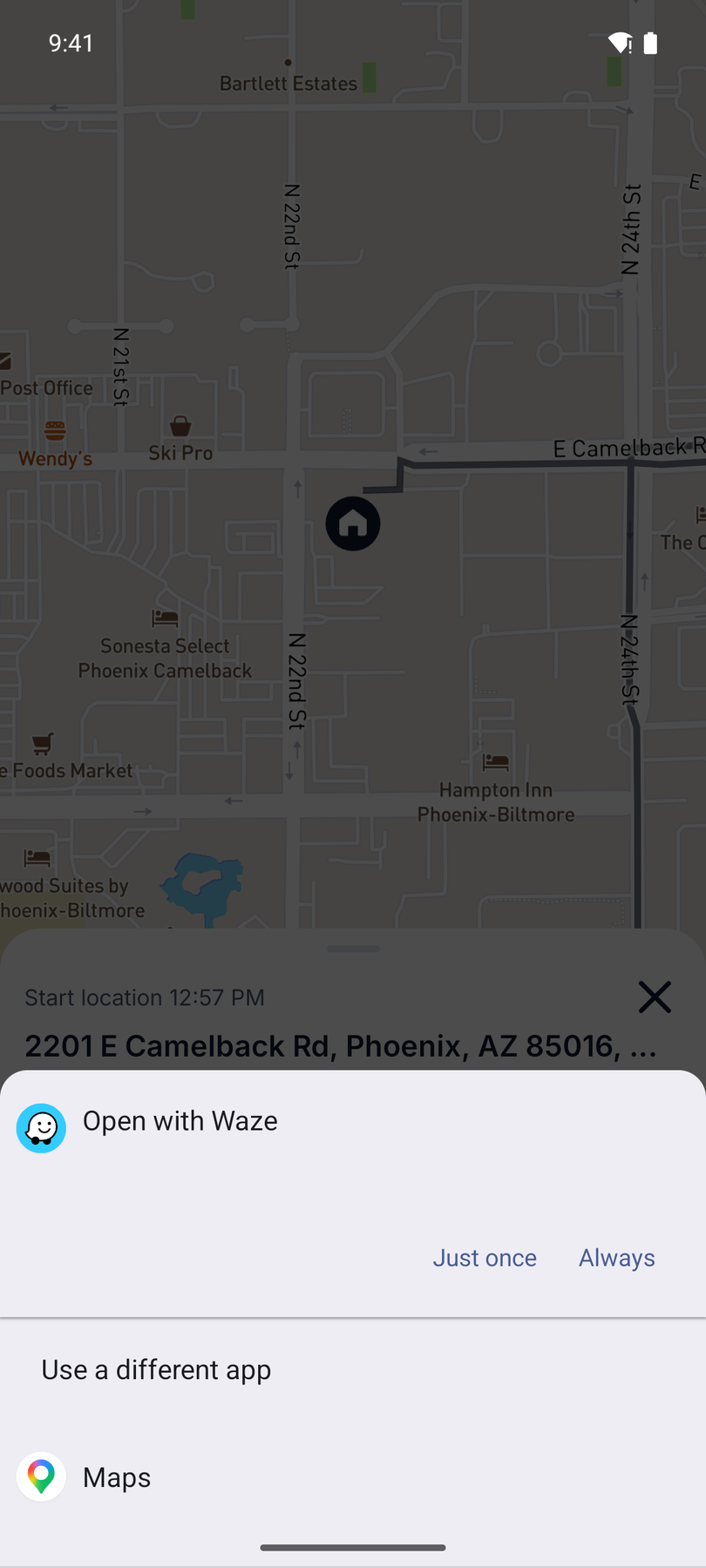
Here's the key integration: when you tap the navigation button in Drive Mode, Routerra opens Waze (or your preferred navigation app) with the next stop pre-loaded.
The workflow becomes beautifully simple:
- Tap "Navigate" in Routerra
- Waze opens with your destination ready
- Follow Waze's turn-by-turn directions with live traffic
- Arrive at your stop
- Return to Routerra and tap "Complete"
- Repeat for the next stop
Why This Combination is Powerful
| Routerra Handles | Waze Handles |
|---|---|
| Multi-stop route planning | Turn-by-turn navigation |
| Route optimization | Real-time traffic avoidance |
| Time windows & priorities | Police & hazard alerts |
| Stop management & tracking | Voice guidance |
| Delivery notes & proof | Speed camera warnings |
| Route statistics & analytics | Detour suggestions |
By combining these two tools, you overcome Waze's single-stop limitation while keeping all the benefits that make Waze the best navigation app for drivers.
Setting Waze as Your Default Navigator
To ensure Routerra always opens Waze for navigation:
On iOS:
- Open Routerra's settings
- Go to Navigation preferences
- Select Waze as your default navigation app
On Android:
- When you first tap navigate, you may be prompted to choose an app
- Select Waze and choose "Always"
- Alternatively, set the default in Routerra's settings
Real-World Benefits
Drivers using the Routerra + Waze combination report:
- 30-90 minutes saved daily through optimized stop ordering
- Fewer missed turns thanks to Waze's excellent navigation
- Better traffic avoidance with Waze's real-time rerouting
- Clearer organization with all stops managed in one place
- Accurate ETAs to share with customers or dispatchers
- Proof of completion with timestamps and photos
Getting Started is Free
The best part? You can try this workflow today at no cost:
- Go to routerra.io
- Import your stops (up to 20 free)
- Optimize your route with one tap
- Enter Drive Mode and navigate with Waze
For routes with more stops, Routerra Pro is $14.99/month — or $9.99/month billed annually — for up to 200 stops per route, far less than the time you'll save.
Tips for Getting the Most Out of Waze
- Keep the app updated – New features and map improvements release regularly
- Report incidents – Help the community and improve everyone's routes
- Set home and work – Enable one-tap navigation to frequent destinations
- Use planned drives – Schedule future trips to get departure reminders
- Enable alerts wisely – Too many alerts can be distracting; customize what you hear
- Connect to your car – CarPlay/Android Auto provides a safer, larger display
- Check routes before leaving – See current traffic conditions before you start
The Bottom Line
Waze is the best pure navigator on the road — live traffic, community alerts, and turn-by-turn guidance millions of drivers trust. But it was designed to take you to one place at a time: unbeatable for a single trip, and out of its depth the moment your day has ten stops in it.
So use each tool for what it does best. Routerra plans and optimizes the route — up to 200 stops, time windows, priorities — and Waze drives each leg with real-time traffic intelligence. Import your stops, tap Optimize, and open every stop in Waze straight from Drive Mode.
Try Routerra free — plan your first multi-stop route in minutes and navigate it with Waze.
FAQ
Is Waze free to use? Yes, Waze is completely free. The company generates revenue through location-based advertising, not user subscriptions.
Can Waze work offline? Only partially. You can view the map offline, but real-time traffic updates, hazard alerts, and route recalculations require an internet connection.
What's the difference between Waze and Google Maps? Both are owned by Google, but Waze focuses on community-driven real-time data (police, hazards, traffic), while Google Maps offers broader features like transit directions, walking routes, and comprehensive business information.
Can Waze avoid toll roads automatically? Yes. Go to Settings > Navigation and toggle "Avoid toll roads" on. Waze will route around tolls whenever possible.
Does Waze show speed cameras and police? Yes, Waze displays user-reported police locations and speed cameras. You'll receive audio and visual alerts when approaching these areas.
Can I use Waze with Apple CarPlay or Android Auto? Yes, Waze fully supports both platforms, allowing you to display navigation on your car's built-in screen.
How many stops can I add in Waze? Waze only supports one intermediate stop per route. For multiple stops, use a route planner like Routerra to optimize your stops, then use Drive Mode to navigate each leg with Waze.
Can I use Routerra with Waze? Yes! Routerra's Drive Mode integrates seamlessly with Waze. Plan and optimize your multi-stop route in Routerra, then navigate stop-by-stop by opening each destination in Waze with one tap. This gives you the best of both worlds: Routerra's optimization and Waze's navigation.
Does Waze drain battery? Like all GPS apps, Waze uses significant battery power due to screen-on time and GPS usage. Keep your phone plugged in during long drives.
Can I change the voice in Waze? Yes! Go to Settings > Voice & sound > Waze voice and choose from various voice packs, including celebrity voices and different languages.
Is Waze good for truck drivers? Waze is designed for personal vehicles and doesn't account for commercial vehicle restrictions like height, weight, or truck routes. Commercial drivers should use specialized routing software.