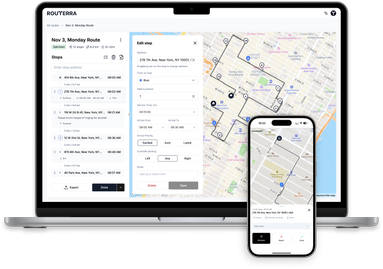
How to Add More Than 15 Stops in Apple Maps (2026 Workarounds)
In this article
Apple Maps is excellent for everyday navigation on iPhone, but it isn’t designed for large multi-stop routes. If you deliver packages, run errands with dozens of addresses, or plan service calls, you’ll quickly hit limits: Apple Maps supports adding a handful of stops manually, but there’s no bulk import or automatic optimization.
This guide shows what actually works in 2026: practical ways to handle 15–200+ stops, how to avoid manual drag-and-drop, and how to hand off an optimized route into Apple Maps for driving.
Why Apple Maps struggles with many stops
- No bulk import from CSV/Excel/Google Sheets.
- No automatic optimization based on traffic, time windows, or service times.
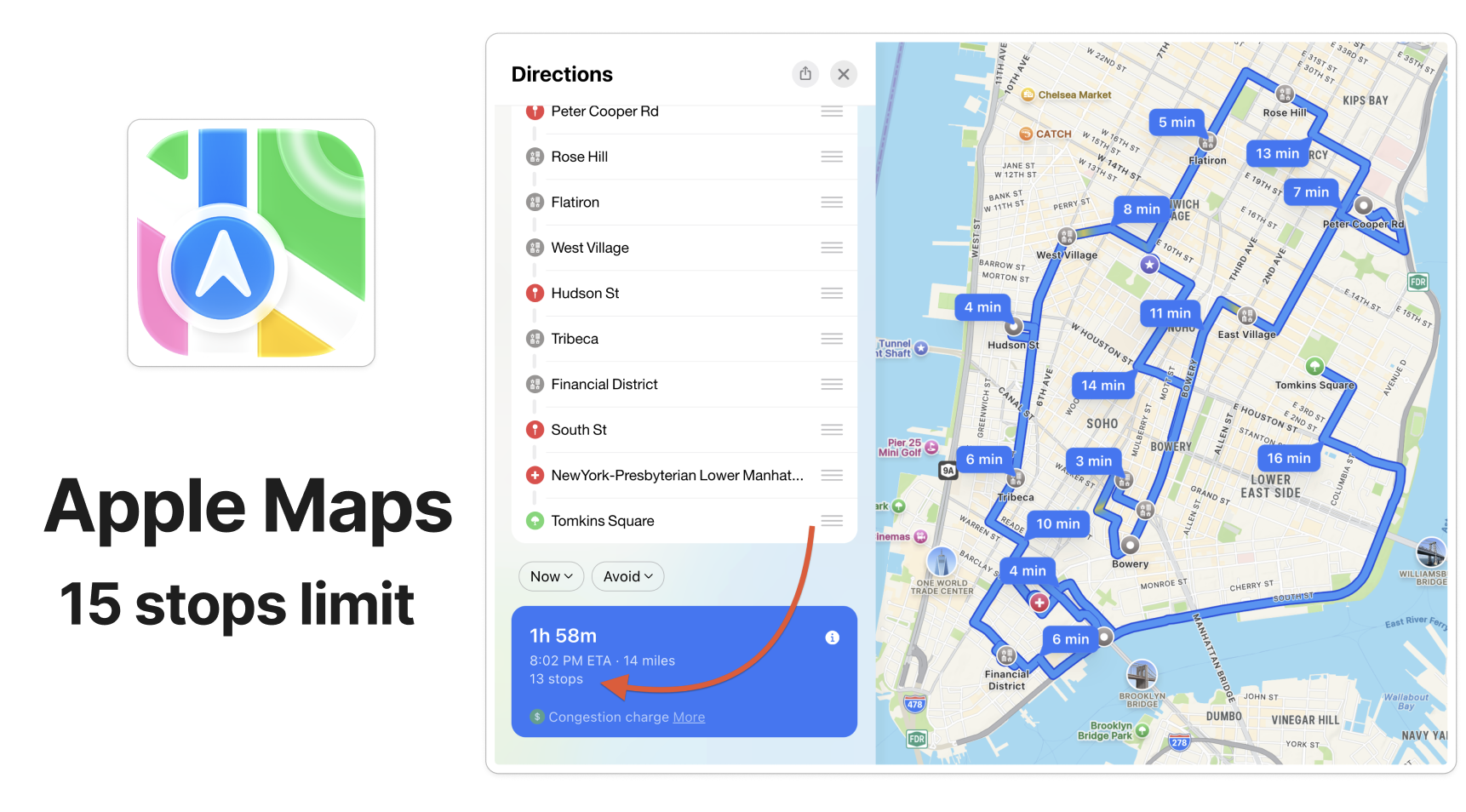
- A hard ceiling of 13 stops between your start and your destination — 15 points on the route in total. We tested it (below); past that, Apple simply removes the Add Stop button.
- Manual maintenance (adding/reordering stops) gets slow and error-prone long before you reach that ceiling.
If you only have a couple of stops, Apple Maps is perfect. If you have 15–200+, you’ll want a route planner to do the heavy lifting and then navigate with Apple Maps.
And if the route runs through patchy coverage, download the Apple Maps area for offline use before you set off — driving, walking, cycling and transit directions all keep working with no signal.
We tested the limit: Apple Maps stops at 13 stops
Rather than repeat the numbers other guides quote, we built a multi-stop route in Apple Maps on an iPhone 17 Pro (iOS 26.3, iOS Simulator) and kept adding stops until it refused.
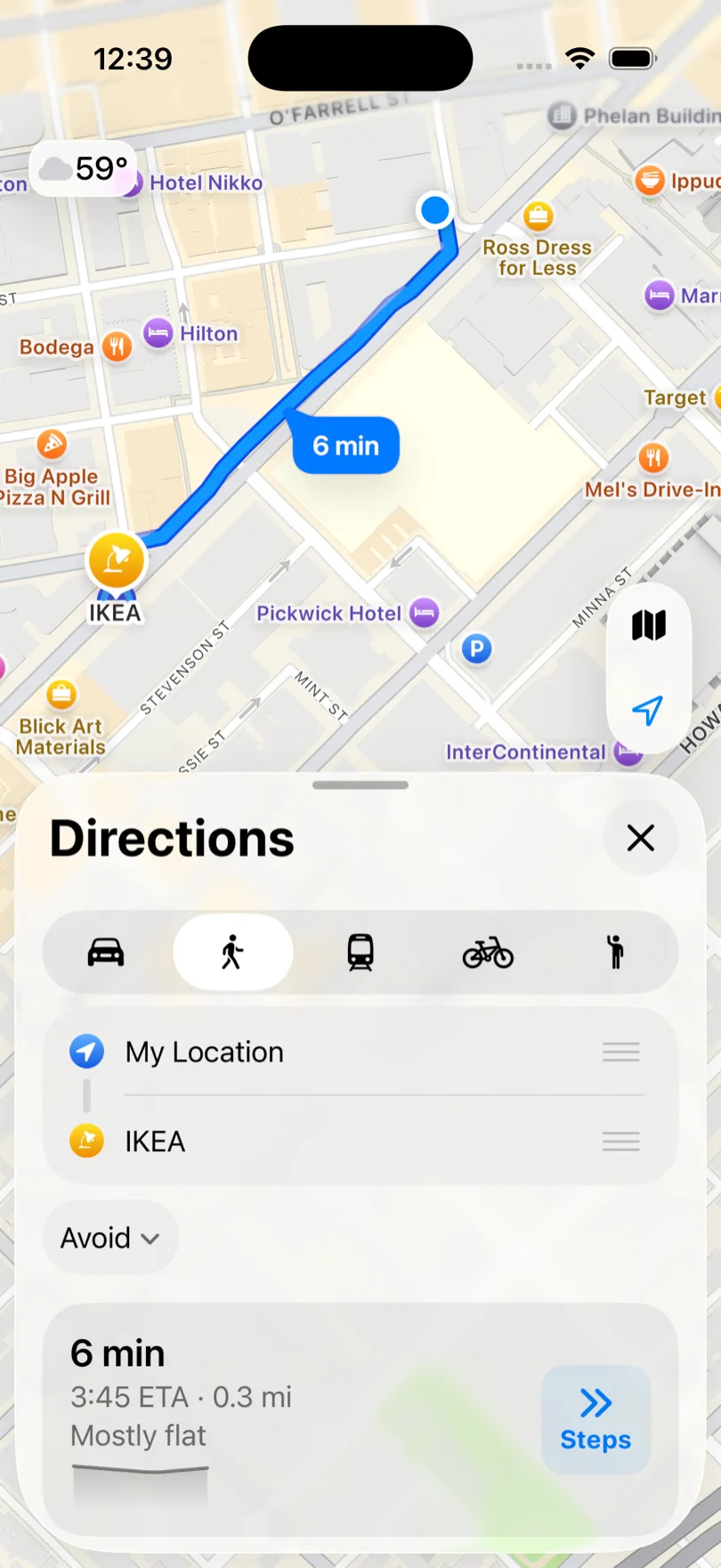
First thing to know: multi-stop is driving-only. Switch Directions to walking, cycling or transit and there is no way to add a second destination at all — the list is just start and end.
Switch to driving and an Add Stop row appears under the destination. That row is the entire multi-stop feature.
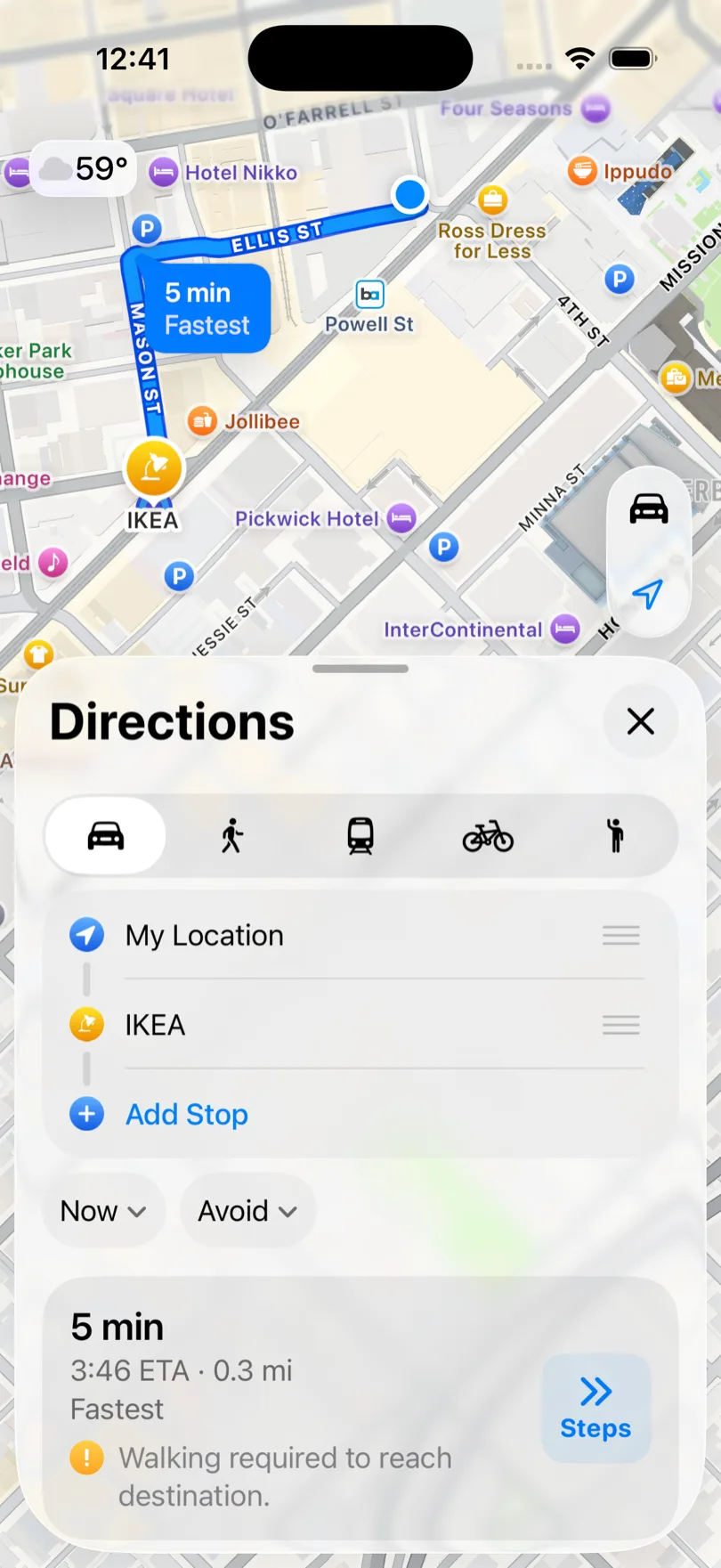
Every stop is added the same way: tap Add Stop, search, pick a result. One address at a time, typed or searched by hand. There is no paste-a-list, no CSV, no clipboard import — which is exactly why this stops scaling somewhere around a dozen addresses.
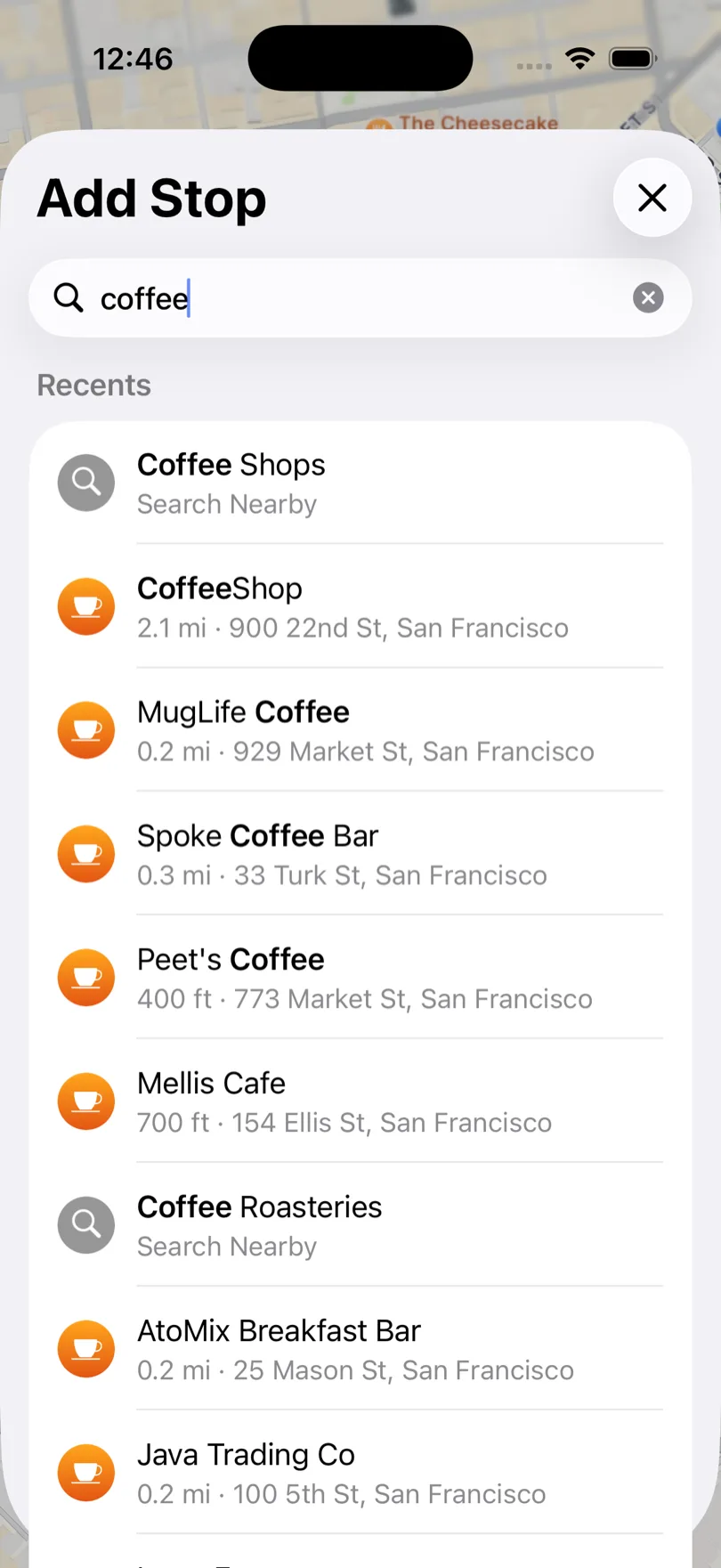
Keep going and you get a plain list with drag handles on the right. That is your only ordering tool: you drag stops into the order you want, one at a time. Apple Maps never reorders them for you, and it will happily accept the same place twice without warning you.
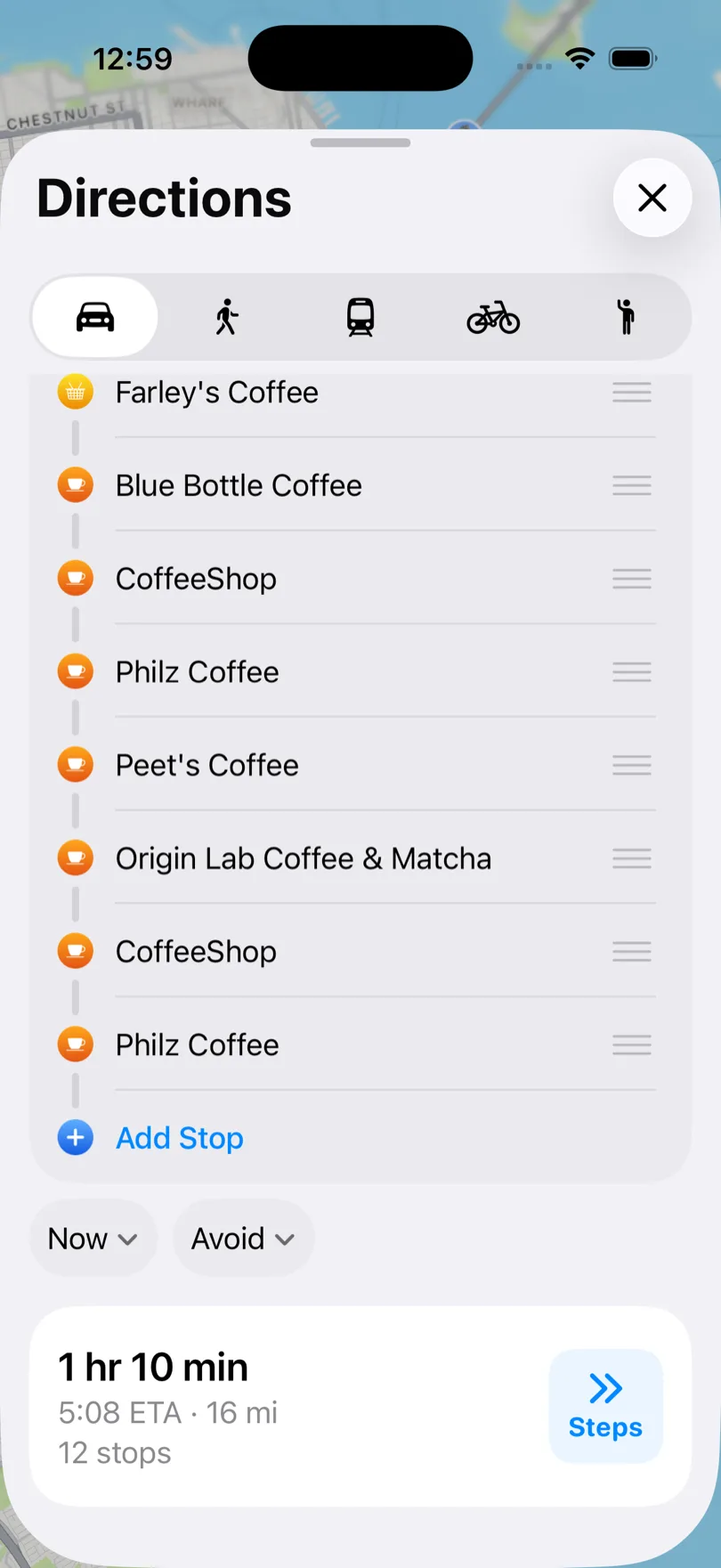
At 13 stops the Add Stop row disappears — no alert, no explanation, the control is simply gone. Delete one stop and it comes straight back, which is how we pinned the ceiling down. Counting the start and the destination, that is 15 points on a route.
Notice what else happens at that size: the list collapses into a single "13 stops" summary row, so you cannot even see your own itinerary without expanding it again.
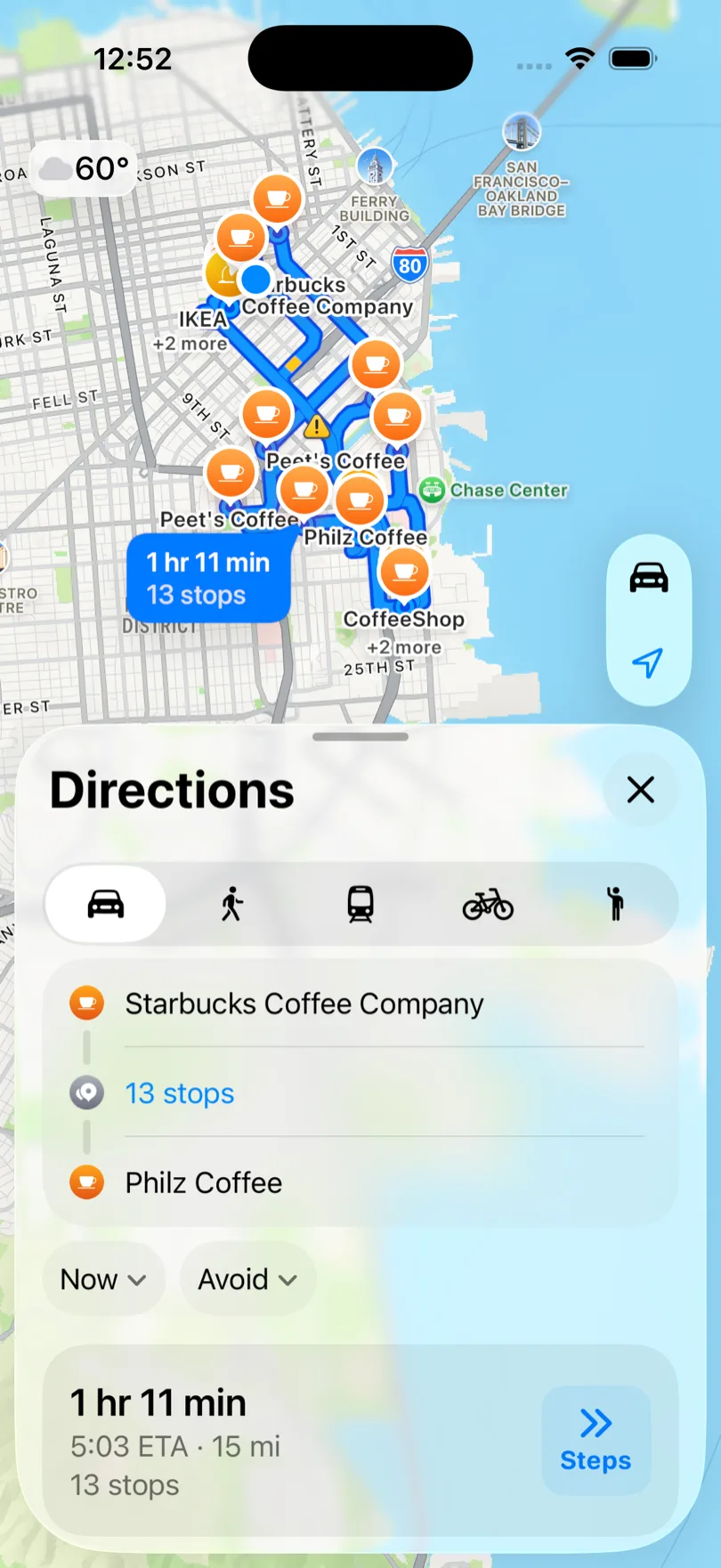
For a 13-stop personal errand run, that is fine. For a delivery day, three things bite: the ceiling itself, the one-at-a-time entry, and the fact that nothing is optimized — a 13-stop route dragged into a guessed order is not a short route, it is just a route.
Three real workarounds (that save you time)
1) Plan in a dedicated route planner, then open in Apple Maps
- Paste or import your addresses (CSV/Excel/PDF/Google Sheets/screenshots).
- Auto-clean and geocode.
- Optimize the stop order (traffic-aware).
- Tap Open in Apple Maps to navigate leg by leg.
2) Use Apple Shortcuts for tiny lists (5–15)
For occasional use, you can build a Shortcut to open a sequence of locations. It still won’t optimize automatically, but can reduce tap-count. Great for very small routes; not practical for dozens of stops.
3) Split routes by time windows or areas
If you must stay inside Apple Maps, group nearby stops (morning vs afternoon, or by neighborhood). You’ll still reorder manually, but the chunks are smaller.
Step-by-step: from CSV to Apple Maps (fastest path)
- Prepare your list: one address per line (or columns Address/City/Zip).
- Plan & optimize in Routerra: import CSV/Excel/PDF or paste raw text.
- Fix any geocoding issues: the app highlights ambiguous addresses.
- Apply constraints: service time, time windows, vehicle notes.
- Export / Open in Apple Maps: start turn-by-turn and drive.
When to switch from maps to a route planner
- You regularly handle >15–25+ stops.
- You waste time reordering or re-typing addresses.
- You need time windows, service times, or priority.
- You want to compare ETAs and miles before you drive.
You can keep navigating with Apple Maps and let a multi-stop route planner do the planning: import → optimize → open in Apple Maps. As of 2026, the Free plan covers routes up to 20 stops with 5 optimizations a day; paid plans unlock 200 stops per route and advanced options.
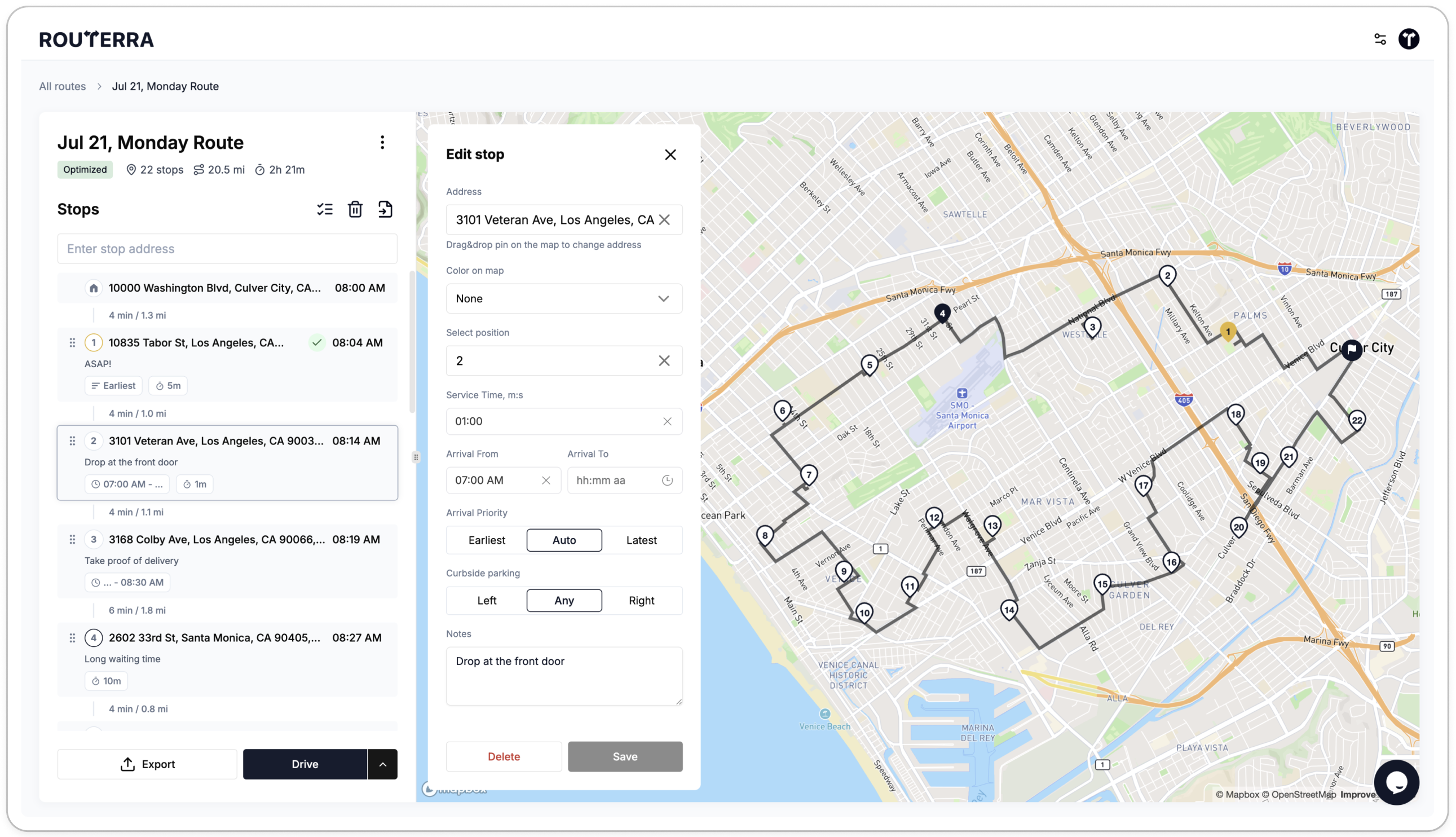
With Routerra you can import in seconds, optimize, then handoff to Apple Maps on iPhone. As of 2026, the Free plan covers routes up to 20 stops; Pro covers 200 stops per route with advanced routing constraints and live traffic consideration.
Try it on your next route: Start free — no app install, runs in your browser.
FAQ
How many stops can Apple Maps handle? Thirteen. We tested it on iOS 26.3: you can add stops between your start and your destination until the route holds 13, at which point the Add Stop control disappears with no warning. Delete one and it returns. Counting the start and the destination, that is 15 points on a route. Multi-stop also works in driving mode only — walking, cycling and transit have no Add Stop at all.
Can Apple Maps optimize a multi-stop route automatically? Not natively. You must reorder stops yourself by dragging them, or use a route planner first.
How do I import a CSV into Apple Maps? Apple Maps doesn’t import CSV directly. Import into a planner, optimize, then open each leg in Apple Maps.
Can I navigate the whole route in one go? You’ll typically navigate leg-by-leg. Route planners provide quick deep-links so it feels seamless.
Does Apple Maps support time windows or service duration? No. Use a route planner to respect time windows and service times, then hand off to Apple Maps.
What if I have 150+ stops? Use a planner built for high stop counts. Optimize first, then navigate in Apple Maps.