How to Import a CSV into Google Maps (Without Breaking Your Route)
In this article
Google Maps itself cannot import a CSV — the Google tool that can is My Maps: open google.com/maps/d, click Create a new map, hit Import under the first layer, upload your CSV (with Address, City, State, and Country columns), tell it which columns hold the location, and every row lands as a pin on the map.
What you get is pins, not a route. My Maps won't order the stops, estimate drive times, or hand anything to navigation — and Google Maps proper still caps out at 10 destinations entered by hand. So this guide covers both halves: how to get your CSV into My Maps cleanly (the formatting rules, the geocoding errors that break imports, and their fixes), and how to turn the same spreadsheet into an optimized, drivable route.
Google Maps vs. Google My Maps: know the difference
Before you start, it helps to understand what each tool actually does:
Google Maps is built for navigation. You type in a destination (or up to 10 stops), and it gives you turn-by-turn directions. But there's no way to upload a file. Every address goes in manually.
Google My Maps is a mapping tool for visualization. You can import a CSV, and it will plot each row as a pin on a map. You can color-code pins, add labels, and share the map. But My Maps doesn't route — it doesn't tell you the best order to visit those locations, estimate drive times, or account for traffic.
If your goal is to see where your stops are, My Maps is enough. If your goal is to drive those stops in an efficient order, you'll need a delivery route planner after the import.
Format your CSV before importing
My Maps is strict about formatting. A CSV that looks fine in Excel can fail silently — addresses land in the wrong spot or don't appear at all. Clean it up before uploading.
Required columns
At minimum, include these fields:
| Column | Example | Notes |
|---|---|---|
| Address | 742 Evergreen Terrace | Full street address, no abbreviations |
| City | Springfield | Don't assume My Maps will figure out the city |
| State | IL | Use the standard abbreviation for your country |
| Country | US | Critical if you're outside the US or have ambiguous city names |
Optional but helpful columns
| Column | Why it helps |
|---|---|
| Postal Code | Resolves ambiguous addresses in dense areas |
| Latitude / Longitude | Bypasses geocoding entirely — the most reliable option |
| Name / Label | Shows up as the pin title on the map |
| Notes | Any extra info you want visible when clicking a pin |
Formatting rules
- Save as UTF-8 CSV. Excel's default CSV encoding can corrupt special characters (accents, non-Latin scripts). In Excel, use "Save As" and select "CSV UTF-8."
- One address per row. Don't combine multiple addresses in a single cell.
- No merged cells or blank rows. My Maps reads your file row by row. Merged cells or gaps break the import.
- Expand abbreviations. "St" can mean Street or Saint. "Ave" is usually fine, but "Blvd" sometimes trips geocoding in non-US regions. When in doubt, spell it out.
- Consistent casing. My Maps handles mixed casing, but consistent Title Case or UPPER CASE makes your data easier to audit.
- Remove duplicates. If the same address appears twice, you'll get two pins on top of each other — and if you later build a route, the optimizer may route you to the same location twice.
Step by step: importing your CSV into Google My Maps
- Open Google My Maps and click Create a new map.
- In the left panel, click Import under the "Untitled layer" heading.
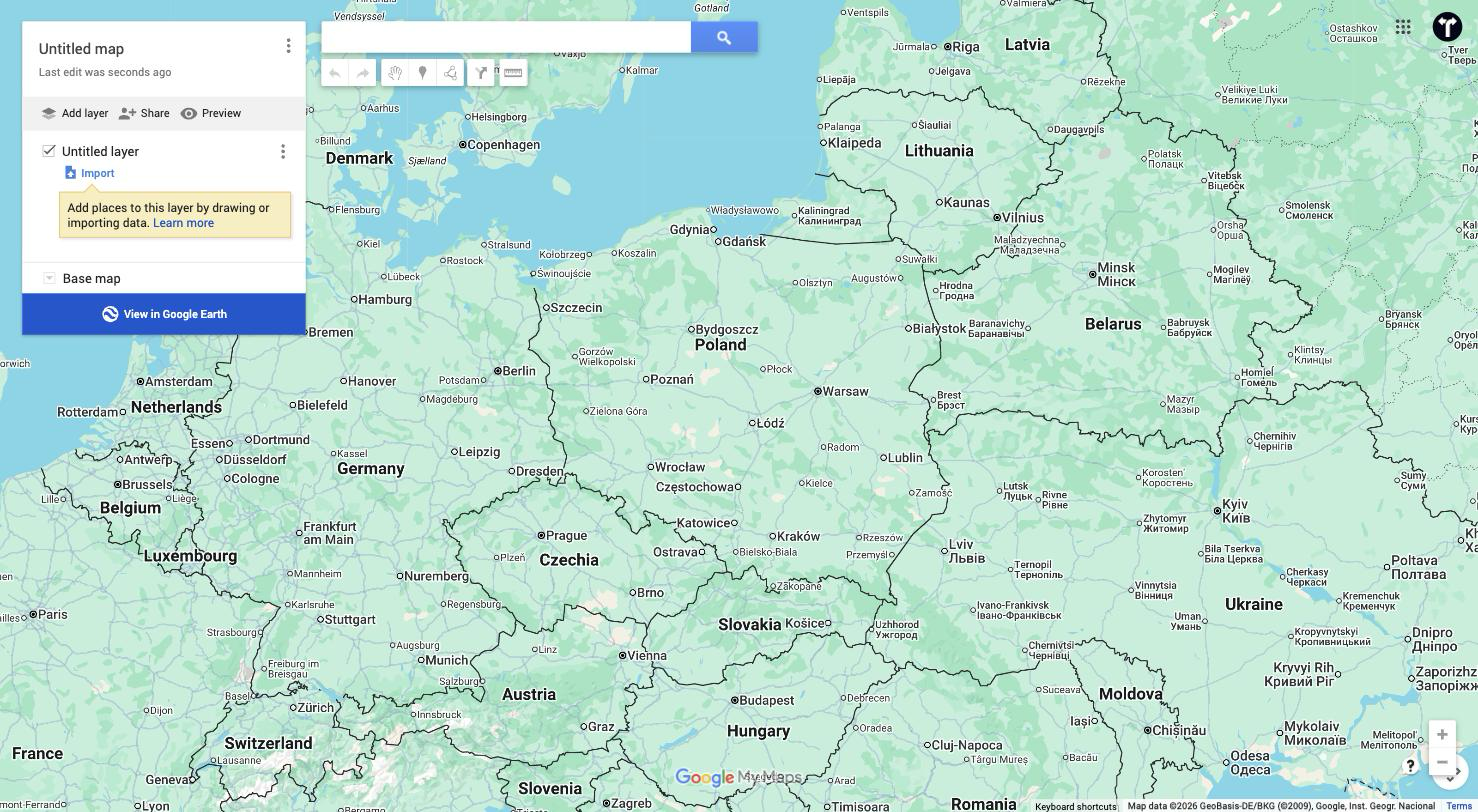
- Upload your CSV file (drag and drop or browse).
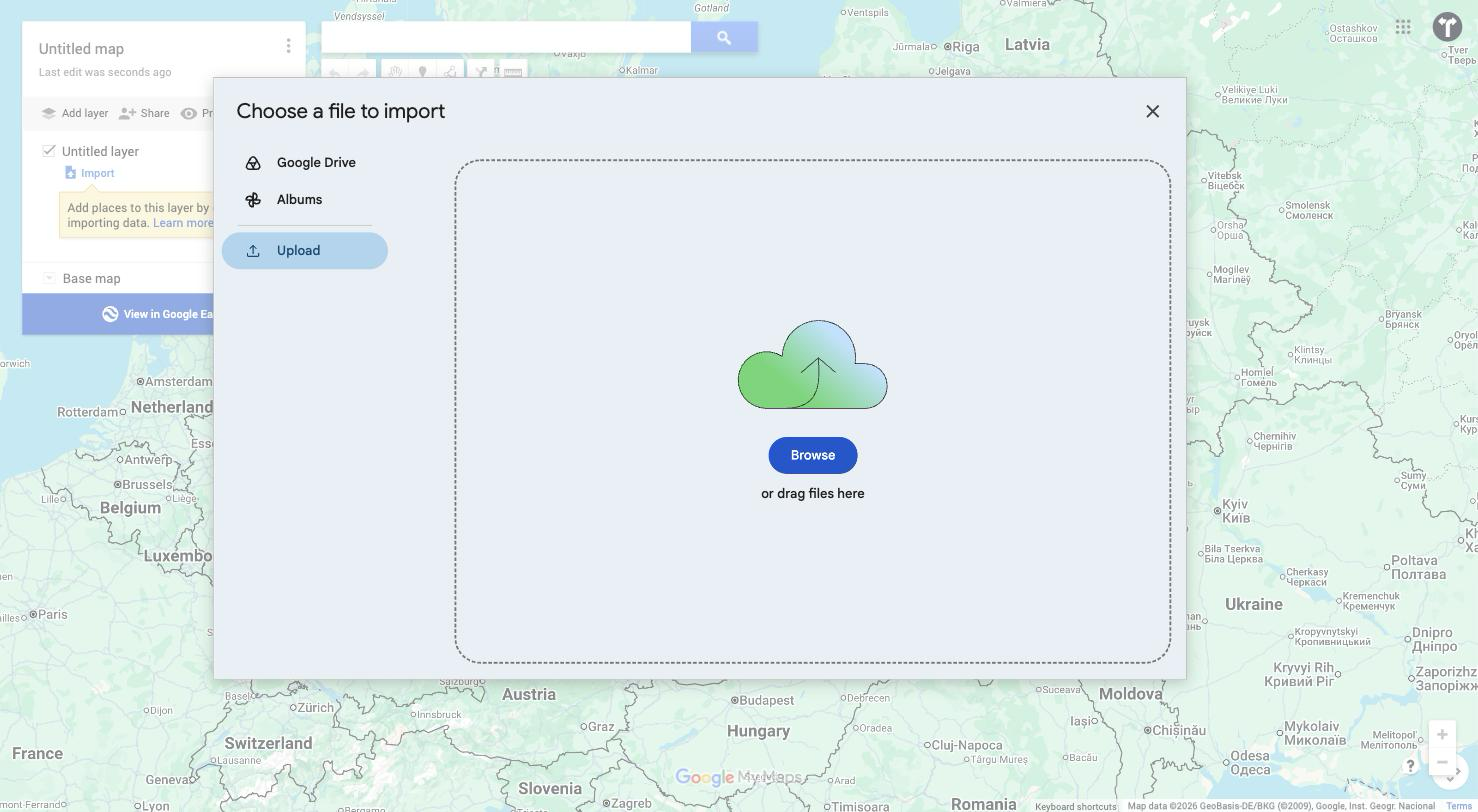
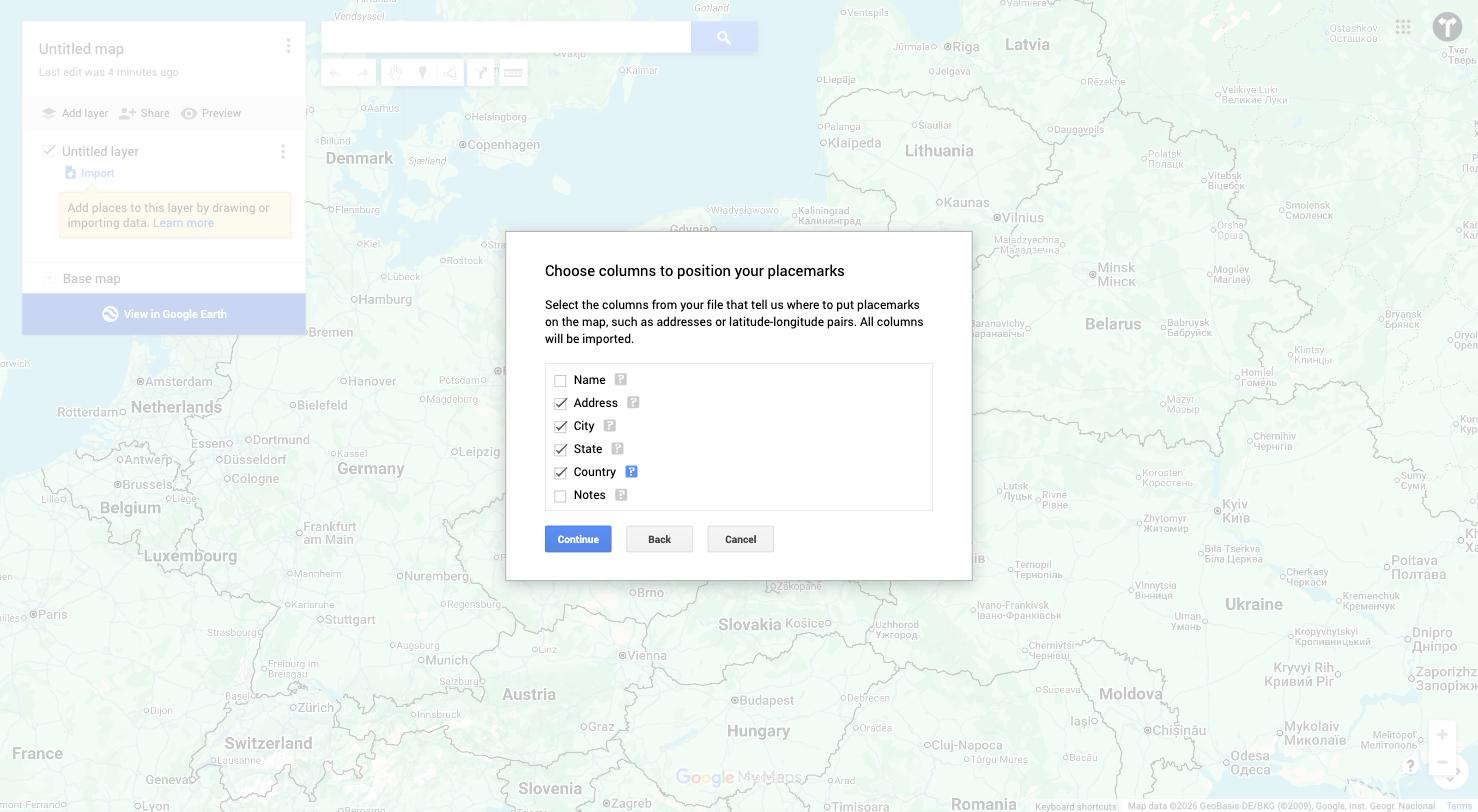
- Map your columns. My Maps will ask which columns contain location data. Select your address columns (Address, City, State, Country) or your coordinate columns (Latitude, Longitude). If you have both, coordinates are more reliable.
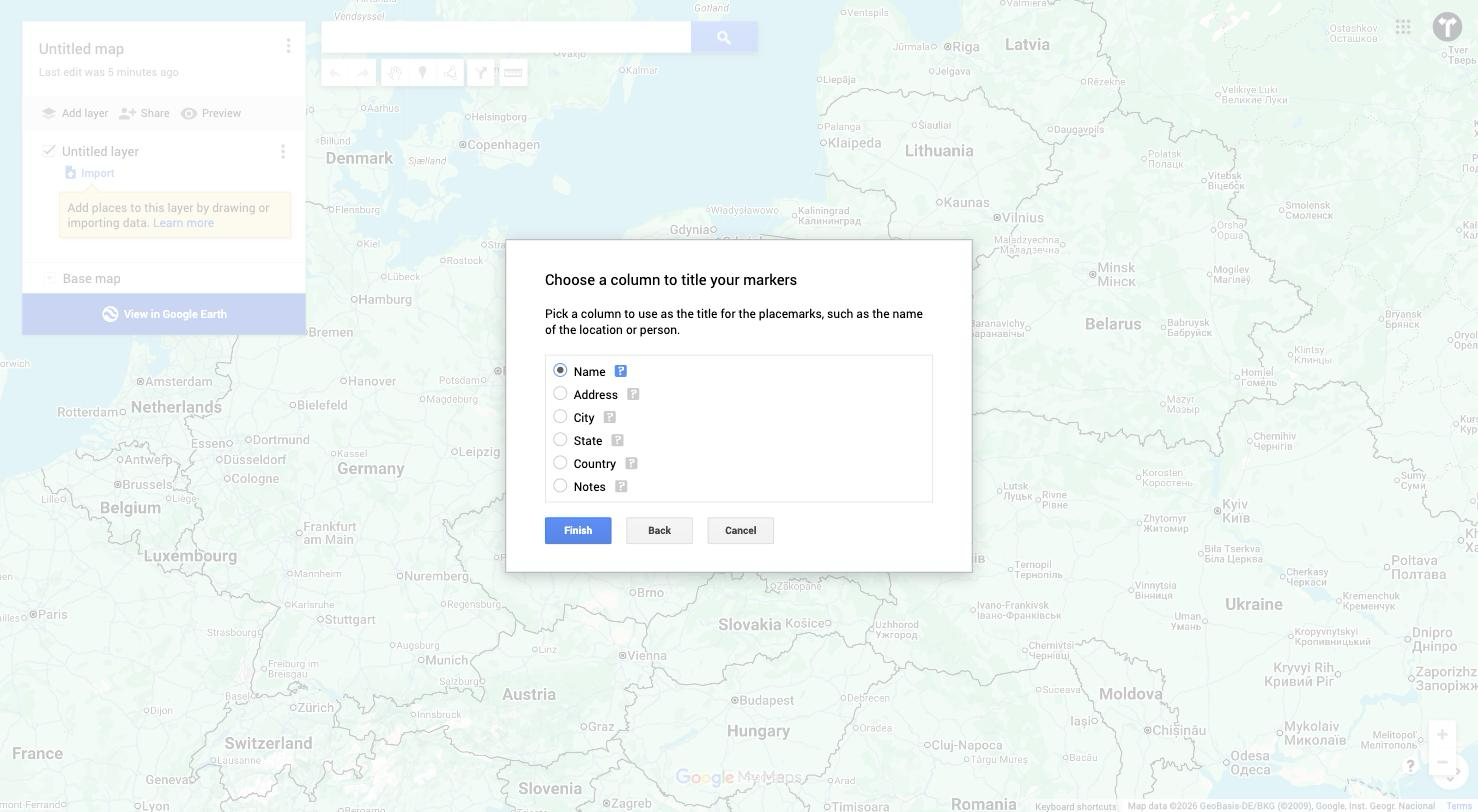
- Choose a title column. Pick the column that should label each pin (e.g., customer name, stop number, or address).
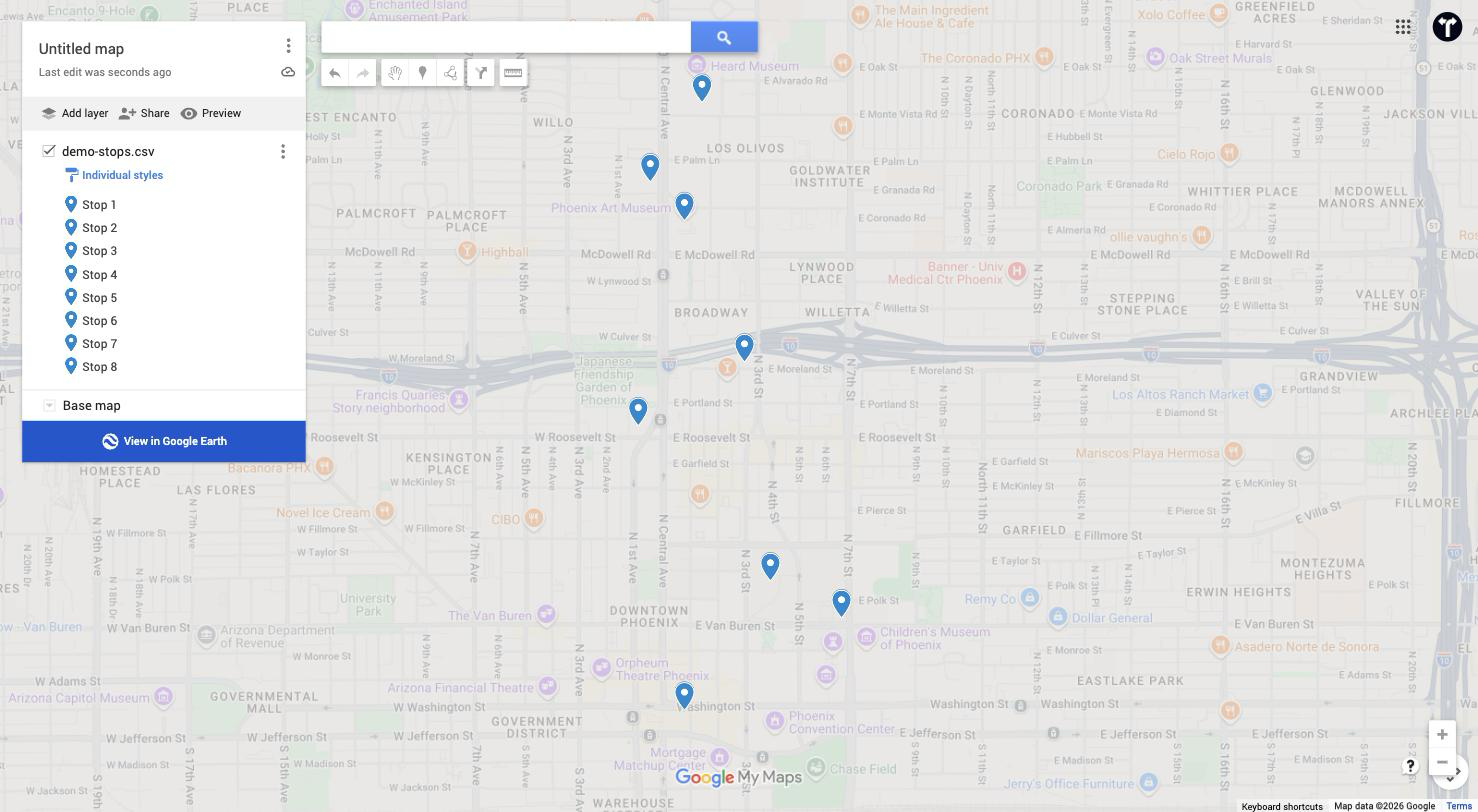
- Click Finish and wait for geocoding to complete.
What to check after import
- Red or missing pins. Scroll through the left panel and look for rows that didn't geocode. Click on them to see the raw data — usually the address is incomplete or ambiguous.
- Pins in the wrong location. Zoom into clusters and verify a few spots. "123 Main St" without a city can land anywhere.
- Row count. Compare the number of pins on the map to the number of rows in your spreadsheet. If they don't match, rows were skipped silently.
Fix any issues in your spreadsheet, delete the layer, and re-import. My Maps doesn't let you edit geocoded locations in bulk.
The limitation: pins are not a route
At this point, you have a map with dots on it. That's useful for seeing coverage, spotting clusters, or sharing a visual with your team. But it doesn't answer the question that matters for delivery drivers, sales reps, or field technicians: what order should I visit these stops?
Google My Maps doesn't optimize routes. And Google Maps itself caps at 10 stops, with no import option and no optimization — you'd need to manually copy-paste addresses and drag stops around, which falls apart past a handful of locations.
This is where a route planner comes in.
Turning your CSV into an optimized route
A route planner takes the same CSV and does what Google can't: reorder the stops into the most efficient driving sequence, factoring in real-time traffic, time windows, and your start/end locations.
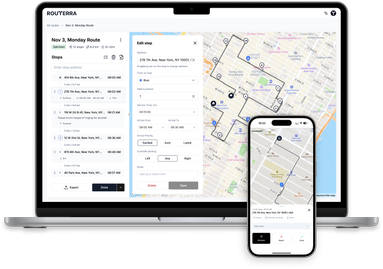
Here's how it works with Routerra:
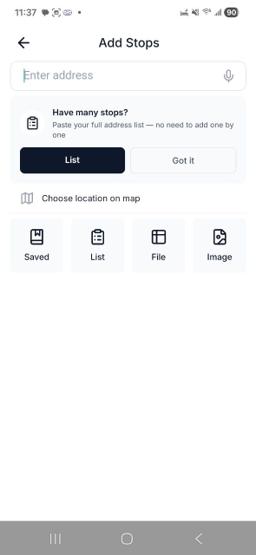
- Import your CSV. Drag and drop the same file you used for My Maps. Routerra supports CSV, Excel, PDF, and Google Sheets. Addresses are geocoded on import, with inline suggestions for ambiguous rows.
- Set your start and end points. Start at your warehouse, depot, or home. Choose whether you're returning to the start or finishing at a different location (like your home).
- Add constraints (optional). Set service time per stop (e.g., 5 minutes for each delivery), time windows (e.g., "deliver between 9 AM and 12 PM"), or stop priorities.
- Optimize. Routerra reorders the stops to minimize total drive time, accounting for current traffic conditions. For 50 stops, this typically takes under 30 seconds.
- Navigate. Tap any stop to open it directly in Google Maps, Waze, or Apple Maps for turn-by-turn directions. On mobile, this is a single tap — no copy-pasting addresses.
Why this beats manual planning
If you have 20 stops, there are over 2 quintillion possible orderings. Even experienced drivers who "know the area" typically leave 20–30% of potential time savings on the table. An optimizer finds the best sequence in seconds.
For drivers doing this daily — delivery drivers, Amazon Flex contractors, field service teams — the time savings compound fast. Finishing 30–60 minutes earlier per day means lower fuel costs, more deliveries per shift, or simply getting home sooner.
Common CSV problems and how to fix them
| Problem | Symptom | Fix |
|---|---|---|
| Missing country | Pins land on the wrong continent | Add a "Country" column with ISO codes (US, GB, DE) |
| Abbreviations | "St" geocodes as "Saint" instead of "Street" | Spell out street types in full |
| PO Boxes | Pin lands at the post office, not the recipient | Replace with the physical delivery address |
| Special characters | Row is skipped or garbled | Save as UTF-8 CSV, not default Excel CSV |
| Duplicate rows | Two pins stacked, route visits same place twice | Deduplicate in Excel before import (Remove Duplicates tool) |
| Missing city/state | Address resolves to wrong "Main St" | Always include city and state — never assume |
When to skip My Maps entirely
If your end goal is a driving route, importing into My Maps first is an extra step you don't need. Route planners like Routerra accept CSV directly, handle geocoding with better error feedback, and go straight to optimization.
My Maps is worth the detour when you need to:
- Share a visual pin map with someone who doesn't need routing.
- Color-code or categorize stops on a map for planning purposes.
- Export to KML for use in GIS tools.
For everything else — especially if you have more than 10 stops and need to drive them — go straight to the planner.
Try it with your next spreadsheet
Routerra has a free tier for small routes, with plans for 100–200+ stops. No app to install — it runs in your browser. Import your CSV, optimize, and open the route in Google Maps in under a minute.
FAQ
Can I import a CSV directly into Google Maps?
No. Google Maps doesn't support file imports. You need Google My Maps to upload a CSV and see pins on a map. But My Maps only visualizes locations — it doesn't create a drivable route or optimize stop order. For multi-stop route planning from a CSV, use a route planner like Routerra.
Why do some of my addresses appear in the wrong location?
The most common cause is ambiguity. "Main St 12" exists in hundreds of cities across the US alone. If you don't include a city, state, and country, the geocoder guesses — and often guesses wrong. The fix: always include full location data in your CSV. For addresses that are still unreliable (new construction, rural areas), add latitude and longitude coordinates.
Can I export an optimized route back to Google Maps?
Yes. Build and optimize your route in a planner, then use the navigation handoff to open each leg in Google Maps, Waze, or Apple Maps. In Routerra, this is a single tap on mobile — it opens your next stop directly in your preferred navigation app with turn-by-turn directions.
How many stops can Google My Maps handle?
My Maps supports up to 2,000 rows per layer and 10 layers per map. But remember: these are pins, not a route. My Maps won't tell you the order to drive them. For optimizing large stop lists (50–200+), you need a route planner that can handle the computational complexity of finding the best sequence.
Do I need latitude and longitude in my CSV?
Not strictly — My Maps and most route planners can geocode street addresses automatically. But coordinates are the most reliable option. They eliminate geocoding ambiguity entirely, which matters for rural addresses, new developments, or countries where street-level geocoding is less accurate. If you already have coordinates in your data, include them.