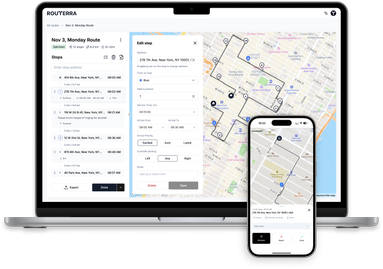
Routerra 2.0: Drive Mode that works next to your navigation app
Most of a delivery day is not spent in Routerra. It is spent in the navigation app, in the messenger where the dispatcher sends the list, in the scanner, on the doorstep. Routerra 2.0 is built for that day: it stays useful while you are somewhere else.
Drive Mode, rebuilt around the next stop
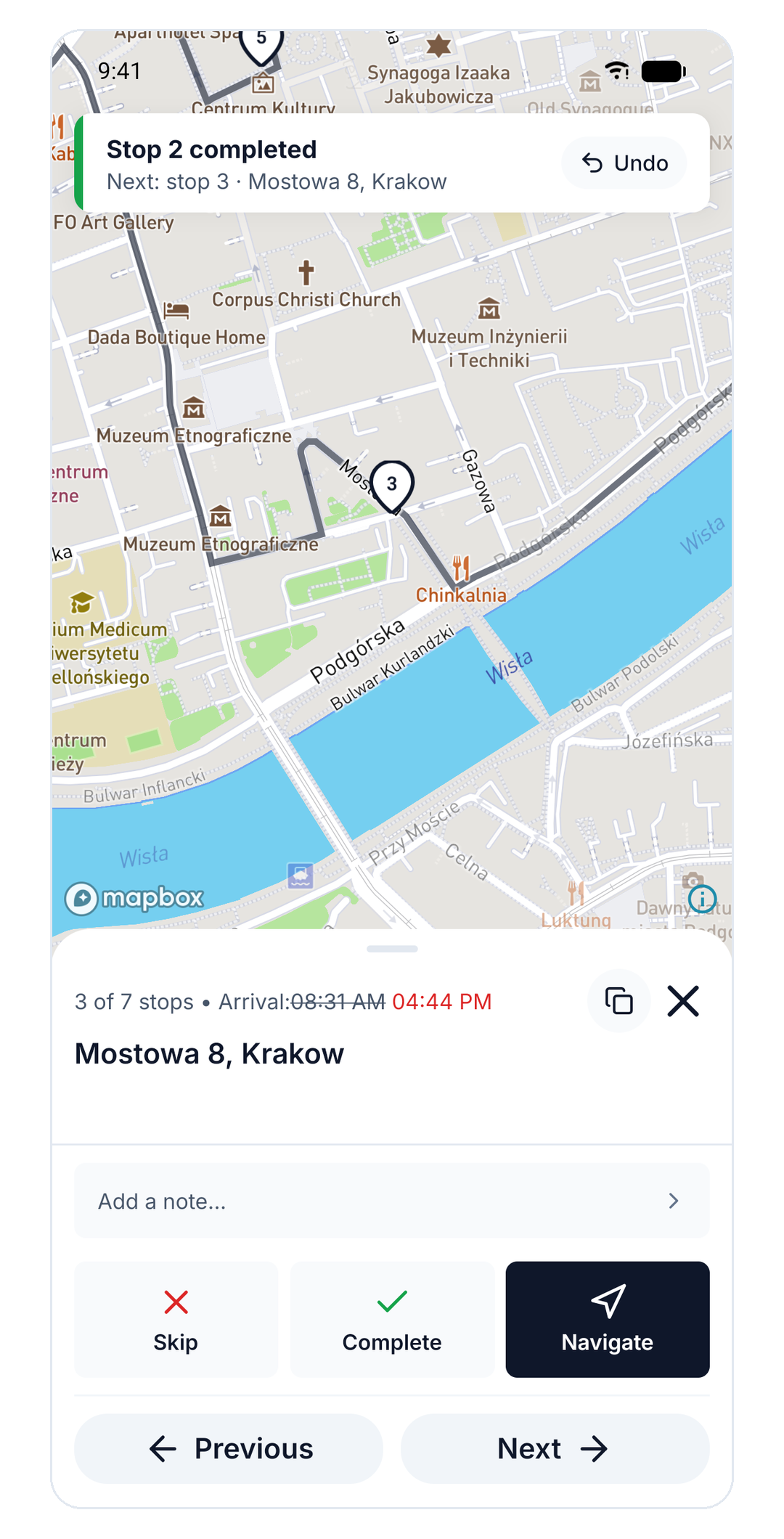
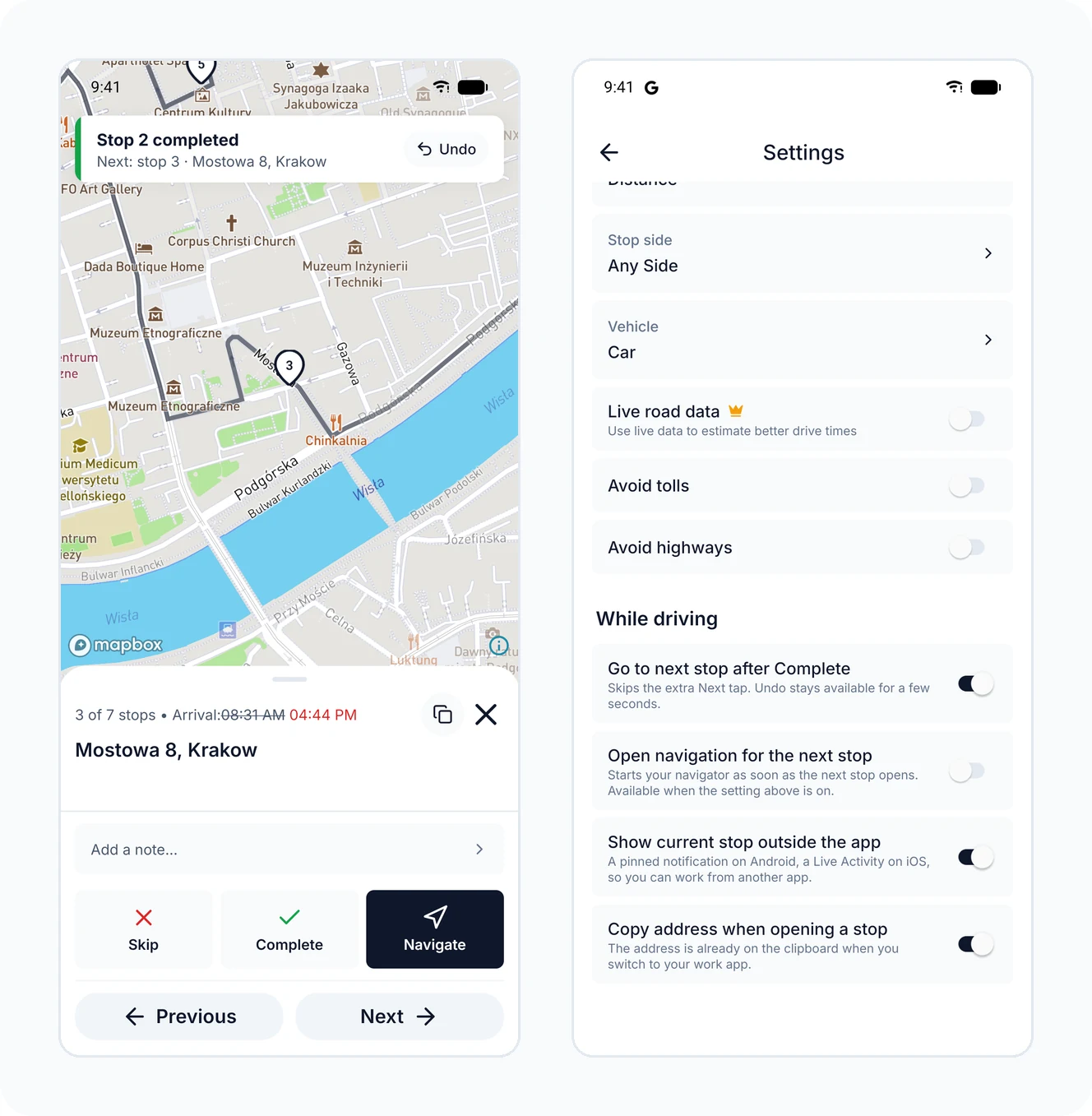
Tap Complete or Skip, and the next stop opens immediately. No extra Next tap, no scrolling back to the list. An Undo toast stays on screen for three seconds in case you tapped too soon.
If you want, Routerra opens your navigator for the next stop on its own — Google Maps, Waze or Apple Maps, whichever you set as your default. And when your work happens in another app, the stop sheet now has Copy address; turn on Copy address when opening a stop and the address is already on your clipboard by the time you switch over.
All of this lives in a new Settings section, While driving, where every behaviour is a toggle. Turn on what helps and leave the rest off.
The current stop, outside the app
This is the change we are most excited about. Once a route is in progress, the current stop follows you out of the app.
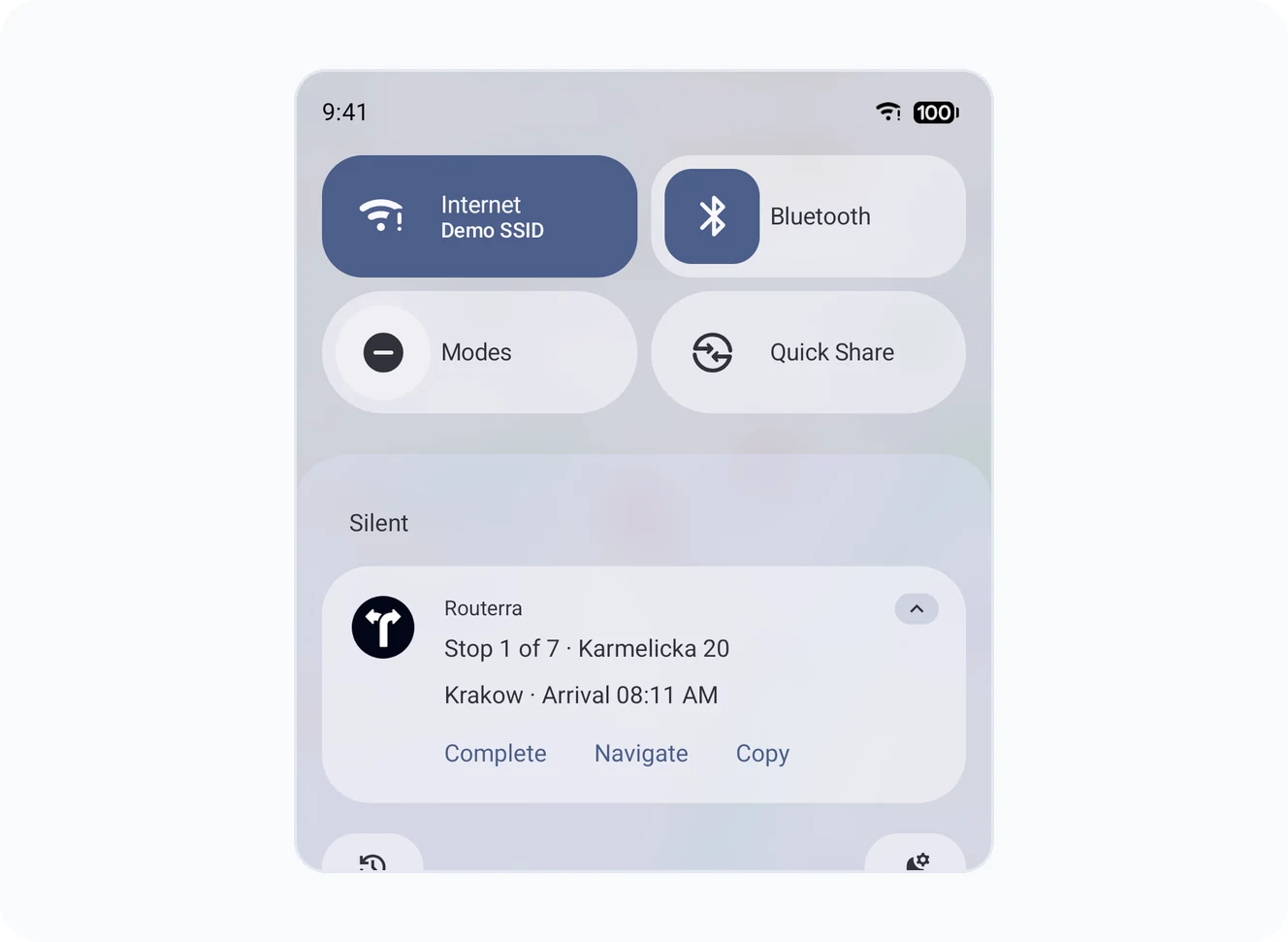
On Android, a pinned notification shows the stop with three buttons: Complete, Navigate and Copy address. It keeps working while Routerra is in the background or closed, so you can finish a stop straight from the notification shade without opening the app.
On iOS 17 and later, the same stop appears as a Live Activity on the Lock Screen and in the Dynamic Island, with the same three actions.
The surface stays as long as the route is in progress and disappears when you finish. It is on by default; the toggle is Show current stop outside the app under Settings › While driving.
Share to Routerra
Your stops arrive as a photo of a manifest, a screenshot of a chat, an order list pasted into a message. Now you can send them straight to Routerra from the app they arrived in: open the share sheet, pick Routerra, choose today's route, an existing route or a new one, and the stops are extracted for you. Photos, screenshots and plain text all work, up to ten images at once.
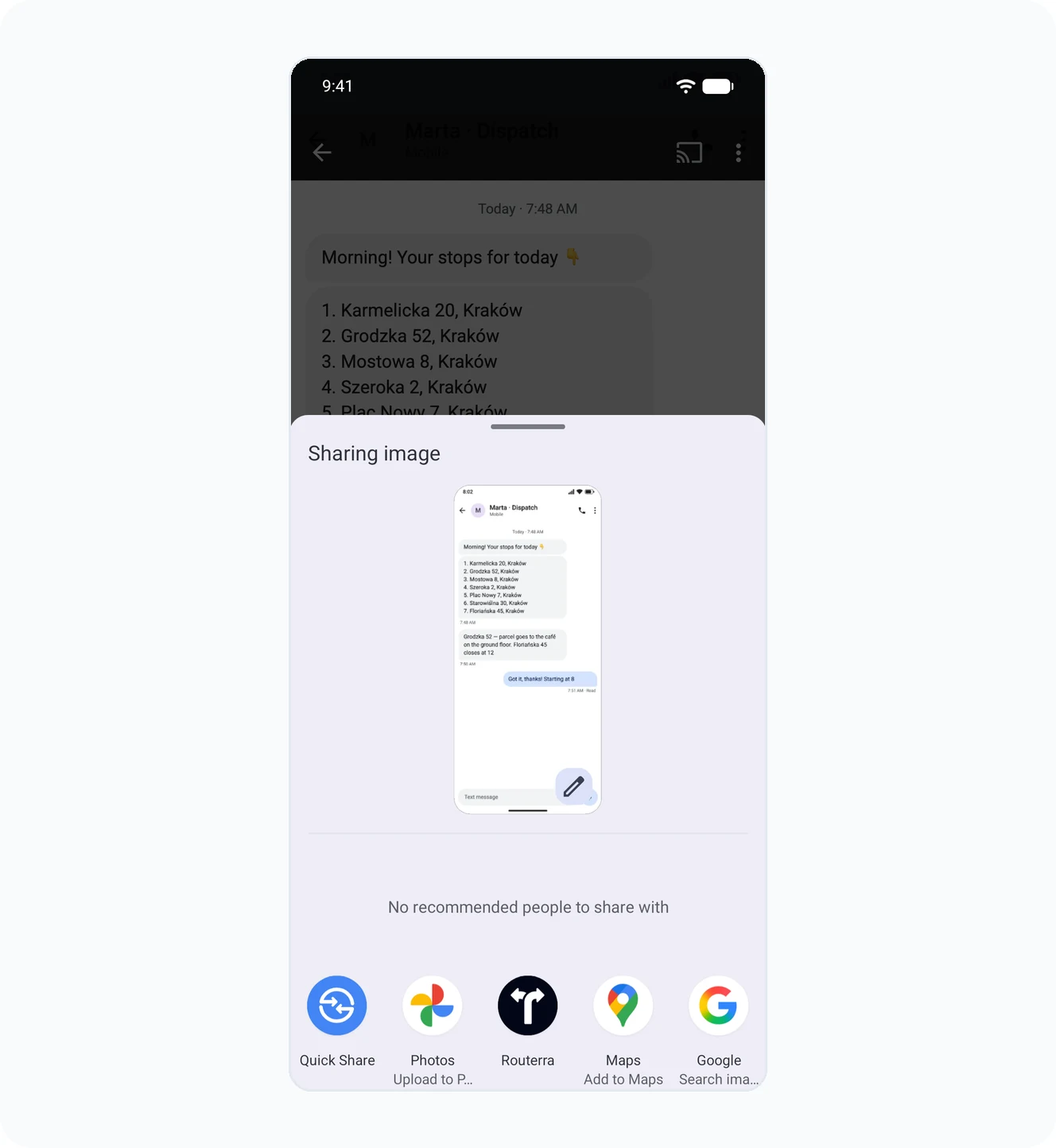
A new route starts with the stops
The New route tab now opens directly into Add stops. Type an address, paste a list, pick a point on the map or import a file — the route is created as you go, and the route settings are one tap away if you need them. Turn on Optimize right after adding stops and tapping Done starts the optimization for you.
Addresses that could not be located no longer hide in the list. They are collected into one alert with a Fix button: pick the right suggestion, keep the address as it was recognized, or skip that stop.
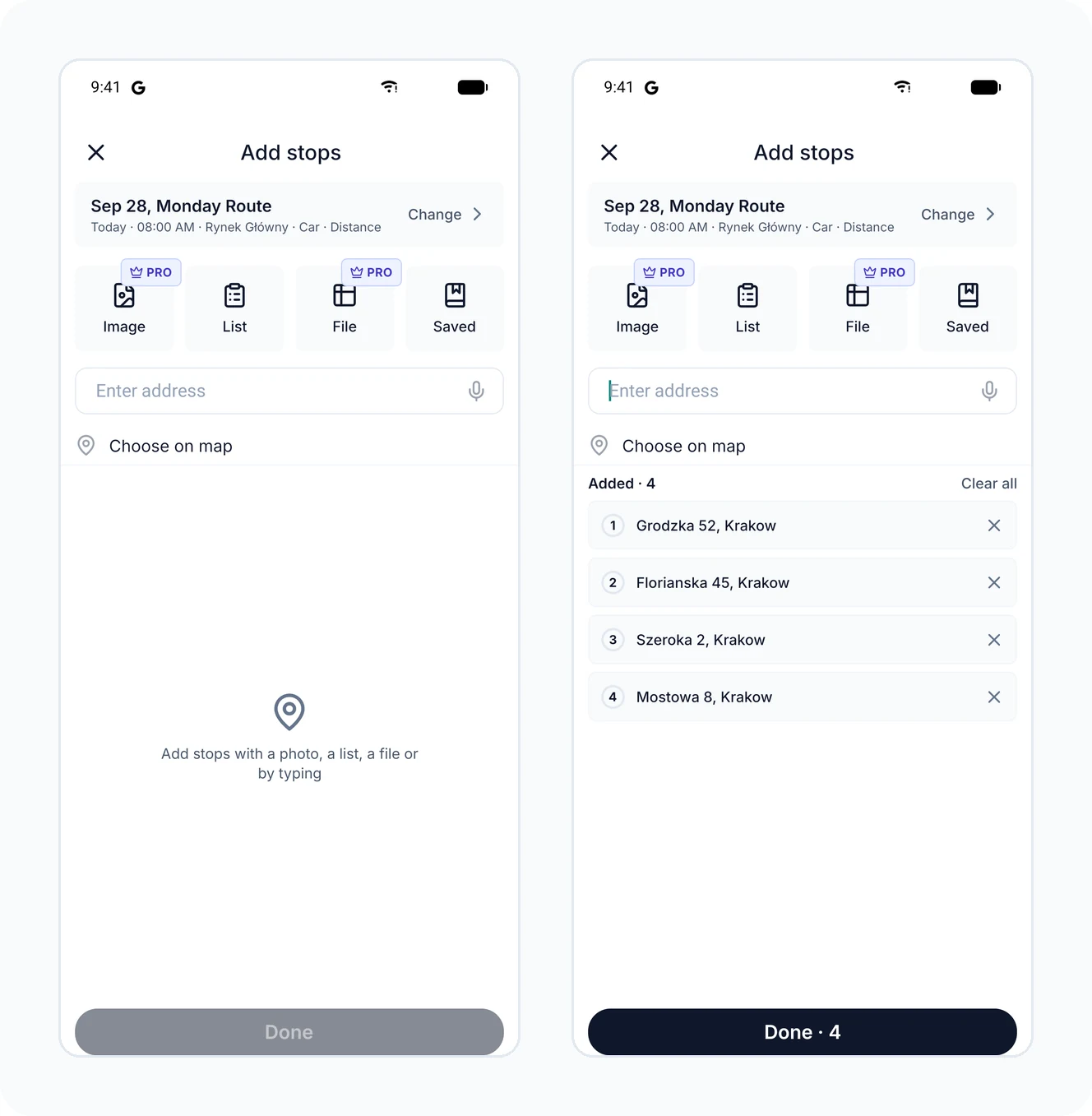
Import: PDF joins photos, CSV and Excel
The import screens were redesigned, and you can now upload a PDF alongside photos, screenshots, CSV and Excel files. Image imports take up to ten pictures at a time.
See what optimization saved you
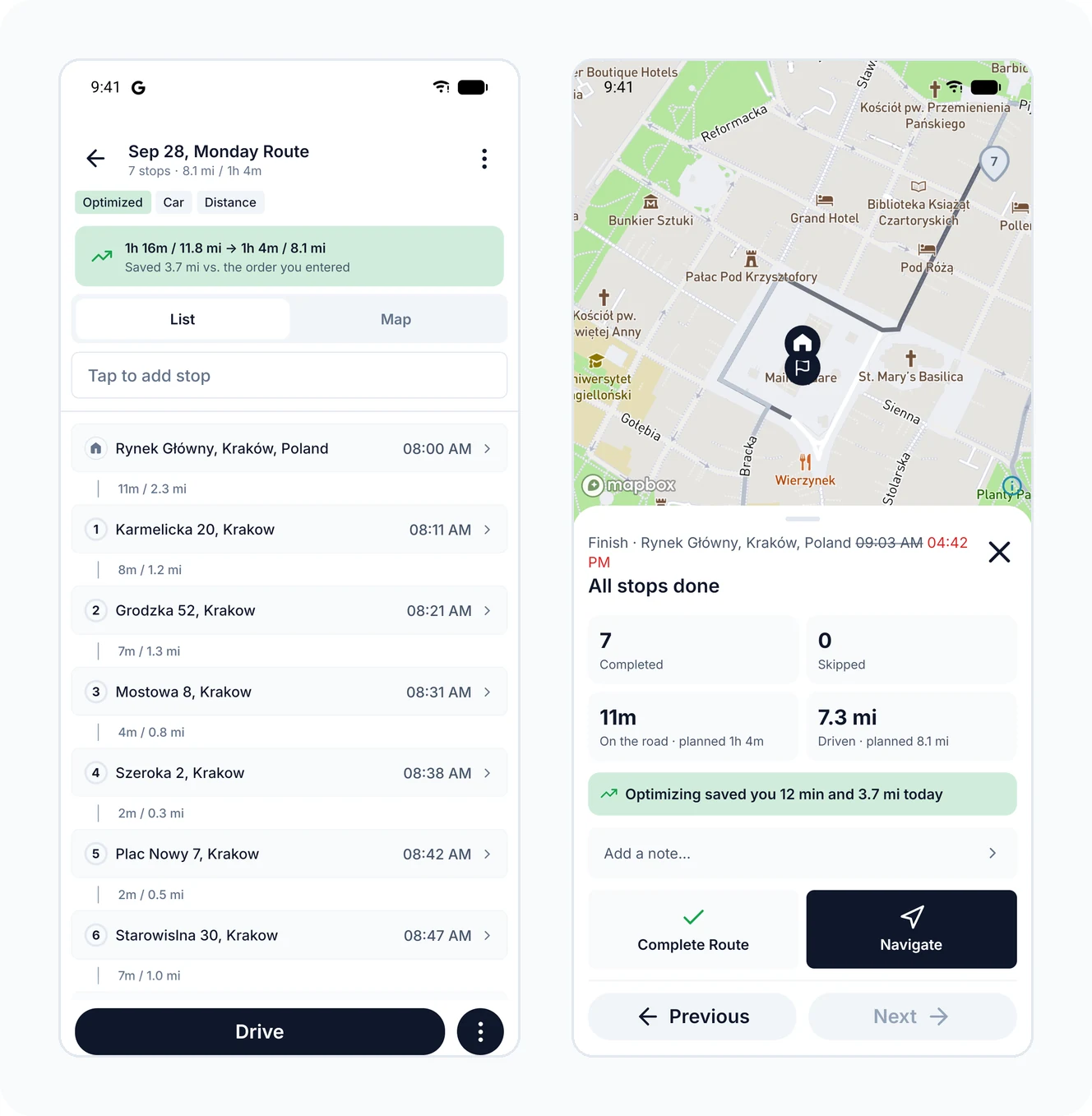
Optimization used to be a black box: you tapped the button and got a new order. Now a savings card under the route header shows how much time and distance the optimized order saves compared to the order you entered. At the end of the day, the finish sheet sums it up: stops completed and skipped, time on the road and distance driven versus plan, and what optimizing saved you.
Your optimization allowance is visible too. The remaining optimizations show under the Optimize button and on the dashboard, you get an early warning when you are running low, and a clear banner with the reset time when the limit is reached — daily and monthly on the Free plan, monthly on Pro.
Smaller things you will notice
- The Settings section for start and finish location, vehicle and service time is now called Route defaults. A stop shows a service time badge only when it differs from the default, and Edit stop labels the value "5m · default".
- A cleaner route screen: less clutter, clearer header stats, restyled toasts, and the list is locked while optimizing so you never edit stale data.
- New users are offered a two-minute walkthrough right after sign-up.
- The app tells you when a new version is available; on Android you can update without leaving the app.
- An animated logo on launch and a dark launch screen for dark-mode users, Terms and Privacy links on the sign-in screens, better handling of the bottom edge on phones with gesture bars, fewer unexpected sign-outs, and a faster, more stable app overall.
Routerra 2.0 is rolling out now on iOS and Android. If you drive with Routerra in one hand and a navigation app in the other, this one is for you.
Want a refresher on drive mode? See the Drive your route guide.