How to Split One Delivery Route Between Two Drivers
In this article
You have 18 stops and two drivers. Splitting the day is the first thing you do and the thing nobody teaches you. Most dispatchers learn it the same way: open the map, look at where the pins cluster, and say "you take the north side, you take downtown."
That method is fast, it feels obviously correct, and it loses — not dramatically, not every time, but reliably, in ways that show up as one driver back at two and the other still out at five.
The short answer
- 1Decide what you are making equal before you move a single stop — zone, finish time, or vehicle capacity. You cannot equalize all three at once.
- 2Draw zones once. This is the only part of the split worth deciding by hand, and it rarely needs revisiting.
- 3Let the optimizer sequence and balance inside those zones, against the real constraints: time windows, service time, and load.
- 4Check finish times and vehicle loads — not stop counts. A lopsided stop count is usually the correct answer.
- 5Send the routes to each driver's phone, and when the day changes, reassign the affected stops instead of rebuilding the plan.
Splitting by equal stop count is the most common method and the weakest one. It is a proxy for the things that actually constrain the day, and a poor one.
Multi-stop route planning for a single delivery driver is a solved problem: put the stops in, optimize, drive. The moment there are two drivers, the hard part moves. It is no longer what order — it is who gets which stops, and on what basis. This guide is about that decision: the three bases you can honestly split on, how to do it by hand when you have no tool, and what actually changes when an optimizer does it for you.
The Split Is a Decision, Not a Button
Before you move a single stop, answer one question: what are you making equal?
You cannot make everything equal at once. Equal stop counts, equal miles, equal finish times, and equal vehicle loads are four different splits of the same 18 stops, and they rarely agree. Picking one on purpose is the whole skill. Picking one by accident — which is what "you take north" does — is where the day goes wrong.
There are three bases that hold up in practice:
- Zone — each driver owns an area.
- Drive time — each driver finishes at roughly the same hour.
- Capacity — each vehicle carries only what it can physically hold.
Everything else, including stop count, is a proxy for one of these three, and usually a bad one.
Here is what that looks like on a real run. Eighteen stops across Brooklyn and lower Manhattan, four drivers, optimized once with a strategy that balances stops and time together:
Stops per driver
- Chris O.6
- Danny L.2
- Sofia P.5
- Maya R.5
Time per driver
- Chris O.1h 2m
- Danny L.56m
- Sofia P.1h 3m
- Maya R.1h 3m
A dispatcher splitting this by hand would almost certainly have given Danny more work, because two stops looks like an under-loaded driver. It isn't.
Why Splitting Route Maps by Eye Loses Reliably
Splitting route maps by eye is not a stupid method. It uses real knowledge — you know your city, you know which driver hates the tunnel. It fails for reasons that are invisible on a map.
Stop count is not workload. Here is an ordinary morning, made up but not unusual. Two drivers, 18 stops, nine each, split cleanly at the river.
| Downtown driver | Suburban driver | |
|---|---|---|
| Stops | 9 | 9 |
| Service time per stop | ~14 min (park, walk, buzzer, stairs) | ~4 min (driveway, hand over, go) |
| Total service time | 126 min | 36 min |
| Total drive time | ~30 min | ~55 min |
| Day | ~2h 36m | ~1h 31m |
Same number of stops. An hour of difference. Nothing about the map told you that, because the map shows distance and the day is made of minutes.
The map hides drive time. Two stops half a mile apart across a one-way grid with no left turns can be eight minutes apart. Two stops five miles apart on a clear arterial can be seven. Distance on screen and time on the clock are different quantities, and you are splitting the wrong one.
Time windows do not respect your boundary. If four of your 9-to-11 windows all landed on the north side, the north driver cannot run them — not because there are too many stops, but because they are 25 minutes apart and there are only two hours. Meanwhile the south driver has an empty morning and three afternoon windows.
Capacity is invisible on the map. The pins do not show you that the north side is six pallets of flour and the south side is 40 small boxes. You find that out at the loading dock, after you have already told both drivers what they are taking.
The boundary is drawn for you, not for the road. People split at the line that is easy to say out loud — north/south, east of Main. Road networks split at rivers, rail lines, highways, and bridges. Those are the boundaries that cost real minutes to cross, and they are almost never the one you named.
And it does not survive a change. An order comes in at 8:50. You add it to whichever list is nearer. That is one more stop on a split you balanced by eye 20 minutes ago, and now you would have to redo the whole judgement to know whether it still holds. So you do not redo it. Nobody does. The split quietly decays across the morning.
The compounding version of that last one: the driver who is genuinely faster finishes early, so next week you give them more stops, so they finish at the same time as everyone else, so you never see the gain. Balancing by eye punishes your best driver.
The Three Real Ways to Split Stops Between Drivers
Split by Zone
Each driver owns a geographic area, and stops fall into whoever's area they land in.
Use it when your drivers have area-specific knowledge that a map cannot encode — the parking permit, the loading dock code, the receptionist who signs for the whole building, the street that floods. Zones also keep drivers out of each other's way, which matters more than it sounds when two vans are hunting the same block.
It breaks when demand is lumpy. Zones are fixed and your orders are not. A Wednesday where 12 of 18 stops fall in one zone is a Wednesday where the zone split is just wrong, and no amount of good sequencing inside that zone fixes it.
The fix: treat zones as a starting position and a hard rule, not as the finished split. Some stops must be in a zone (permit, dock, relationship). Most just happen to be there.
Split by Drive Time
Each driver gets stops until their projected day — drive time plus service time — hits the same number as the other driver's.
Use it when you care about everyone finishing together, which is most days, because the cost of a bad split is overtime on one side and idle time on the other.
It breaks when you estimate the wrong half. Dispatchers habitually estimate drive time and forget service time, and in dense multi-drop delivery service time is often the larger number. If you take one thing from this article: record how long stops actually take you — per stop type if you can, per customer if you have regulars. Drive time you can look up. Service time only you know.
The counterintuitive part: the time-balanced split is not the one you would draw. In the table above, balancing the day means giving two or three downtown stops to the suburban driver, who then crosses the river to do them. It costs an extra bridge crossing and it is still the better day, because it moves 30 minutes off the overloaded side.
Split by Capacity
Each vehicle gets what it can carry, and the split follows the load.
Use it when the goods, not the geography, are the binding constraint — pallets, catering trays, cold chain, anything where the van fills before the day does. Fleets running a mixed set of vehicles (a van, a car, a cargo bike) are always splitting on capacity whether they admit it or not.
It breaks when capacity forces a second trip. Then your split is not one route each — it is a route each plus a reload, and the reload has to be planned as a leg, not discovered at 11 a.m.
In practice, capacity is a filter, not a split. It removes impossible assignments; drive time picks between the ones that are left.
How to Split a Route Between Two Drivers by Hand
You can do this well with no software beyond a spreadsheet and a free map. It takes real time — which is the honest argument for a tool — but the method is sound, and knowing it is what lets you tell whether a tool did a good job.
- Get every stop into one list. Addresses, time windows, load, and your best service-time estimate per stop. A stop that lives only in an inbox will get assigned twice or not at all.
- Pin them. Google My Maps is what most small fleets use for split route maps: import your spreadsheet, get all the stops on one layer, and see the shape of the day.
- Draw the boundary the road network gives you — the river, the rail line, the highway. Not the compass direction. If crossing costs eight minutes, that is your line.
- Count the hours, not the stops. For each side: sum the service times, then estimate drive time between consecutive stops. Now you have two numbers that mean something. They will not match.
- Check the windows before you rebalance. List the fixed appointments per side in clock order. If two stops with the same 9-to-11 window are 25 minutes apart, one of them belongs to the other driver, whatever the map says.
- Check the load. Does the assigned side actually fit in that vehicle? If not, move by volume first and re-check step 4 afterwards.
- Move border stops until the two totals converge. Only stops near the boundary — moving an interior stop costs a whole crossing for one delivery. Three or four moves is usually enough.
- Sequence each half separately. Now, and only now, is it a normal single-driver ordering problem.
- Sanity-check the ends. Both drivers start at the depot and, usually, come back to it. The return leg is real driving. So is lunch.
Run that honestly and you will get a good split. Run it every morning, at 6:30, while orders are still arriving, and you will start cutting corners at step 4 — which is the step that mattered.
What an Optimizer Actually Changes
Here is the same morning as a plan: 18 stops in one list, nobody assigned to anything yet.
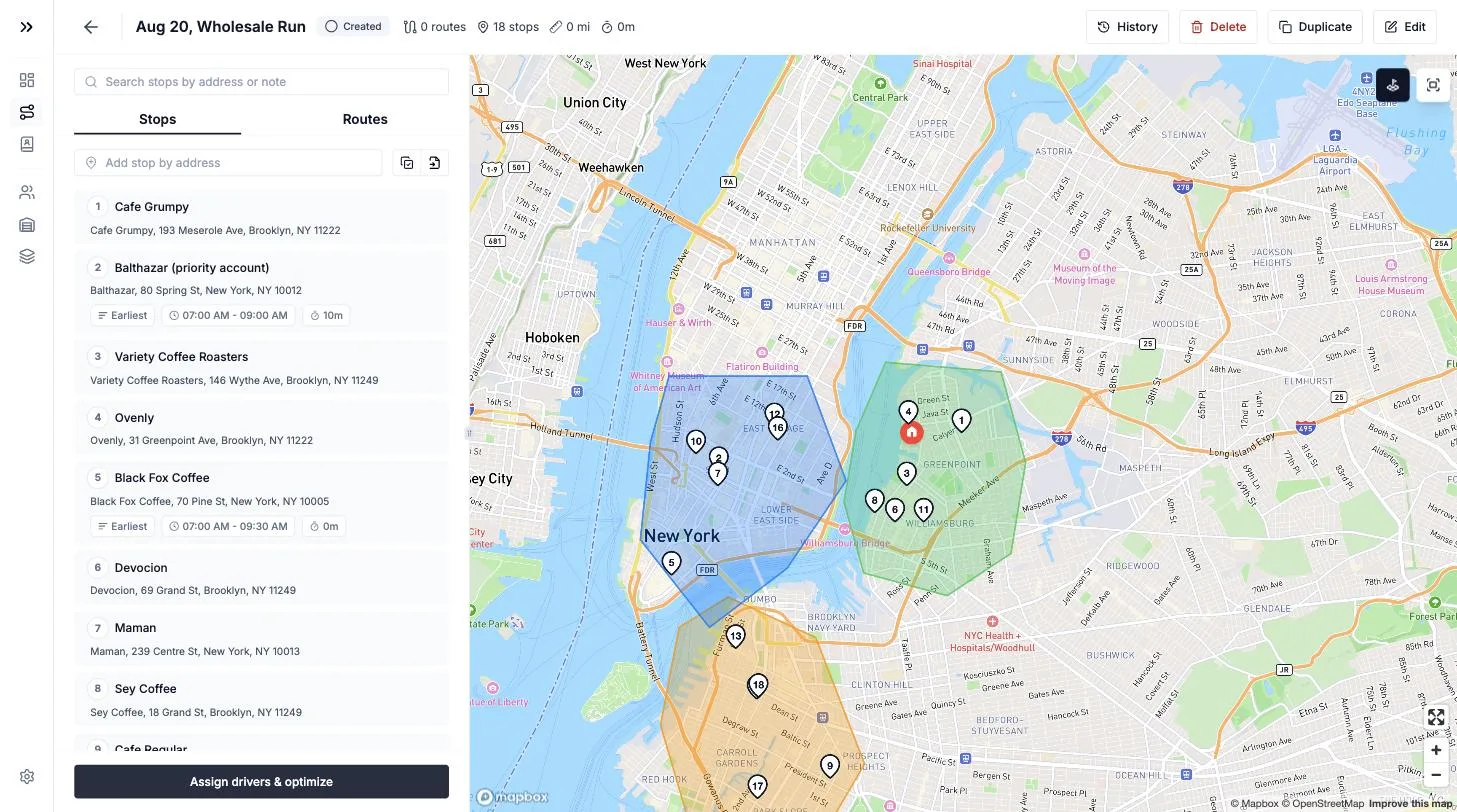
An optimizer does not replace the decision. It does three things you cannot do by hand at 6:30 in the morning: it evaluates thousands of possible splits instead of the two or three you can hold in your head, it costs them in drive time rather than in map distance, and it re-runs on demand when something changes.
What it does not do is know that Chris has the permit for the medical building. That part stays yours, which is why the setup below matters more than the button.
Set the Rules Before You Split
Constraints are how your knowledge gets into the plan. Set them once and they hold on every future split:
- Zones as hard rules — allowed or excluded per driver, so the optimizer never hands your east-side driver a stop across the bridge.
- Time windows per stop — the 9-to-11 you promised. A split that is short but blows every appointment is not optimized, it is just short.
- Vehicle capacity and a maximum number of stops per driver — a cargo bike and a van are not interchangeable, and neither is a new driver and a ten-year veteran.
- Service time per stop — the single most underrated field in any multi-drop route planner. Without it the tool is balancing drive time only, and you already know that is the smaller half.
- Vehicle profile — cars, vans, trucks, bikes, and scooters route differently, and avoiding tolls or highways is a per-vehicle decision.
Routerra Teams holds all of these as settings rather than as things you re-remember each morning — zones and vehicle profiles for the team, and time windows, priority, service time, and load per stop.
Pick What "Balanced" Means This Morning
This is the part most tools hide and the part you should insist on controlling. "Optimize" is not one thing.
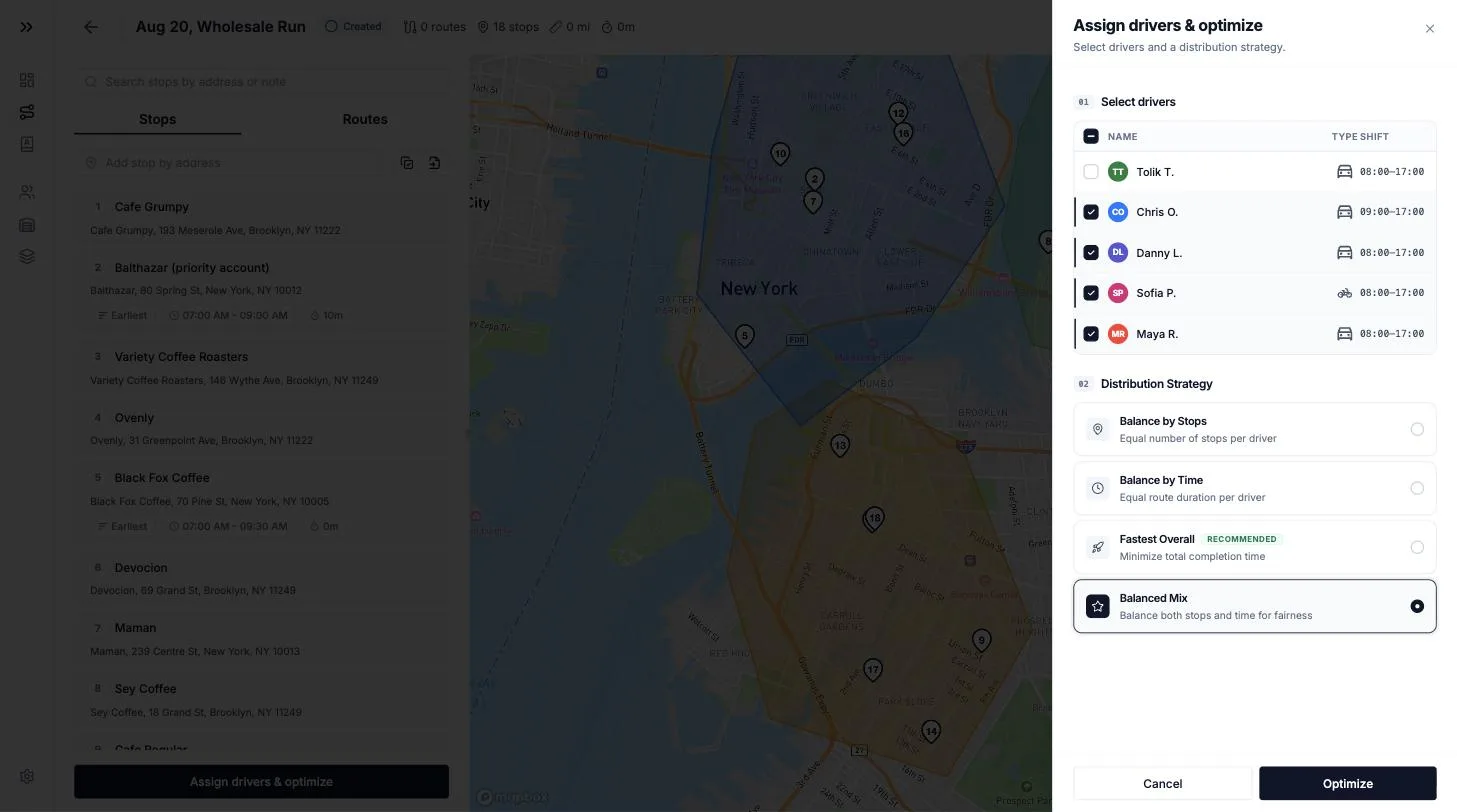
Routerra Teams asks you to choose the strategy: balance stops evenly, balance drive time, go fastest overall, or a balanced mix. They are genuinely different answers:
- Balance stops evenly when the work per stop is uniform — same product, same drop type. Rare in city delivery, common in wholesale.
- Balance drive time when finishing together is what you are paid for. This is the default worth using on most days, and the one that fixes the table at the top of this article.
- Fastest overall when total fleet miles are the cost you are managing and you can live with an uneven day. Watch for the trap: the fastest fleet-wide plan will happily give one driver 12 stops and the other 6.
- Balanced mix when you want a compromise rather than an argument — a shorter total day without either driver getting a lopsided one.
Choosing the strategy is choosing the split. Everything after it is arithmetic.
Read the Result Like a Dispatcher, Not Like a Map
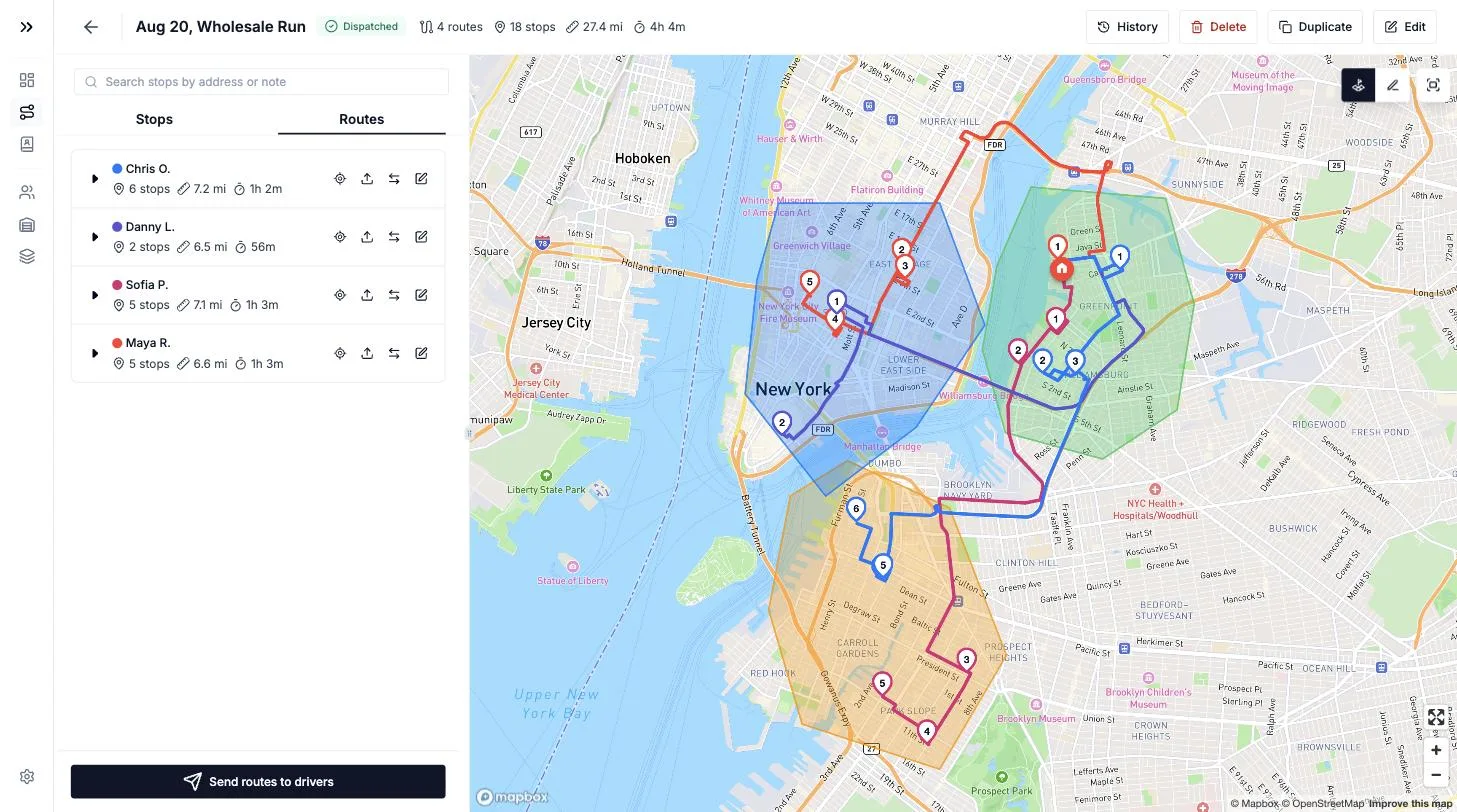
When the routes come back, do not look at whether they look tidy. Compare them to each other:
- Are the projected finish times within about 20 minutes? That is the number that tells you the split worked.
- Did any route get every hard time window? A pile-up of fixed appointments on one route is a plan waiting to fail at 10:15.
- Is anyone at their stop ceiling or capacity ceiling? A route sitting exactly at the limit has no room for the order that arrives at 8:50.
- Does any route cross the expensive boundary more than once? One crossing to balance the day is a good trade. Three is a sign your zones are wrong.
- Would you personally swap any two stops? If yes, do it — and see the totals move. The tool is a proposal, not a verdict.
Zones Are the One Manual Decision Worth Keeping
Everything else in this workflow gets better when you hand it to software. Zones do not, because a zone encodes something the software has no way to learn.
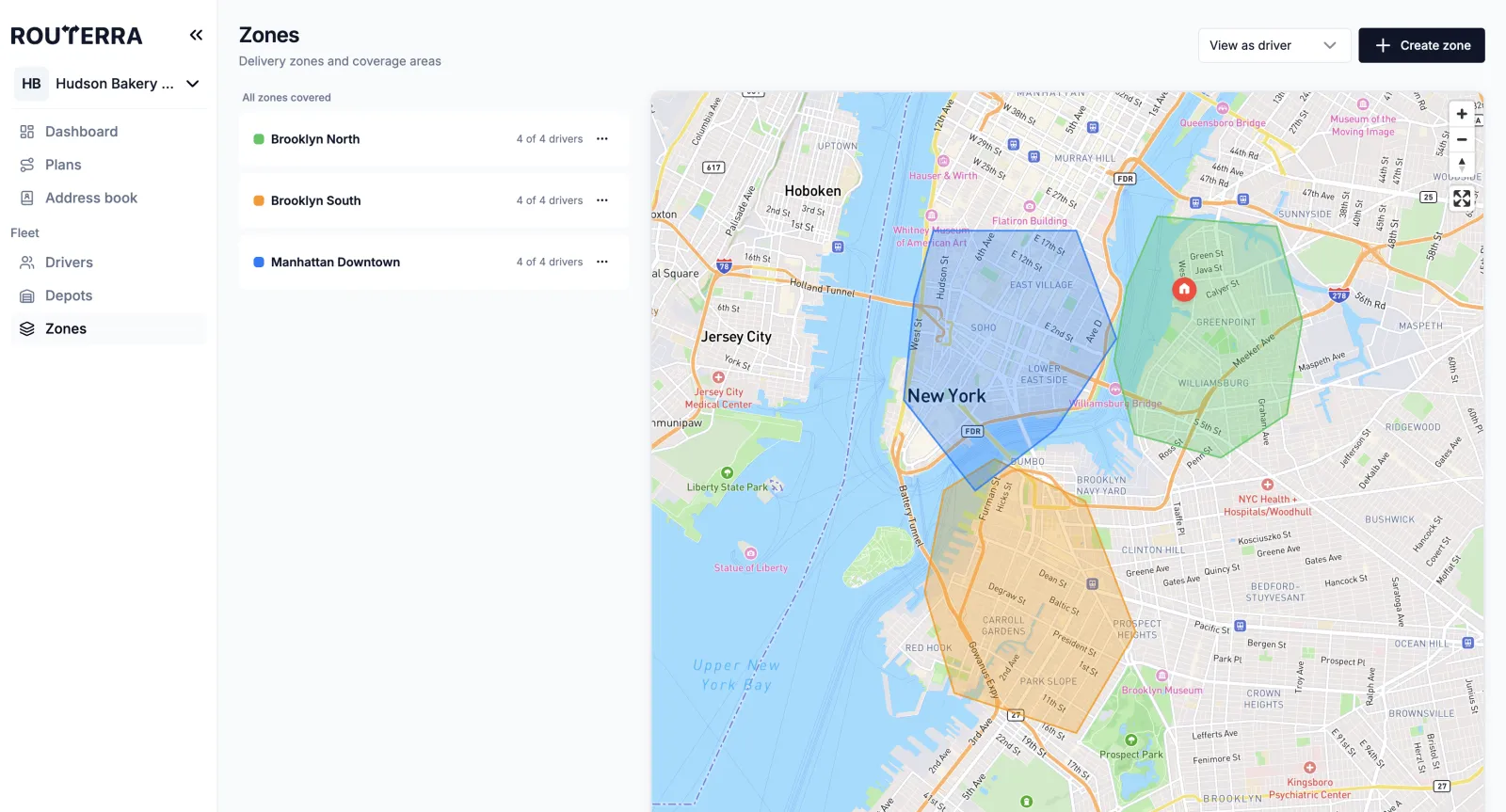
Draw them once, on the boundaries the road network actually has, and set them per driver as allow-or-exclude rules. Then the optimizer works inside your judgement instead of around it — it can still move a border stop to balance the day, but it will never send a driver somewhere they cannot park.
Two things to watch: keep zones a little larger than the area you expect, so the optimizer has border stops to trade with, and revisit them when your customer mix shifts. A zone map that has not changed in a year is describing a business that has.
When the Split Changes at 9:40 a.m.
Splits do not fail at 6:30. They fail mid-morning, when a stop turns out to be a wrong address, a customer moves their window, or a driver hits a closed street. The manual method has no good answer here — you re-split by eye, worse than the first time, with less information and more urgency.
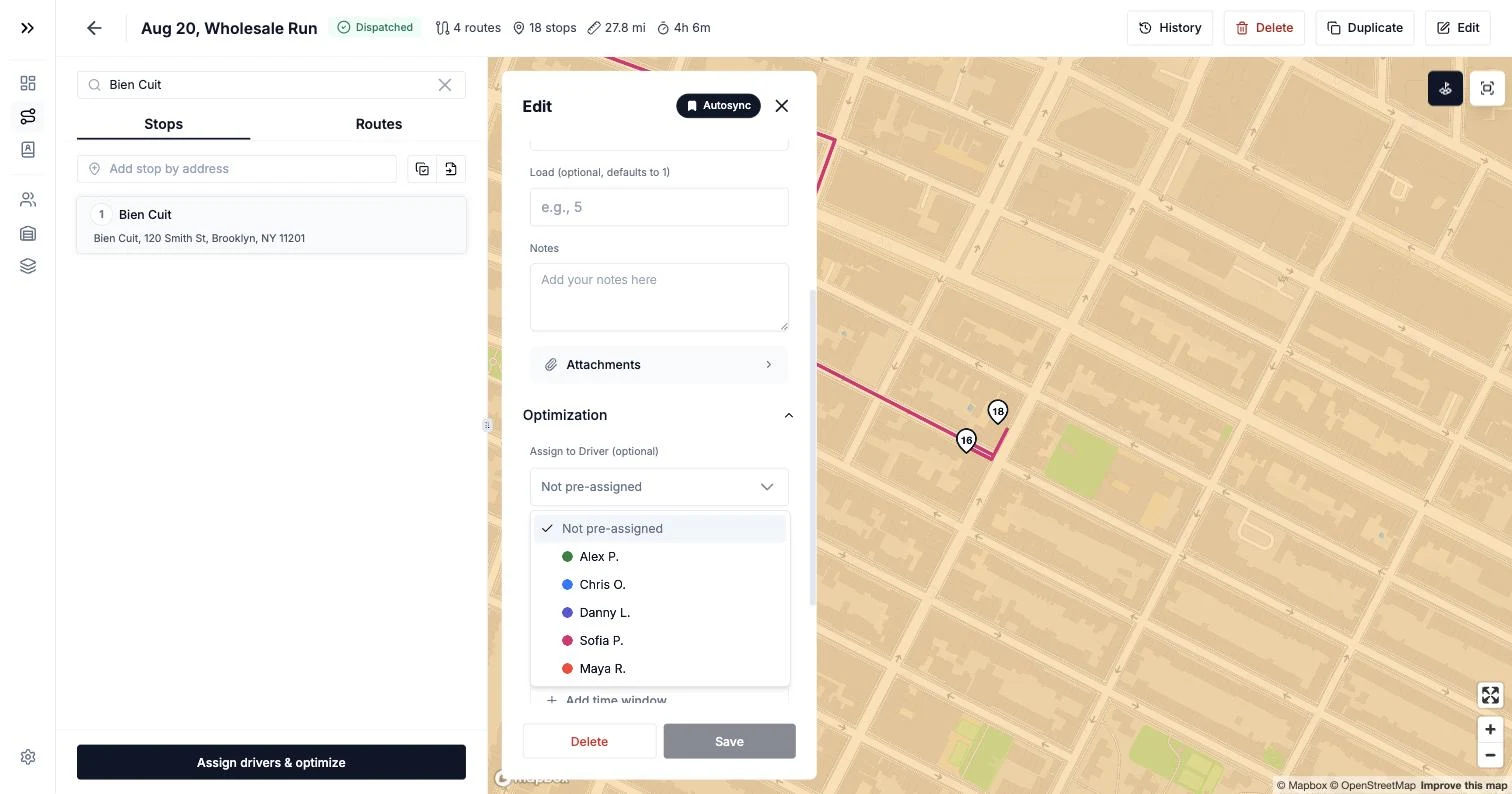
The useful version is moving one stop, not rebuilding a day. In Routerra Teams you assign the stop to the other driver right on its card, re-optimize, and send the updated routes to both drivers' apps — no group-chat message, no "did you get the new list?"
Re-optimizing after the move re-sequences the receiving driver's remaining stops around the one you added, so you are not left with a correct assignment in a nonsensical order. Once you send the updated plan, both drivers' apps pick up the change — the one who lost the stop and the one who gained it.
Through the morning you get live status visibility rather than live GPS tracking: each stop reports delivered, or not-delivered with a reason, as it happens. That is enough to know whether the split is holding. If one driver has done three stops by 9:40 and the other has done seven, you have your answer, and you still have time to move two stops.
The driver app is offline-first, so a driver in a basement or a parking garage keeps working and their updates sync when signal returns — which matters for a split specifically, because a status board with a hole in it will tell you a route is behind when it is not, and you will rebalance in the wrong direction.
Two Drivers Today, Five Next Month
Splitting between two drivers is the case you can just about hold in your head. Three is harder than three-halves. Five is not the same activity at all — the number of possible assignments explodes, and the eyeball method stops producing a plan and starts producing a habit.
Two things carry forward if you set them up now:
- The constraints, not the split. Zones, time windows, service times, and capacities are what you are really building. The split is a fresh output every morning; the rules are the asset.
- The number of routes follows your fleet. The optimizer builds one route per driver you select for the plan, so a day with one driver out produces a correct three-way split instead of a broken four-way one.
If you are splitting a route across your own two vehicles rather than dispatching to employed drivers, the consumer-side version of this is simpler — see how to split stops among multiple cars. And if the splitting part is solved and the getting-it-to-people part is not, that is covered in how to dispatch routes to multiple drivers. And if your fleet's days look like dense urban rounds — 40 stops or more per driver — the courier route planner for multi-drop days shows how the same split works at courier density.
A Checklist Before You Send the Split
Ten seconds each, and they catch most of what goes wrong:
- Every stop for today is in the plan — nothing left in an inbox or a text message.
- Every stop with a promised window has that window recorded, not remembered.
- Service time is set, at least roughly, and reflects the drop type.
- Each vehicle's capacity is set, and no route exceeds it.
- Zones are current, and any permit-or-relationship stop is locked to the right driver.
- The projected finish times are close to each other.
- Nobody is sitting exactly on a stop or capacity ceiling.
- Both routes start and end where the drivers actually start and end.
What This Costs
If you want to run this without a spreadsheet and a map layer, Routerra Teams is $25 per driver seat per month, or $20 per seat per month billed annually. Two drivers is a valid team — there is no minimum fleet size — and every plan starts with a 7-day free trial. Full details are on the Teams pricing page.
The Bottom Line
Splitting one delivery route between two drivers is not a geometry problem, and the map is the most misleading tool in the room. Decide what you are balancing — zone, drive time, or capacity — and be honest that stop count is none of them. Record service time, because it is the half of the day you are guessing at. Use zones to hold the knowledge software cannot learn, and let the arithmetic do the rest.
Do it by hand and the method above will get you a good split most mornings. Do it in a tool and you get the same split in minutes, plus the ability to redo it at 9:40 when the morning changes — which it will.
If you want to see it on your own stops, Routerra Teams plans, splits, and sends routes to every driver on your fleet, from your first two vans up.
Frequently Asked Questions
How do I split a delivery route between two drivers?
Decide what you are balancing before you draw a line on the map. There are three honest bases for a split: by zone (each driver owns an area), by drive time (each driver finishes at roughly the same hour), and by capacity (each vehicle carries what it can hold). Stop count is not one of them — nine downtown walk-ups and nine spread-out suburban drops are the same number and nowhere near the same day. Set your zones, time windows, service time, and vehicle capacity first, then split so both drivers finish together, not so both lists look the same length.
Should I split stops between drivers by zone or by number of stops?
By zone, then correct by time. Zones are worth keeping because they carry knowledge a map does not — which driver has the parking permit, who knows the loading dock, which bridge is closed. But a zone boundary drawn for your convenience will not balance the work, so after the zone split you move a handful of border stops to whichever driver finishes earlier. Splitting purely by number of stops is the version that fails most often.
How many stops should each driver get?
The right question is how many hours each driver gets. Add up drive time plus service time — the minutes spent parking, walking, buzzing, waiting, and recording the drop — and split so the two totals match. In dense city delivery, service time is often the bigger half of the day, which is why a driver with fewer stops can still be the one who finishes late.
What's the best app for multi drop deliveries when you have more than one driver?
For a fleet, judge a multi-drop route planner on four things, not on its map: can it hold hard constraints (zones, time windows, vehicle capacity, max stops per driver); can it balance across drivers on drive time and not just stop count; can you hand a single stop to another driver without rebuilding the plan; and does the route reach the driver's phone and keep working when signal drops. Routerra Teams is built around exactly that list, but apply it to whatever you are comparing.
Can I move one stop from one driver to another after the routes are planned?
Yes — in any dispatch tool worth using, and you should expect to. Mornings change: an order comes in at 8:50, an address turns out to be wrong, a customer moves their window. In Routerra Teams you open the stop in the plan, pick the new driver on it, re-optimize, and send the update to both drivers' apps, instead of texting two people and hoping they both read it.
What does it cost to balance routes between drivers with Routerra Teams?
Routerra Teams is $25 per driver seat per month, or $20 per seat per month billed annually. There is no minimum fleet size, so two drivers is a valid team, and every plan starts with a 7-day free trial.