Turn a Screenshot of Addresses into an Optimized Route (Tested: 8 Stops in 2 Minutes)
In this article
Your stops are already on your screen. They're in an Amazon Flex itinerary, a text from dispatch, a WhatsApp group, a courier app with no export button. You can see every address — you just can't get them out.
So most drivers do the obvious thing: retype them, one line at a time, into a navigation app. Ten addresses, ten chances for a typo, and you still don't have an optimized order.
There's a faster path: screenshot the list and let AI turn it into a route.
We tested the whole thing on a real device. A dispatcher's text message with 8 Phoenix addresses, one screenshot, and about two minutes to an optimized route with per-stop ETAs. Every screenshot below is from that run.
The starting point: addresses trapped in another app
Here's the source — a text message from dispatch, the way it actually arrives on a phone: a greeting, eight numbered addresses, a closing instruction.
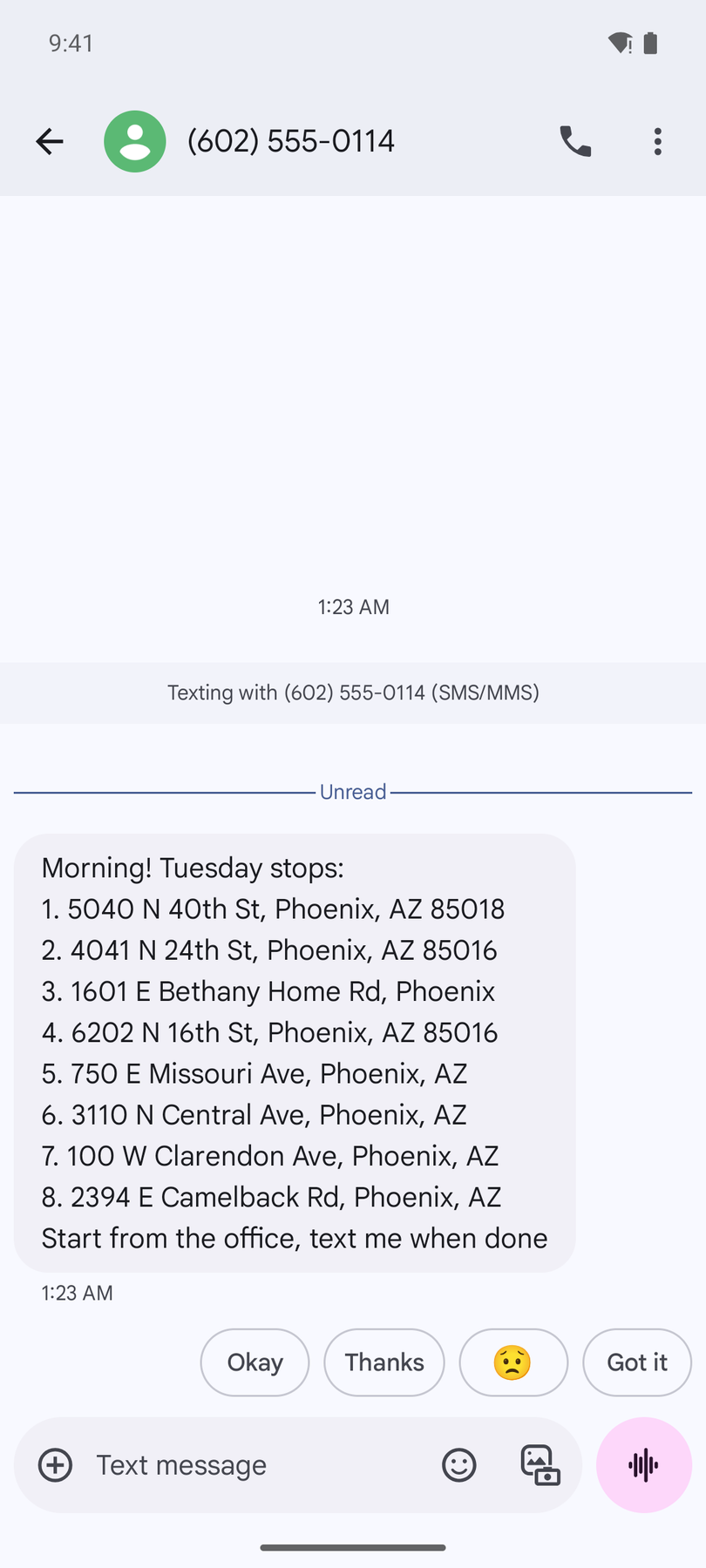
Take a screenshot of it the normal way (on most Android phones, Power + Volume Down; on iPhone, Side + Volume Up). That's the entire "export" step.
Step 1: Open Image import
In your Routerra route, tap Add stop. The Add Stops screen offers Saved stops, List (paste text), File (CSV/Excel/PDF), and Image:
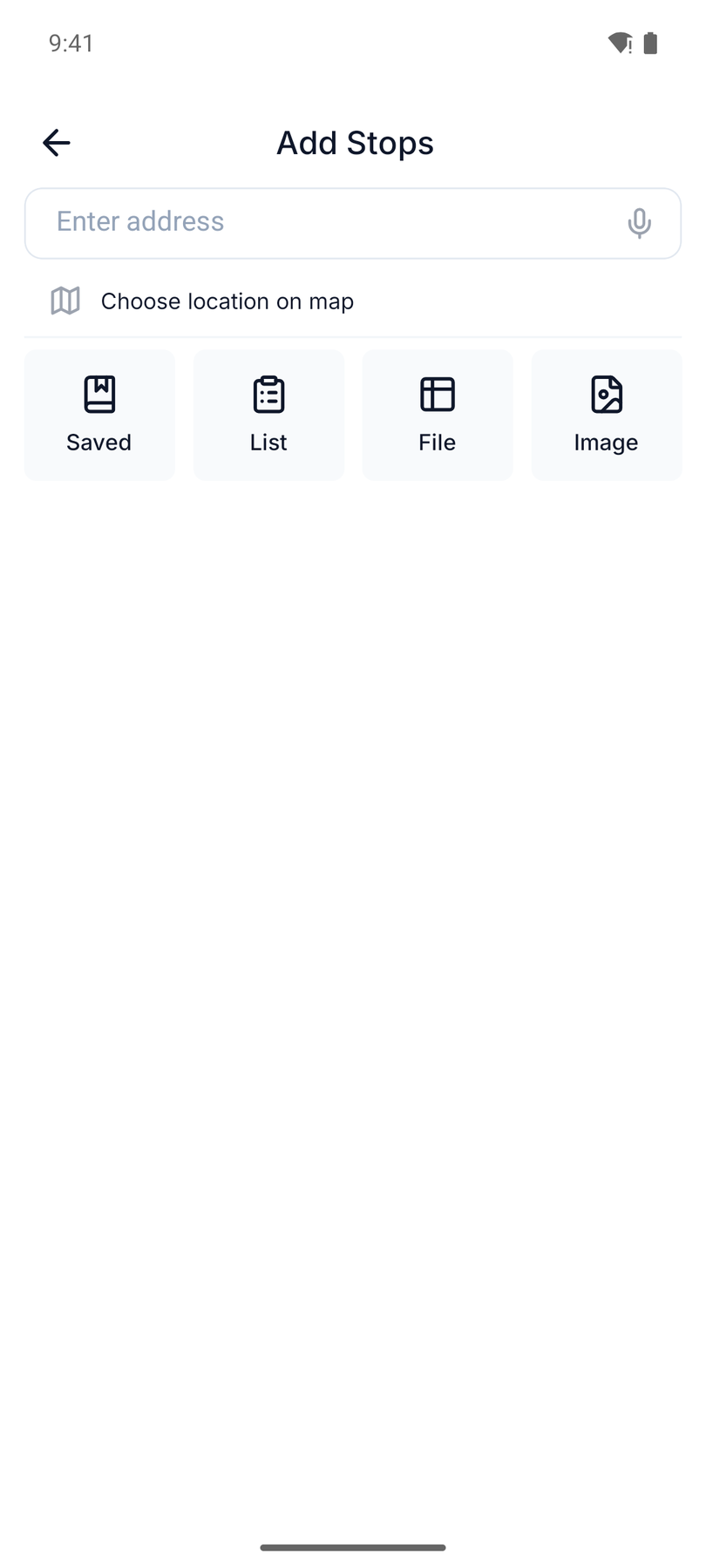
Tap Image. The upload screen lets you pick from the gallery — where your screenshot just landed — or take a photo:
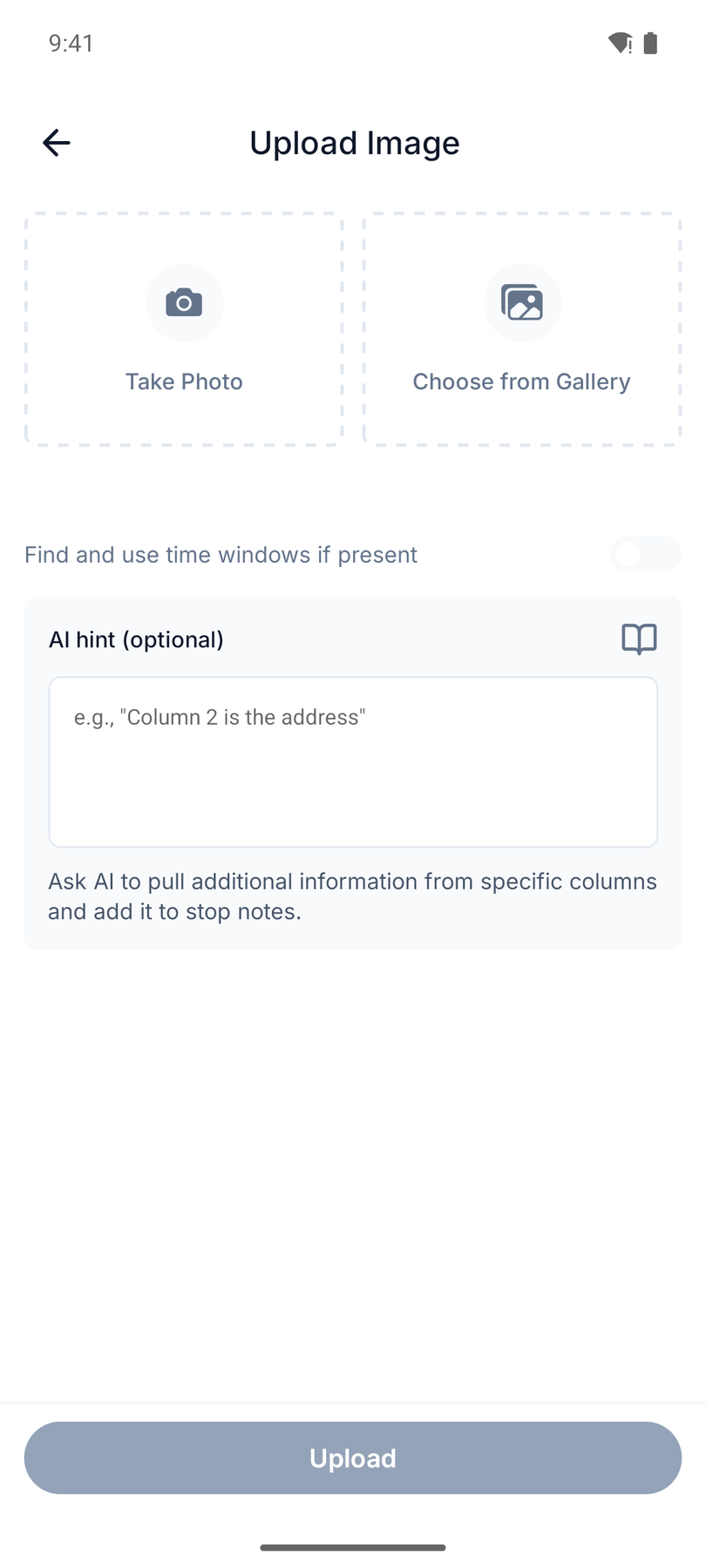
Two options worth knowing about:
- "Find and use time windows if present" — if the screenshot shows delivery windows next to addresses, they become real time-window constraints on the stops.
- AI hint — free-text context for messier sources, like "column 2 is the address" for a screenshotted spreadsheet, or "put the apartment numbers in notes."
Step 2: Pick the screenshot and upload
Choose the screenshot from the gallery. It attaches like any file — you can add up to 10 images at once, which is how you handle a list that spans several screens:
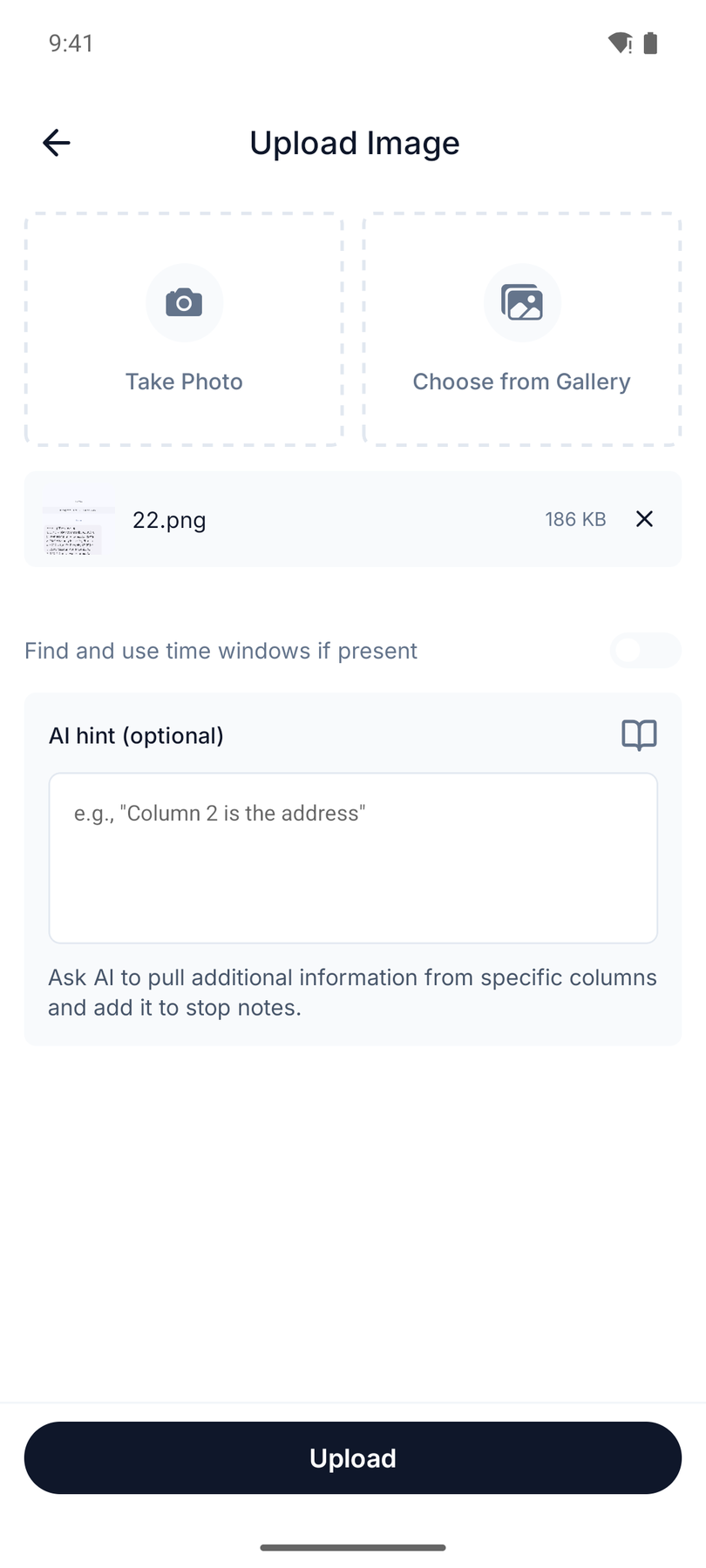
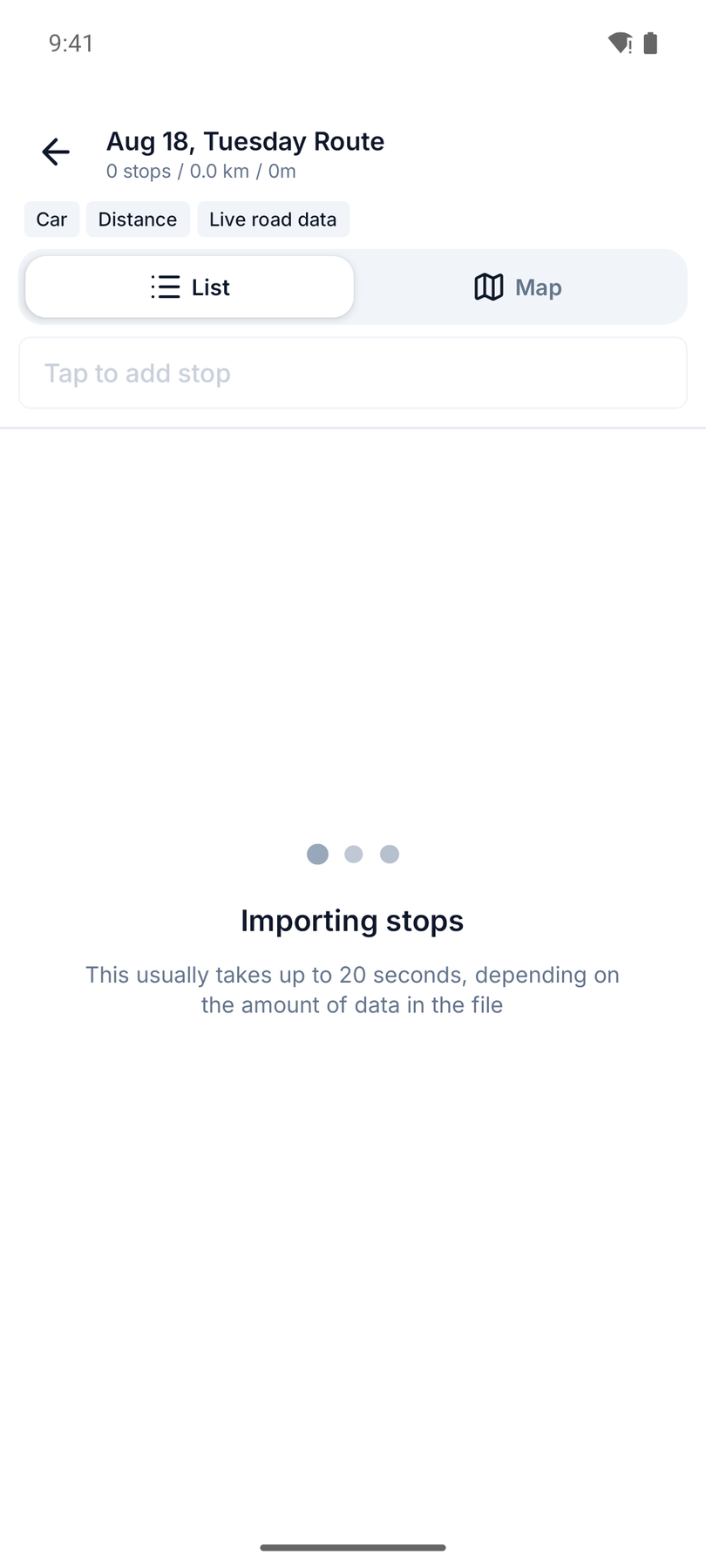
Tap Upload. The AI import runs for a few seconds:
Step 3: Review the extracted stops
Twenty seconds later, all 8 addresses were in the route — exactly as written, with street numbers and ZIP codes intact. The greeting, the "text me when done", and the timestamps were correctly ignored:
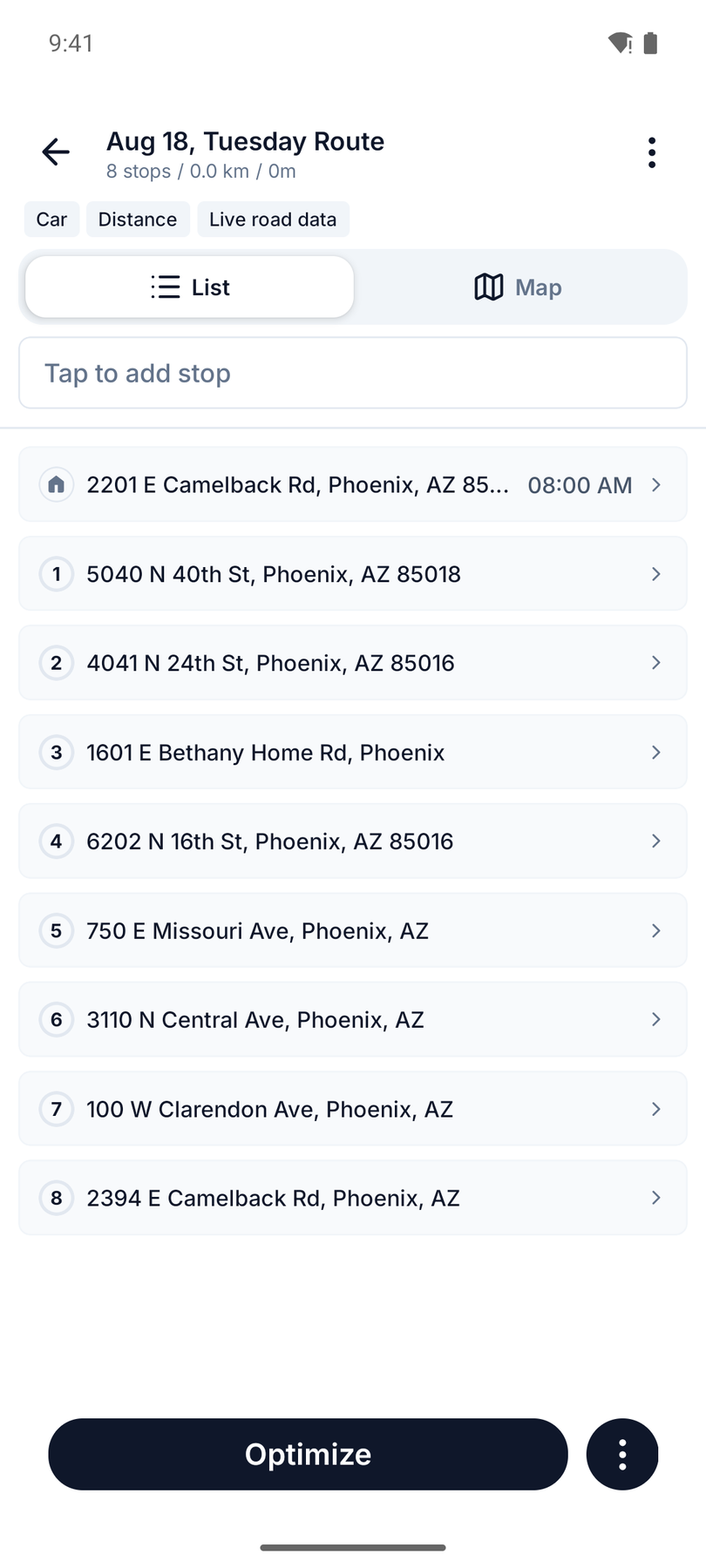
Our source was clean on-screen text, and recognition went 8 for 8. Real screenshots vary — cramped dispatch UIs, low contrast, cut-off lines — which is why every stop stays editable: tap any address to fix it before optimizing. Lines that fail to geocode are flagged, not silently dropped.
Step 4: Optimize
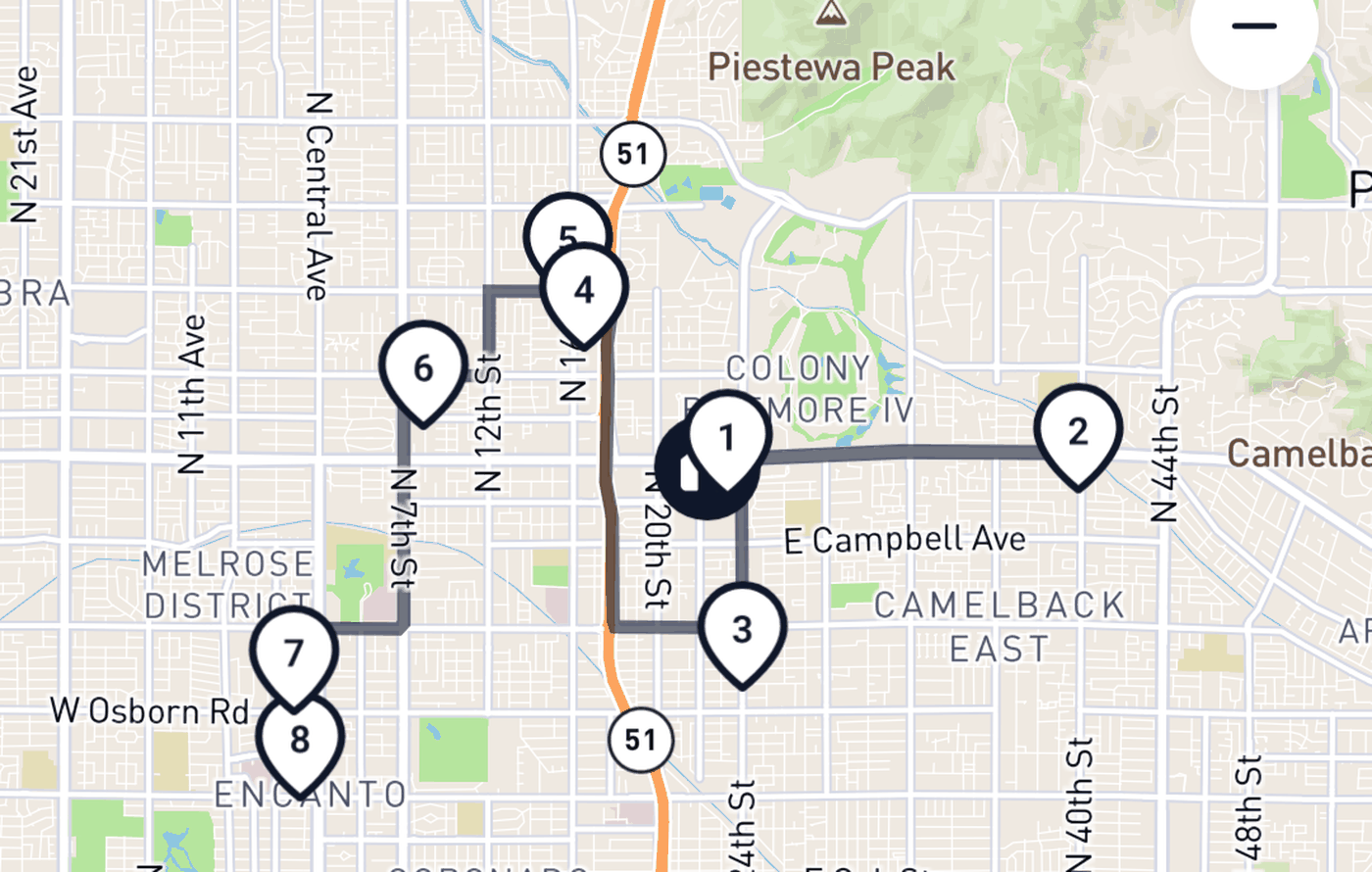
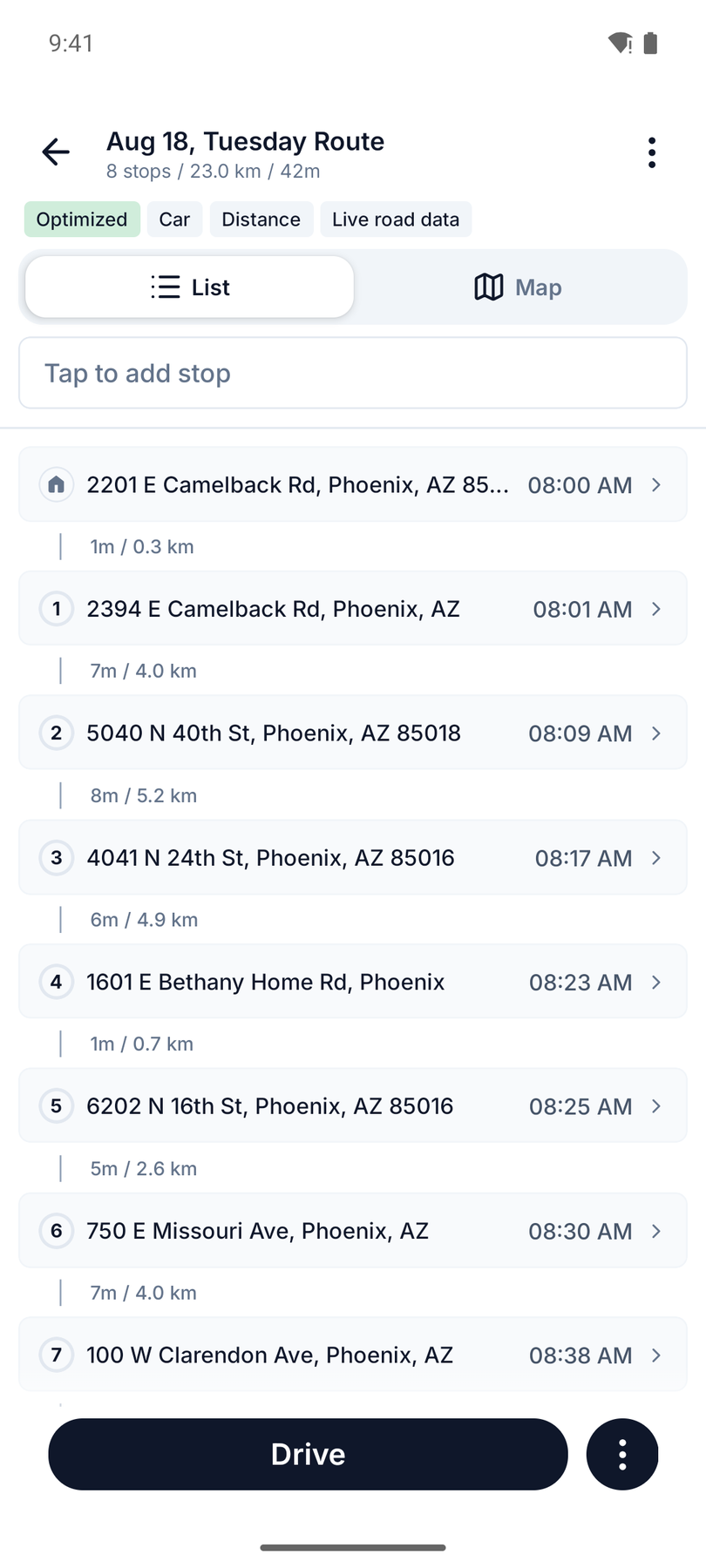
One tap on Optimize reorders the stops into the most efficient sequence — 23 km / 42 minutes, with an ETA for every stop:
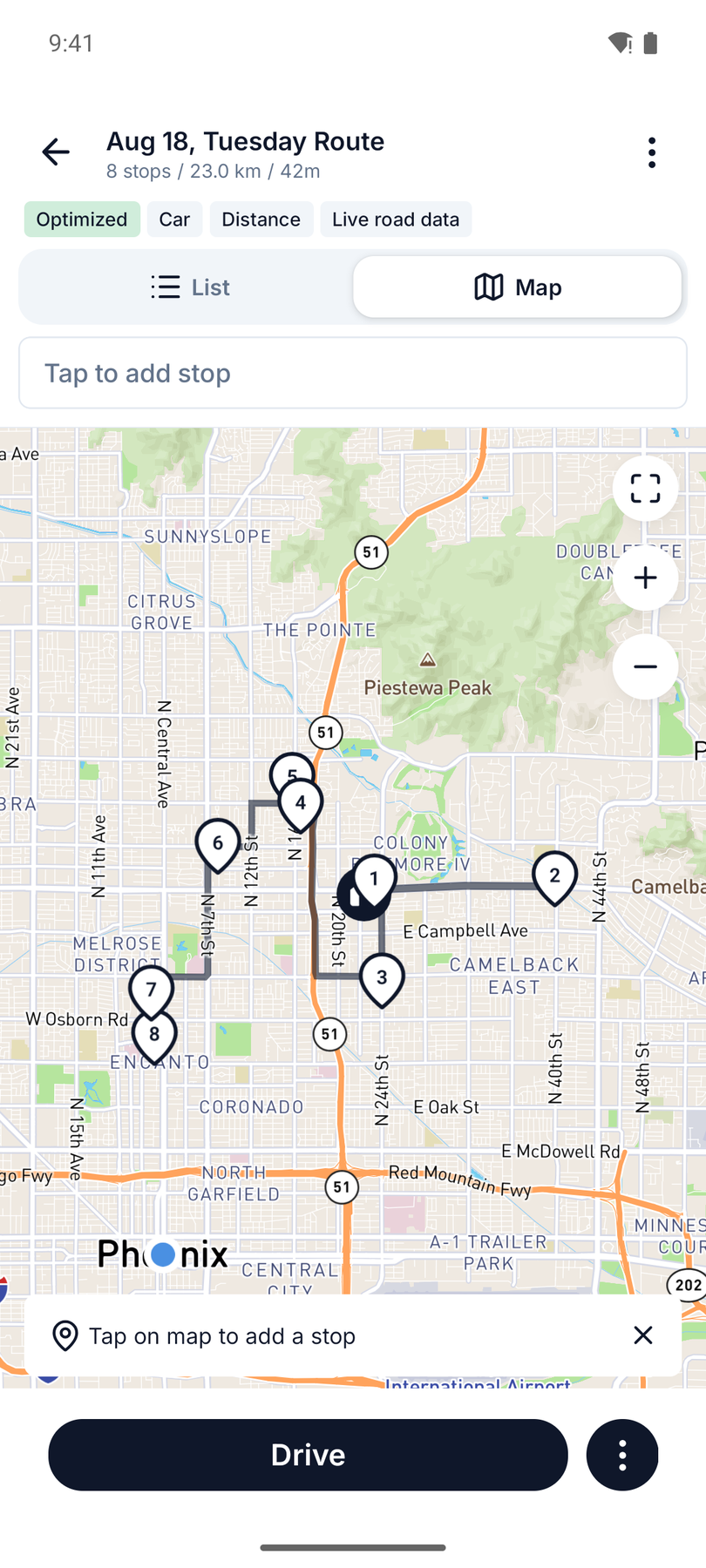
The map shows what the optimizer did — the route now sweeps across Phoenix instead of criss-crossing it in the order the message happened to list:
From here it's the normal drive workflow: tap Drive, navigate to each stop with Google Maps or Waze, mark stops complete as you go.
What else you can screenshot
The same flow handles anything where addresses are visible as text:
- Amazon Flex itineraries — the classic case; see the dedicated Flex walkthrough
- Courier and dispatch apps that show your day but offer no export
- WhatsApp, SMS, and email from dispatchers, property managers, or clients
- Spreadsheets on someone else's screen — when "can you send me that file?" isn't happening
- PDFs and work orders opened on your phone
- Photos of paper manifests — the same import, camera instead of screenshot
When you can copy the text, do that instead. Routerra's List import takes pasted text on the free plan, and File takes CSV/Excel/PDF directly — see how that compares to forcing addresses into Google Maps. Screenshot import is for the (very common) case where the app won't let you copy anything at all.
Why this beats retyping
- Speed: 8 stops went from screenshot to optimized route in about 2 minutes. Retyping the same list takes 5–10 minutes before you even think about the order.
- No transcription errors: the AI reads "6202 N 16th St" the same way every time. A driver retyping at 7 AM does not.
- Optimization included: a list pasted into Google Maps is still just a list — and it caps out fast anyway. Here the import ends with an optimized sequence and ETAs.
- It scales: 8 stops is a demo. The same flow takes a 60-stop itinerary across several screenshots, where manual retyping stops being annoying and starts costing an hour of your day.
Image and file import are Routerra Pro features — there's a free trial, plus a daily pass if you only need it occasionally. The List (paste text) import is free.
FAQ
Can I create a route from a screenshot of addresses? Yes. Routerra's Image import takes a screenshot from any app, extracts the addresses with AI, and adds them as stops. One more tap optimizes the order and produces per-stop ETAs.
How accurate is the recognition? Our screenshotted dispatcher message imported 8 of 8 addresses exactly, including ZIP codes, while ignoring the surrounding chatter. Every extracted stop can be reviewed and edited before you optimize.
What kinds of screenshots work? Anything with addresses as readable text — Flex itineraries, dispatch apps, SMS and WhatsApp, emails, spreadsheets, PDFs — plus photos of paper lists. Up to 10 images per upload.
Why not just copy and paste? If you can copy the text, do — the List import is free and instant. Screenshot import exists for apps that block selection or export.
Can it read delivery time windows from the screenshot? Yes. Enable "Find and use time windows if present" and times shown next to addresses become time-window constraints on the imported stops.
Is screenshot import free? It's part of Routerra Pro — free trial and daily pass available. The List (paste text) import is free.